
Slow WiFi and mobile data on your Moto G Stylus 5G can really put a damper on streaming, browsing, or using apps. The good news is that most slowdowns are caused by simple settings or temporary glitches you can fix yourself. I'd start with the quick restart, as it clears out a lot of minor software hiccups that can affect network performance.
Restart Your Phone and Router
This is always the first thing to try. A simple restart can clear temporary caches and reset your phone's network components. Just press and hold the power button for about 10 seconds until you see the Motorola logo appear and the phone reboots.
While you're at it, unplug your WiFi router from power for 30 seconds and plug it back in. This refreshes your home network and can often resolve speed issues on its own.
Toggle Airplane Mode
This is a faster way to reset your cellular radio without a full reboot. Swipe down from the top of your screen to open the Quick Settings panel and tap the Airplane Mode icon. Wait about 10 seconds, then tap it again to turn it off.
Your phone will reconnect to the cellular network and WiFi. This can sometimes force it onto a stronger signal or a different network band, which might be faster.
Check and Switch Your Network Mode
Your Moto G Stylus 5G supports 5G, but sometimes it can get stuck on a slower 4G LTE band. You can manually set it to prefer 5G for the fastest possible speeds. Go to Settings > Network & internet > SIMs (labeled SIMs & mobile network on Motorola phones).
Tap on Preferred network type. Select "5G/LTE/3G/2G (auto)" if you want it to always use 5G when available. If you're in an area with spotty 5G, switching to "LTE/3G/2G (auto)" can provide a more stable, and sometimes faster, connection.
Forget and Reconnect to Your WiFi Network
If your home WiFi is slow but mobile data is fine, the saved connection on your phone might be the issue. Go to Settings > Network & internet > WiFi. Tap on the network you're connected to, then select Forget.
After it's forgotten, tap on the network name again from the list, re-enter your password, and reconnect. This establishes a fresh connection and can immediately improve speed.
Clear the Cache for Google Play Services
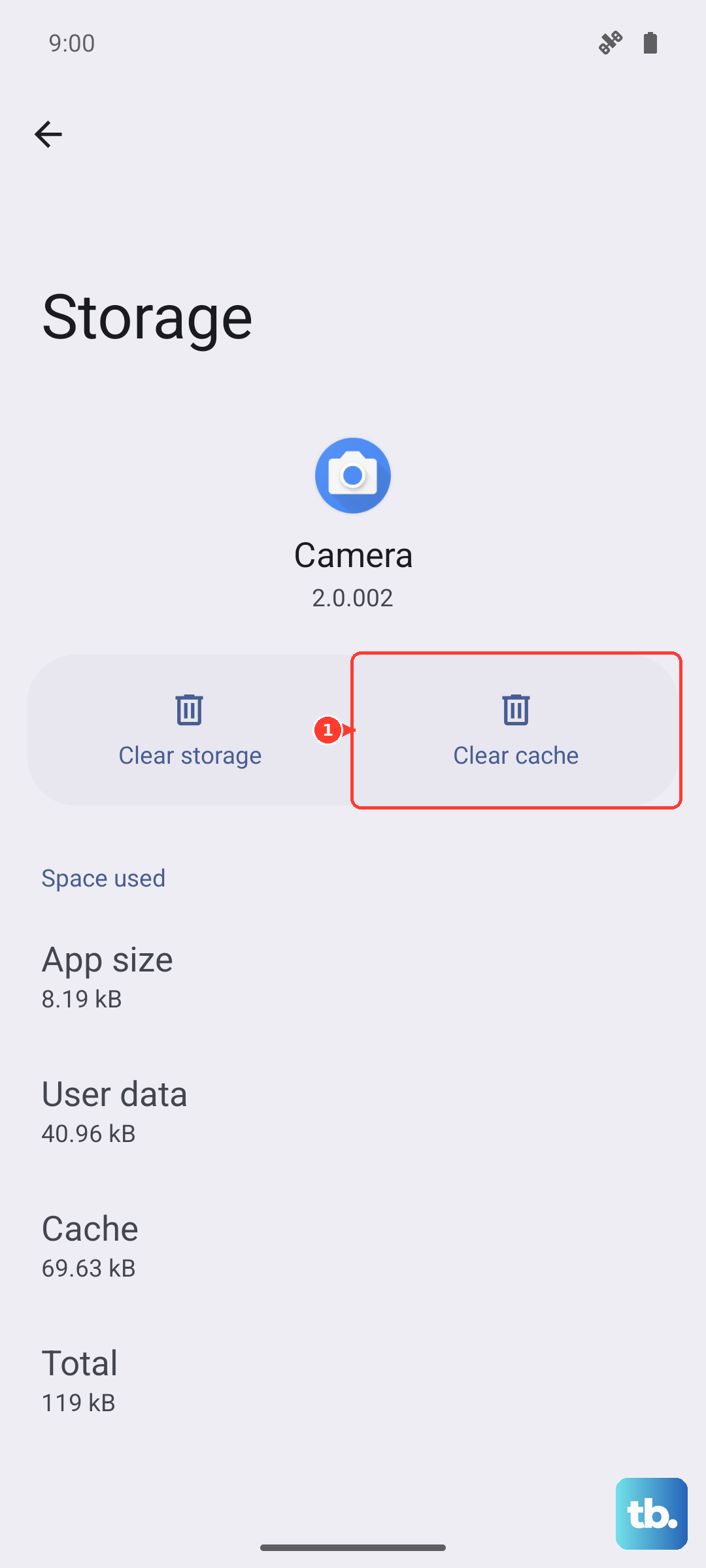
This system app manages a lot of background connections for other apps. Corrupted data in its cache can lead to general network sluggishness. Go to Settings > Apps > See all apps.
Find and tap Google Play Services. Tap on Storage & cache, then tap Clear cache. Don't worry, this won't delete any personal data. Restart your phone afterward for the changes to take full effect.
Disable Adaptive Connectivity
Motorola's Adaptive Connectivity feature is designed to save battery by switching between WiFi and data based on network quality. Sometimes, it can be a bit too aggressive and slow things down. You can turn it off to see if it helps.
Navigate to Settings > Network & internet > Adaptive connectivity. Toggle the switch off. Your phone will now keep a steady connection to whichever network you're actively using.
Check for App-Specific Data Restrictions
You might have accidentally told a specific app to use less data. Go to Settings > Network & internet > Data Saver. Make sure Data Saver is off for a general check.
Then, tap on Unrestricted data. Look through the list and make sure any apps where you need full speed, like your browser or streaming services, are toggled on. This allows them to use data freely even if Data Saver is enabled later.
Update Your Phone's Software
Motorola regularly releases updates that include performance tweaks and fixes for connectivity bugs. Go to Settings > System > System updates. Tap Check for update.
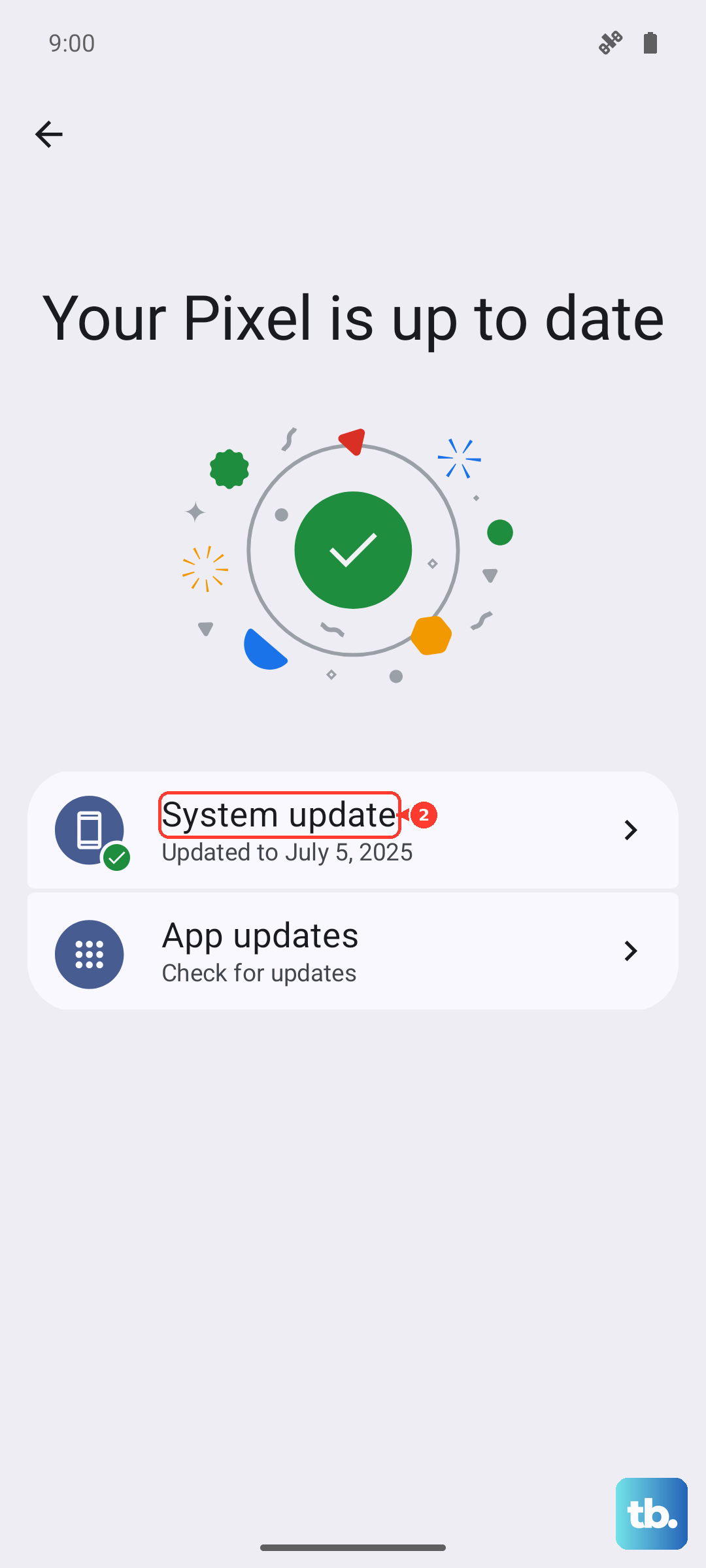
If an update is available, install it. It's a good idea to be on a strong WiFi connection and have your phone plugged into your 68W TurboPower charger during the update process.
Reset Your Network Settings
This is a more thorough step that will reset all WiFi, mobile data, and Bluetooth connections back to factory defaults. You'll need to re-enter WiFi passwords and re-pair Bluetooth devices afterward.
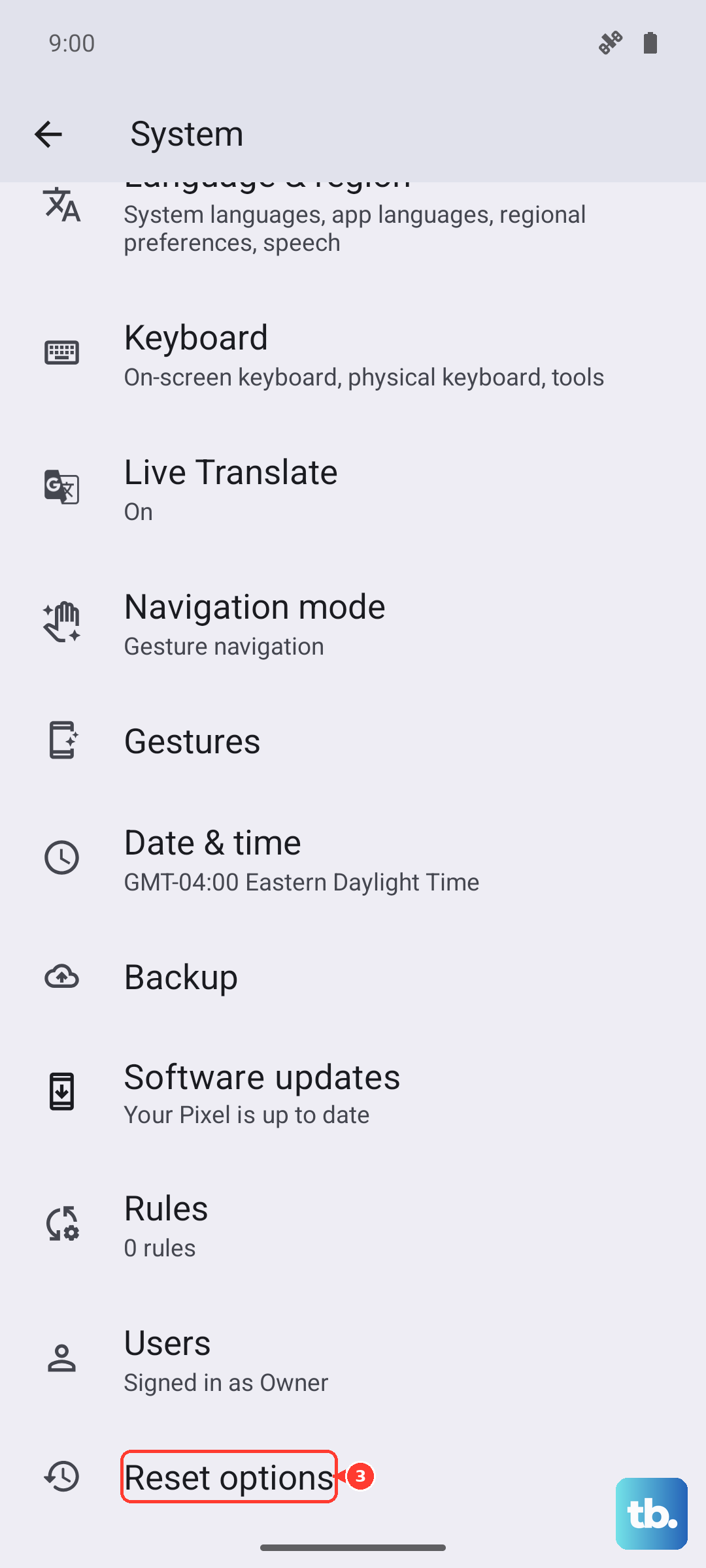
Go to Settings > System > Reset options. Tap on Reset Wi-Fi, mobile & Bluetooth and confirm. This clears out any deep-seated configuration errors that could be slowing you down.
Try a Different DNS Server
Your internet speed can be affected by your Domain Name System (DNS) server, which translates web addresses into numbers. The default one from your carrier or ISP isn't always the fastest. You can change it on a per-WiFi basis.
Go to Settings > Network & internet > WiFi. Tap the gear icon next to your connected network. Tap Advanced > Private DNS. Select "Private DNS provider hostname" and enter `dns.google` (for Google's DNS) or `one.one.one.one` (for Cloudflare's DNS). Tap Save.











