
Seeing a SIM provisioning error on your new Motorola Moto G Stylus 5G can stop you in your tracks. This usually means your phone can't properly connect to your carrier's network, which blocks calls, texts, and mobile data. The good news is it's often a simple fix.
I'd start by trying a force restart. Press and hold the power button for about 10 seconds until you see the Motorola logo appear. This clears out any temporary software glitches that might be interfering with the network connection. It's the quickest thing to try and works more often than you'd think.
Check Your SIM Card and Tray
First, power the phone off completely. You'll need the SIM ejector tool that came in the box. The tray is on the side of the phone, and you need to be gentle but firm when inserting the tool. The stylus silo is on the opposite side, so don't get them confused.
Carefully pull out the tray and inspect the SIM card. Look for any obvious scratches, dirt, or damage on the gold contacts. If it looks dirty, you can gently wipe it with a soft, dry cloth. Make sure the card is seated correctly in the tray, it should lie flat and not be crooked.
Reinsert the tray until it clicks firmly into place. Turn your phone back on and give it a minute to reconnect. An improperly seated card is a surprisingly common culprit for these errors.
Refresh Your Network Connection
If a restart didn't help, the next step is to refresh the network connection manually. Swipe down from the top of your screen twice to open the full Quick Settings panel. Tap the Airplane Mode icon to turn it on.
Wait for about 30 seconds. You should see the cellular and Wi-Fi icons disappear. Then, tap the Airplane Mode icon again to turn it off. Your phone will search for networks again, which can often kickstart a stalled provisioning process.
You can also try manually selecting your network. Go to Settings > Network & internet > Mobile network. Tap on Carrier or Choose network. Your phone will search. When the list pops up, select your specific carrier's name instead of leaving it on "Automatic."
Verify Activation and Account Status
This is the most likely cause if you're setting up a new line or a new SIM card. Your SIM might not be activated yet. The best move is to contact your carrier directly, you can usually do this from another phone or via online chat.
They can check if the SIM is properly registered in their system. If you're on a prepaid plan, ask them to confirm your account has sufficient balance or active service. Sometimes a payment issue or plan change can cause a temporary suspension that triggers this error.
Update Your Phone's Software
Since you're running Android 15, it's a good idea to check for any available system updates. These updates can include important fixes for network connectivity. Go to Settings > System > System update.
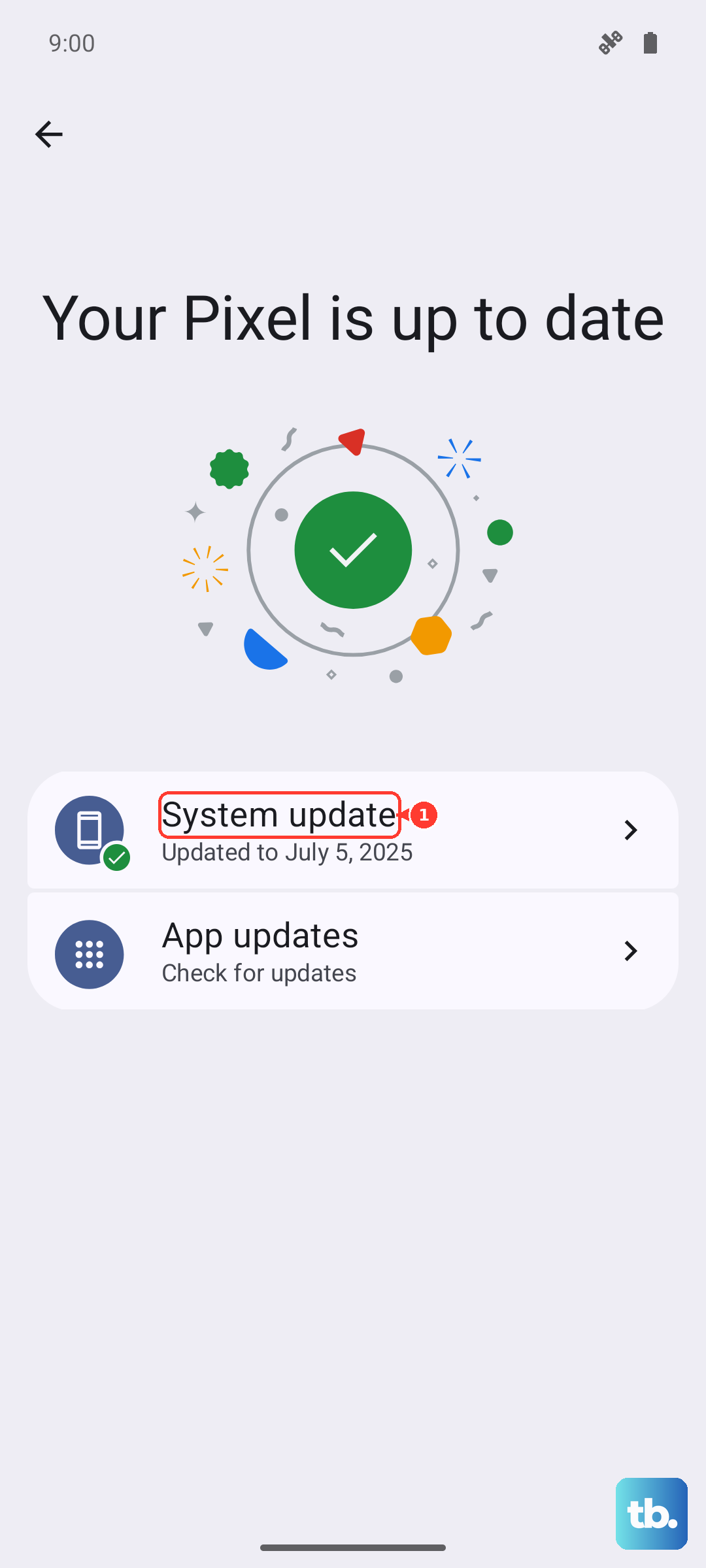
Tap "Check for update." If an update is available, connect to Wi-Fi and install it. It's also worth checking the Google Play Store for updates to the "Carrier Services" app, as this handles communication between your phone and your carrier's network.
Reset Your Network Settings
If you're still stuck, resetting network settings is a strong next step. This will erase all saved Wi-Fi networks, Bluetooth pairings, and cellular settings back to default. Don't worry, it won't touch your personal data like photos or notes taken with the stylus.
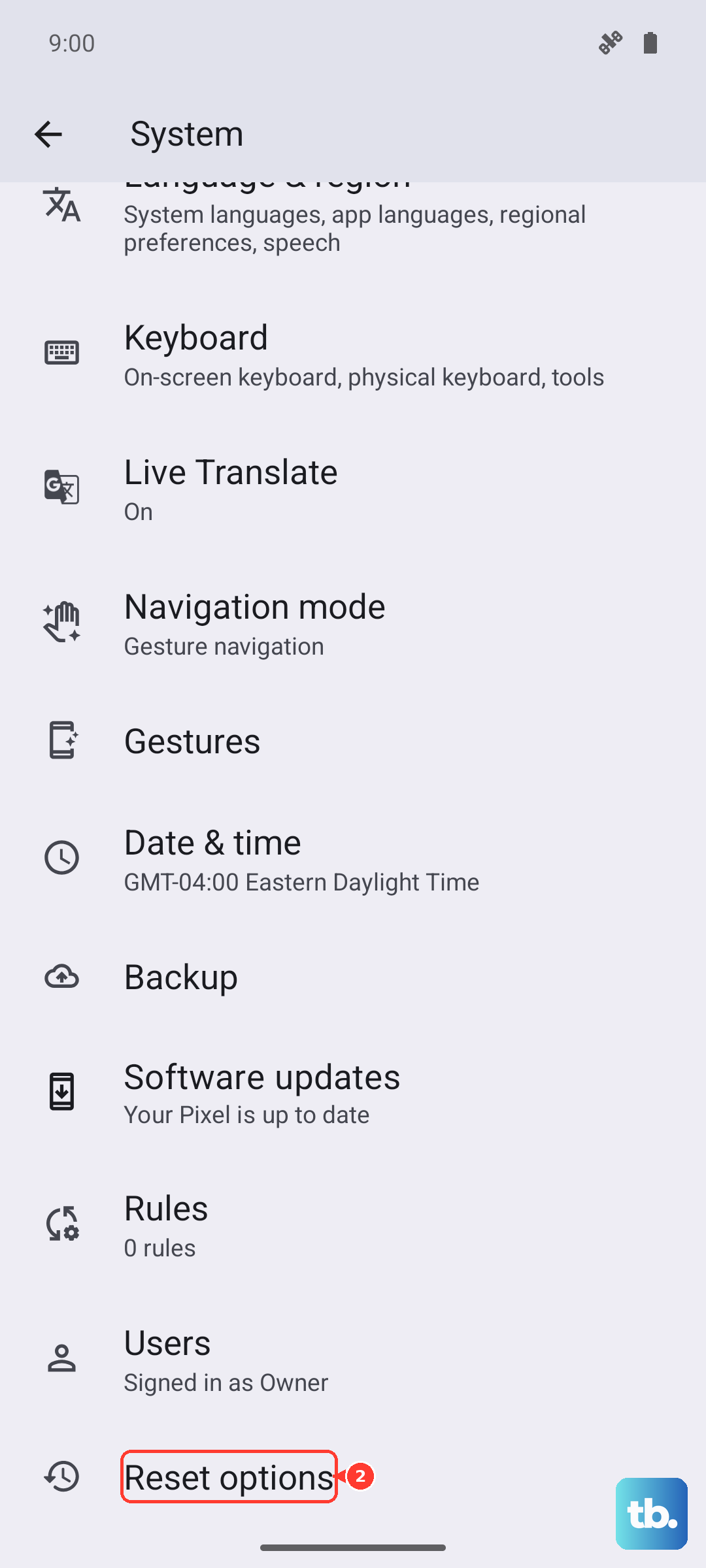
On your Moto G Stylus, navigate to Settings > System > Reset options. Tap on Reset Wi-Fi, mobile & Bluetooth. Confirm the action and enter your PIN if prompted. After the phone reboots, you'll need to reconnect to Wi-Fi and re-pair Bluetooth devices, but it often resolves persistent network errors.
Test the SIM in Another Device
To figure out if the problem is with the SIM card or the phone itself, try your SIM in another unlocked phone. If the other phone also shows a provisioning error, then the issue is definitely with the SIM or your carrier account.
If the SIM works perfectly in another phone, the issue is likely with your Moto G Stylus. In that case, after ruling out software fixes, you may need to contact Motorola support or your carrier for a potential warranty exchange, as it could be a hardware fault with the phone's modem or SIM reader.
While you're troubleshooting, remember to store the stylus in its silo to keep it charged. Using the 68W TurboPower charger (if you have it) will get you back to a full battery in around 41 minutes, so you won't be stuck without power while you sort this out.