
If your Motorola Moto G Stylus 5G (2025) Settings app keeps closing or crashing, it's usually a temporary software hiccup. This can happen after an app update or when cached data gets a bit scrambled. Let's get it working again.
Restart Your Moto G Stylus
The quickest fix is often a simple restart. This clears out any temporary glitches in the system memory that might be tripping up the Settings app. Just press and hold the power button, then tap "Restart" on the screen.
If the Settings app is completely unresponsive and you can't access the power menu, you can force a restart. Press and hold the power button for about 10 seconds until you feel the phone vibrate and the Motorola logo appears. This is a soft reset that won't erase any of your data.
Clear the Settings App Cache
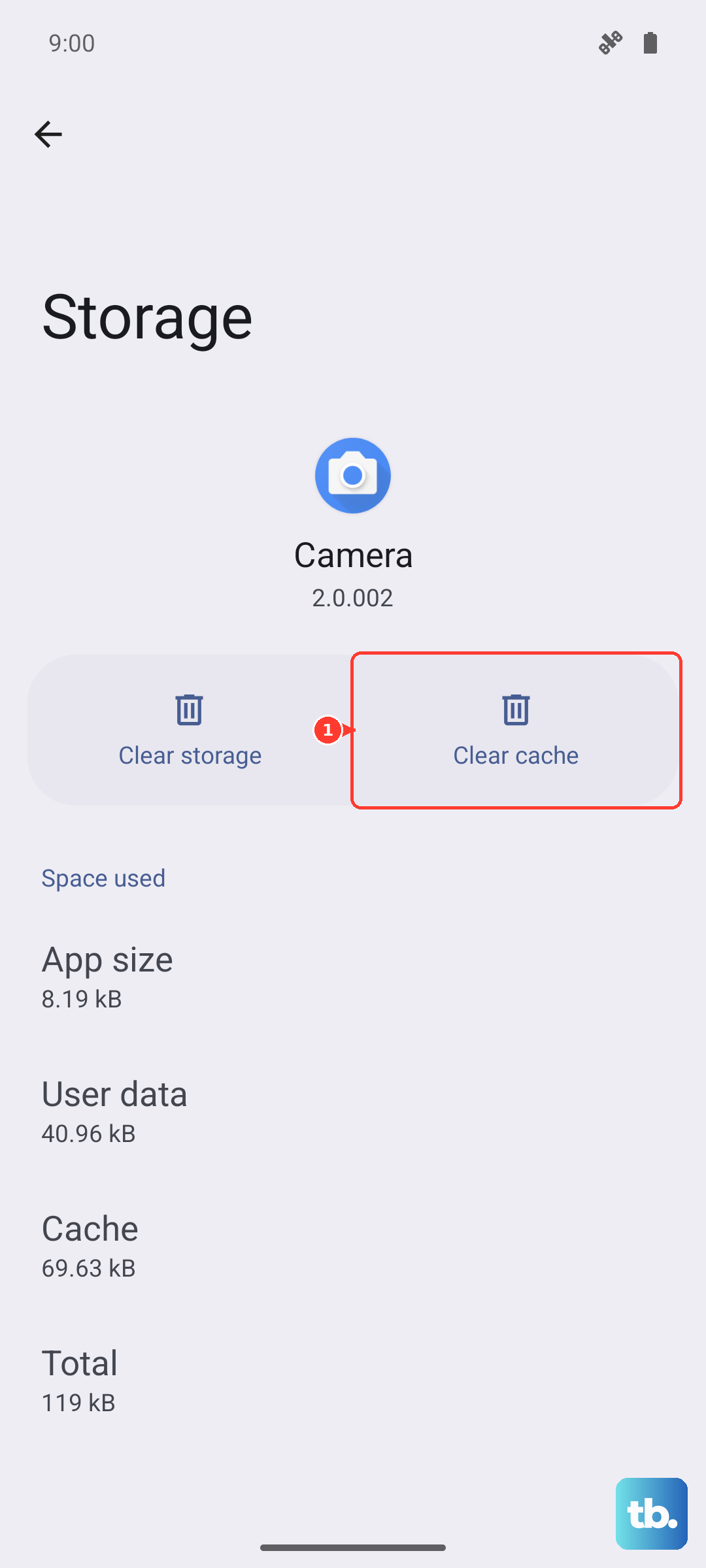
Your phone stores cache files to help apps like Settings load faster. Sometimes, this cache data becomes corrupted and causes the app to crash. Clearing it is a safe first step that won't delete your personal settings.
Go to Settings > Apps > See all apps. Find and tap on "Settings" in the list. Then, tap Storage & cache and select Clear cache. After doing this, try opening the Settings app again to see if it's stable.
Update Android and Motorola Software
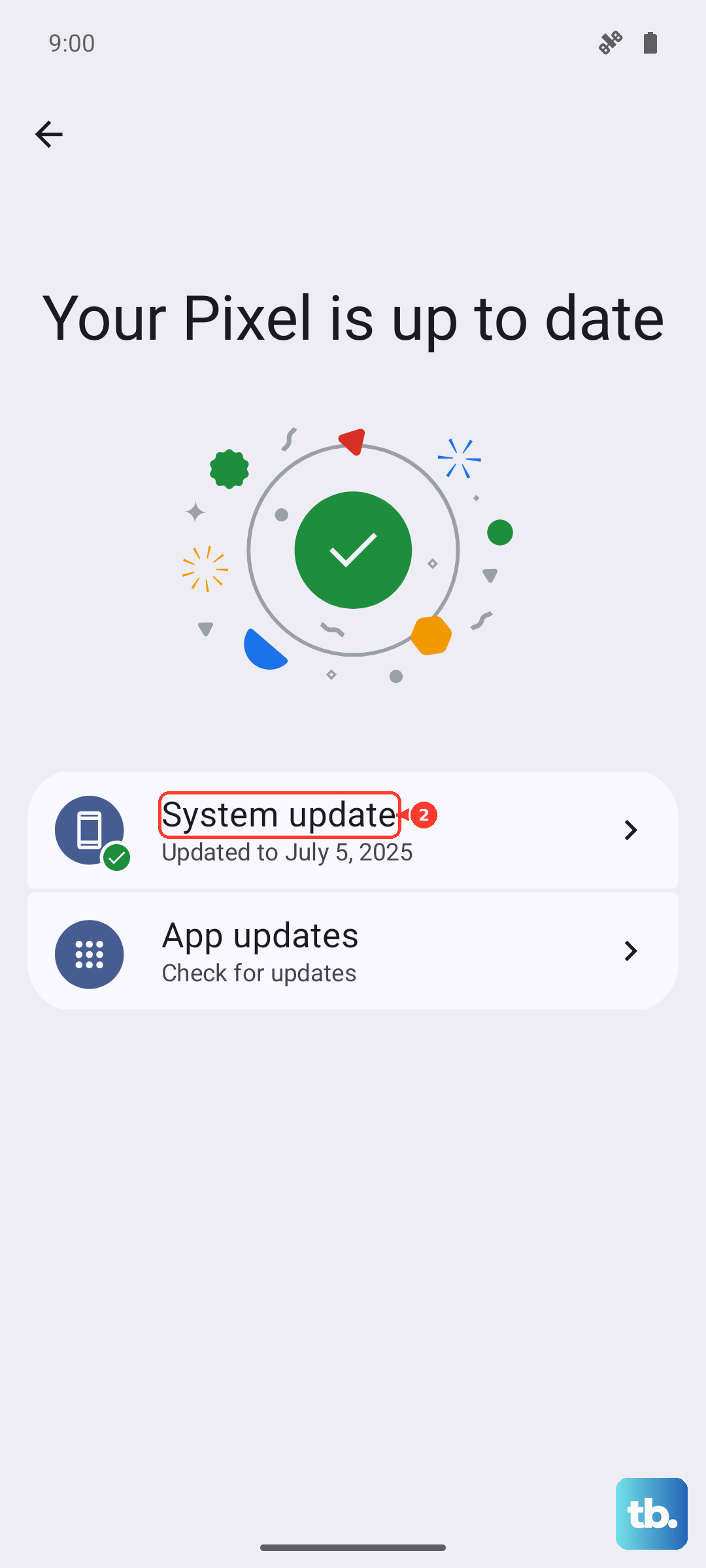
Since your phone runs Android 15, it's important to have the latest system patches. Motorola frequently releases updates that fix bugs, including ones that could cause system apps to misbehave. An outdated software version is a common culprit for random crashes.
To check, go to Settings > System updates > Check for updates. Tap "Check for update" and install anything that's available. I'd recommend using your 68W TurboPower charger during the update process to ensure it doesn't get interrupted by a low battery.
Check for Problematic App Updates
Sometimes, an update to another app or a core service like Google Play Services can create a conflict. If the Settings app started crashing after you updated something else, we can try rolling that back.
Head to the Google Play Store, tap your profile icon, and go to Manage apps & device > Manage. Look at the "Recently updated" section. If you see a system-related app or something you updated right before the problem started, you can try uninstalling its updates from its app info page.
Boot Into Safe Mode
Safe Mode temporarily disables all third-party apps you've downloaded. If the Settings app works perfectly in Safe Mode, then one of your installed apps is likely causing the conflict. This helps narrow down the problem.
To enter Safe Mode, press and hold the power button until the power menu appears. Then, press and hold the "Power off" option on your screen. A prompt will ask if you want to reboot to Safe Mode; tap "OK". Your phone will restart with "Safe Mode" in the bottom corner.
Test the Settings app now. If it's stable, restart your phone normally to exit Safe Mode. You'll then need to uninstall recently downloaded apps one by one to find the culprit.
Reset App Preferences
This is a useful middle-ground step. It resets all your app permissions, default apps, and background data restrictions back to their factory defaults without deleting any app data or personal files. It can fix issues caused by a misconfigured permission.
Go to Settings > Apps > See all apps. Tap the three-dot menu in the top right and select Reset app preferences. Confirm your choice. You'll need to re-grant permissions to apps the next time you use them, but it often clears up strange app behavior.
Perform a Factory Reset
If you've tried everything else and the Settings app is still unusable, a factory reset is the final software fix. This will erase all data from your phone and return it to its original out-of-the-box state. It will eliminate any deep-seated software corruption.
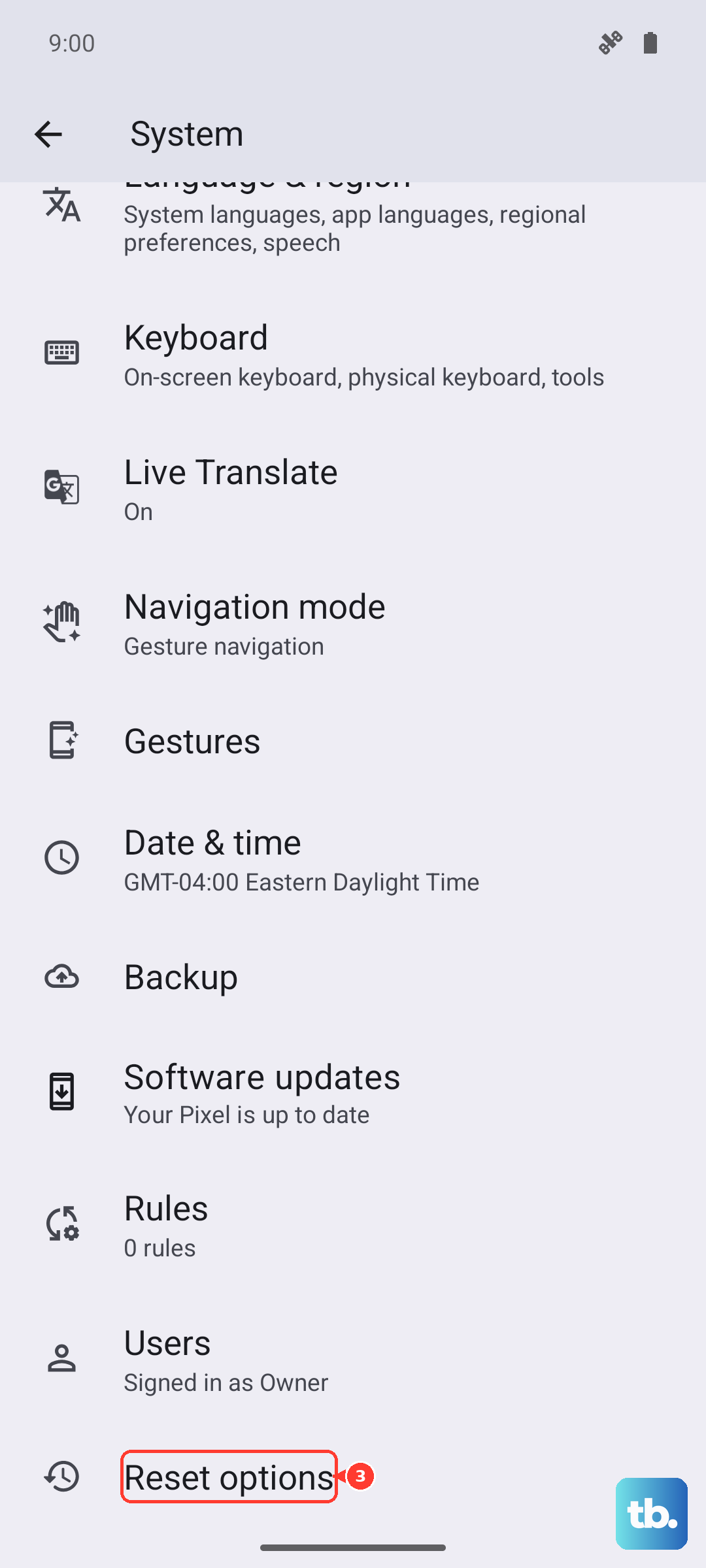
Make absolutely sure you back up everything important first. Use Google One for your photos and files, and check that your app data is syncing. When ready, go to Settings > System > Reset options > Erase all data (factory reset).
Follow the prompts to confirm. After the reset, set up your Moto G Stylus as new initially to see if the problem is gone before restoring your backup, just in case the backup contains the corrupted data.