
So your Motorola Moto G Stylus 5G (2025) won't charge. You've plugged it in, maybe swapped cables, and the battery icon just sits there. It's a frustrating spot to be in, but this is a common issue that's almost always fixable without a trip to the repair shop.
Whether you're dealing with a finicky USB-C port, a wireless charger that won't connect, or a phone that shows zero signs of life, we'll walk through the fixes. Let's start with the quickest solutions and work our way through.
Force Restart Your Moto G Stylus
This should always be your first move. A force restart clears out temporary software glitches that can interfere with the charging system. It's a simple 10-second process that fixes more problems than you'd think.
For the Moto G Stylus 5G (2025), press and hold the Power button for at least 10 seconds. Keep holding it until you see the Motorola logo appear on the screen, then release. Once it boots back up, plug it in and check for the charging indicator.
Clean the USB-C Charging Port
This is the single most common fix for charging problems. Lint, dust, and pocket debris get packed into that USB-C port every single day. Eventually, there's so much gunk that your cable can't make a proper connection.
Grab a flashlight and take a close look inside the port. If you see any debris, turn the phone off first for safety. Then, use a wooden or plastic toothpick to gently scrape the lint out. Avoid metal tools, as they can scratch the delicate gold contacts inside.
You can also try a quick blast of compressed air from a can, holding it a few inches away. Give the phone a gentle tap with the port facing down to dislodge anything stubborn. I've seen this simple clean-up get phones charging again instantly.
Check Your Cable, Adapter, and Power Source
You need to isolate the problem. Is it the cable, the wall adapter, or the outlet itself? The best way to find out is to test each component individually.
First, try a different USB-C cable. Make sure it's a high-quality one capable of handling higher wattages. Next, test with a different wall adapter. The phone supports up to 68W wired charging with a compatible TurboPower charger, but it will work with lower-wattage adapters, just more slowly.
Finally, plug into a different wall outlet. Remove your phone case, especially if it's very thick or has a magnetic closure, as it might be preventing the cable from seating fully. If the phone charges with a different combination, you've found your faulty part.
Try Wireless Charging
Your Moto G Stylus 5G supports Qi wireless charging up to 15W. If wired charging isn't working, placing it on a wireless pad can tell you if the problem is the USB-C port or something else.
Make sure you're using a compatible Qi charger. Align the center of the phone with the center of the charging pad. Remove any thick cases or accessories, as they can block the charging connection. If the phone charges wirelessly but not with a cable, the issue is almost certainly with the physical port.
Remember, wireless charging is convenient but slower. It also generates more heat, which can cause the phone to slow down or pause charging if it gets too warm. That's a normal safety feature.
Wait If the Battery Is Fully Drained
If your battery has hit absolute zero percent, it won't show any signs of life right away. This is completely normal behavior for lithium-ion batteries. Leave it connected to a wall charger (not a computer's USB port) for at least 30 minutes.
You should eventually see a battery icon or a charging indicator on the always-on display. If you see nothing after a half hour, try the force restart procedure again while the phone is still plugged in. Sometimes it needs that little jolt to wake up.
Update Your Android Software
Motorola and Google regularly release updates that fix bugs, including ones related to power management and charging. If you're running an older version of Android 15, an update could resolve your issue.
Go to Settings > System > System updates. Download and install any available update. Make sure your phone is connected to Wi-Fi and has at least 50% battery before starting, or keep it plugged in during the process.
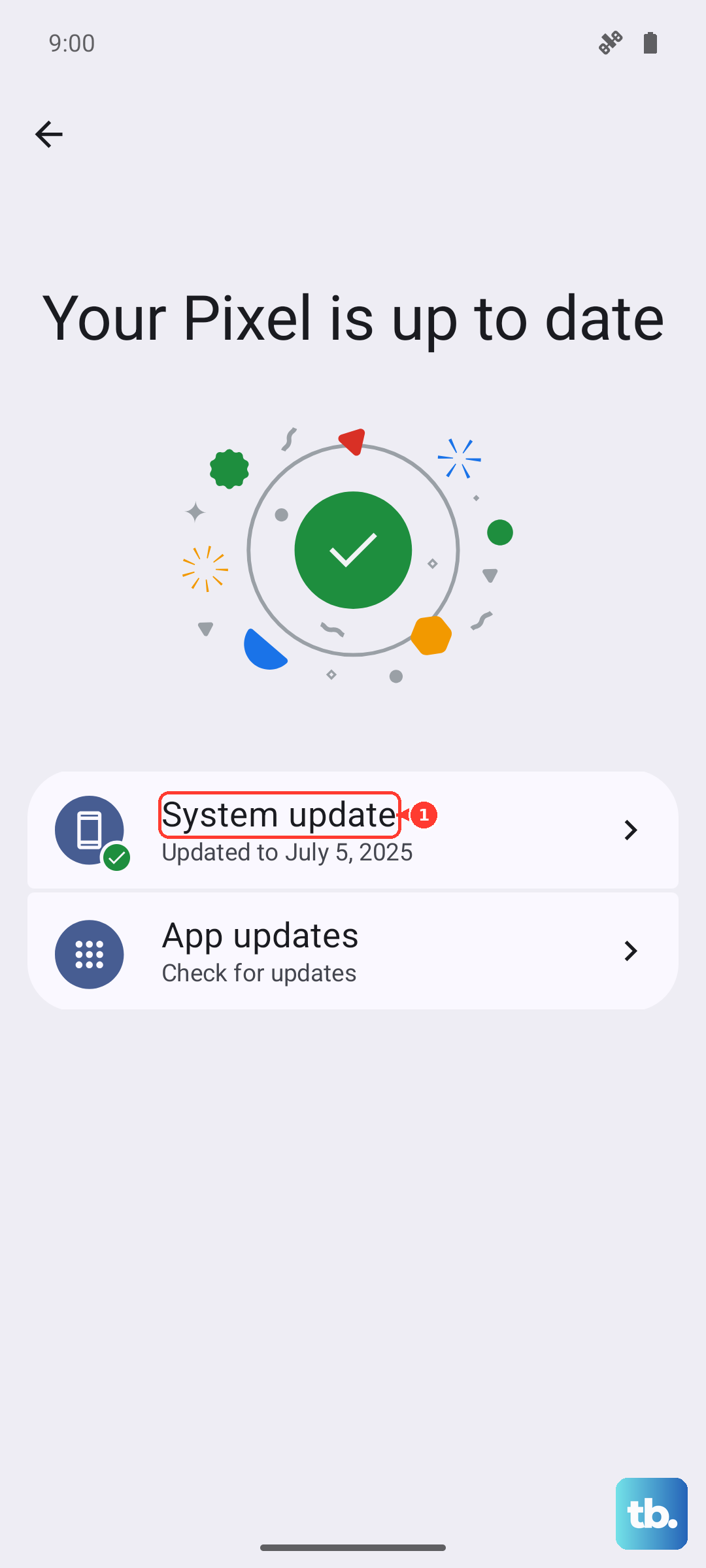
If your phone won't turn on at all, you might need to update using a computer. Connect the phone to a PC with a USB cable and use the Motorola Rescue and Smart Assistant tool to check for software repairs.
Check for Overheating or Extreme Cold
Your phone has built-in temperature protection. If the Moto G Stylus gets too hot, it will slow down or stop charging entirely to prevent damage. This can happen if you're using it intensively while charging, or if it's left in direct sunlight.
Similarly, very cold temperatures can affect battery chemistry and prevent charging. If the phone feels unusually hot or cold, let it return to room temperature before trying to charge it again. Take it out of its case to help it cool down faster.
Inspect the Stylus Silo
This is a unique tip for the Stylus model. The compartment where you store the stylus is right on the edge of the phone. While it's designed well, make sure the stylus is fully seated and the silo door is closed properly.
A stylus that isn't clicked all the way in or a door that's slightly ajar probably won't cause a charging failure, but it's good practice. It keeps the stylus itself charged and ensures the phone's exterior is sealed. Store the stylus in its silo when not in use.
Charge with the Phone Powered Off
Sometimes a background app or process is causing a conflict that interferes with the charging circuit. You can test this by turning your phone completely off, then plugging it in.
If it starts charging normally while powered off, you know it's a software-related issue. This is also the fastest way to charge your phone, as no battery is being used by the screen or apps. You can use this trick when you need a quick battery boost in a hurry.
Perform a Factory Reset (Last Resort)
If you've tried every other step and the phone still refuses to charge correctly, a software corruption might be the root cause. A factory reset will wipe your phone back to its original settings, so this is an absolute last resort.
Back up all your data first. Then, go to Settings > System > Reset options > Erase all data (factory reset). Follow the prompts to reset the phone. After it reboots, set it up as new and immediately test the charging.
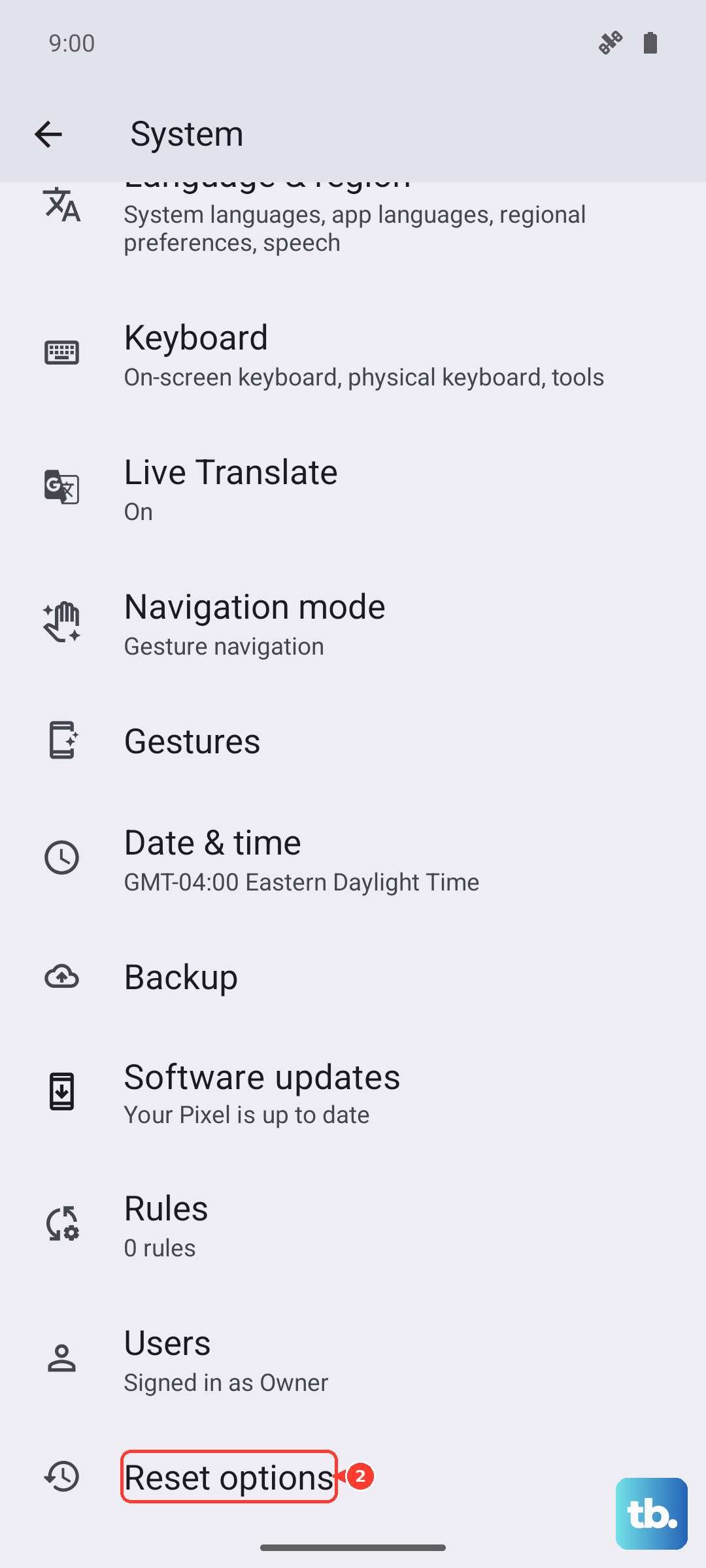
If the problem persists even after a factory reset, it's almost certainly a hardware issue. The USB-C port might be damaged, or there could be an internal problem with the battery or power management circuit.