
If you're trying to send a picture or video from your Motorola Moto G Stylus 5G (2025) and it just sits there spinning, you've hit the classic MMS wall. It's almost always a quick setting or connection hiccup. Let's get those messages moving.
Make Sure Mobile Data is On
This is the number one fix. MMS can't send over Wi-Fi alone, it needs an active mobile data connection. Pull down the quick settings shade from the top of your screen and tap the mobile data icon to make sure it's enabled.
If you see it's on but you're in a low signal area, that could be the blocker. Try moving to a spot with better reception. Sometimes, being connected to Wi-Fi can interfere, so try turning Wi-Fi off briefly to force the message to use your cellular data.
Check Your Moto Messages App Settings
Open the Messages app that came with your phone. Tap the three dots in the top right corner and go to Settings.
Look for a section called Multimedia messages (MMS) or something similar. Inside, ensure that Auto-download MMS and Auto-download when roaming are both turned on. If these are off, your phone might not properly engage the MMS system.
Clear the Messaging App's Cache
Temporary files can get corrupted and break MMS sending. Go to your phone's main Settings and tap on Apps. Find and select Messages from the list.
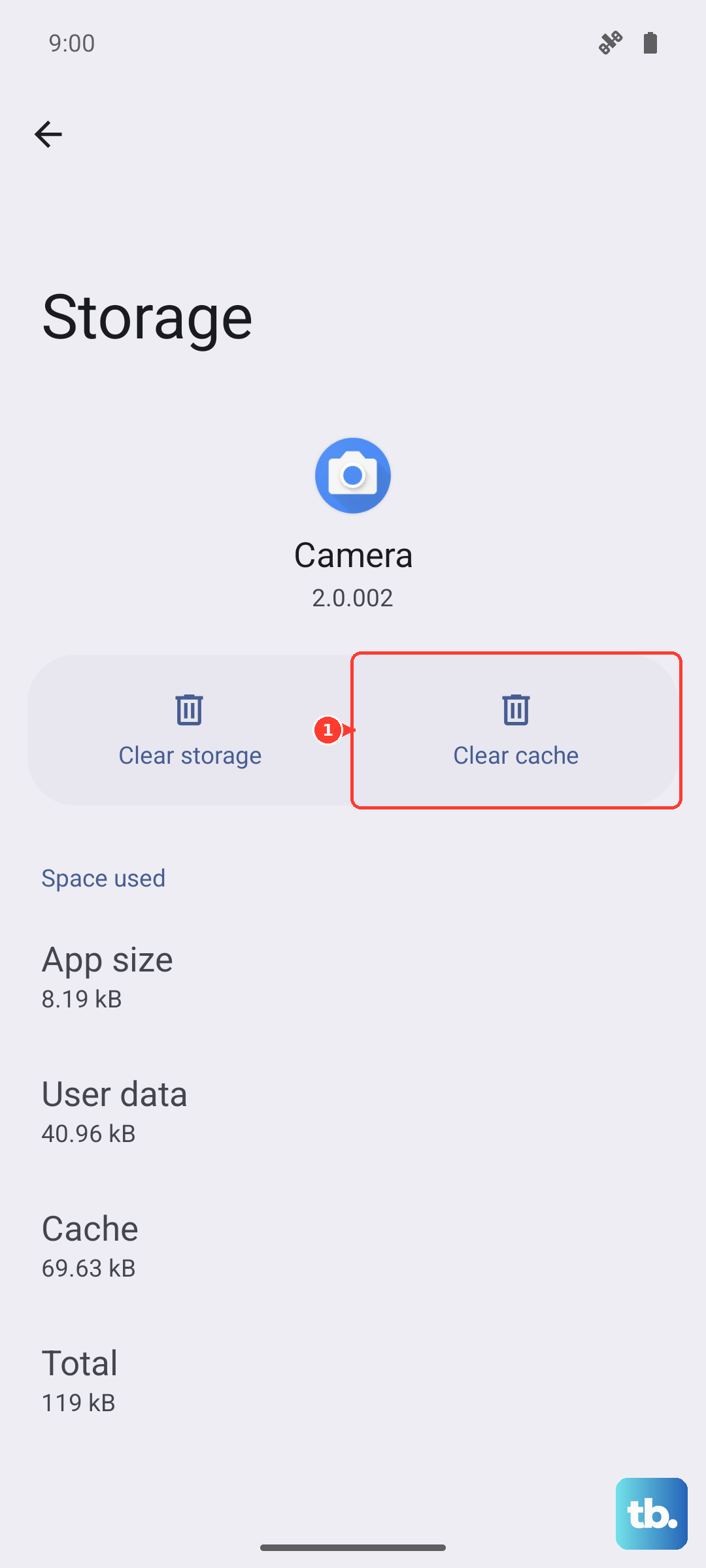
Tap on Storage & cache. First, tap Clear cache. This won't delete any of your actual messages. If the problem persists, you can try Clear storage or Clear data, but be warned this will erase your entire message history, so only do this if you're okay with that.
Verify Your APN Settings
Incorrect Access Point Name (APN) settings are a super common culprit. These tell your phone exactly how to connect to your carrier's network for data and MMS. Go to Settings > Network & internet > SIMs (labeled SIMs & mobile network on Motorola phones).
Tap on Advanced and then Access Point Names. You should see a list of APNs, with one selected (usually your carrier's name). If this looks empty or wrong, you'll need the correct info from your carrier.
Don't guess at these settings. The fastest way is to contact your carrier's support or visit their website for the exact APN configuration for the Moto G Stylus 5G. A single typo here can stop MMS in its tracks.
Perform a Quick Restart
It sounds too simple, but a reboot clears out minor software glitches that can affect the messaging service. Just press and hold the power button until the power menu appears, then tap Restart.
For a more thorough refresh, you can force restart the phone by holding the power button down for about 10 seconds until the screen goes black and the Motorola logo reappears. This is the equivalent of pulling the battery on older phones.
Update Your Phone's Software
Since you're on Android 15, carrier updates often include fixes for messaging issues. Go to Settings > System > System updates.
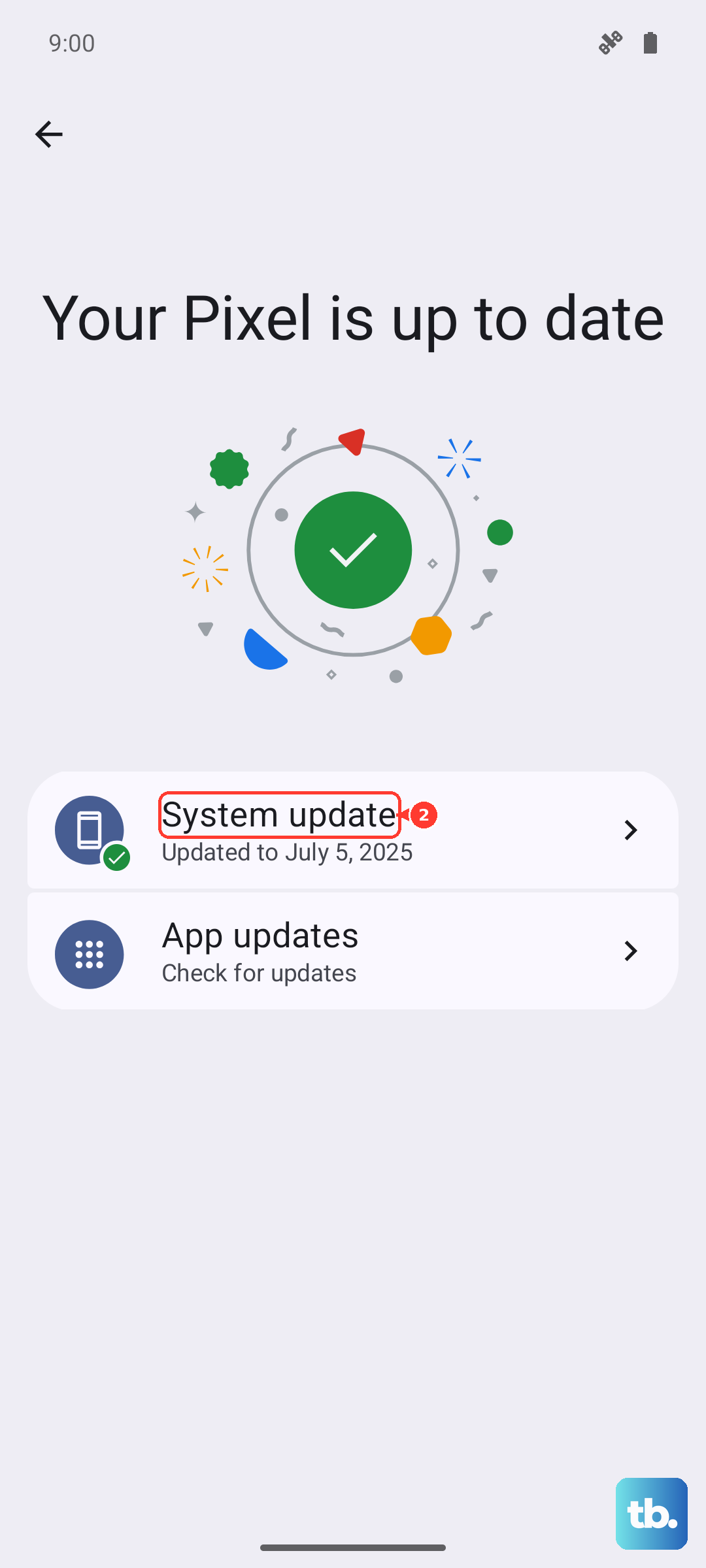
Tap Check for update. If one is available, download and install it. I've seen system updates resolve weird MMS problems on new phones more than once, especially after a major OS launch.
Reset Your Network Settings
This is a bigger step, but it resets all your connectivity back to factory defaults. It will erase saved Wi-Fi networks, Bluetooth pairings, and cellular settings (including APNs), but not your personal data.
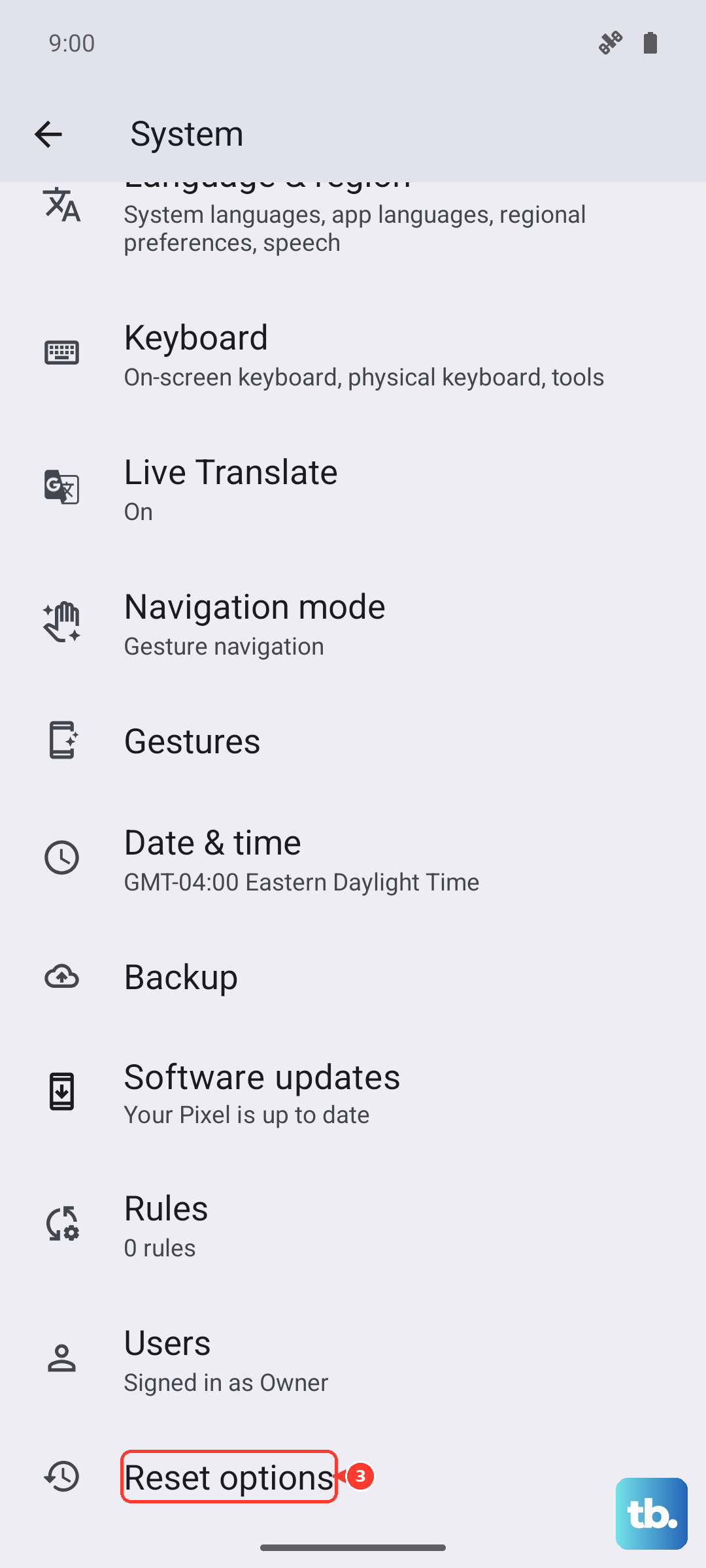
Go to Settings > System > Reset options. Tap on Reset Wi-Fi, mobile & Bluetooth and confirm. After the phone reboots, you'll need to reconnect to Wi-Fi and your carrier should automatically reprovision the APN settings.
Check Your Available Storage
Your phone needs a little free space to process and send multimedia messages. Open Settings > Storage to see how much space you have left.
If you're critically low, try clearing out some old message threads full of photos or videos. You can also use the stylus to precisely select and delete large, unwanted files in your gallery or downloads folder to free up room.
Try Google Messages as an Alternative
If the stock Moto app is still being stubborn, installing Google Messages from the Play Store can bypass the issue. It's a great app that often has better RCS and MMS reliability.
Once installed, open it and set it as your default messaging app when prompted. Then try sending your picture again. If it works, you've confirmed the problem is with the original app's configuration or data.