
When your Motorola Moto G Stylus 5G (2025) starts restarting on its own, it can be incredibly disruptive, especially if you're in the middle of using the stylus for notes. This is usually a software hiccup, but it can sometimes point to a deeper issue. The first thing I'd do is make sure your important stuff is backed up, either to Google Drive or your computer, before you start any major fixes.
Perform a Force Restart
This is the quickest fix for a frozen or glitching phone. Just press and hold the power button on the right side of the phone for about 10 seconds. Keep holding it until you see the Motorola logo appear on the screen, then you can let go. This forces a clean reboot without deleting any of your data.
Check for Problematic Apps
A misbehaving app is one of the most common reasons for random restarts. Start by checking which apps you installed or updated right before the problem began. You can try booting into Safe Mode to see if the restarts stop. To do this, press and hold the power button, then tap and hold the "Power off" option on your screen until you see the Safe Mode prompt.
If the phone is stable in Safe Mode, a third-party app is likely the culprit. You'll need to uninstall apps one by one, starting with the most recent, to find the offender. Also, check the Google Play Store for updates to all your apps, as developers often release patches for stability.
Update Android and Motorola Software
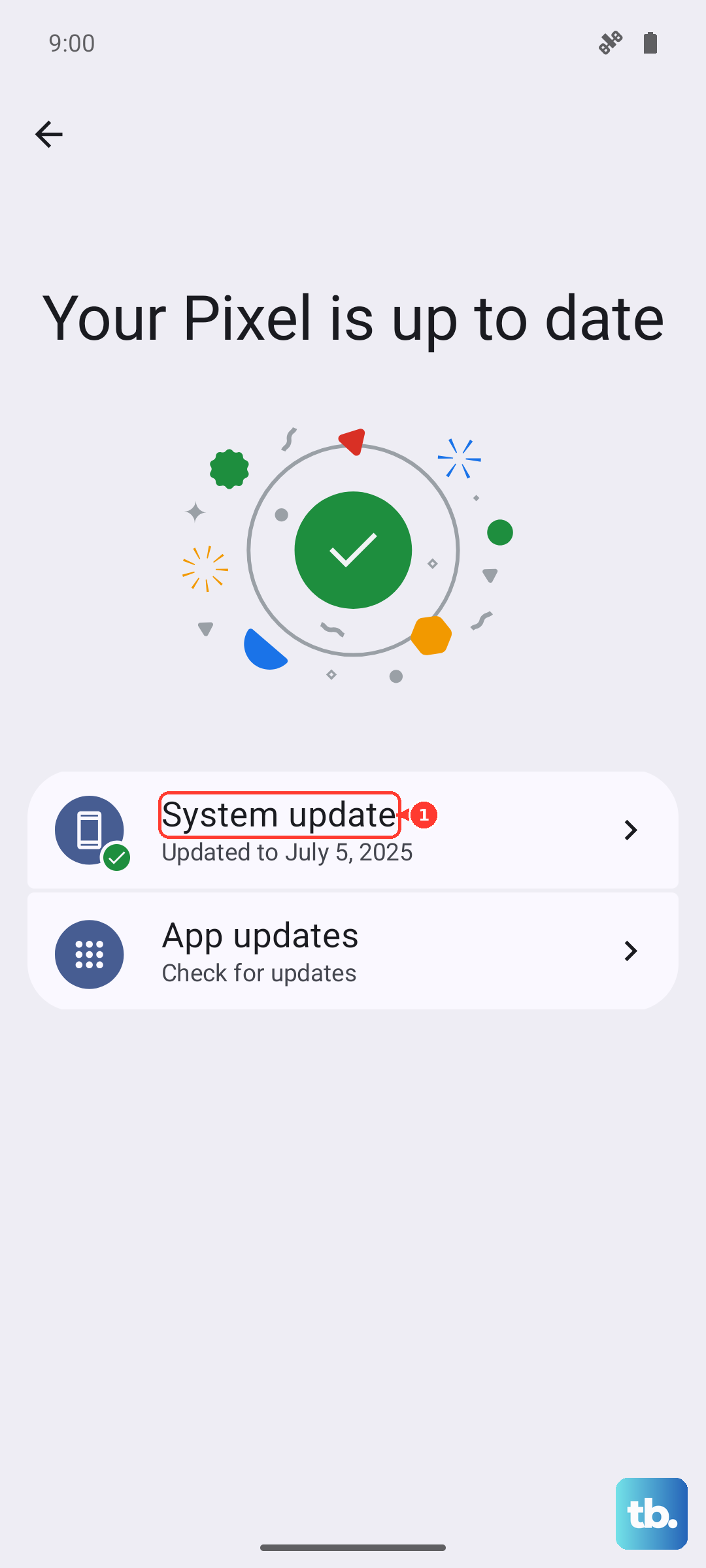
Your phone runs on Android 15 with Motorola's software on top. An outdated system can have bugs that cause instability. Go to Settings > System > System updates to check for any available updates. Installing the latest software can resolve known issues that might be causing your phone to reboot.
Free Up Storage Space
If your phone's storage is completely full, the system can't operate properly, which can lead to crashes and restarts. Head to Settings > Storage to see how much space you have left. The Moto G Stylus comes with a generous amount of storage, but it can fill up fast with photos, videos, and app data.
Consider using Google Photos to back up and free up space, or uninstall apps you no longer use. The built-in Files by Google app can also help you quickly find and delete large, unnecessary files.
Inspect the Stylus and Silo
This is a unique tip for your Stylus model. The stylus silo can sometimes be finicky. If the stylus isn't seated perfectly, or if there's a tiny bit of lint in the charging contacts inside the silo, it could theoretically cause a sensor to act up. Gently remove the stylus and use a can of compressed air to blow out the silo.
Make sure the stylus clicks firmly back into place. While it's a long shot, it's worth checking since it's a specific hardware element on this phone that others don't have.
Check for Overheating
The Moto G Stylus 5G supports 68W wired TurboPower charging, which is very fast. While charging, especially with intensive use, the phone can get warm. Extreme heat is a common trigger for protective shutdowns and restarts. Feel the back of the phone. If it's uncomfortably hot, take it off the charger and let it cool down.
Avoid using graphic-intensive games or recording long 4K videos while the phone is fast charging. Also, don't use it in direct sunlight for extended periods. Using the official 68W charger is best, as third-party chargers might not manage heat as effectively.
Reset App Preferences or Network Settings
You can reset specific settings without losing your personal data. Go to Settings > System > Reset options. Here, you have a couple of choices. "Reset app preferences" will reset permissions and default apps, which can fix an app causing trouble.
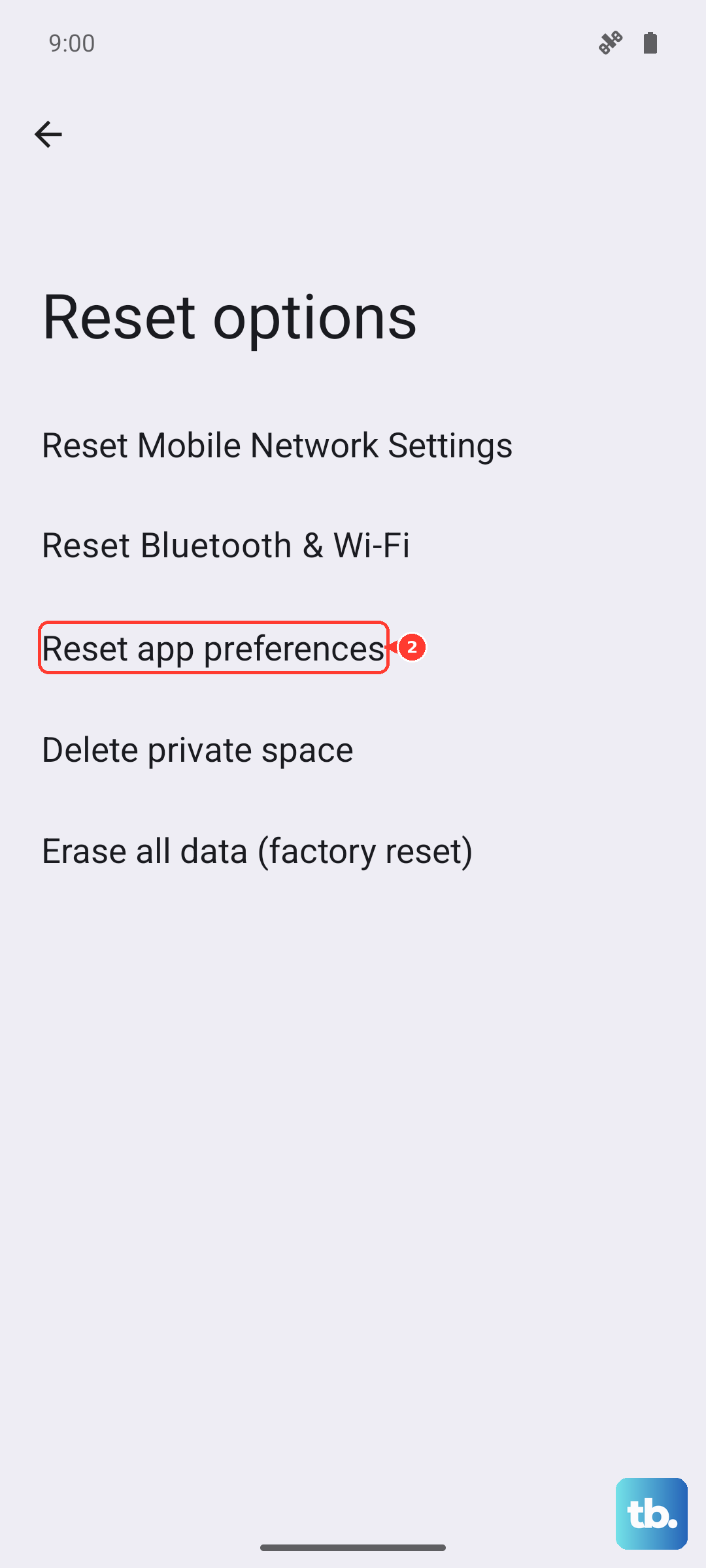
"Reset Wi-Fi, mobile & Bluetooth" is another good step if the restarts seem tied to connectivity. This will erase all your saved networks and Bluetooth pairings, so you'll have to reconnect to everything afterward.
Perform a Factory Reset
If nothing else has worked, a factory reset is the nuclear option for software problems. This will erase everything on your phone and return it to its out-of-the-box state. It's crucial that you've backed up your photos, contacts, and files before doing this.
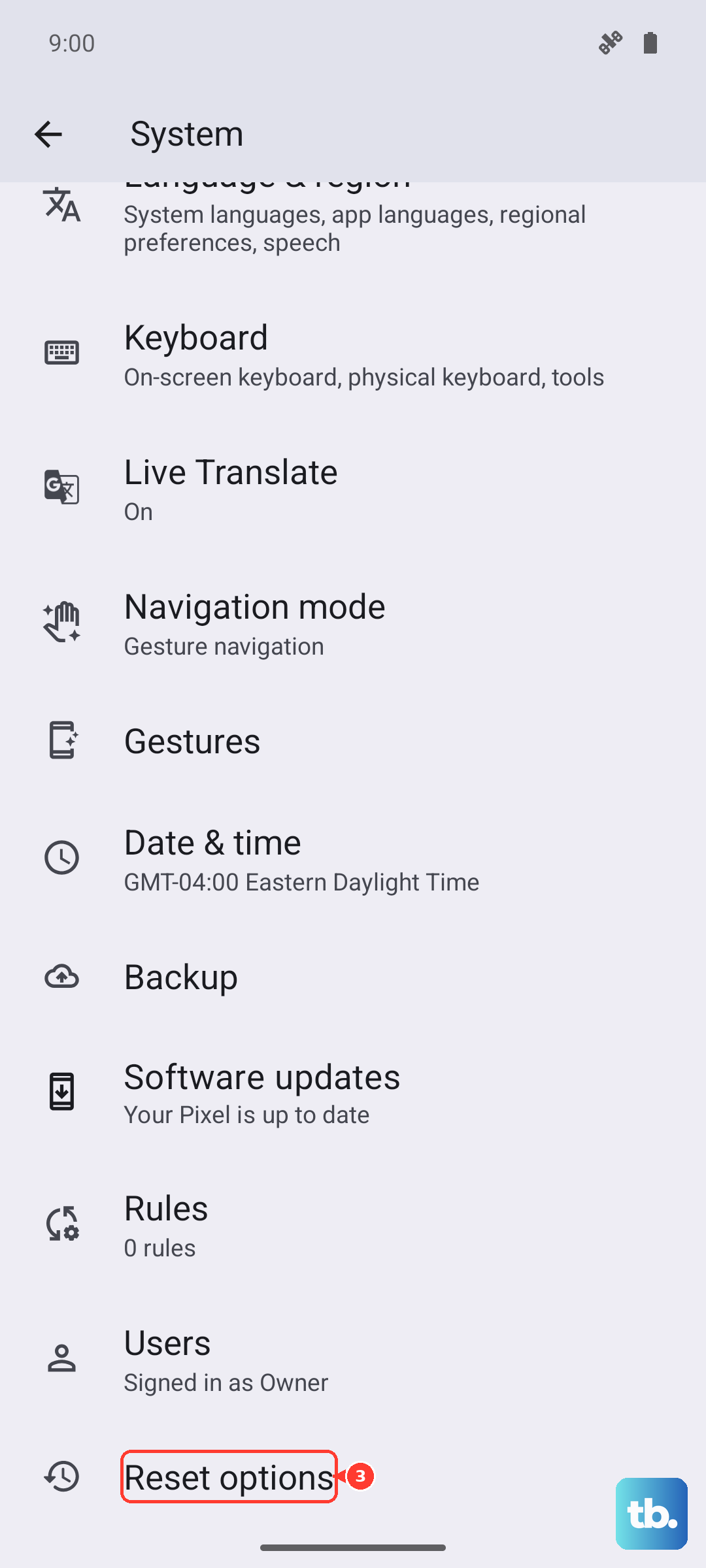
You can start the process by going to Settings > System > Reset options > Erase all data (factory reset). Follow the prompts, and your phone will restart cleanly. After the reset, set it up as new instead of restoring a backup immediately to see if the problem is gone.
Consider Hardware and Charging Issues
If the phone continues to restart even after a factory reset, the problem might be physical. First, inspect your USB-C charging port for any lint, dust, or damage. A compromised port can cause power delivery issues that lead to instability. Use a wooden toothpick or plastic pick to gently clean it out.
Try using a different charging cable and power adapter, preferably the official 68W TurboPower brick if you have it. Also, test the phone without the SIM card installed for a little while to rule out a faulty SIM or network issue. Persistent restarting after all these steps could indicate a deeper hardware fault, like a problem with the battery or motherboard, which would require professional service.