
When your headphones stop working with your Motorola Moto G Stylus 5G, it can ruin everything from your music to your calls. The phone might not recognize them, send sound to the speaker instead, or play audio that's crackly or distorted. Here's how to get things working again.
A browser based quick headphone test makes this easy to confirm. If both sides play test tones correctly there, the headphones are fine and the problem is in the device or app.
Restart Your Phone First
This is the quickest fix for a lot of weird audio glitches. Just press and hold the power button on the side of your Moto G Stylus for about 10 seconds, until you see the screen go black and the Motorola logo reappear. It's a simple refresh for the phone's software that clears up temporary bugs.
Check the Physical Connection
If you're using wired headphones, make sure they're plugged all the way into the USB-C port. Give the plug a firm push to ensure it's seated. For wireless headphones, check their battery level. A low battery can cause all sorts of connection problems.
It's also a good idea to test your headphones with another device, like a laptop or another phone. If they don't work there either, you've found the source of the problem.
Clean the USB-C Port
Lint and pocket debris love to get packed into the charging port. This can block the headphone plug from making a proper connection. I'd start by gently brushing out the port with a soft, dry toothbrush or a wooden toothpick.
Avoid using anything metal, as it could damage the delicate pins inside. A quick blast of compressed air can also dislodge stubborn dust. A clean port solves a huge number of "no sound" issues with wired headphones.
Adjust Your Volume and Audio Output
Press the volume up button on the side of your phone to make sure the media volume isn't turned all the way down. You can also pull down the notification shade and tap the gear icon to open Settings, then go to Sound & vibration > Volume to check all the sliders.
For Bluetooth headphones, Android sometimes sends audio to the wrong place. While playing music or a video, pull down the notification shade twice to see the full Quick Settings panel. Look for a media output tile or tap the name of the song playing. A menu should pop up letting you choose between your phone speaker and your connected Bluetooth headphones.
Re-Pair Your Bluetooth Headphones
If your wireless headphones are connected but there's no sound, or they keep dropping out, try forgetting them and starting fresh. Open Settings > Connected devices. Tap the name of your headphones, then tap the gear icon or "Settings" next to it.
Select Forget or Unpair. Then, put your headphones back into pairing mode (usually by holding a button) and select them from the "Available devices" list on your phone. This creates a brand new, clean connection profile.
Toggle Bluetooth and Check for Interference
Go to Settings > Connected devices and toggle the Bluetooth switch off. Wait a full 10 seconds, then turn it back on. This resets the Bluetooth radio and can kick-start a stalled connection.
Also, be aware that the 15W wireless charging coil in your Moto G Stylus 5G, or other strong wireless signals, can occasionally cause interference with Bluetooth audio. Try moving away from wireless chargers or routers to see if the audio quality improves.
Check for Software Updates
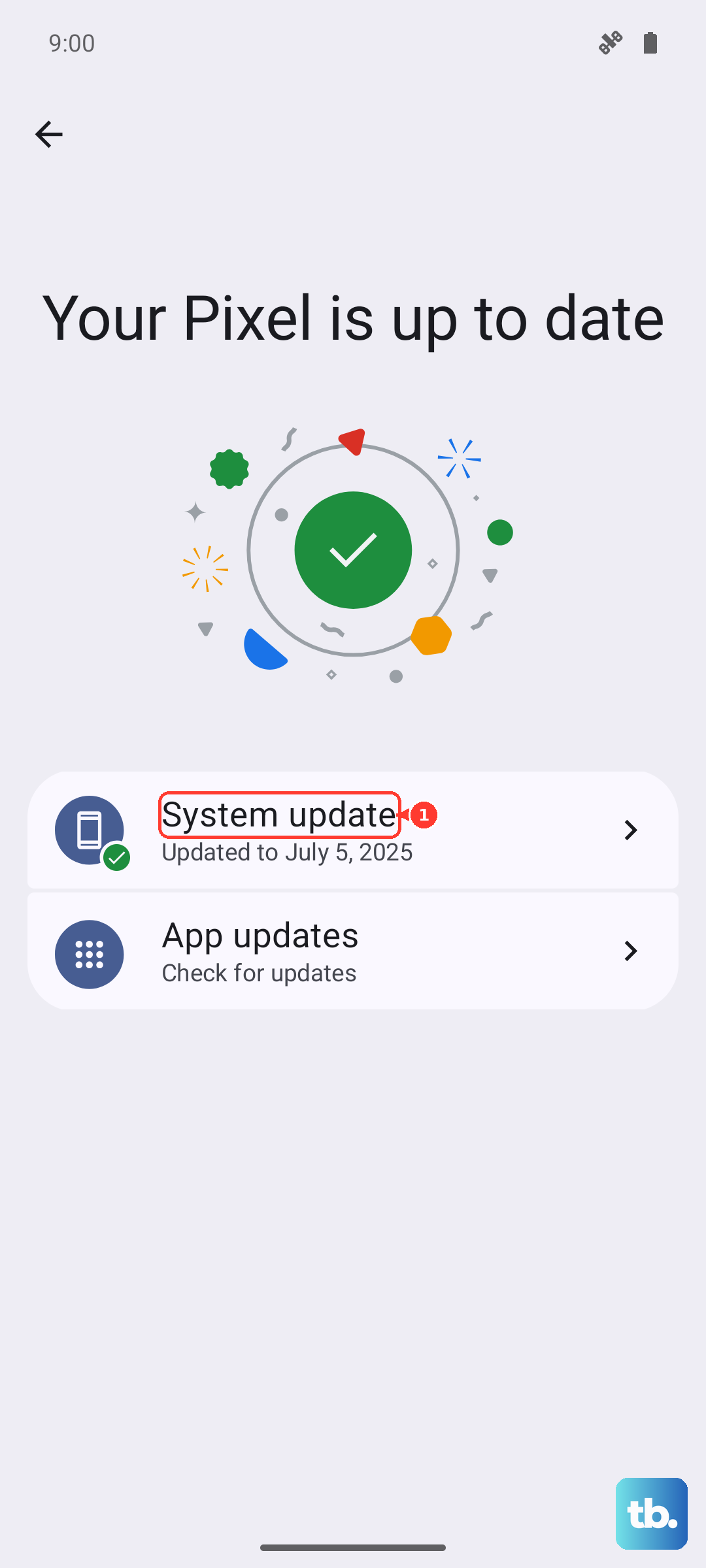
Audio and Bluetooth drivers are often improved in system updates. Go to Settings > System > System updates and tap "Check for update." If an update for Android 15 is available, install it. These updates frequently include bug fixes for connectivity issues.
Reset Your Network and App Preferences
If you're still having trouble, a more targeted reset can help. Go to Settings > System > Reset options. Here, tap on Reset Wi-Fi, mobile & Bluetooth. This will erase all your saved networks and Bluetooth pairings, so you'll need to reconnect to everything, but it can resolve deep-seated connection bugs.
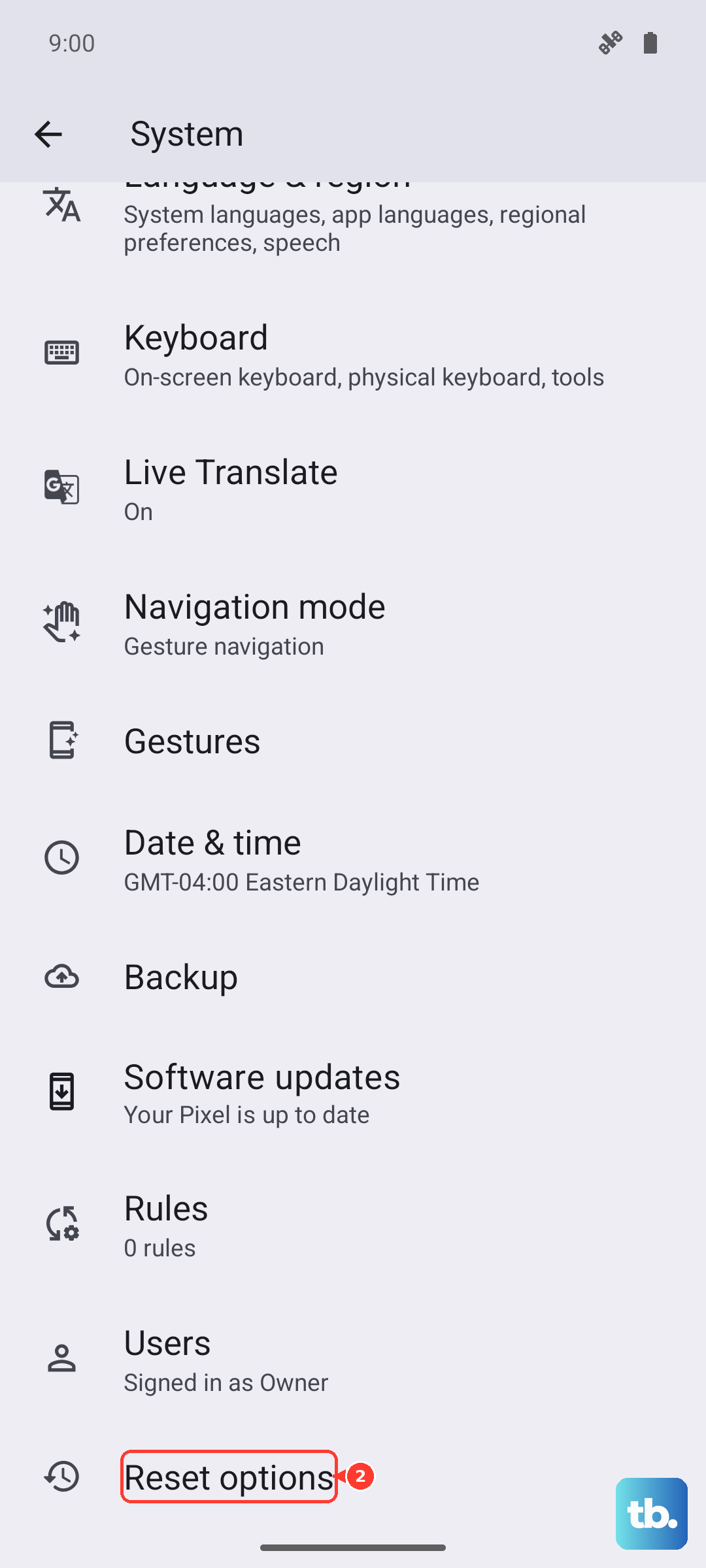
You can also try Reset app preferences from the same menu. This resets permissions and background data restrictions for all apps, which can fix issues if a specific media app is causing the audio problem.