
If your Motorola Moto G Stylus 5G (2025) keeps dropping its GPS signal mid-navigation, it's a problem that can leave you stranded. The good news is that this is almost always a software or settings issue you can fix yourself. I'd start with the quick refresh methods first, as they solve most cases.
Refresh Your GPS Connection
The fastest way to kickstart a stuck GPS is to toggle the location service off and on. Swipe down twice from the top of your screen to open the full Quick Settings panel. Tap the Location tile to turn it off, wait about 15 seconds, and then tap it again to turn it back on. This simple reset forces the phone's GPS chip to reacquire satellites from scratch.
If that doesn't do it, a full restart is your next best bet. Just press and hold the power button until the power menu appears, then tap "Restart." For a more forceful reset, you can perform a force restart by holding the power button down for a solid 10 seconds or more until the screen goes black and the Motorola logo reappears.
Check Your Location Settings and Permissions
Android 15 on your Moto G Stylus offers a few location modes, and using the wrong one can cause spotty performance. Head into Settings > Location. First, make sure the main "Use location" switch at the top is on.
Then, tap on "Location services" or "Mode." For the absolute best GPS accuracy while driving or hiking, you need to select High accuracy. This mode uses GPS satellites, Wi-Fi, and mobile networks together to pin down your location, which is crucial for maintaining a stable signal.
Also, verify your navigation app has permission. Go to Settings > Apps > [Google Maps or Waze] > Permissions. Ensure "Location" is set to "Allow all the time" or at least "Allow only while using the app" for uninterrupted navigation.
Disable Battery Optimizations for Navigation
Your phone's battery saver features are great for longevity, but they can aggressively limit background processes like constant GPS polling. Open Settings > Battery and make sure any Battery Saver or Adaptive Battery feature is turned off before you start a trip.
You should also exempt your mapping app from optimization. Go to Settings > Apps > [Your Maps App] > Battery. Change the background restriction setting to "Unrestricted." This tells Android not to put the app to sleep, which helps maintain a steady GPS lock.
Update Your Apps and System Software
An outdated version of Google Maps or your phone's operating system can have bugs that affect GPS stability. Open the Google Play Store, tap your profile icon, and go to "Manage apps & device." Install any pending updates for Google Maps, Waze, or other navigation apps.
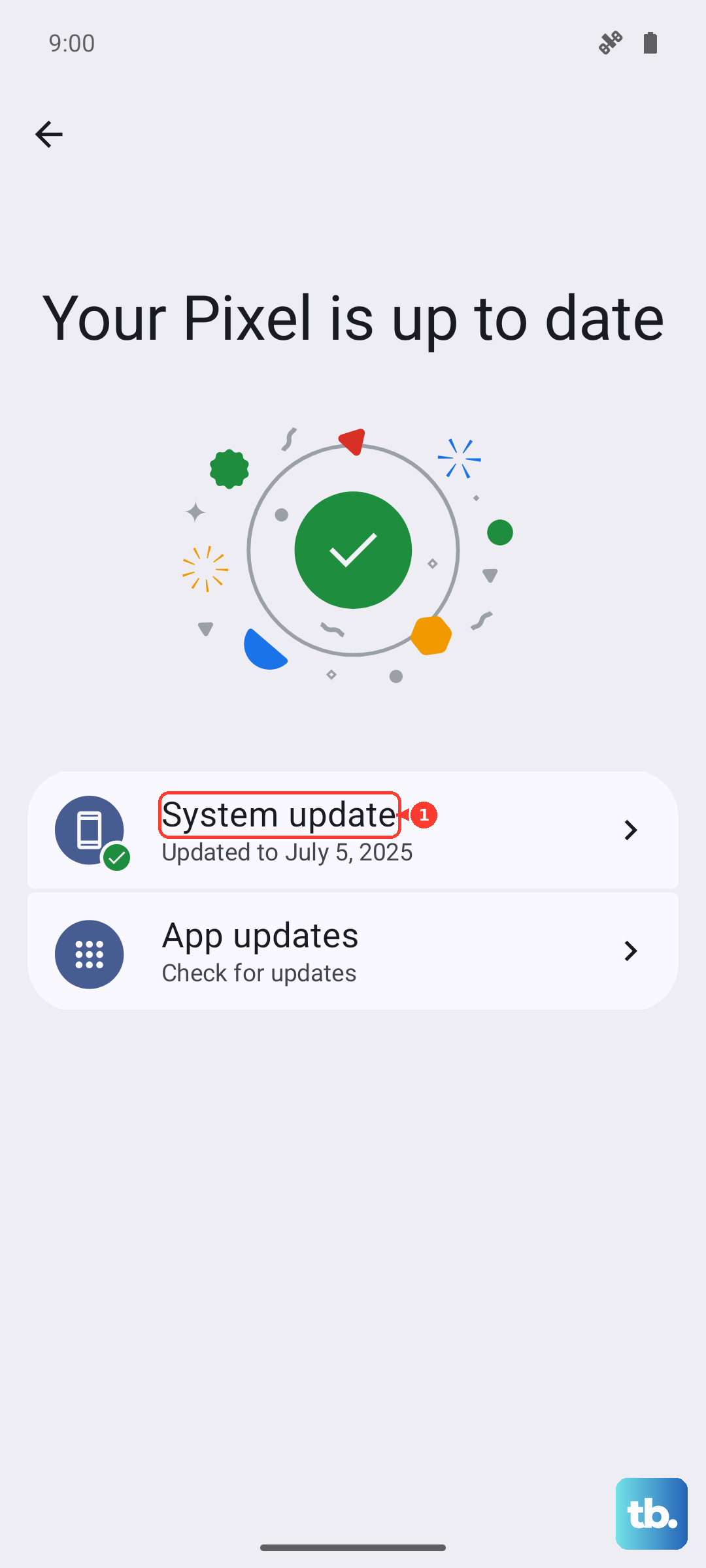
Next, check for a system update. Motorola frequently releases updates that improve device stability, including connectivity. Go to Settings > System > System updates and tap "Check for update." If one is available, install it, as it may contain crucial GPS firmware fixes.
Clear the App Cache and Data
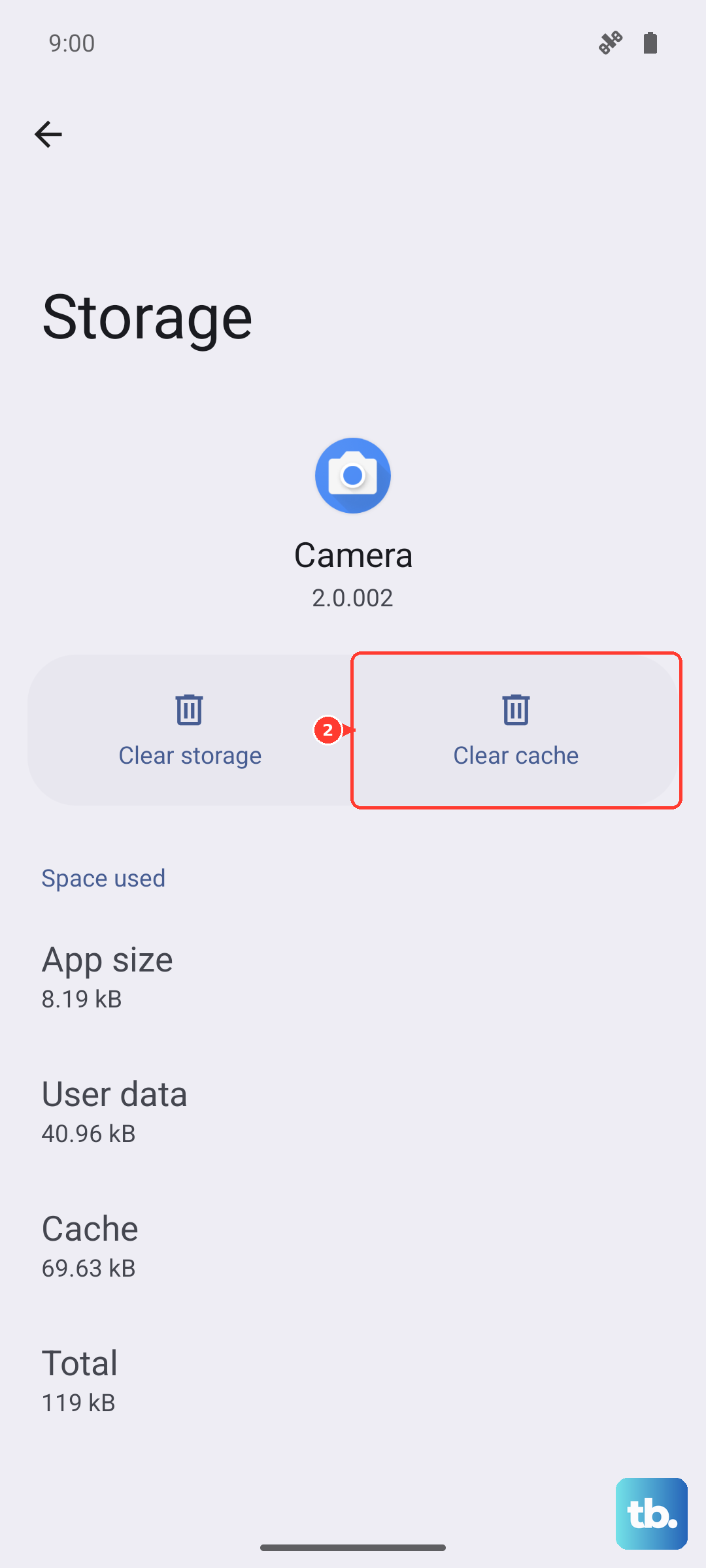
Over time, the temporary files stored by your navigation app can become corrupted and interfere with location services. Clearing the cache is a safe first step that won't delete your saved places. Go to Settings > Apps > Google Maps > Storage & cache.
Tap "Clear cache." If the GPS issues persist, you can try "Clear storage" or "Clear data." Be warned, this will reset the app to its default state and erase your offline maps and potentially some settings, so only do this if necessary.
Test in Safe Mode and Check for Interference
A third-party app you installed could be conflicting with the GPS. Booting into Safe Mode temporarily disables all downloaded apps. Press and hold the power button, then in the power menu, tap and hold the "Power off" option until you see a prompt to reboot to Safe Mode.
Tap "OK." If GPS works perfectly in Safe Mode, a recently installed app is likely the culprit. Restart normally and try uninstalling apps one by one to find the offender. Also, consider your physical environment. A very thick phone case, especially a metal one, can sometimes block the GPS antenna located along the edges of your Moto G Stylus.
Reset Your Network and Location Settings
This is a more thorough step that resets all your wireless radios and location preferences without touching your personal data. It can clear deep-seated configuration errors. Navigate to Settings > System > Reset options.
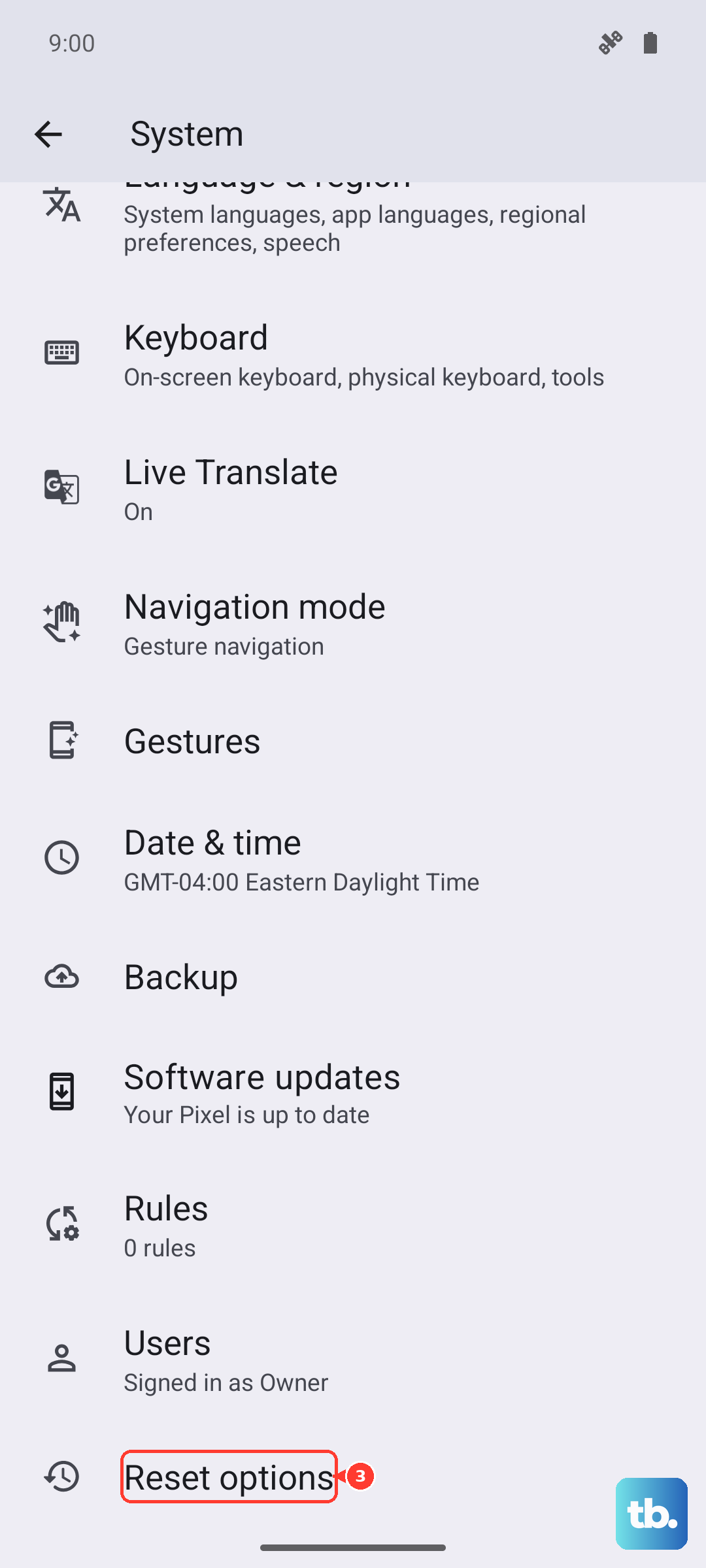
Tap on "Reset Wi-Fi, mobile & Bluetooth." After it completes, go back and tap "Reset location & app preferences." You'll need to reconnect to Wi-Fi networks and re-grant location permissions to your apps, but it often resolves persistent connectivity glitches.
Use a GPS Diagnostic Tool
To rule out a rare hardware problem, you can use a diagnostic app to see what's happening. Download an app like "GPS Test" or "GPS Status & Toolbox" from the Play Store. Open it and go to the satellite view.
Take your phone outside with a clear view of the sky. The app will show you how many satellites your phone can "see" and connect to. If, after a minute or two, it cannot lock onto any satellites at all, there might be a hardware fault with the antenna. If it connects to many satellites but your navigation apps still fail, the issue is definitely software-based.
For the best signal, try to place your Moto G Stylus near the windshield or dashboard when driving, rather than in a cup holder or bag. The GPS antenna needs a relatively unobstructed path to the sky, and being inside a metal vehicle already weakens the signal somewhat.