
A frozen Motorola Moto G Stylus 5G (2025) can be incredibly frustrating, especially when the stylus is your main tool. The screen might be stuck on an app, the lock screen, or just black. Most of the time, this is a temporary software hiccup that you can resolve without losing any of your notes or data.
Force Restart Your Moto G Stylus
This is almost always the first thing to try. Simply press and hold the Power button for 10 seconds or more. Keep holding it until you feel a vibration and see the Motorola logo appear on the screen. This forces a clean reboot of the system software without erasing any of your personal files or apps.
Give It a Moment
Sometimes the phone isn't truly frozen, it's just working hard on a background task. This could be installing a system update, processing photos, or a demanding app. If the back of the phone feels warm, that's a good sign it's still processing. I'd give it a solid five to ten minutes to see if it snaps out of it before taking more drastic steps.
Plug It In to Charge
A completely drained battery can make the phone seem dead or unresponsive. Connect it to a charger using the USB-C port. For the fastest recovery, use the official 68W TurboPower charger if you have it, as it can deliver a significant power boost quickly. Let it charge for at least 15-20 minutes before trying to turn it on again.
Close the Problem App
If the rest of the phone works but one app is frozen, you can force close it. Swipe up from the bottom of the screen and hold to bring up your recent apps. Find the frozen app and swipe it all the way up to close it. You can then reopen it. If a specific app keeps causing freezes, check the Google Play Store for an update or try clearing its cache in Settings > Apps.
Check Your Available Storage
When your phone's internal storage is nearly full, the system has no room to create temporary files it needs to run smoothly, which can lead to freezing. If you can get into settings, go to Settings > Storage to see how much space you have left. Try to keep at least 5-10GB free by offloading photos to the cloud or deleting unused apps.
Install the Latest Software Update
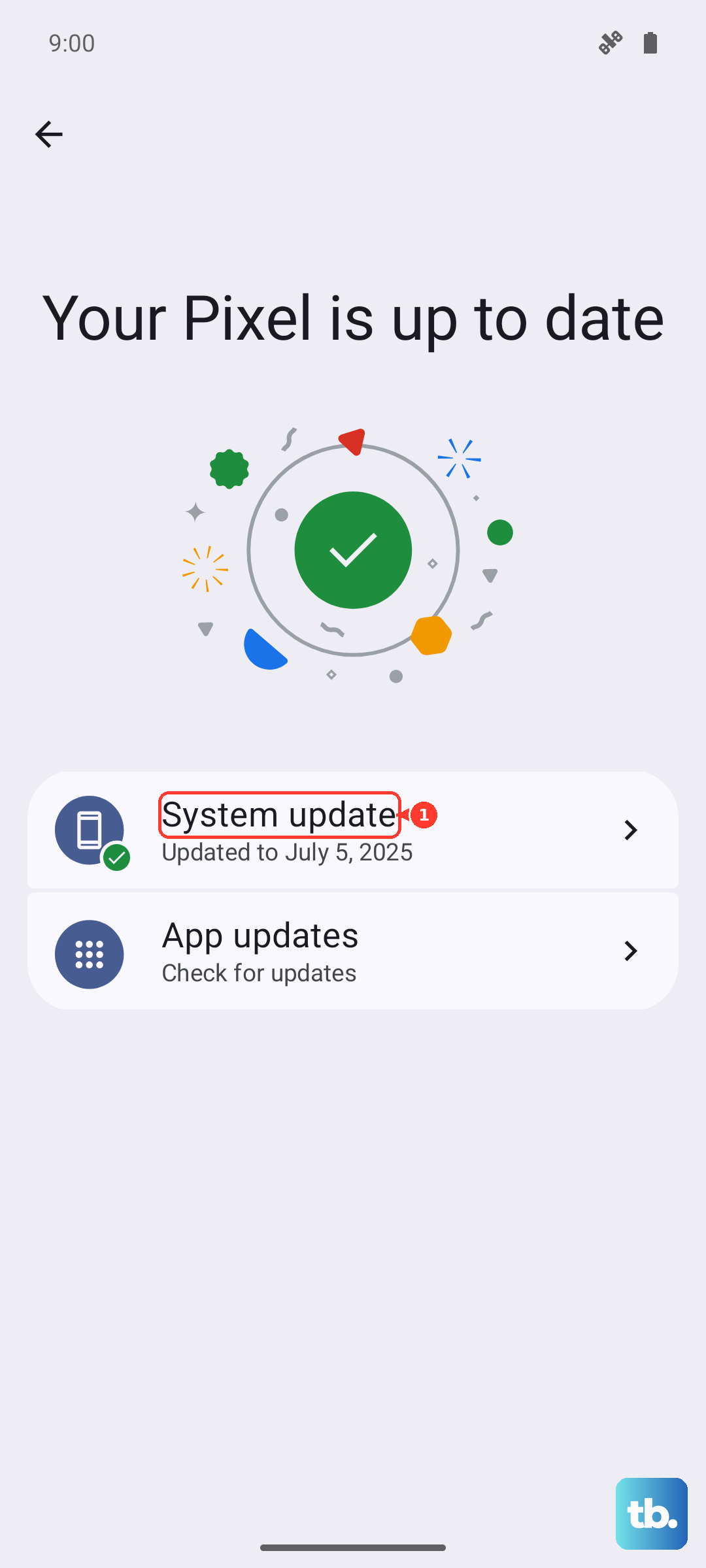
Software bugs that cause freezing are often patched in updates. After a restart, go to Settings > System updates > Check for updates to check for and install any available updates. Keeping your phone on the latest available Android software is one of the best ways to ensure stability and security.
Reset Your App Preferences
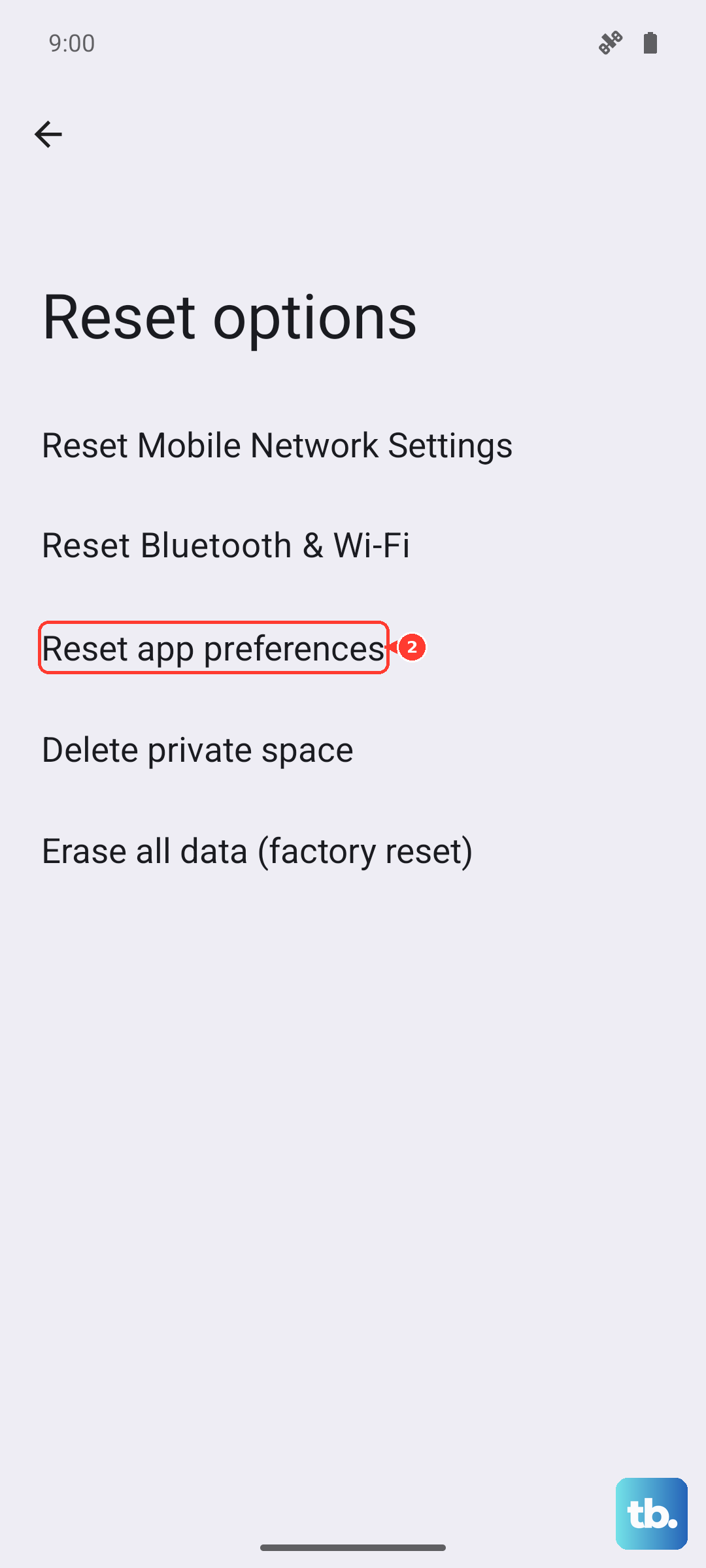
Corrupted settings for individual apps can sometimes cause system-wide issues. You can reset these without losing your data. Go to Settings > System > Reset options > Reset app preferences. This will reset notification permissions, default apps, and background data restrictions, but your app data remains safe.
Consider the Stylus Silo
While rare, an issue with the stylus seating could theoretically cause a sensor conflict. Try gently ejecting the stylus by pressing the end of the stylus in to release it, then sliding it out of the phone. Reinsert it fully and make sure the stylus tip is clean and undamaged.
Let an Overheated Phone Cool Down
Like all electronics, your Moto G Stylus will throttle performance or freeze if it gets too hot to protect its components. If the phone is hot to the touch, take it out of any case, move it out of direct sunlight, and stop using it for about 20 minutes. Avoid using the fast charger while the device is overheating, as this adds more heat.