
If your Motorola Moto G Stylus 5G (2025) is plugged in but taking forever to charge, you're missing out on one of its best features. With the right setup, this phone can go from empty to full in just over 40 minutes. The most common culprit is simply not using the proper charger.
Use the Official 68W TurboPower Charger
To hit those advertised fast charging speeds, you need a powerful adapter. The Moto G Stylus 5G supports up to 68W wired charging, but that requires a compatible USB-C Power Delivery (PD) or Motorola TurboPower charger. The 68W brick isn't included in all regions, so you might have a slower one in the box.
Check the small print on your adapter. If it's 15W or 20W, that's why charging feels slow. For the fastest possible charge, you'll want to use a 68W TurboPower charger or a third-party USB-C PD adapter rated for 45W or higher. I've found that using the official charger makes a dramatic difference.
Check Your Cable and Connection
Not all USB-C cables are created equal. The thin, cheap cable you use for data transfer might not handle the high wattage needed for 68W fast charging. Always use the cable that came with your TurboPower charger, or a high-quality, thick-gauge USB-C cable rated for at least 60W.
Also, make sure the cable is fully inserted into the phone's USB-C port. Listen for a distinct click. A loose connection will drop you down to slower charging speeds immediately. If the cable feels wobbly, there might be lint inside the port.
Clean the USB-C Port
Over time, pocket lint and dust get packed into the charging port. This creates a physical barrier that prevents the cable from seating properly and can limit power flow. Power the phone off, then grab a wooden toothpick or a plastic dental pick.
Gently scrape around the center tongue inside the port to dislodge any debris. You'll be surprised how much can come out. Avoid using metal objects like paperclips, as they can short the pins. A quick blast of compressed air can help too.
Remove the Phone Case While Charging
Fast charging generates heat, and a thick protective case acts like a blanket, trapping that warmth. When the phone's temperature sensors detect excess heat, the system will throttle the charging speed to protect the battery.
For the quickest charge, especially if you're using the 68W adapter, take the phone out of its case. This is even more important for wireless charging, as cases create more of a gap and insulation.
Don't Use the Phone During a Fast Charge
If you're gaming, streaming video, or using the stylus for drawing while plugged in, you're fighting against the charger. The processor and screen are major power hogs, so the incoming energy is going to run the phone instead of filling the battery.
For a true speed charge, let the phone sit idle on a cool, hard surface. Putting it in Airplane Mode can help even more by turning off battery-draining radios like cellular and Wi-Fi.
Restart Your Phone
A temporary software glitch can sometimes confuse the power management system. A simple restart clears the phone's memory and can reset the charging handshake with your adapter. Press and hold the Power button for about 10 seconds until you feel a vibration and the Motorola logo appears.
After it boots back up, plug it in again. This often resolves minor hiccups where the phone is charging but not engaging the fast charging protocol.
Check for Software Updates
Motorola releases updates that can optimize battery performance and charging algorithms. Go to Settings > System > System updates to check for any available downloads.
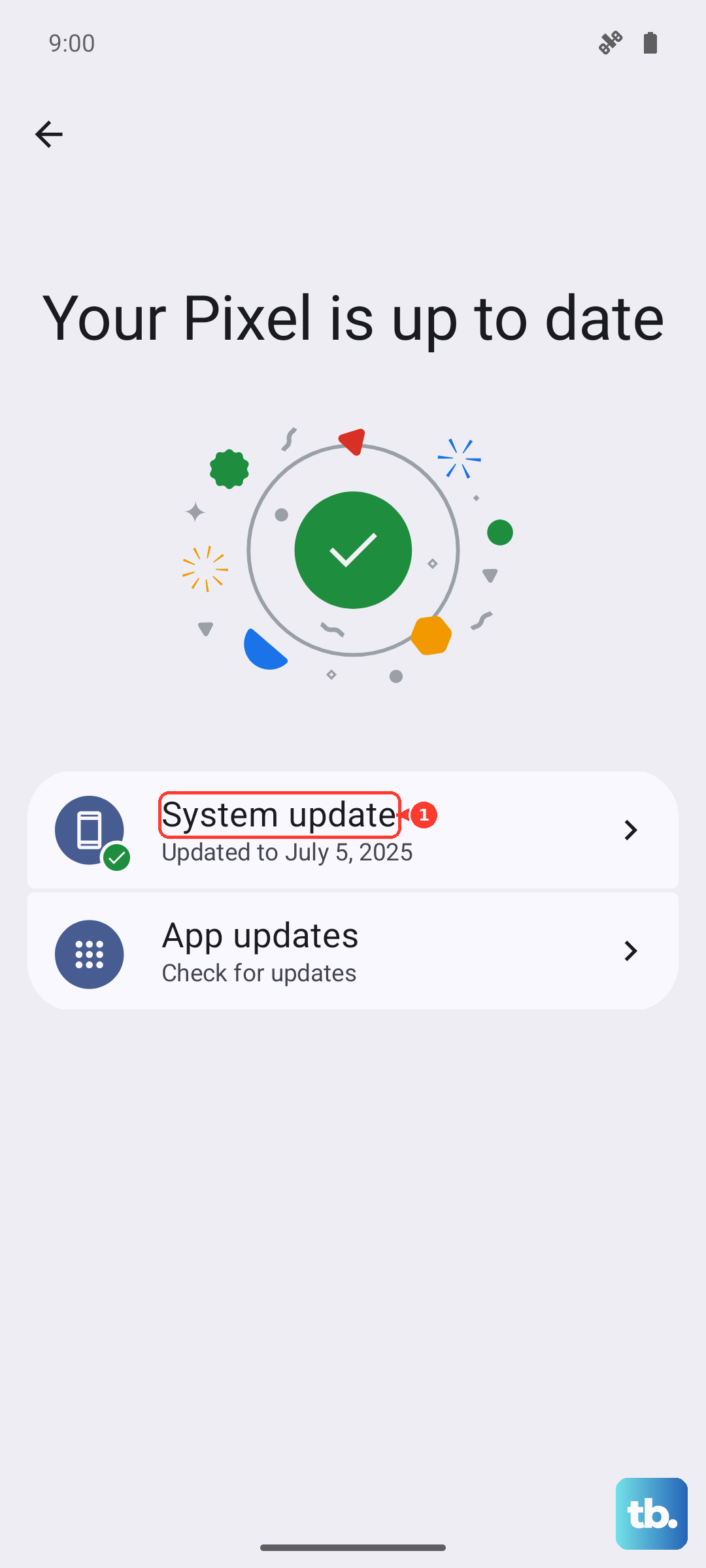
Installing the latest available version of Android ensures your phone has all the latest bug fixes and efficiency improvements from both Google and Motorola. It's a good habit to keep your device updated.
Inspect Your Charging Accessories
Cables wear out, especially at the ends where they bend. Look for any fraying, kinks, or a loose connection that wiggles. The adapter itself can also fail. The best way to test is to borrow a known-good, high-wattage USB-C PD charger and cable.
If your phone fast charges with the different set, then your original cable or adapter is the problem. It's worth investing in a quality replacement to get your charging speed back.
Try Wireless Charging as a Test
Your Moto G Stylus 5G also supports 15W Qi wireless fast charging. If you have a compatible wireless pad, try placing the phone on it. If it charges at a normal speed wirelessly but not wired, the issue is almost certainly with your USB-C port, cable, or wall adapter.
Remember to remove thick cases for wireless charging, and store the stylus in its silo on the phone to keep its internal battery topped up. This diagnostic step can really narrow down where the fault lies.