When your Motorola Moto G Stylus 5G (2025) stops syncing emails, it can leave you waiting on important messages or unable to send replies. This is usually a quick fix, often related to a setting or a temporary app glitch. I'd start by checking the most common culprit first.
Before we get into the specific steps, take a quick second to rule out the obvious. Make sure you have a solid internet connection, either via Wi-Fi or your 5G cellular data. It's also worth checking your email provider's status page online to see if there's a widespread service outage affecting everyone.
Restart the Email App
A simple app restart clears out temporary glitches that can stop sync. Swipe up from the bottom of your screen and hold to enter the recent apps view. Find your email app, whether it's Gmail or another client, and swipe it all the way up to close it. Wait a moment, then tap the app icon to reopen it and see if emails start flowing.
Check Your Sync and Account Settings
Your email account might have accidentally been set to not sync. Open the Gmail app, tap your profile picture in the top right, and select Manage accounts on this device. Tap the account having issues and make sure the Sync Gmail toggle is switched on. For other email apps like Outlook, look for a similar "Sync" or "Sync frequency" setting within the app's own settings menu.
Toggle Airplane Mode
This resets all your phone's radio connections in one go. Swipe down from the top of your screen twice to open the full Quick Settings panel. Tap the Airplane Mode icon to turn it on, wait about 15 seconds, and then tap it again to turn it off. Your phone will reconnect to Wi-Fi and cellular, which often kicks email sync back into gear.
Switch Between Wi-Fi and Mobile Data
Sometimes the issue is with one specific network. If you're on Wi-Fi, try turning it off to force the phone to use your 5G data. You can do this from the Quick Settings panel. If emails sync on mobile data, the problem might be with your Wi-Fi router or its internet connection. Conversely, if you're on data, try connecting to a known good Wi-Fi network to test.
Verify Background Data is Enabled
Android can restrict background data to save battery, which can prevent email sync. Go to Settings > Apps and find your email app. Tap on it, then select Mobile data & Wi-Fi. Ensure that both Background data and Unrestricted data usage are toggled on. This allows the app to check for new emails even when it's not actively open.
Update the Email App
An outdated app can have bugs that break synchronization. Open the Google Play Store, tap your profile icon, and go to Manage apps & device. Under "Updates available," see if your email app is listed. If it is, tap Update next to it. I've seen this resolve sync issues after a major Android update more than once.
Check for System Updates
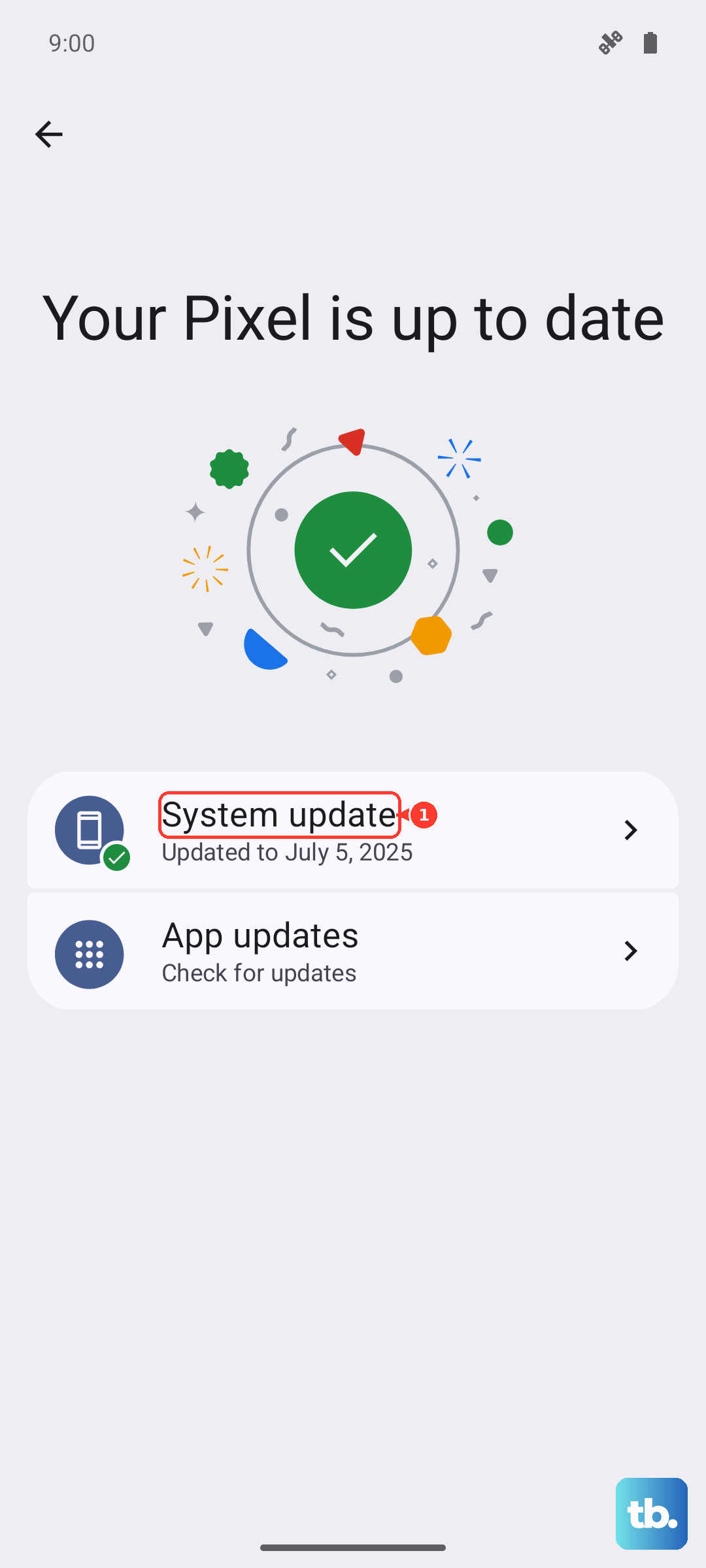
Motorola regularly releases software updates that fix system-level bugs. Go to Settings > System > System updates. Your Moto G Stylus 5G (2025) will check for any available updates. If one is found, it's a good idea to install it, as it may contain patches for connectivity or email services.
Remove and Re-add Your Email Account
This refreshes the connection between your phone and the email server. For Gmail, go to Settings > Passwords & accounts. Tap the problematic account and select Remove account. Don't worry, this just removes it from the phone. Afterwards, go back and tap Add account to set it up again from scratch. You'll need your current password.
Clear the Email App's Cache
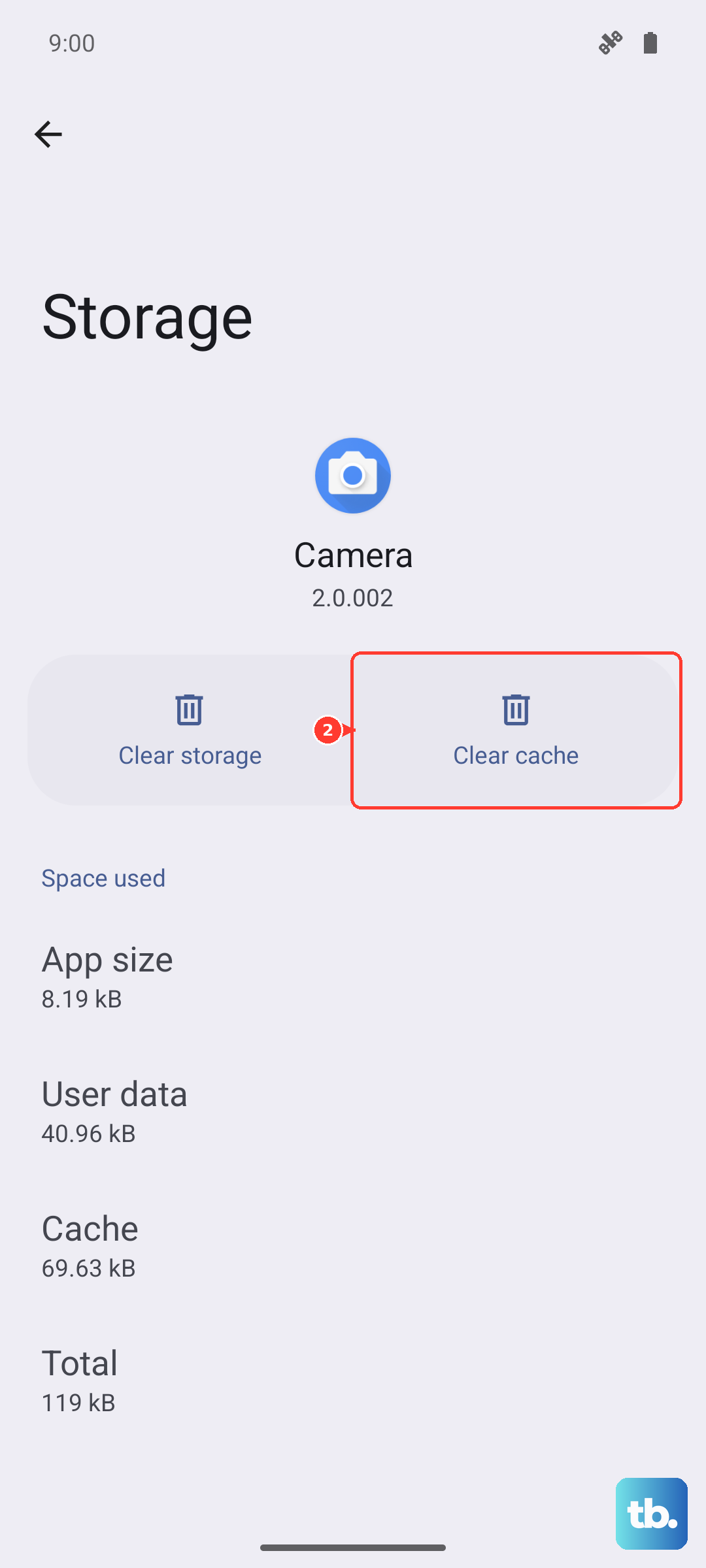
Corrupted cached data can cause strange behavior. Head to Settings > Apps, select your email app, and tap Storage & cache. Tap Clear cache. This deletes temporary files without touching your login info or emails. It's a safe first step before trying the more drastic "Clear storage" option.
Disable Battery Optimization for the App
Android's aggressive battery saving can sometimes be too aggressive. In your Settings > Apps menu, select the email app and tap Battery. Here, change the battery setting from "Optimized" to Unrestricted. This tells the system not to restrict the app's background activity, which is essential for checking emails automatically.
Review Notification Settings
If emails are syncing but you're not getting alerts, the notification channel might be blocked. Long-press on the email app's icon and tap App info. Go to Notifications. Make sure notifications are turned on for the app globally. Then, tap on specific notification categories like "New mail" to ensure they are enabled and set to alert you properly.
Disable Any Active VPN
A VPN can sometimes interfere with the connection to your email provider's servers. Open the Quick Settings panel and see if a VPN key icon is active. If you have a VPN app running, open it and disconnect. Try syncing your email without the VPN enabled to see if that was the obstacle.
Force Restart Your Phone
For a deeper system refresh, perform a force restart. Simply press and hold the Power button on the side of your Moto G Stylus for about 10 seconds, or until you feel it vibrate and the Motorola logo reappears. This is different from a normal restart and can clear temporary system hiccups affecting all apps.
Reset Network Settings
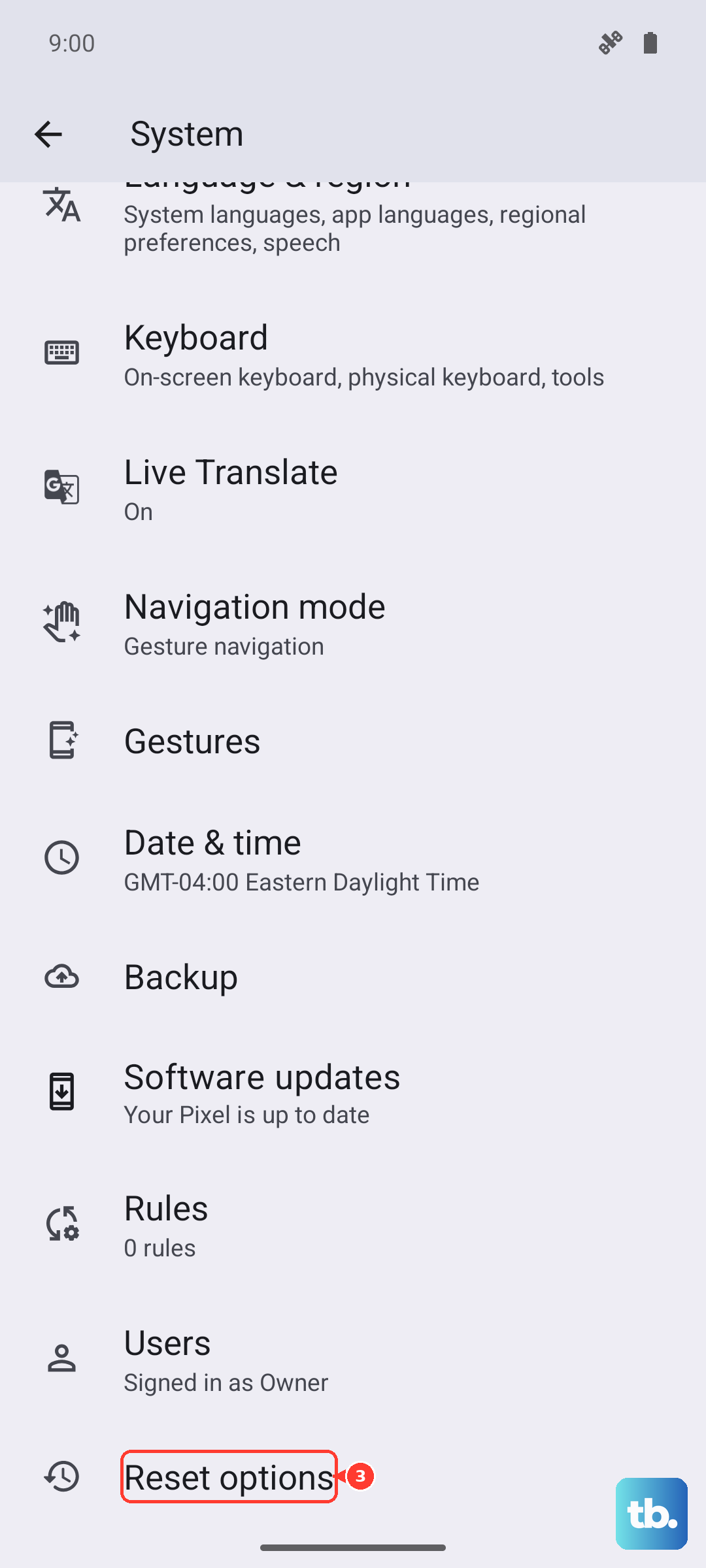
This is a more comprehensive step if you suspect a network configuration problem. Go to Settings > System > Reset options. Tap on Reset Wi-Fi, mobile & Bluetooth. This will erase all saved Wi-Fi networks, Bluetooth pairings, and cellular settings, so you'll need to reconnect to your Wi-Fi afterwards. It often resolves persistent connectivity-related sync issues.