
Dropped calls or a "Call Failed" message on your Motorola Moto G Stylus 5G can stop you in your tracks. This usually means your phone is having trouble connecting to your carrier's network properly. The good news is, most of the time it's a quick software glitch or a setting that needs adjusting.
Let's get your calls working again. I'd start with the toggle at the top of this list, as it fixes the issue more often than not.
Toggle Airplane Mode On and Off
This is the quickest way to refresh your cellular connection. Swipe down from the top of your screen to open the Quick Settings panel. Tap the Airplane Mode icon to turn it on, wait about 10 seconds, then tap it again to turn it off. This forces your phone to reconnect to the nearest cell tower, which can clear up temporary network hiccups.
Check Your Signal Strength
Look at the signal bars in the top-right corner of your screen. If you're seeing one bar or an "X," you're likely in a weak coverage area. Try moving to a different room, near a window, or stepping outside. The Moto G Stylus 5G supports a wide range of 5G bands, but even the best phone needs a decent signal to make a call.
Force Restart Your Phone
A simple reboot can clear out software gremlins causing call problems. Just press and hold the Power button on the right side of the phone for about 10 seconds. Keep holding it until you see the Motorola logo appear, then release. The phone will restart. This is different from a normal power off and on, and it often resolves deeper glitches.
Verify Do Not Disturb and Focus Modes
Check that you haven't accidentally silenced calls. Swipe down twice from the top to see your full Quick Settings. Look for a moon icon or a "Do Not Disturb" label. If it's active, tap it to turn it off. Also, open the Moto app and check under "Moto Actions" to ensure no gesture or routine is set to silence your phone during calls.
Update Your Phone's Software
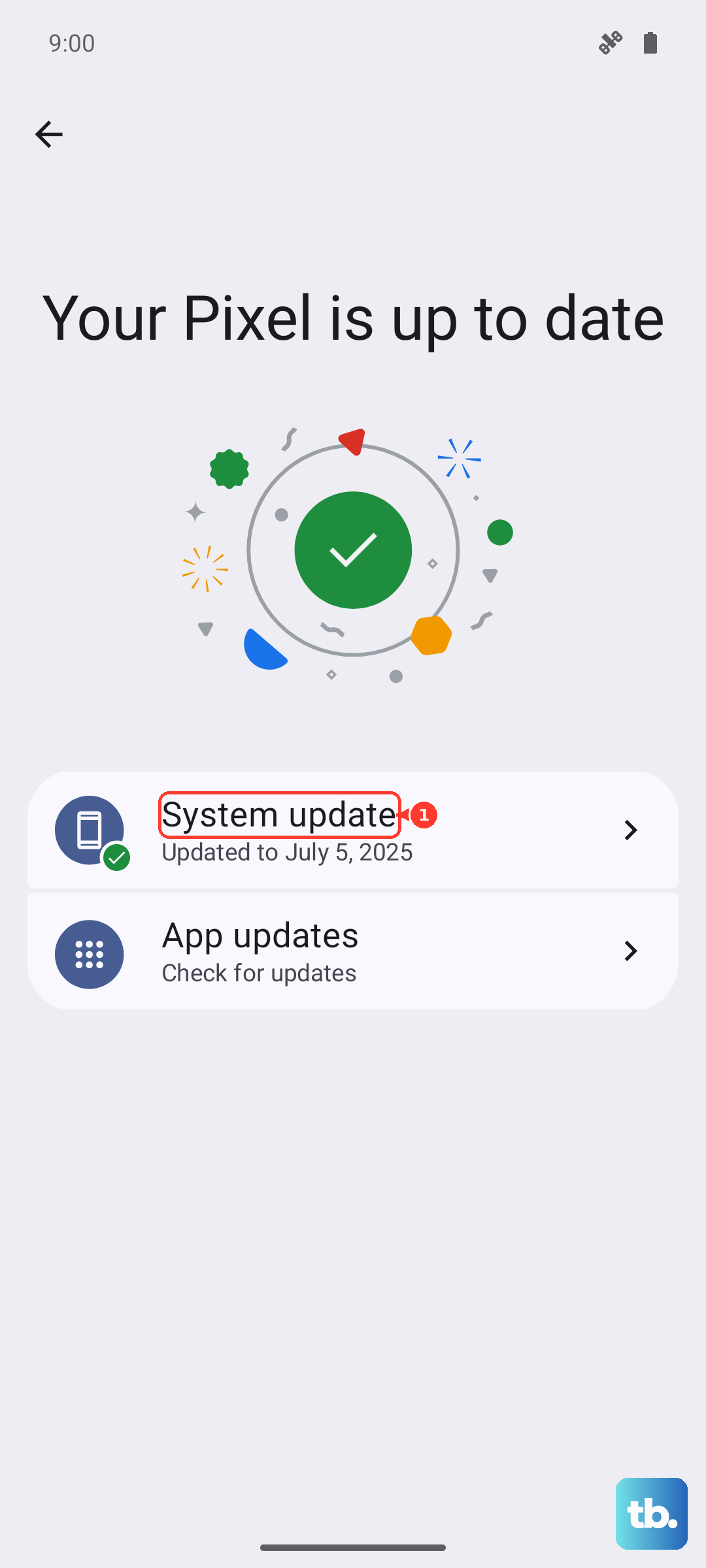
Motorola regularly releases updates that fix bugs, including ones related to calling and network connectivity. Go to Settings > System > System updates and tap "Check for update." Make sure you're connected to Wi-Fi and have at least 50% battery before installing any available updates for your Android 15 software.
Check for Carrier Settings Updates
Sometimes your mobile carrier pushes specific updates to improve network performance. These happen automatically most of the time, but it's worth checking. Go to Settings > Network & internet > SIMs (labeled SIMs & mobile network on Motorola phones). Look for an "Advanced" section or a "Carrier settings" option. If an update is pending, you'll usually see a prompt here.
Reset Your Network Settings
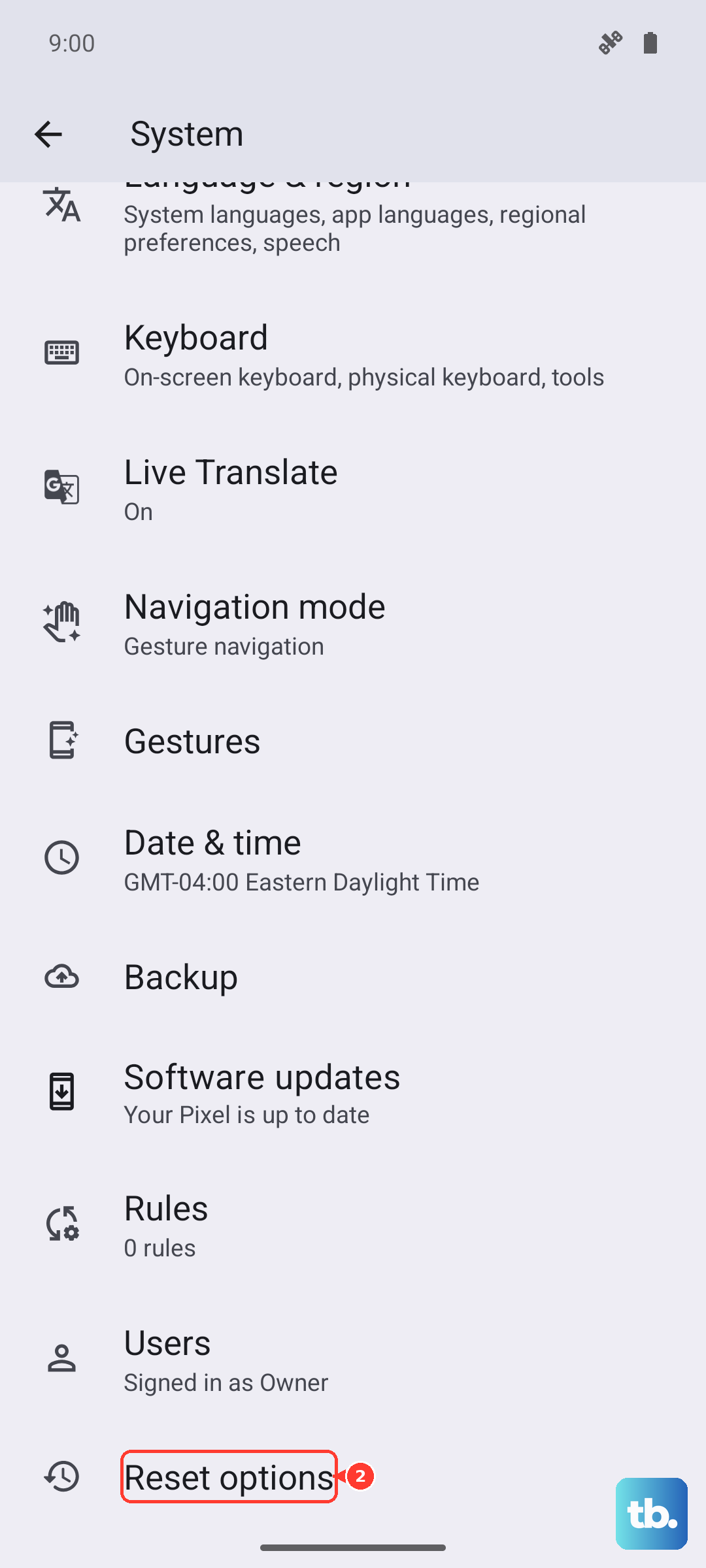
This will erase all your saved Wi-Fi networks, Bluetooth pairings, and cellular settings, but it won't touch your personal data like photos or messages. It's a strong fix for persistent network issues. Go to Settings > System > Reset options. Tap "Reset Wi-Fi, mobile & Bluetooth" and confirm. After the phone reboots, you'll need to reconnect to Wi-Fi and re-pair Bluetooth devices.
Inspect and Re-seat Your SIM Card
A loose or dirty SIM card can cause intermittent call failures. You'll need the SIM eject tool that came in the box (a paperclip works in a pinch). Find the SIM tray on the left side of the phone, insert the tool to pop it out, and carefully remove the SIM card. Give the gold contacts a gentle wipe with a soft, dry cloth and blow any dust out of the tray. Reinsert the SIM and tray firmly.
Try Switching Between 5G and 4G LTE
While 5G is great for data, sometimes the voice calling technology (VoNR) can have issues in certain areas. You can force your phone to use the more established 4G LTE network for calls. Go to Settings > Network & internet > Mobile network > Preferred network type. Select "LTE" instead of "5G" and test your call. You can always switch it back later.
Contact Your Mobile Carrier
If you've tried everything here, the problem might be on your carrier's end. Give their customer service a call from another phone. Ask if there are any known network outages or maintenance happening in your area. They can also check your account status and, if needed, send you a replacement SIM card, which can solve a lot of mysterious calling problems.