
When your Motorola Moto G Power (2025) gets stuck and won't update, it's a common roadblock. You might see an error message, a download that never starts, or an installation that fails halfway through. The good news is that a few straightforward steps can usually get things moving again.
Free Up Storage Space First
This is the most likely culprit, especially on the 128GB base model. Android updates need breathing room to download and unpack. Head to Settings > Storage to see how much space you have left. If you're below 5-6 GB free, you'll need to clear some out. I'd start by offloading old videos or moving photos to Google Photos with the "Free up space" option. Using the SD card slot for media is a great way to keep your internal storage clear for system updates.
Check Your Wi-Fi Connection
System updates require a stable Wi-Fi connection and won't proceed over cellular data. Make sure you're properly connected and test the speed by opening a webpage. If it's slow, try restarting your router. Avoid public or guest networks, as they often block large downloads like system updates.
Force Restart Your Phone
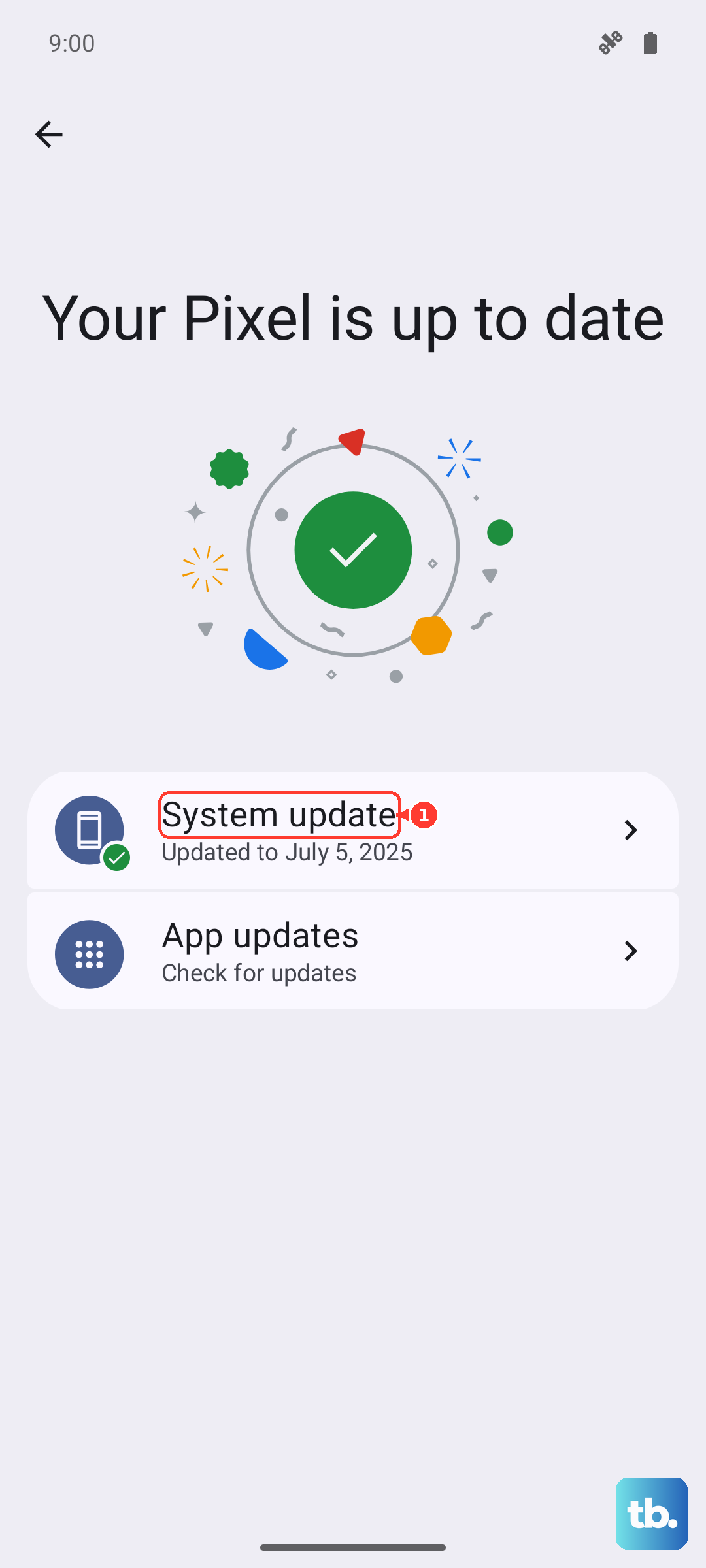
A simple reboot can clear out temporary glitches that are blocking the update process. For the Moto G Power (2025), press and hold the Power button for about 10 seconds until the screen goes black and the Motorola logo reappears. Once it's back on, go back to Settings > System > System update and try checking again.
Delete the Cached Update Data
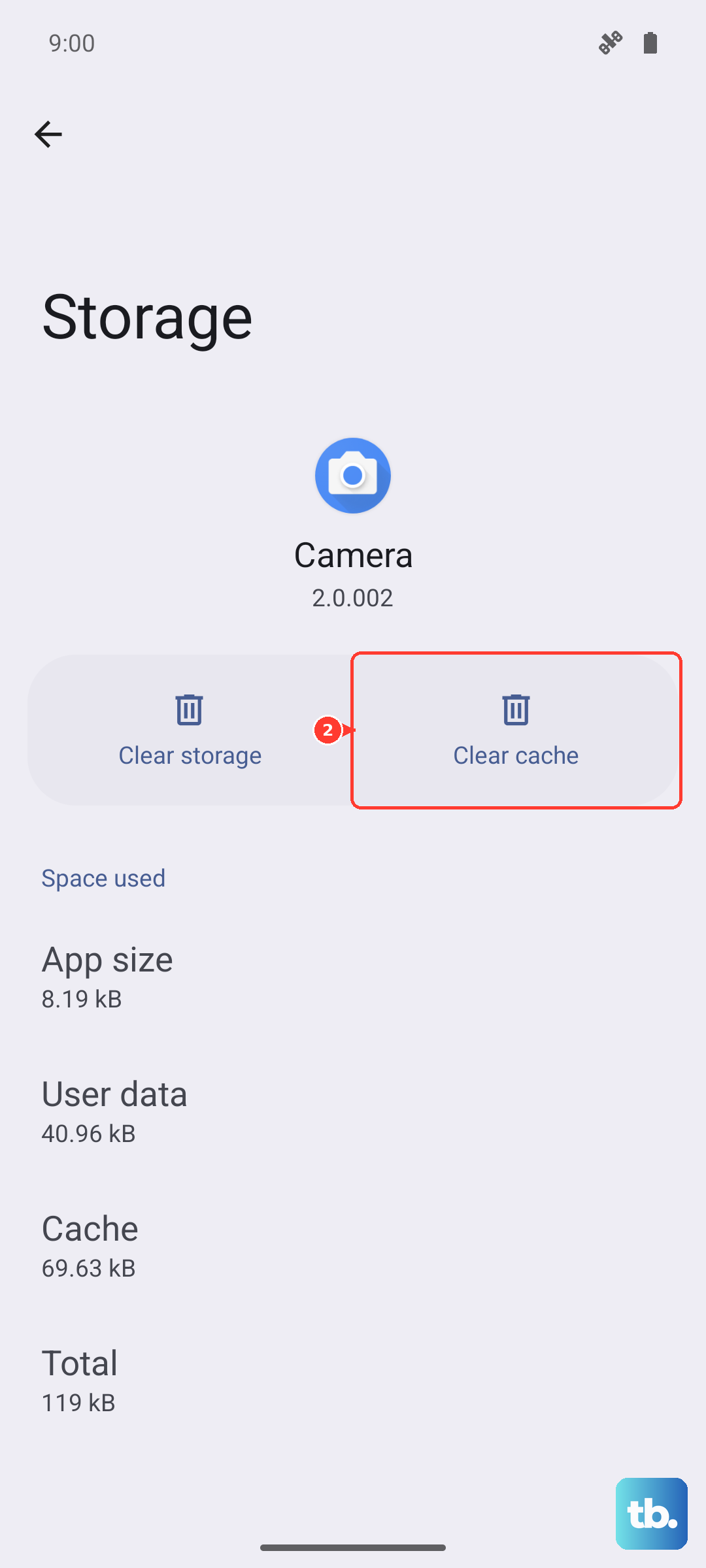
If a previous update download got corrupted, it can prevent a new one from starting. Go to Settings > Apps, tap See all apps, then find and select Google Play services. Tap Storage & cache and then Clear cache. Do the same for the Software Update app if you see it in your app list. This clears the temporary files without affecting your data.
Reset Your Network Settings
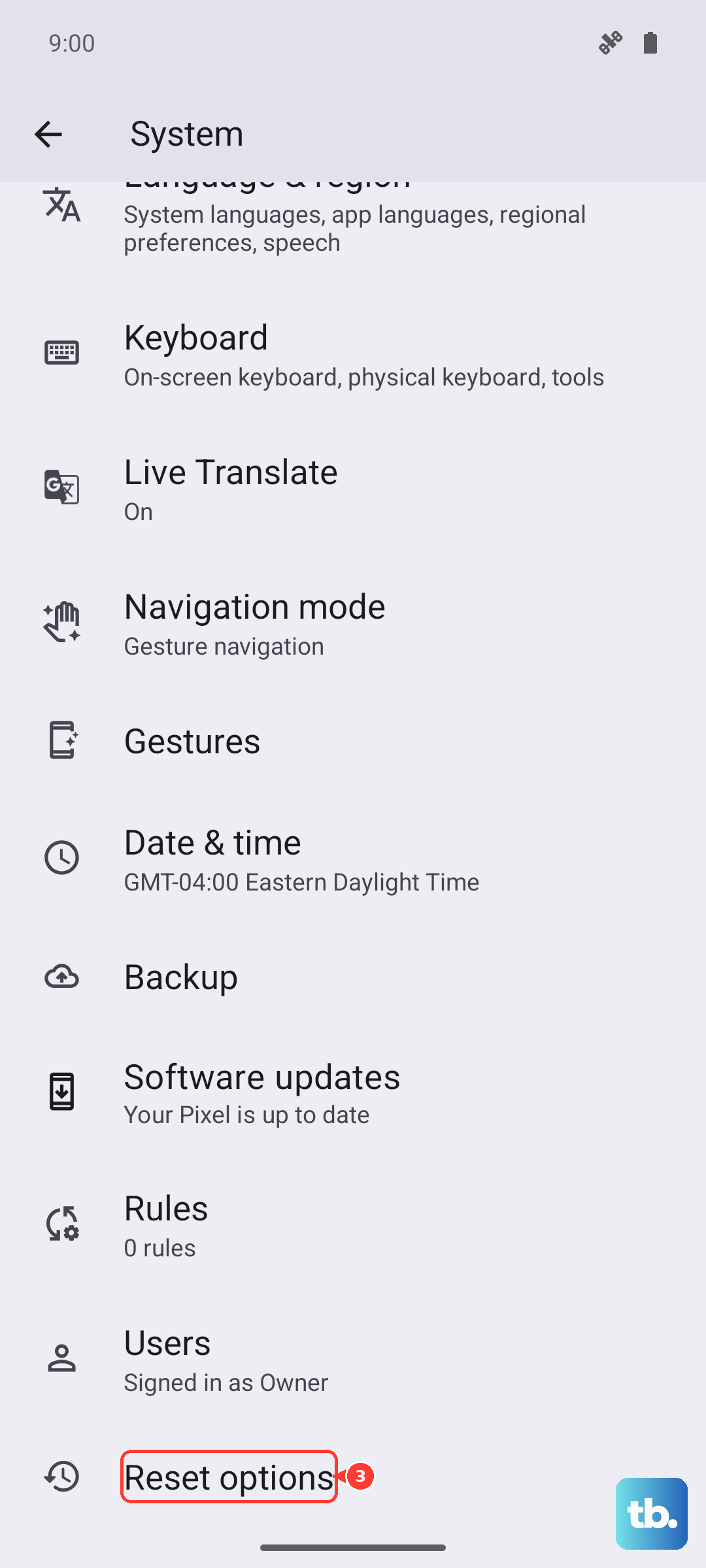
Network configuration errors are a frequent cause of failed downloads. You can reset them by going to Settings > System > Reset options. Tap Reset Wi-Fi, mobile & Bluetooth and confirm. This will forget all your saved networks, so you'll need to reconnect to your Wi-Fi password. After reconnecting, attempt the update again.
Try Updating at a Different Time
When Motorola pushes a major Android security patch or version update, their servers can get slammed. If you're getting server errors, wait a few hours or try late at night when demand is lower. This is often the fix if the update check itself fails immediately.
Check for Background App Interference
Sometimes, an active app can interfere with the update process. Before you start the update, close all running apps from the recent apps view. If you use a VPN or a third-party security app, try temporarily disabling them in their settings, as they can sometimes block the connection to Motorola's update servers.
Update Using a Computer
If the over-the-air update just won't work, you can use Motorola's official software tool. You'll need a computer with the Motorola Device Manager or the Android Flash Tool installed. Connect your phone with a good USB-C cable, follow the on-screen instructions on the computer, and it will handle downloading and installing the update directly, bypassing any phone-side issues.
Ensure Your Phone is Compatible and Supported
The Moto G Power (2025) launched with Android 15 and is guaranteed major OS updates. However, if you're trying to install a very new version, double-check Motorola's official support page for your exact model to confirm it's included in the rollout. Software updates are often released in stages, so your phone might just be in a later batch.
Verify Your Charger and Battery
Your phone requires a sufficient charge (usually above 50%) and sometimes even to be plugged in to install an update. Since no charger comes in the box, make sure you're using a reliable USB-PD charger. A weak or faulty cable can cause the phone to stop the update if it thinks power is unstable. Plug in with a good 30W charger and cable to rule this out.