
When your Moto G Power (2025) won't send a picture, it's usually a quick fix. The most common culprit is a simple setting or a temporary app glitch. I'd start by checking your mobile data and giving the phone a quick restart.
Check Your Mobile Data and MMS Settings
If you're trying to send a picture over your cellular network (not Wi-Fi), the correct settings need to be enabled. Head to Settings > Network & internet > Mobile network.
Make sure "Mobile data" is turned on. Then, tap on Advanced and look for an option called "Access Point Names" or APNs. Your carrier should have the correct APN settings configured automatically, but it's worth checking they're there.
For picture messages (MMS) to work, your APN needs the correct MMS proxy and port info from your carrier. If you're unsure, a quick web search for "[Your Carrier] APN settings" will give you the details to enter manually.
Force a Restart on Your Moto G Power
A simple restart clears out temporary software bugs that can hang up the messaging app. Just press and hold the power button on the right side of the phone for about 10 seconds, until you see the Motorola logo appear and the phone reboots.
This is different from just turning the screen off and on. It fully restarts the system and can fix a surprising number of glitches. After it boots back up, try sending the picture again.
Verify Your Internet Connection
Pictures need a data connection to send. If you're on Wi-Fi, check that you're actually connected by pulling down the notification shade. Sometimes phones can get stuck between networks.
If your Wi-Fi seems slow, try turning it off temporarily and using your mobile data instead. Conversely, if you have a weak cellular signal (shown by fewer bars), find a spot with better reception or switch to a known good Wi-Fi network.
Remember, the Dimensity 6300 processor handles basic tasks well, but a very poor connection can still cause timeouts when sending larger files.
Clear the Cache for Your Messaging App
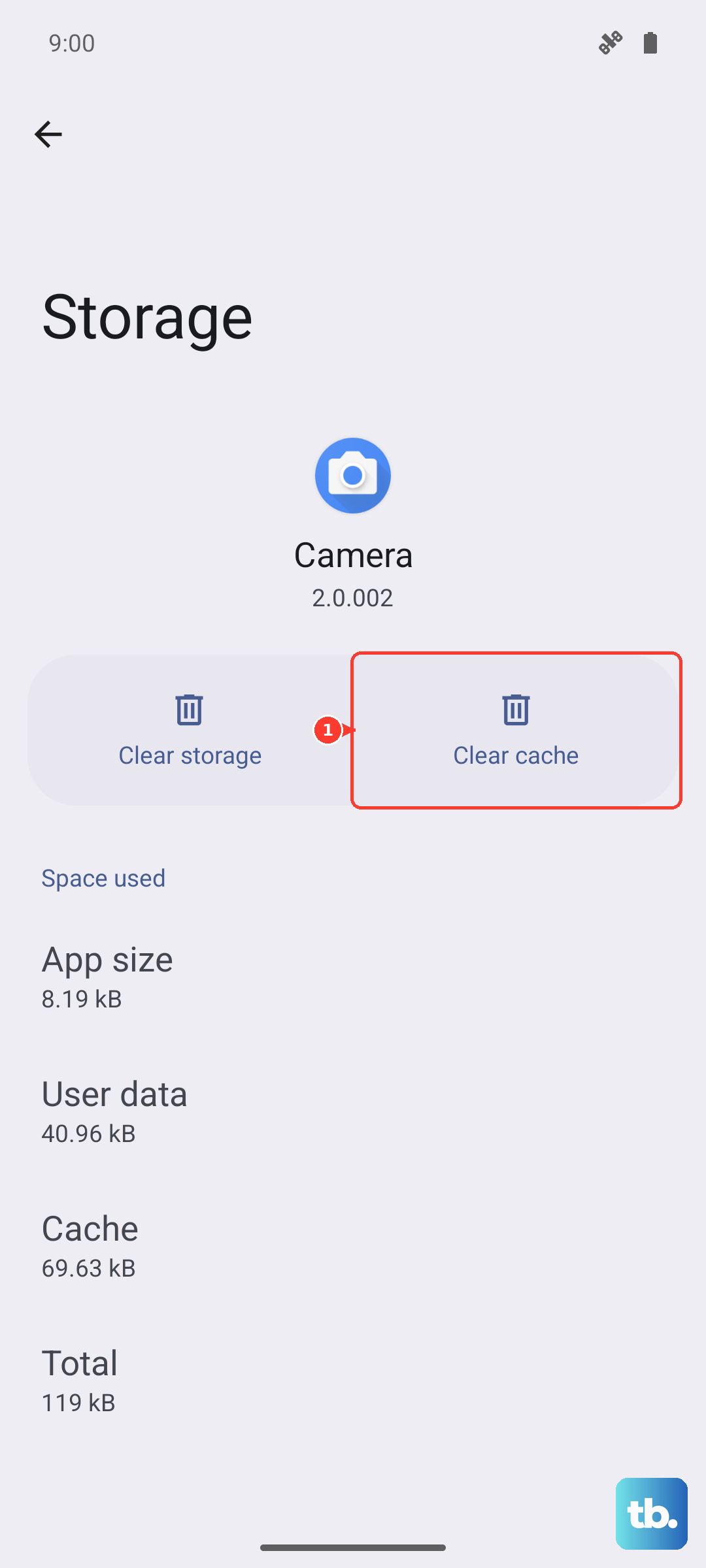
Over time, the messaging app's temporary storage (cache) can get corrupted. Clearing it forces the app to rebuild these files fresh. Go to Settings > Apps > See all apps.
Find your messaging app (like Google Messages) and tap on it. Select Storage & cache and then tap Clear cache. Don't worry, this won't delete your actual messages. It just cleans out the temporary junk.
Check Your Phone's Date and Time
An incorrect date or time can confuse network services. Your phone needs to be in sync for things like MMS to work properly. Open Settings > System > Date & time.
Make sure the "Use network-provided time" option is switched on. If it's already on, try turning it off and back on again to refresh the connection. This is a small setting that causes big problems surprisingly often.
Try a Different Messaging App
This can tell you if the problem is with the app itself or with the phone's system. Download a free alternative like Textra or Signal from the Play Store.
Set it as your default messaging app temporarily and see if you can send a picture. If it works, the issue is likely with your original app. You can stick with the new one or try uninstalling updates for the old app and reinstalling them.
Look for a Software Update
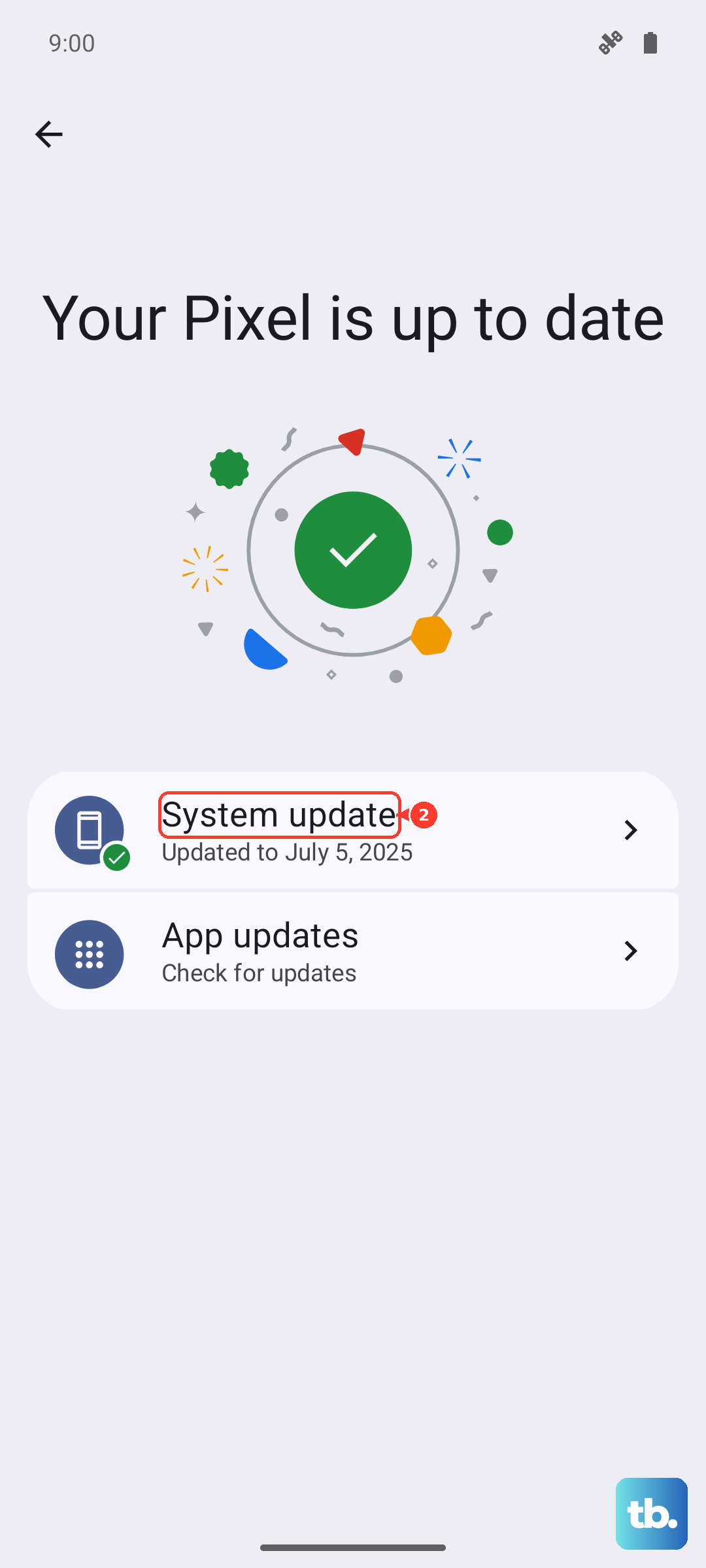
Motorola and Google release updates that fix bugs, including ones related to messaging and connectivity. Since you're on Android 15, make sure you have the latest security patch.
Go to Settings > System > System update and tap "Check for update." If one is available, install it. It's a good idea to be on Wi-Fi and have your phone plugged into a 30W charger for this process.
Review Your Storage Space
The base 128GB model can fill up faster than you think, especially with photos and videos. If your storage is critically low, the phone might struggle to process and send new pictures.
Go to Settings > Storage to see how much space you have left. If you're running low, this is where the SD card slot comes in handy. You can move existing photos to the card to free up internal space for the system to work properly.
Reset Your Network Settings
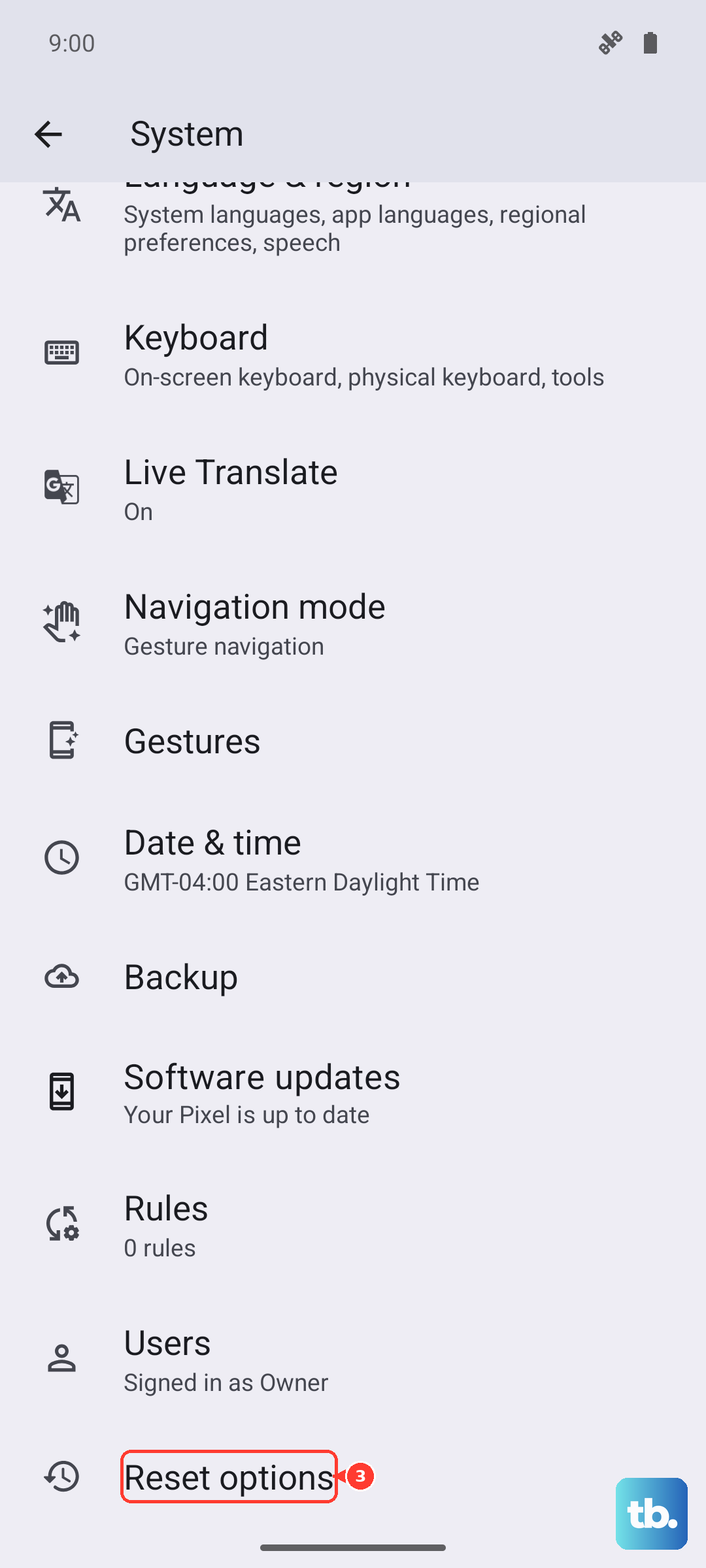
This will wipe all your saved Wi-Fi passwords, Bluetooth pairings, and cellular network settings back to default. It's a more thorough step for persistent connection issues.
To do this, navigate to Settings > System > Reset options. Tap on Reset Wi-Fi, mobile & Bluetooth and confirm. After the phone reboots, you'll need to reconnect to your Wi-Fi networks, but it often resolves deep-seated network glitches.
Check for Carrier Services Updates
Your mobile carrier pushes small updates that help your phone communicate with their network. These are separate from Android system updates. Open the Google Play Store app and tap your profile icon.
Go to Manage apps & device > Manage and look for an app called "Carrier Services." If an update is available, install it. You can also search for your specific carrier's app (like "My Verizon" or "T-Mobile") and ensure it's updated as well.