When your Moto G Power's volume buttons stop responding, it's a real nuisance. You press them and get no feedback, no change in volume, nothing. The good news is this is often a simple software hiccup or a bit of dirt, and you can usually fix it yourself in a few minutes.
Before you think about a repair, try these steps. I'd start with the force restart, as it solves a lot of weird Android glitches without touching your data.
Remove Your Phone Case
Take the case off your Moto G Power. A bulky or misaligned case can physically block the buttons from being pressed all the way down. Even if the case has worked fine for months, it might have shifted or worn in a way that's now causing the problem.
With the case off, press the volume buttons a few times. You might feel them click more freely. If they start working, you've found the culprit. Consider trying a different case or checking if your current one has any debris stuck inside it.
Perform a Force Restart
A force restart clears out temporary software bugs that can make hardware controls like the volume buttons freeze up. This is the most common fix for unresponsive buttons on Android phones, including your Moto G Power.
Press and hold the power button for about 10 seconds. Keep holding it until you see the Motorola logo appear on the screen, then let go. Your phone will reboot normally. Once it's back on, test the volume buttons immediately.
Clean the Volume Buttons
Dust and pocket lint are common enemies of physical buttons. Over time, tiny particles can work their way into the small gaps around the volume rocker, preventing it from making proper contact.
Turn the phone off first for safety. Then, take a can of compressed air and give short, gentle bursts around the edges of the volume button. Don't shake the can, and hold it upright. For any sticky residue, lightly dampen a cotton swab with isopropyl alcohol (90% or higher is best), wipe around the button, and let it dry completely.
Check for Software Updates
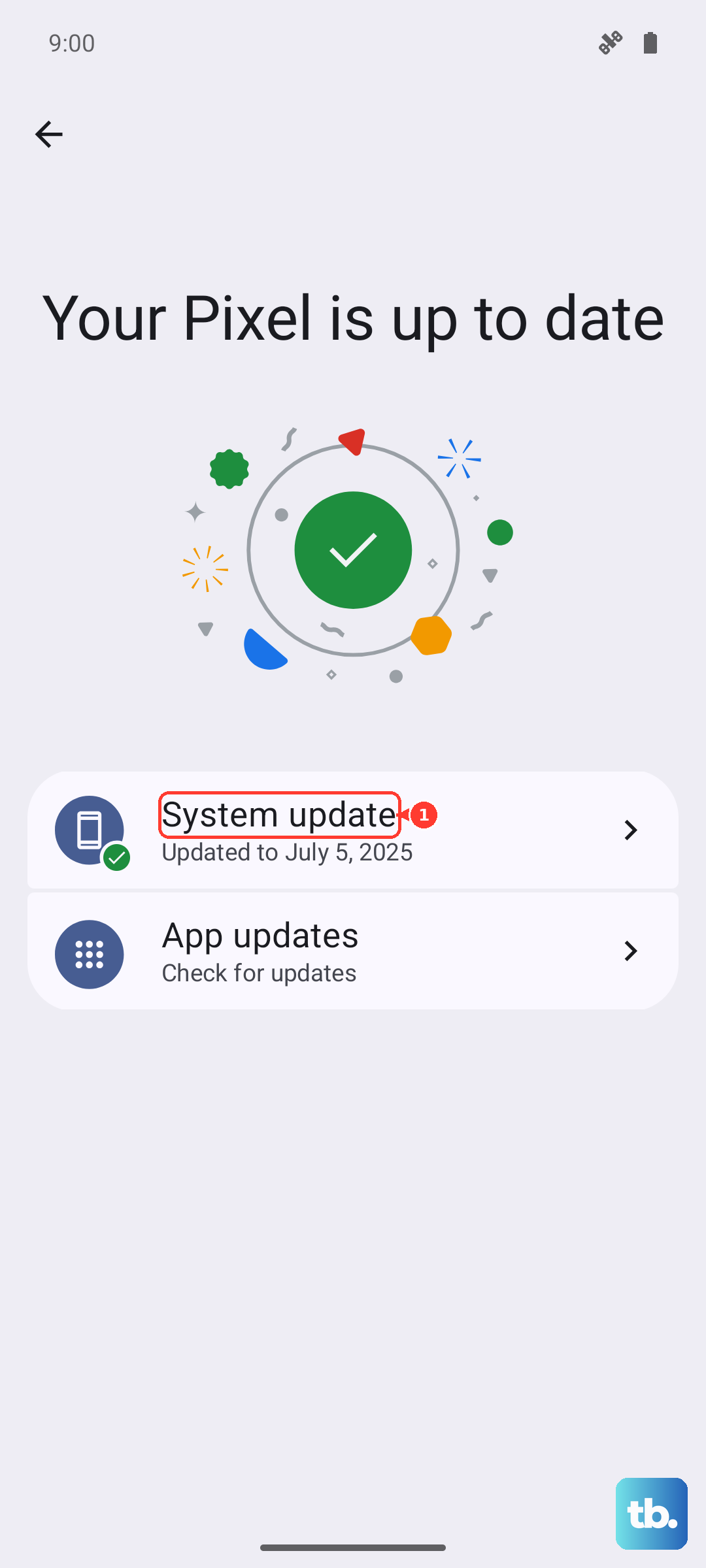
Since your Moto G Power runs Android 15, a software bug could be the cause. Motorola regularly releases updates that fix these kinds of issues. Make sure your phone is connected to Wi-Fi and has at least a 50% charge.
Go to Settings > System > System updates. Tap "Check for update." If an update is available, download and install it. After the phone restarts, check if the volume buttons are working again.
Test in Safe Mode
Safe Mode temporarily disables all third-party apps you've downloaded. If a recently installed app is causing a conflict with your phone's hardware controls, the buttons should work normally in Safe Mode.
To boot into Safe Mode, press and hold the power and Volume Up buttons until the power off menu appears. Then, press and hold the "Power off" option on the screen. A prompt will ask if you want to reboot to Safe Mode. Tap "OK."
Once the phone restarts with "Safe Mode" in the corner, test the volume buttons. If they work, a third-party app is likely the problem. Restart normally to exit Safe Mode, and try uninstalling apps you installed just before the issue started.
Use the On-Screen Volume Slider
While you're figuring this out, you can still control your volume. Just press the volume up or down button once. Even if the physical press doesn't work, it should bring up the on-screen volume slider.
You can also adjust it directly in Settings > Sound. Drag the media volume slider to where you want it. This is a good workaround for playing music or videos until you get the buttons fixed.
Inspect for Physical Damage
The Moto G Power (2025) has a MIL-STD-810H rating for durability, but it's not indestructible. Take a close look at the volume button area. Are there any deep scratches, dents, or cracks nearby?
Has the phone been exposed to water or moisture recently? Even small amounts of liquid can corrode the internal contacts for the buttons. If you see any signs of physical or liquid damage, the issue is almost certainly hardware-related.
Try a Factory Reset
This is a last resort for persistent software problems. A factory reset will erase all data from your phone and return it to its original out-of-the-box state. You must back up everything important first.
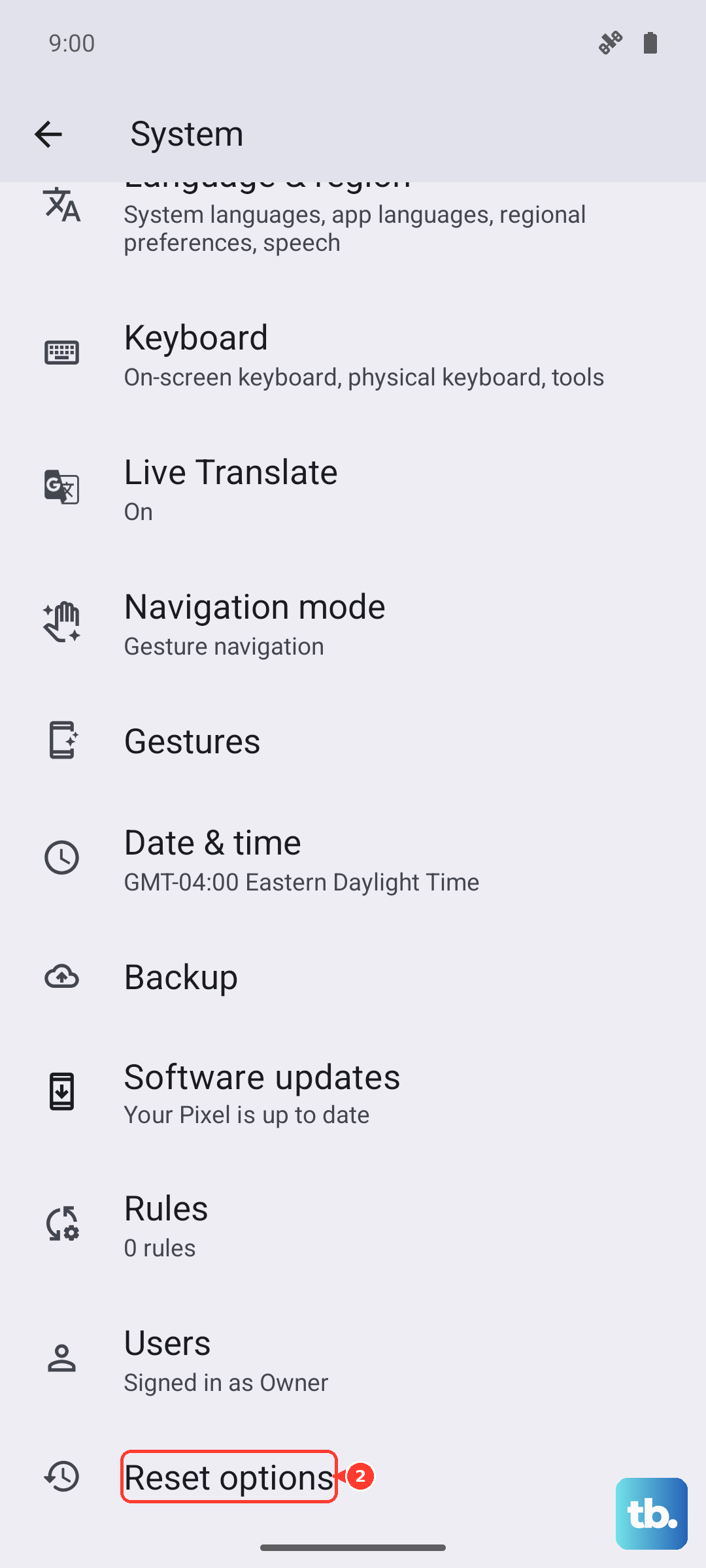
Go to Settings > System > Reset options. Tap "Erase all data (factory reset)" and follow the prompts. After the reset is complete, set up the phone as new without restoring a backup immediately. Test the volume buttons on the setup screen. If they work now, a software corruption was the cause.