
When your Moto G Power (2025) stops listening to "Hey Google," it feels like a step backward. The whole point of a voice assistant is hands-free help, and when it goes silent, you're left tapping the screen again. Let's get your phone responding to your voice commands.
Make Sure Google Assistant is Actually Listening
First, let's check the most basic setting. Open your phone's Settings app and scroll down to find "Google." Tap on it, then look for "Settings for Google apps" and select "Search, Assistant & Voice." From there, tap on "Google Assistant."
You'll see a section called "Hey Google & Voice Match." Tap into it. Make sure the toggle for "Hey Google" is switched on. If it's off, turn it on and follow the prompts to retrain the voice model. This is the most common fix I've seen for this issue.
Check for Microphone Blockages
Your Moto G Power has multiple microphones for noise cancellation and clear voice pickup. If they're covered, the phone can't hear you. Check the small pinhole at the bottom of the phone, near the USB-C port, and the one at the top.
Sometimes a phone case, especially a rugged one, can partially cover these ports. Try removing your case and saying "Hey Google" again. Also, look for any lint or pocket debris. You can gently clean the openings with a dry, soft-bristled brush or a blast of compressed air.
Review Your Sound and Accessibility Settings
A couple of features in Android can interfere with the "Hey Google" hotword. Go to Settings > Accessibility. Look for an option called "Sound Notifications" or "Sound Recognition." If this feature is turned on, it can disable "Hey Google" because the phone is constantly listening for other sounds.
Make sure that setting is off. Also, while you're checking audio, ensure your phone isn't in complete silence mode. The ringer volume should be up, as some Assistant responses are tied to notification sounds.
Restart Your Phone
It sounds simple, but a restart clears out temporary glitches in the system that can affect the voice trigger. Press and hold the power button on the right side of your Moto G Power until the power menu appears, then tap "Restart."
If the screen is completely unresponsive, you can force a restart. Just press and hold that same power button for about 10 seconds or more, until you feel a vibration and see the Motorola logo appear. This is a soft reset that doesn't erase any data.
Update the Google App and Your Phone's Software
Google Assistant lives inside the main Google app. An outdated version can have bugs. Open the Play Store, tap your profile icon, and go to "Manage apps & device." Under "Updates available," see if the "Google" app is listed and update it.
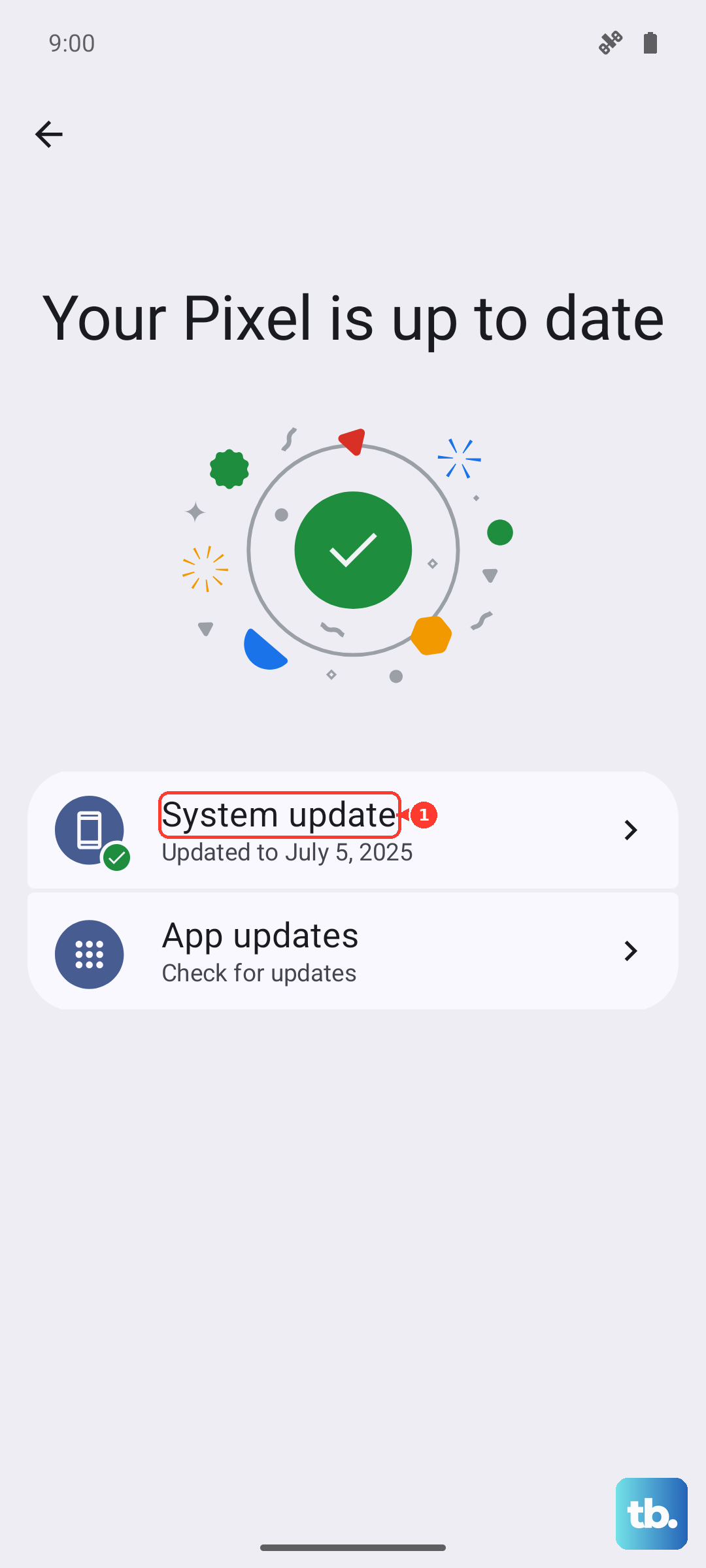
Next, check for a system update. Motorola and Google release patches that fix these kinds of issues. Go to Settings > System > System update. Download and install any available updates. Since your phone runs Android 15, it should be receiving regular updates.
Retrain Your Voice Model
Background noise, a different speaking style, or even a slight cold can change your voice enough that the phone doesn't recognize it. You need to retrain the voice model. Go back to Settings > Google > Settings for Google apps > Search, Assistant & Voice > Google Assistant > Hey Google & Voice Match.
This time, tap on "Voice Model" and then select "Retrain voice model." Follow the on-screen instructions, speaking the phrases clearly in your normal voice. Do this in a relatively quiet room for the best accuracy.
Check for Conflicting Apps and Battery Optimization
Sometimes, other apps that use the microphone can cause a conflict. Think about voice recorder apps, walkie-talkie apps, or even certain games. Try using "Hey Google" in Safe Mode to rule out a third-party app. To boot into Safe Mode, press and hold the power button, then long-press the "Power off" option on your screen until you see the Safe Mode prompt.
Also, Android's aggressive battery optimization can sometimes put the Google app to sleep. Go to Settings > Apps > See all apps. Find "Google" in the list, tap on it, and then go to "Battery." Set the battery mode to "Unrestricted." This tells the system to never put the app to sleep in the background, which it needs to be active for "Hey Google."
Reset App Preferences or All Settings
If you're still stuck, you can reset app preferences. This won't delete any app data, but it will reset permissions, default apps, and background restrictions. Go to Settings > System > Reset options. Tap "Reset app preferences" and confirm. Afterward, you'll need to re-enable "Hey Google" and grant the microphone permission again.
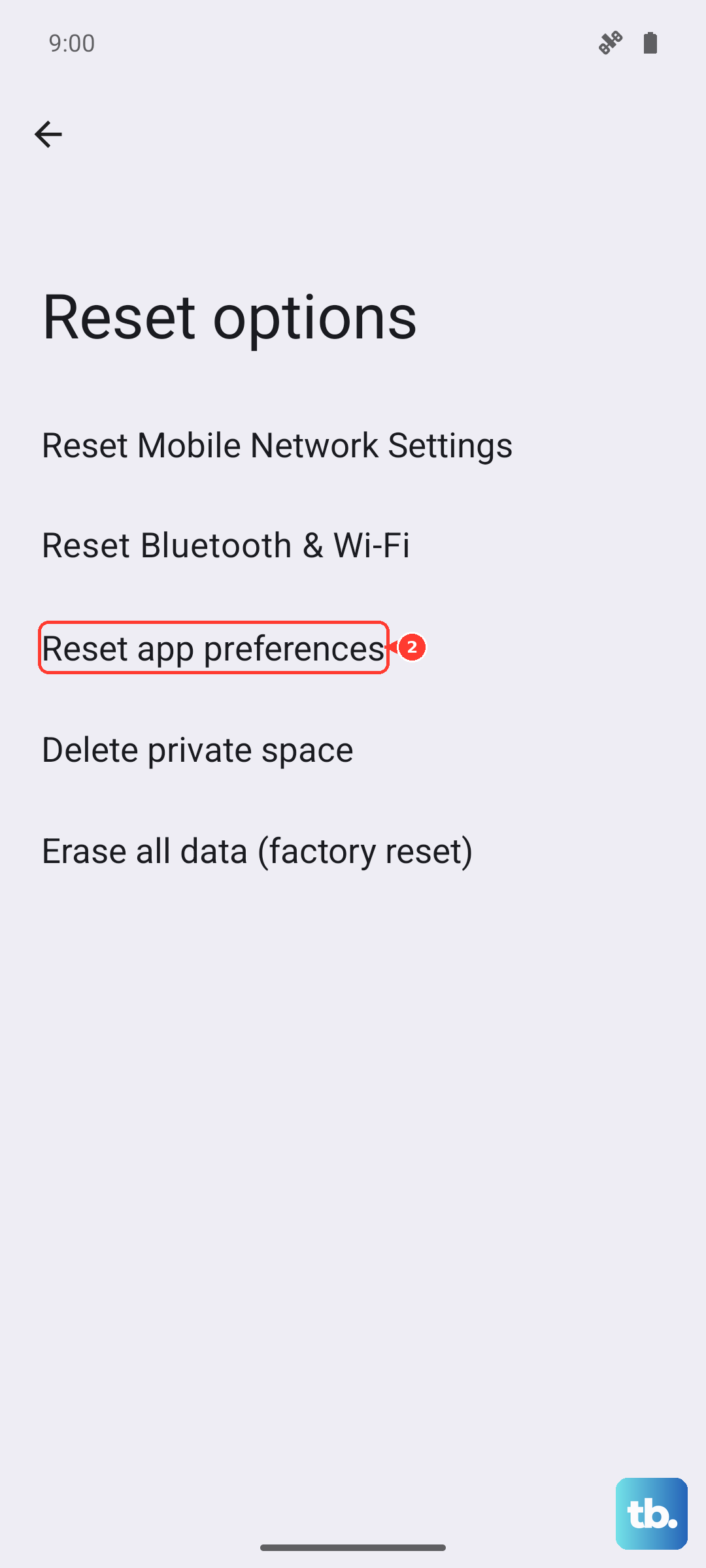
As a more thorough step, you can reset all network and system settings. This is in the same "Reset options" menu. Choose "Reset Wi-Fi, mobile & Bluetooth" or "Reset all settings." This will erase all your saved Wi-Fi passwords, Bluetooth pairings, and custom system settings, but your personal files and apps will remain.