If videos on your Motorola Moto G Power (2025) are stuttering, freezing, or buffering, it can be really annoying. This is a common issue, especially on a budget-friendly phone like this, but there are several straightforward things you can try to smooth things out.
Quick Fix: Force Restart and Check Storage
I'd start with a force restart. Just press and hold the power button for about 10 seconds until the screen goes black and the Motorola logo reappears. This clears out any temporary glitches in the system.
Next, check your storage. The base 128GB model can fill up faster than you think. Head to Settings > Storage to see how much space you have left. If you're below 5GB free, that's likely causing the lag as the phone struggles to read and write video files.
Understand What's Causing the Lag
It helps to know what you're seeing. Stuttering looks choppy, like the video is skipping frames. Buffering is when the video pauses to load more data, common with streaming. Freezing is when the picture stops entirely, sometimes while the audio keeps playing.
On the Moto G Power, the MediaTek Dimensity 6300 processor is capable but not a powerhouse. It can get overwhelmed if you have too many apps running or are trying to play a very high-resolution video file.
Free Up Internal Storage
This is often the main culprit. When your phone's storage is nearly full, everything slows down, including video playback. Go into your storage settings and look for the biggest space hogs, usually videos, photos, and downloaded media.
Consider moving photos and videos to Google Photos or another cloud service and using the "Free up space" feature. Also, don't forget you have a microSD card slot. You can move compatible media files directly to the card to instantly free up that precious internal space.
Close Background Apps and Boost Performance
Too many apps running in the background can starve your video app of the processing power it needs. Swipe up from the bottom and hold to see your recent apps, then swipe each one away to close it.
You can also try Motorola's built-in optimization. Go to Settings > Battery > Battery Saver and toggle it on temporarily. This limits background activity and can sometimes provide the extra kick needed for smooth playback.
Check Your Network Connection
For streaming videos on YouTube, Netflix, or similar apps, a weak Wi-Fi or cellular signal is a prime suspect. Try switching between Wi-Fi and your mobile data to see if the problem is network-specific.
If you're on Wi-Fi, try moving closer to your router. You can also forget the network and reconnect. Go to Settings > Network & internet > Internet, tap the gear icon next to your network, and select "Forget." Then reconnect by entering the password again.
Update Your Apps and Android System
Outdated apps, especially your video player or streaming apps, can have bugs that cause lag. Open the Google Play Store, tap your profile icon, and go to Manage apps & device > Updates available to install everything.
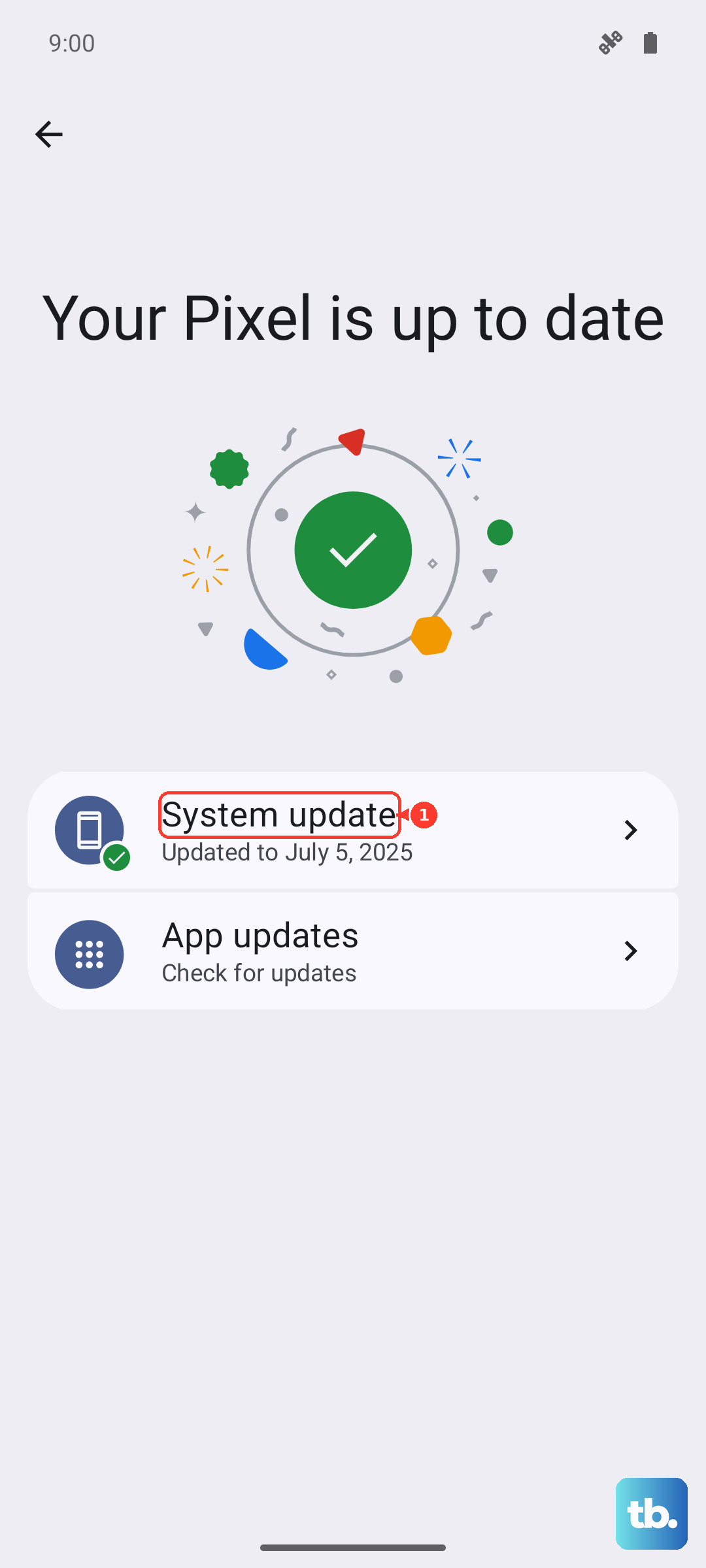
Also check for a system update. Motorola releases patches that can improve performance. Go to Settings > System > System updates to see if anything new is available. Keeping your phone on Android 15 with the latest security patch is a good idea.
Clear the App's Cache and Data
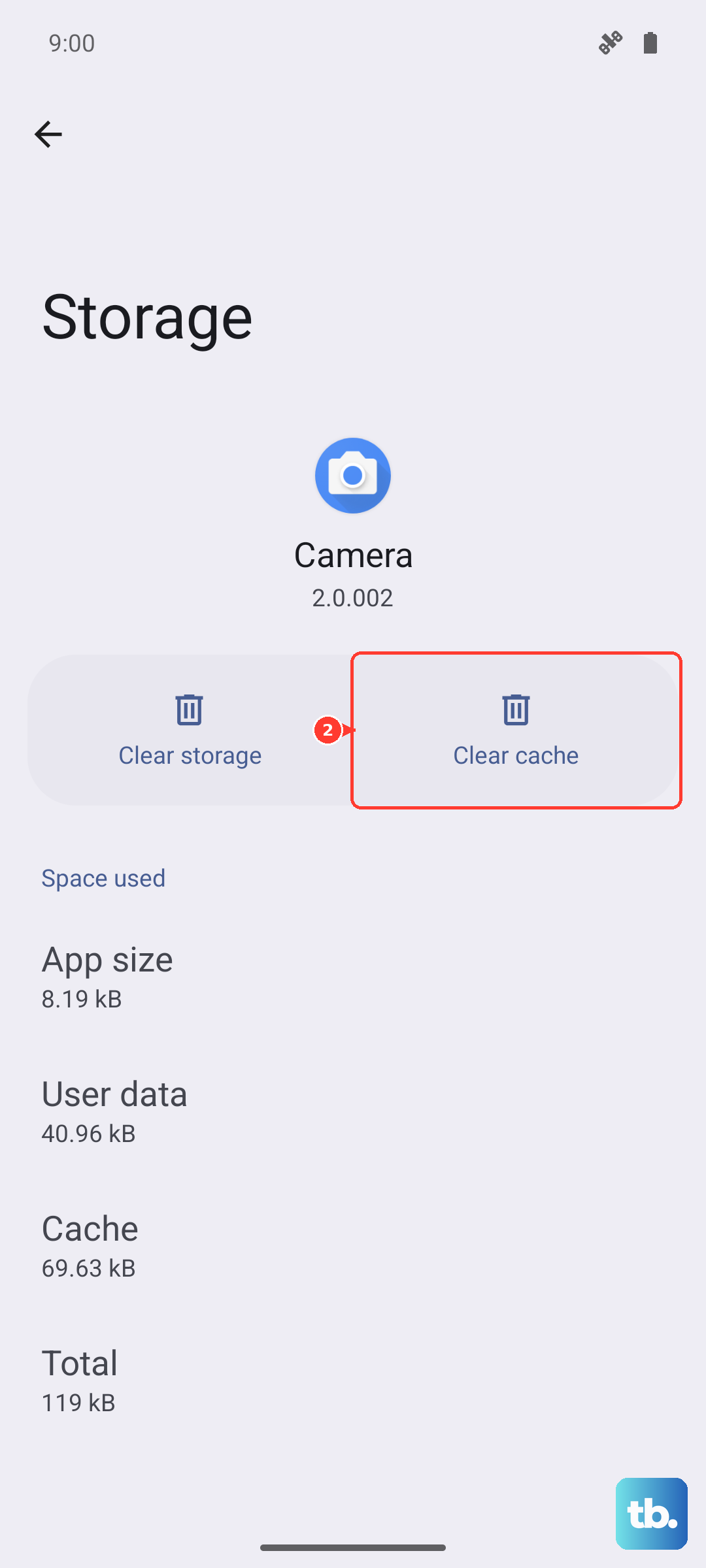
If the lag is happening in one specific app, like YouTube or your gallery, the app's temporary data (cache) might be corrupted. Go to Settings > Apps, find the problematic app, and tap on it.
Select Storage & cache and tap "Clear cache." This won't delete your personal data. If that doesn't work, you can tap "Clear storage" or "Clear data," but be warned this will reset the app to its default state and you may need to log back in.
Adjust Video Playback Settings
Sometimes the video file itself is the problem. If you're playing a video you recorded or downloaded, it might be in a very high resolution or frame rate that the Dimensity 6300 chip struggles to decode smoothly.
In streaming apps, try manually lowering the playback quality. In YouTube, for example, tap the three dots in the top corner during playback and select "Quality" to choose a lower resolution like 720p. This can eliminate buffering and stuttering immediately.
Perform a Software Reset
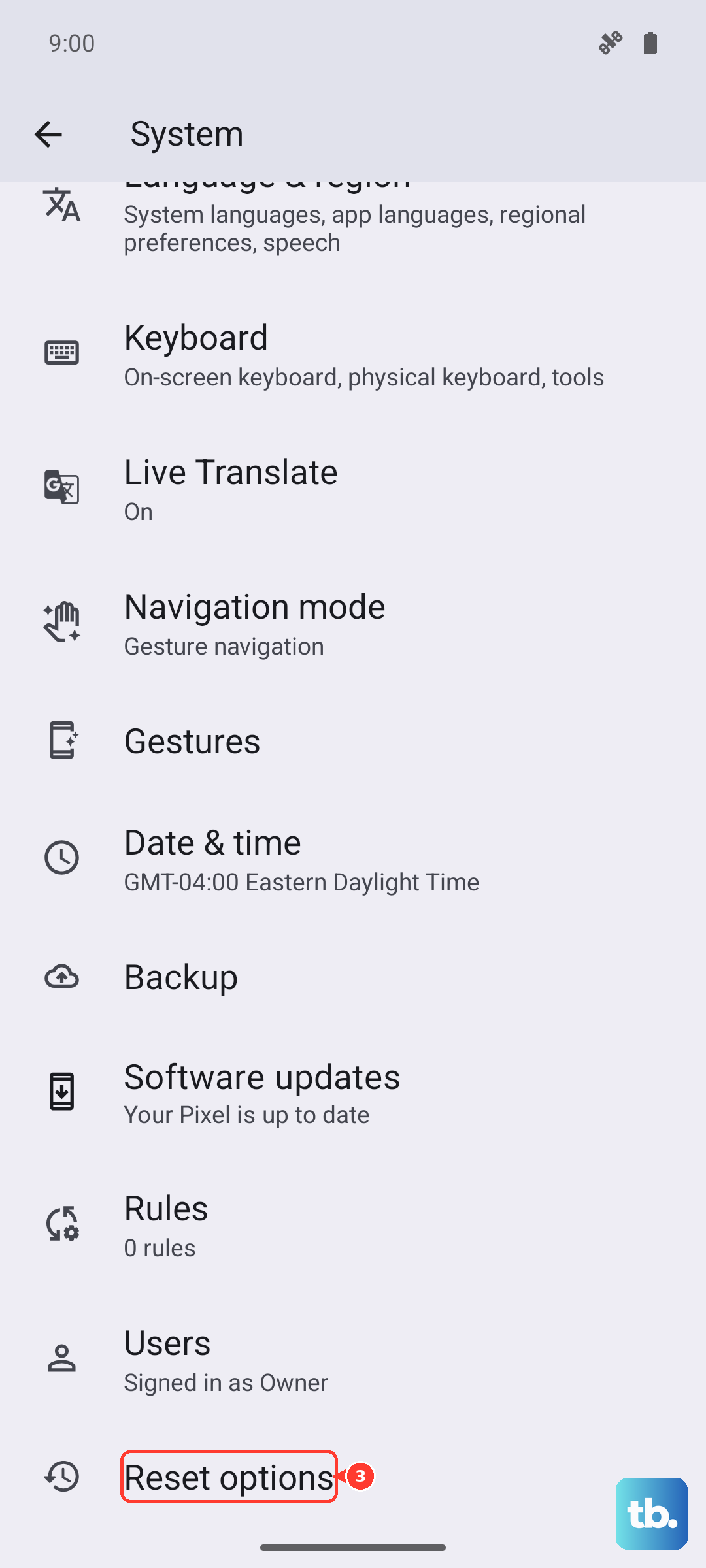
If you've tried everything else and the lag persists across all apps, a reset of your settings can help. This won't delete your photos or apps, but it will reset Wi-Fi passwords, Bluetooth connections, and custom preferences.
Go to Settings > System > Reset options. Then, tap Reset Wi-Fi, mobile & Bluetooth. Confirm the action and restart your phone. After it boots up, reconnect to your networks and see if video playback improves.