
When your Motorola Moto G Power (2025) goes silent, it's a jarring experience, especially on a phone known for its long battery life and solid speakers. Sound issues can pop up for a bunch of reasons, from a simple software hiccup to a setting you didn't know was on. The good news is you can almost always fix it yourself without needing a trip to a repair shop.
To separate hardware from software, open a online speaker test and play the channel tones. What you hear, or do not hear, tells you which fixes below matter most.
Check Your Volume and Sound Mode
This is the absolute first thing to try. While you're playing music or a video, press the volume up button on the side of your Moto G Power. Sometimes the media volume is turned all the way down independently of the ringer volume.
Next, pull down the quick settings panel from the top of the screen twice. Look for the sound mode icon, it might say "Vibrate" or show a bell with a line through it. Tap it to cycle back to "Sound" mode. I've seen this fix it more times than I can count.
Disconnect Bluetooth and Accessories
Your phone might be trying to send audio somewhere else. Swipe down and tap the Bluetooth icon to turn it off, or go into Settings > Connected devices and disconnect any paired speakers or headphones.
Also, take off any case you might have on the phone. While the Moto G Power has a MIL-STD-810H rating for durability, a poorly designed case can sometimes muffle or completely block the bottom-firing speaker grille. Give the speaker a quick visual check for any obvious lint or debris while you're at it.
Clean the Speaker Grille Carefully
Pocket lint and dust are the enemies of good sound. The speaker on the Moto G Power is on the bottom edge. Grab a soft-bristled toothbrush or a clean, dry makeup brush and gently brush across the grille.
You can also use a can of compressed air, but hold it upright and use very short bursts from a few inches away. Never use a pin or a SIM eject tool to poke at the holes, as you can easily damage the speaker behind it.
Review Do Not Disturb and App-Specific Settings
Android's Do Not Disturb can be tricky. Go to Settings > Sound & vibration > Do Not Disturb. Make sure it's turned off, or check the rules to see if it's scheduled to be on.
Also, some apps have their own sound settings. If you're only missing sound in one app, like YouTube or Spotify, open that app and dig into its settings menu to make sure in-app volume isn't muted.
Check Accessibility and Sound Enhancements
There are a few settings here that can accidentally mute everything. Head to Settings > Accessibility.
Look for an option called "Mute all sounds" or "Audio balance" and make sure they're configured correctly. Also, go to Settings > Sound & vibration > Advanced and see if any "Sound enhancement" features are enabled that might be interfering, like a custom equalizer.
Force Restart Your Moto G Power
A simple reboot clears out temporary glitches. For the Moto G Power (2025), press and hold the Power button for about 10 seconds until you feel a vibration and see the Motorola logo. This forces a fresh start for the audio system and the Android 15 software.
It's a different action than just tapping "Restart," and it often resolves weird one-off issues where sound just drops out completely.
Boot Into Safe Mode
This tells you if a third-party app you installed is causing the conflict. To enter Safe Mode, press and hold the Power button until the power menu appears. Then, tap and hold the "Power off" option on your screen.
A prompt will appear asking if you want to reboot to Safe Mode. Tap "OK." If your sound works perfectly in Safe Mode, you know a downloaded app is the culprit. You'll need to restart normally and uninstall recent apps one by one to find the offender.
Clear the Cache Partition
Corrupted system cache can cause all sorts of odd behavior, including audio problems. Turn your phone off completely. Now, press and hold the Volume Down button and the Power button at the same time.
When the Motorola logo appears, let go of both buttons. You'll see "Recovery mode" with a little Android robot. Use the volume buttons to scroll to "Wipe cache partition" and press the power button to select it. Confirm, then select "Reboot system now." This doesn't delete any personal data.
Update Your Software
Motorola releases updates that fix bugs. Go to Settings > System > System updates and tap "Check for update." If there's one available, install it. Since the Moto G Power (2025) runs Android 15, an early software update could very well address a specific audio driver issue.
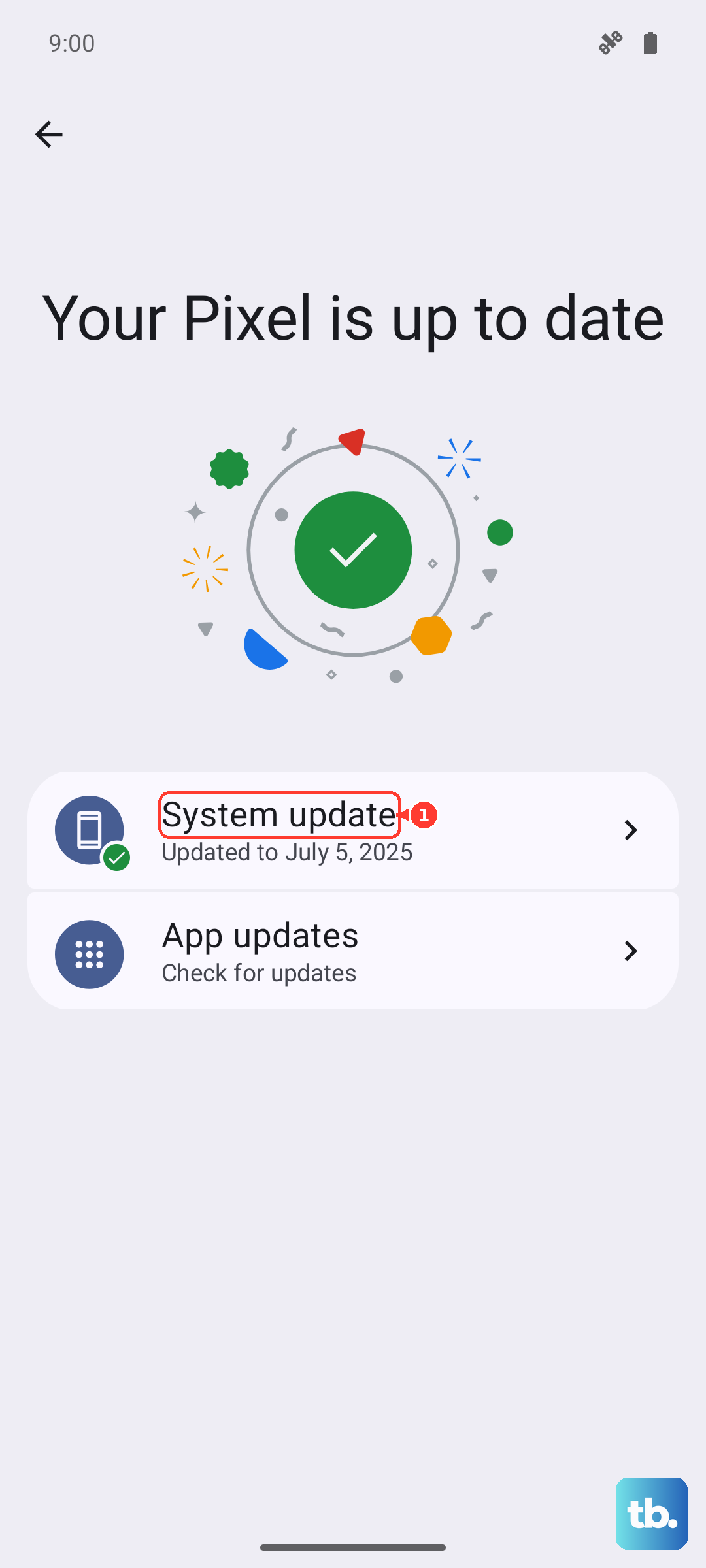
Make sure you're connected to Wi-Fi and have at least a 50% charge, or better yet, plug it into a 30W USB-C charger while it updates.
Reset All App Preferences or Network Settings
Before considering a full factory reset, try a more targeted reset. Go to Settings > System > Reset options. Here, you can choose "Reset app preferences." This resets permissions, notifications, and background data restrictions for all apps without deleting the apps themselves.
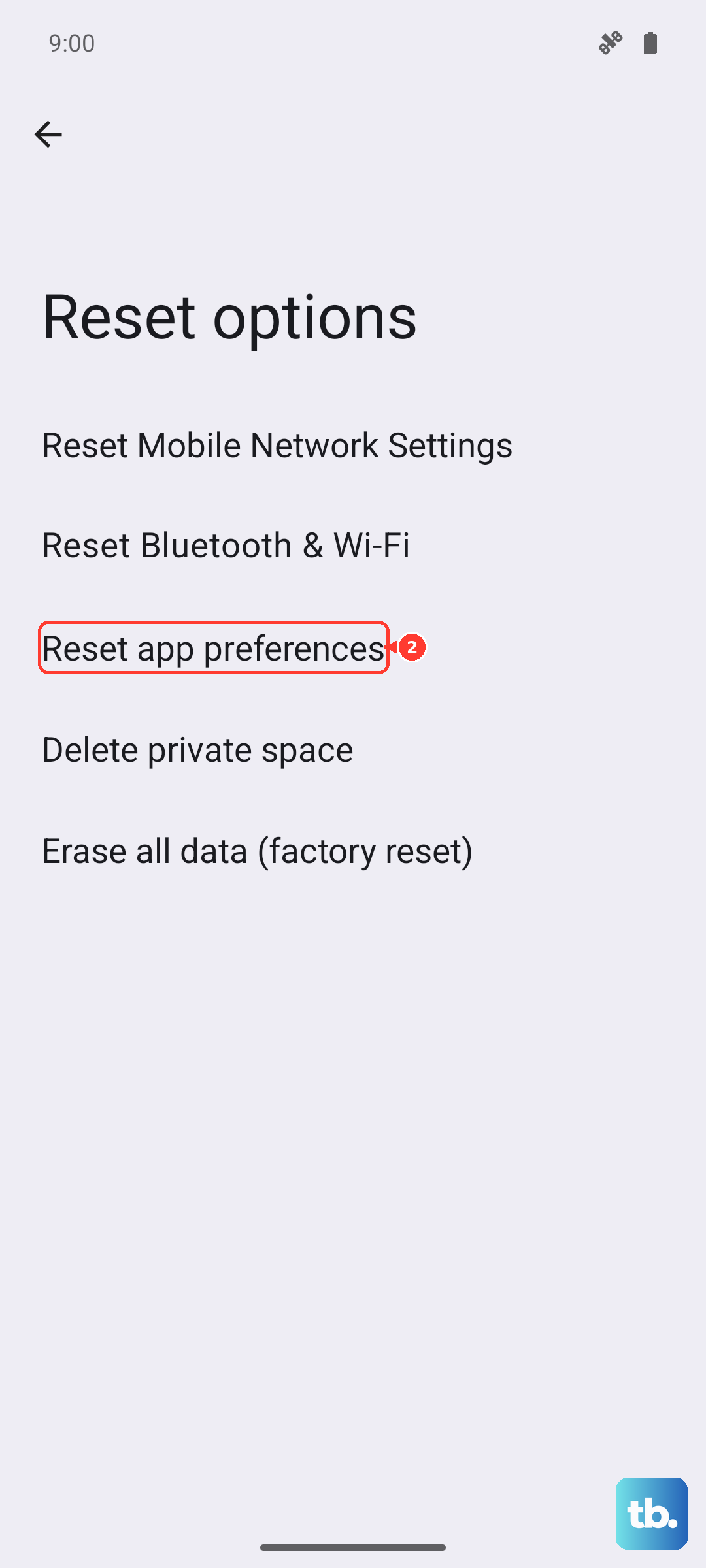
If your sound issue is only with calls, you could also try "Reset Wi-Fi, mobile & Bluetooth" from the same menu. You'll have to reconnect to your networks and devices afterward.