
Slow internet on your Moto G Power (2025) can feel like a step back, especially when you're trying to stream or browse. The good news is that with Android 15, you have a lot of control over your connection. I'd start by checking your mobile data signal and then move through a few key settings.
Check Your Mobile Data Signal First
Look at the top right of your screen. If you see "LTE" or "5G," you should have a decent connection. If you only see "H+" or "3G," your speeds will be much slower. This is the most common reason for lag, and it's often just a temporary network issue in your area.
Try moving to a different location or waiting a few minutes. The MediaTek Dimensity 6300 processor in your phone is capable, but it can't overcome a weak signal from your carrier.
Toggle Airplane Mode to Refresh the Connection
This is the quickest fix for a stalled data connection. Swipe down from the top of your screen twice to open the Quick Settings panel. Tap the Airplane Mode icon to turn it on, wait about 10 seconds, and then tap it again to turn it off.
This forces your phone to disconnect from the cellular network and reconnect fresh. It's like rebooting just the radio in your phone, and it often clears up minor glitches instantly.
Manage Your Data Usage with Data Saver
Android's Data Saver is a powerful tool on the Moto G Power. It restricts background data for most apps, freeing up bandwidth for what you're actively using. Go to Settings > Network & internet > Data Saver and toggle it on.
You can also tap "Unrestricted data" to allow specific apps, like your music streaming service, to bypass the restriction. This ensures your essential apps keep working while others don't silently eat up your speed in the background.
Clear the Cache for Google Play Services
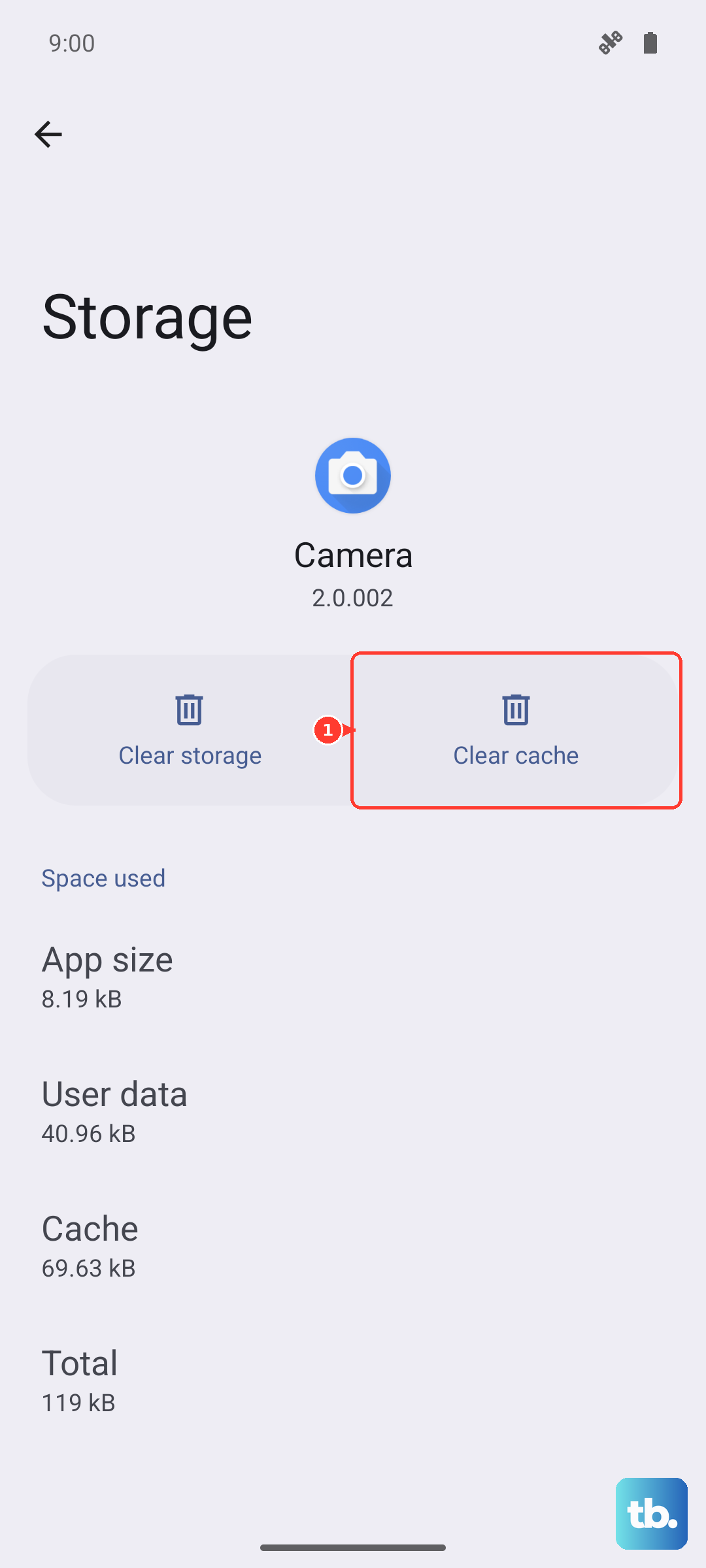
Over time, the app that handles core Google functions can accumulate temporary files that might interfere. Go to Settings > Apps > See all apps. Find "Google Play Services" in the list and tap it.
Tap Storage & cache, then tap "Clear cache." This won't delete any personal data. It just cleans out temporary files that could be causing a conflict with your network connectivity.
Review and Restrict Background Data for Specific Apps
Some apps are data hogs even when you're not using them. You can check which ones are the culprits. Head back to Settings > Apps > See all apps and select an app you suspect.
Tap Mobile data & Wi-Fi. Here, you'll see a "Background data" option. Toggling this off prevents the app from using any mobile data unless you have the app open on your screen. This is great for social media or news apps that constantly refresh.
Reset Your Wi-Fi, Mobile & Bluetooth Settings
If you're having persistent issues on both Wi-Fi and mobile data, a network reset can help. This clears all saved networks, Bluetooth pairings, and cellular settings back to default. Go to Settings > System > Reset options.
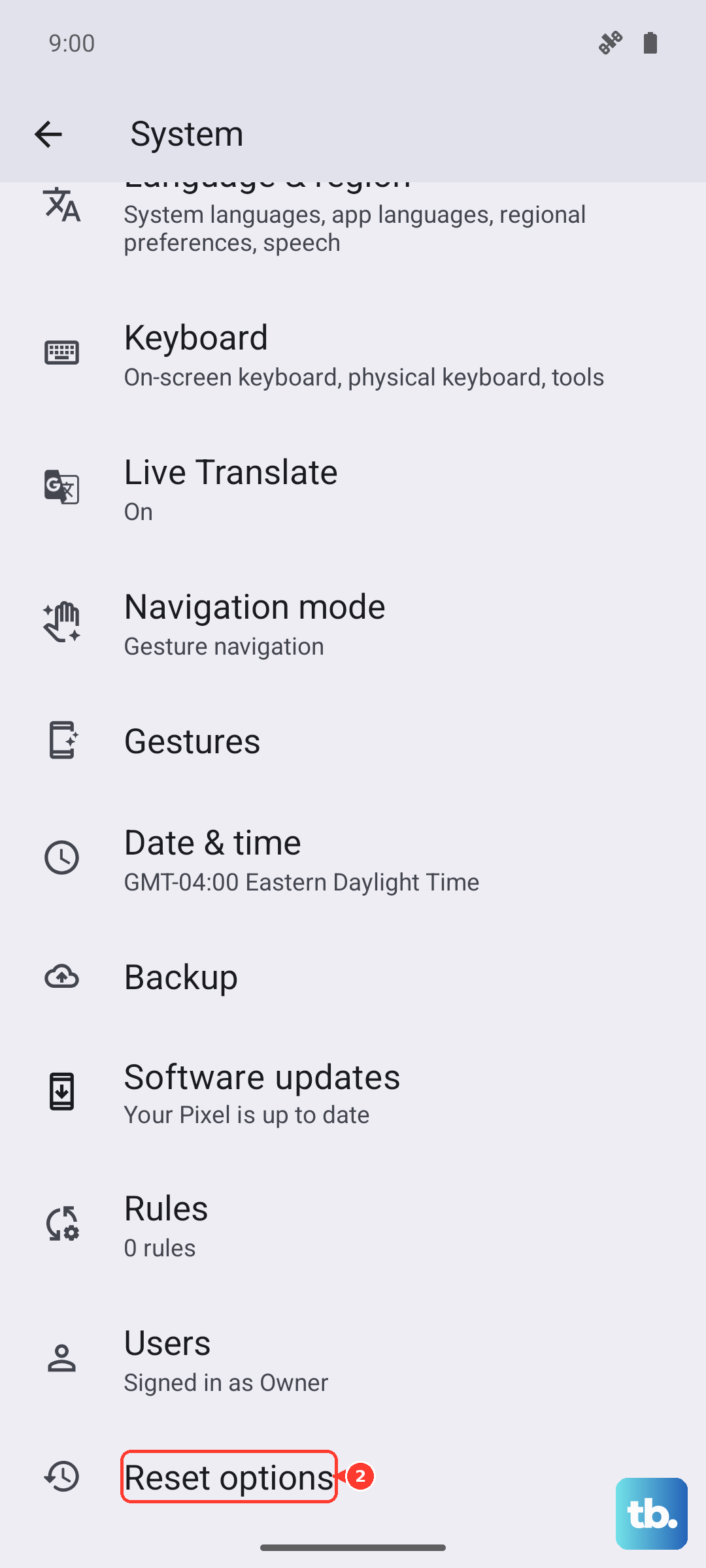
Tap Reset Wi-Fi, mobile & Bluetooth and confirm. You'll need to re-enter Wi-Fi passwords and re-pair Bluetooth devices, but it often resolves deep-seated connection problems. Remember, this is different from a full factory reset.
Check for a Software Update
Motorola frequently releases updates that include connectivity improvements and bug fixes. Make sure your phone is running the latest available version of Android. Go to Settings > System > System updates and tap "Check for update."
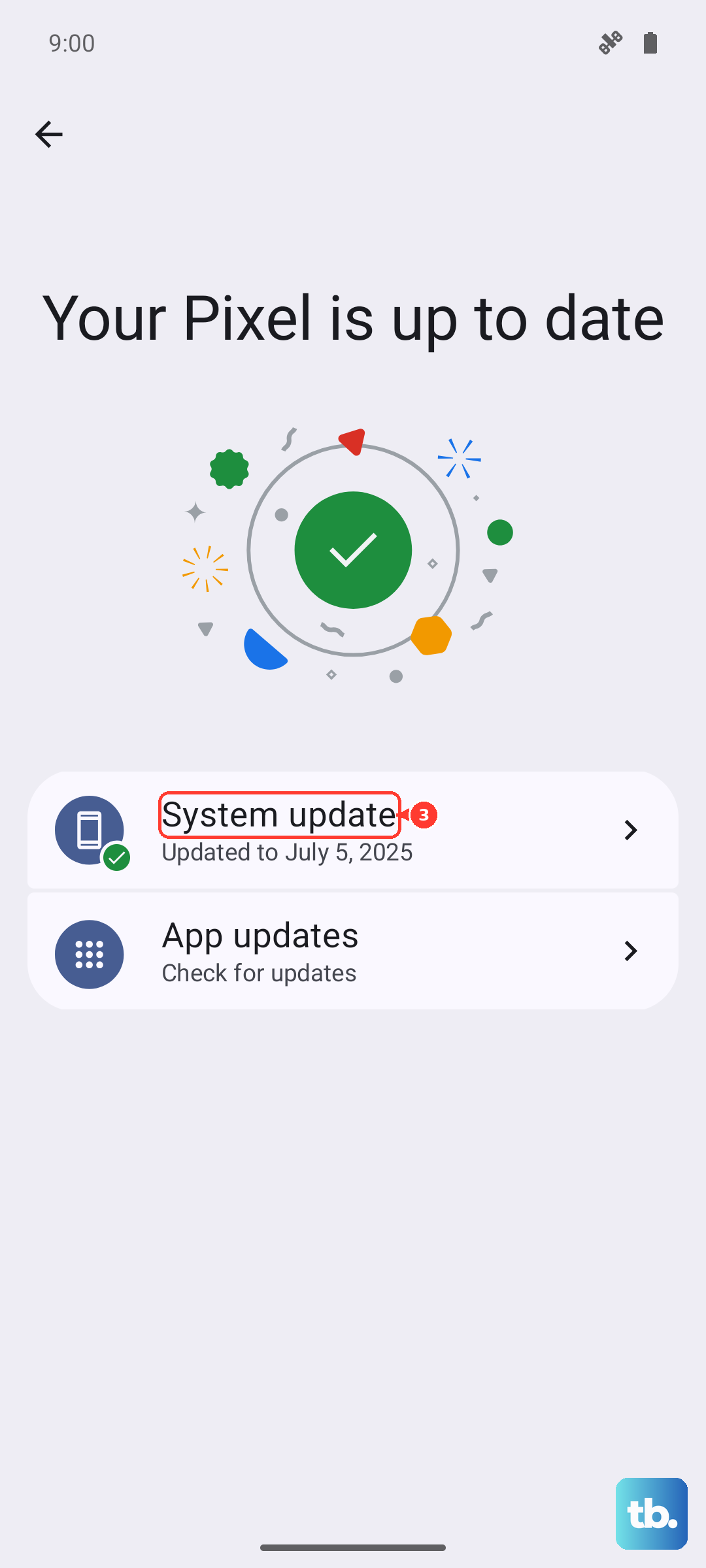
If an update is available, install it. It's a good idea to be on Wi-Fi for this, as the update files can be large. Keeping your software current is one of the best ways to maintain performance.
Perform a Force Restart on Your Moto G Power
If your phone feels sluggish overall and the internet is slow, a simple restart can clear out temporary RAM and refresh all services. Press and hold the Power button on the right side of the phone for about 10 seconds, until you feel it vibrate and the Motorola logo appears.
This is a soft reset that doesn't erase any data. I find it helps about once a week just to keep things running smoothly, especially if you tend to leave many apps open.
Try a Different DNS Server
Your phone uses a DNS server to look up website addresses. Sometimes, your carrier's default server can be slow. You can change it to a faster public one like Google DNS or Cloudflare. Go to your Wi-Fi settings, tap the network you're connected to, and select "Advanced."
Change the IP settings from "DHCP" to "Static." You can then manually enter a DNS server. For Google, use 8.8.8.8 and 8.8.4.4. This change only affects your Wi-Fi speed, but it can make a noticeable difference in how quickly web pages start to load.
Monitor Your Phone's Storage Space
The base 128GB model can fill up faster than you think. When your internal storage is nearly full, it can impact overall system performance, which might make everything, including internet tasks, feel slower. Check your storage under Settings > Storage.
If you're running low, consider offloading photos and videos to Google Photos or moving files to a microSD card. The Moto G Power has a slot for expandable storage, which is a great way to keep the main storage free for apps and system processes.