If your Motorola Moto G Power (2025) keeps kicking you out of the Settings app, it's usually a temporary software hiccup. The good news is you can almost always fix it yourself without losing any data. Let's start with the quickest solution.
First, give your phone a simple restart. Press and hold the power button until the power menu appears, then tap "Restart." This clears out any temporary glitches in the system memory that might be causing the Settings app to misbehave. If the Settings app still closes after a restart, don't worry, we have several more steps to try.
Clear the Settings App Cache
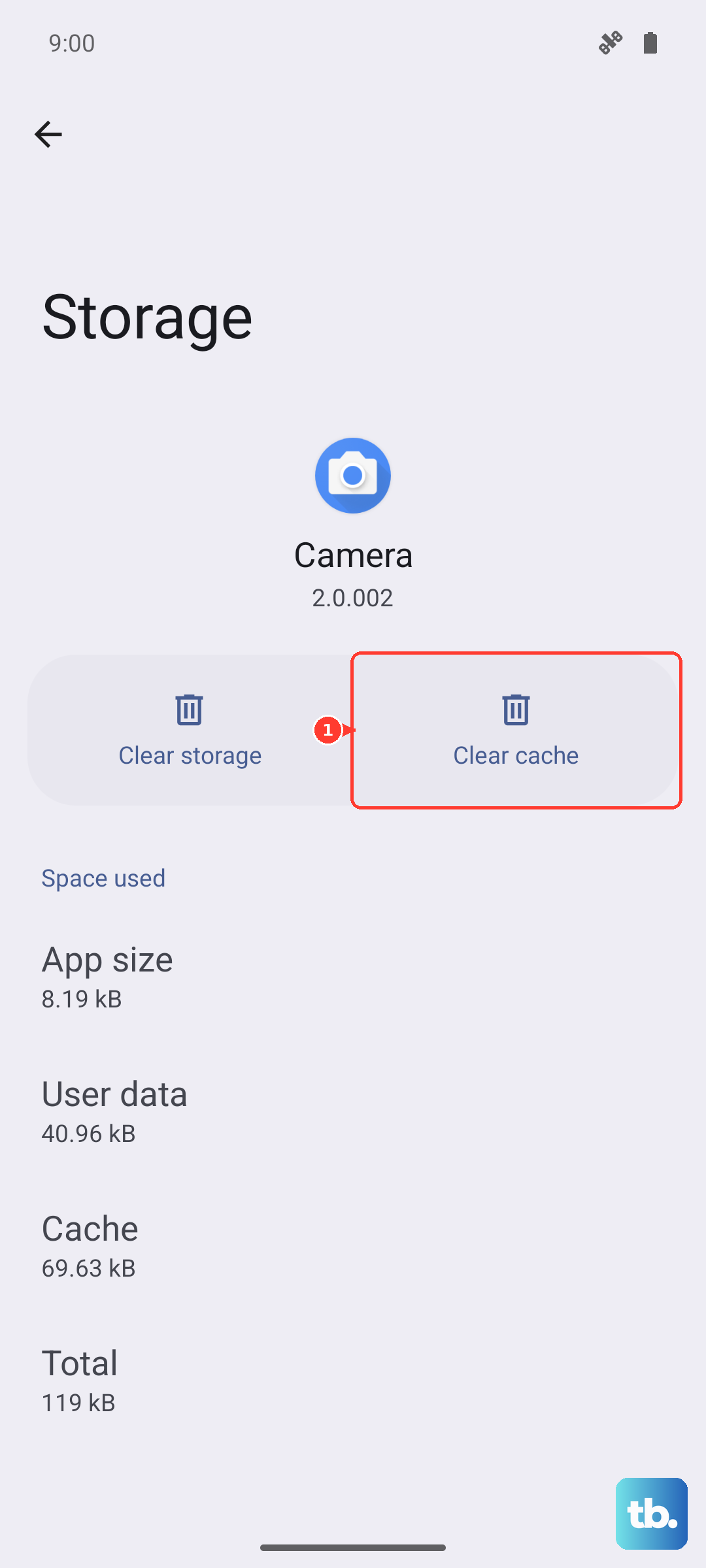
The Settings app stores temporary cache files to help it run faster. Sometimes these files get corrupted, which can cause the app to crash. Clearing this cache is a safe first step that won't delete any of your personal information or settings.
Go to Settings > Apps > See all apps. Find and tap on the app called "Settings." On its info page, select Storage & cache. Tap the "Clear cache" button. Once that's done, go back and try opening the Settings app again to see if it's stable.
Force Stop the Settings App
If clearing the cache didn't help, the next step is to force stop the app. This completely shuts down the Settings process and lets it start fresh the next time you open it.
Navigate back to Settings > Apps > See all apps and find "Settings" again. On its info page, you'll see a "Force stop" button. Tap it and confirm. After you force stop it, the app will be closed in the background. You can then open it normally from your app drawer or by pressing the gear icon.
Check for a System Update
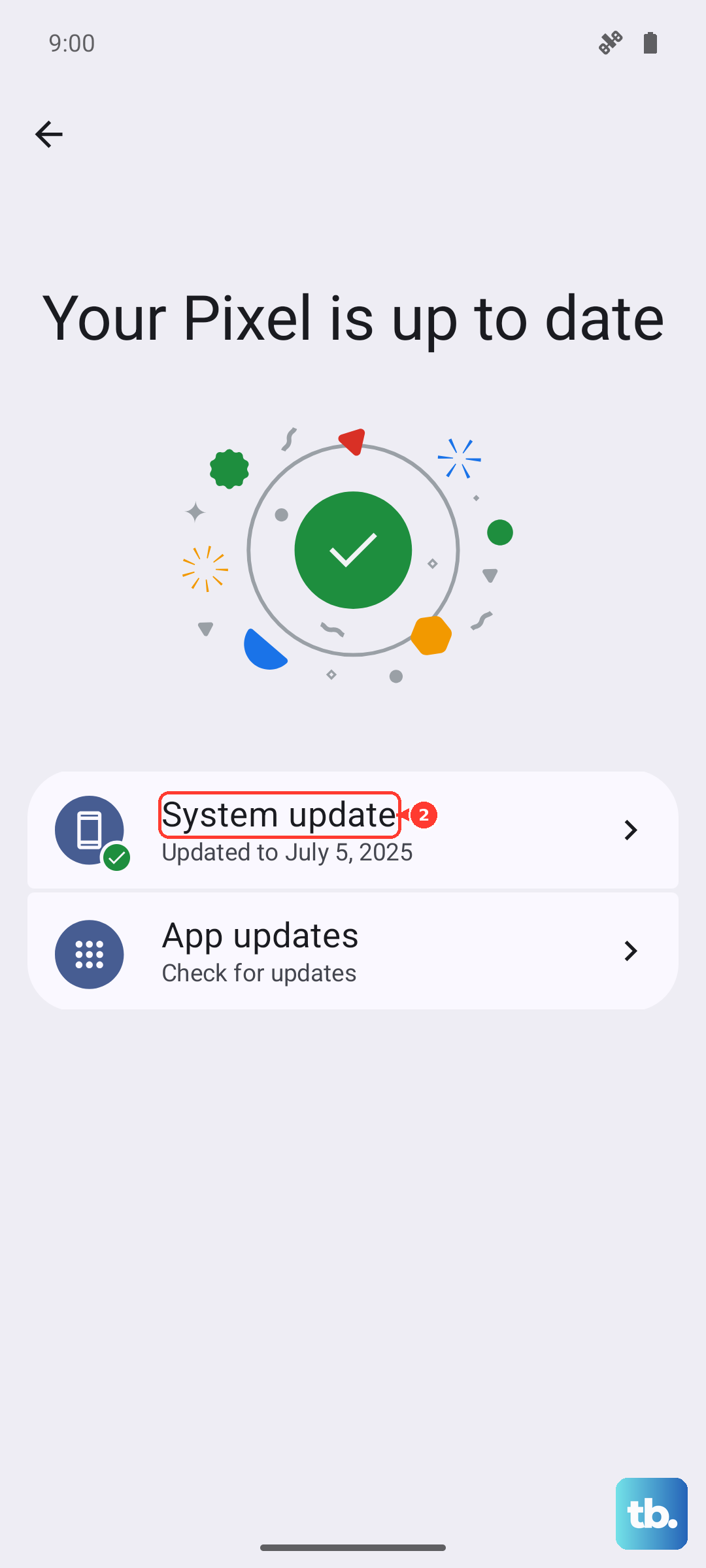
Since your Moto G Power runs Android 15, it's important to keep it updated. Motorola and Google regularly release updates that fix bugs, including ones that cause system apps like Settings to crash. An outdated software version could be the root of the problem.
To check, go into Settings > System > System updates. Tap "Check for update." If an update is available, make sure your phone is plugged into its 30W charger and has a good Wi-Fi connection before you download and install it. The phone will restart as part of the update process.
Manage Google Play Services
Google Play Services is a critical background app that helps your phone's software and other apps communicate properly. If it has an issue, it can cause instability in system apps like Settings. Let's give it a refresh.
Head to Settings > Apps > See all apps. Tap the three-dot menu in the top right and select "Show system." Now, find and tap on "Google Play Services." On its page, tap Storage & cache. First, tap "Clear cache." If the problem persists, you can go back and tap "Manage space," then "Clear all data." Don't worry, this will reset the service but won't delete your personal files.
Boot into Safe Mode
Sometimes, a third-party app you've installed can conflict with the system and cause Settings to close. Booting into Safe Mode temporarily disables all downloaded apps, letting you see if one of them is the culprit.
To enter Safe Mode, press and hold the power button until the power off menu appears. Then, press and hold the "Power off" option on your screen. A prompt will ask if you want to reboot to Safe Mode; tap "OK." Your phone will restart, and you'll see "Safe mode" in the bottom corner. Try opening Settings now. If it works fine in Safe Mode, you know a downloaded app is causing the issue. You'll need to restart your phone normally and then uninstall recent apps one by one to find the bad one.
Reset App Preferences
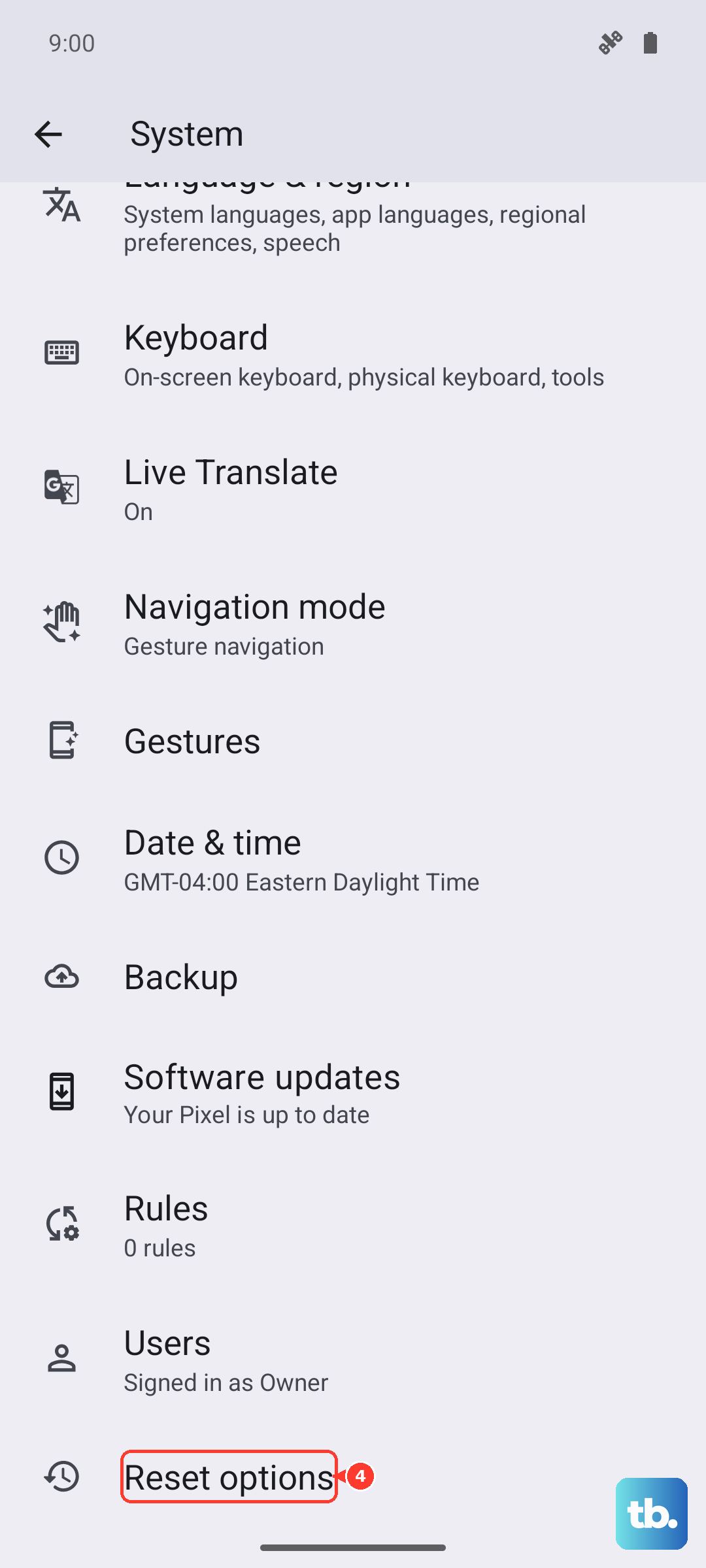
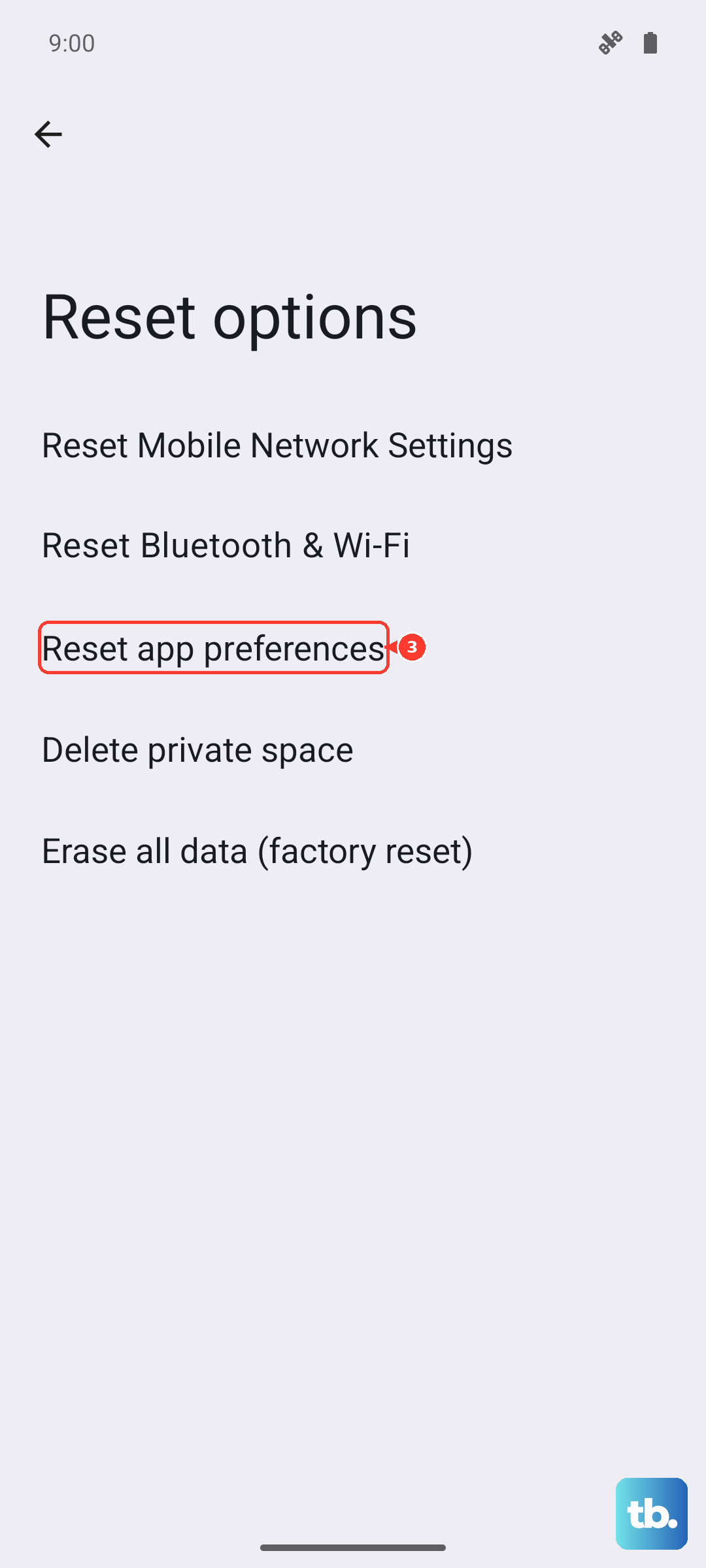
This is a useful, non-destructive reset that can fix issues without erasing your data. It resets all your app permissions, default apps, and background data restrictions back to their factory defaults. It's a good step before considering anything more drastic.
Go to Settings > System > Reset options. Tap on "Reset app preferences." Confirm your choice. After the reset, you'll need to re-grant permissions to apps when you use them next, but it often clears up strange app behavior like this.
Consider a Factory Reset
If you've tried everything and Settings is still crashing, a factory reset is the final step. This will erase all data from your phone's internal storage and return it to its original out-of-the-box state. Because the Moto G Power (2025) has a base 128GB of storage that can fill up quickly, this is also a good moment to ensure you've backed up any important photos, files, or messages to Google Drive or your SD card before proceeding.
To perform the reset, go to Settings > System > Reset options > Erase all data (factory reset). You may need to enter your PIN or password. The phone will take several minutes to reset and restart. After it boots up, you'll go through the initial setup process again. In most cases, this will resolve any deep-seated software corruption causing the problem.