
Press and hold the power button for about 10 seconds until you feel a vibration or see the screen go black. This force restart is the single most effective first step for an unresponsive touchscreen on the Moto G Power (2025). It clears out any temporary software glitches that might be freezing the touch input.
I'd start with this one every time. It's quick, doesn't delete any data, and often gets the screen responding again immediately after the phone reboots.
Clean the Screen Thoroughly
Turn the phone off first if you can. Then, take a soft, lint-free microfiber cloth and wipe the entire screen down with some pressure. Oils, lotion, or even a thin film of dirt can seriously interfere with the capacitive touch sensors.
Pay special attention to the edges of the screen. If you've been using a screen protector, check for any bubbles, peeling, or damage. A poorly applied or low-quality protector is a very common culprit for touch issues.
Remove the protector temporarily to test the bare screen. Sometimes the adhesive or thickness of a cheap protector can deaden the touch sensitivity, especially on a budget phone like this.
Check for App Conflicts in Safe Mode
Boot your Moto G Power into Safe Mode to see if a recently downloaded app is causing the problem. First, press and hold the power button until the power off menu appears.
Then, press and hold the "Power off" option on your screen. A prompt will ask if you want to reboot into Safe Mode. Tap "OK."
If the touchscreen works perfectly in Safe Mode, you've got a bad app. Start uninstalling your most recent downloads one by one, restarting normally after each, until the problem goes away.
Remove Any Connected Accessories
Unplug the phone from any charger, especially if you're using a third-party one. While the Moto G Power (2025) supports up to 30W charging, a faulty or incompatible USB-C cable or charger can sometimes introduce electrical noise that messes with the touchscreen.
Also, take off any cases, particularly bulky or metal ones. Try using the phone completely naked for a few minutes. A case can sometimes press on the screen's edges or interfere with the antenna lines, which can affect touch performance.
This phone has a MIL-STD-810H rating for durability, so it can handle being case-free for a quick test. Just be careful with it.
Let the Battery Drain Completely
If the screen is partially responsive or ghost-touching, a full power cycle can help. Use the phone until the battery dies on its own. Don't plug it in right away.
Wait a few minutes after it shuts down, then plug it into a known-good 30W USB-PD charger. Let it charge for at least 30 minutes without touching it before trying to turn it back on.
This process can clear residual charge from the circuits and perform a deeper reset than a standard reboot. Since no charger comes in the box, make sure the one you're using is a quality brand.
Check for Software Updates
Motorola frequently releases updates that fix bugs, including touchscreen problems. With the screen unresponsive, you might need to use the physical buttons to navigate.
Force restart the phone, and as soon as you see the Motorola logo, press and hold the volume down button. This might get you into the boot menu where you can navigate with the volume keys.
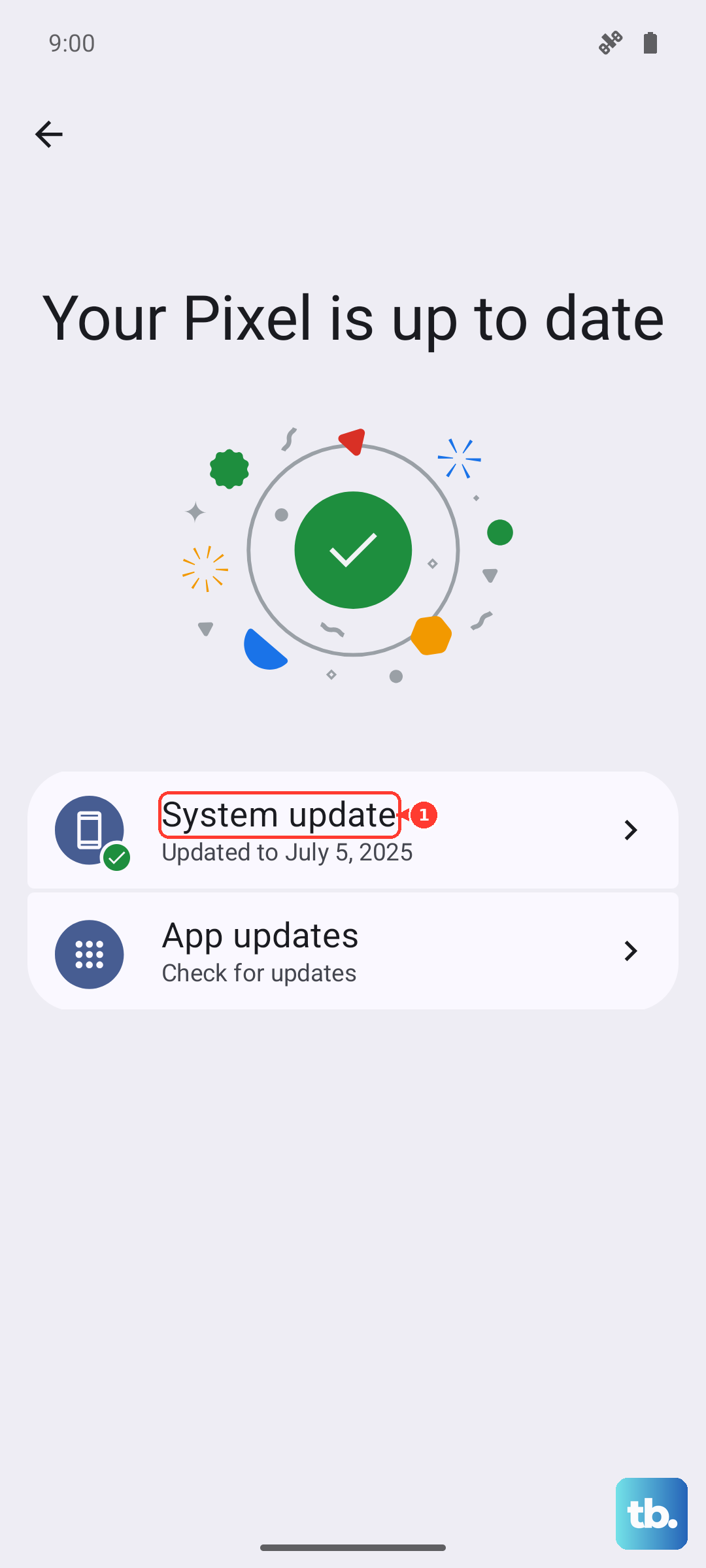
Alternatively, if you have a USB-C to USB-A adapter and a mouse, you can plug the mouse into the phone. The cursor will appear on screen, allowing you to navigate to Settings > System > System update to check for and install any available patches.
Calibrate the Touch Screen
While Android doesn't have a built-in calibration tool like some older phones, you can use a hidden testing menu. Open the phone app and dial *#*#2486#*#* to access the "TestMenu."
Be very careful in here. Look for options related to "Touch" or "TP." There may be a calibration or diagnostic test you can run. Follow any on-screen instructions precisely.
This menu is meant for engineers, so don't change random settings. If you find a touch test, it will often draw lines or grids for you to trace, which can recalibrate the digitizer.
Perform a Factory Reset
This erases everything on your phone, so it's a last resort. First, try to back up your data using Google's backup service or by connecting a mouse to navigate. To initiate the reset, you'll need to boot into recovery mode.
Power the phone off completely. Then, press and hold the volume down button and the power button together until you see the Motorola logo, then release. Use the volume buttons to highlight "Recovery mode" and select it with the power button.
When you see the Android robot with an exclamation mark, hold the power button and tap the volume up button once. Navigate to Wipe data/factory reset and confirm. This will eliminate any deep-seated software corruption causing the touch failure.