
Seeing a "No SIM" or "SIM not detected" message on your Moto G Power (2025) is a real headache. You can't make calls, send texts, or use mobile data. The good news is that this is almost always a simple issue you can fix yourself, often in just a few minutes.
I'd start with the most common fix first, which is a simple restart. Press and hold the power button until the restart menu appears, then tap "Restart." This clears out any temporary software glitches that might be confusing the phone's SIM reader.
Check the Physical SIM Card and Tray
Since the Moto G Power has a MIL-STD-810H rating for durability, it can handle drops, but the tiny SIM tray is still delicate. The first thing to do is power the phone off completely. Find the SIM ejector tool that came in the box (it's usually in the paperwork sleeve) and gently pop out the tray.
Take a close look at the SIM card itself. Check the gold contacts for any scratches, dirt, or corrosion. Give them a gentle wipe with a clean, dry microfiber cloth. Also, peek inside the SIM slot on the phone for any visible dust or debris you can blow out.
When reinserting, make absolutely sure the SIM card is seated correctly in the tray and that the tray slides back in smoothly without force. A misaligned card is a very common cause of the "No SIM" error.
Toggle Airplane Mode and Verify SIM Status
Swipe down from the top of your screen twice to open the full Quick Settings panel. Tap the Airplane Mode icon to turn it on, wait about ten seconds, and then tap it again to turn it off. This forces the phone's modem to re-establish a fresh connection to the network, which can often kick-start a dormant SIM.
Next, you should double-check that the SIM is actually enabled in your settings. Open the Settings app and go to Network & internet > SIMs. Here, you should see your SIM listed. Make sure the switch next to it is turned on. If it's already on, try turning it off and back on again.
Update Your Phone's Software
Software bugs in Android 15 can sometimes interfere with cellular connectivity. Motorola regularly releases updates that include fixes for these kinds of issues. To check, go to Settings > System updates > Check for updates.
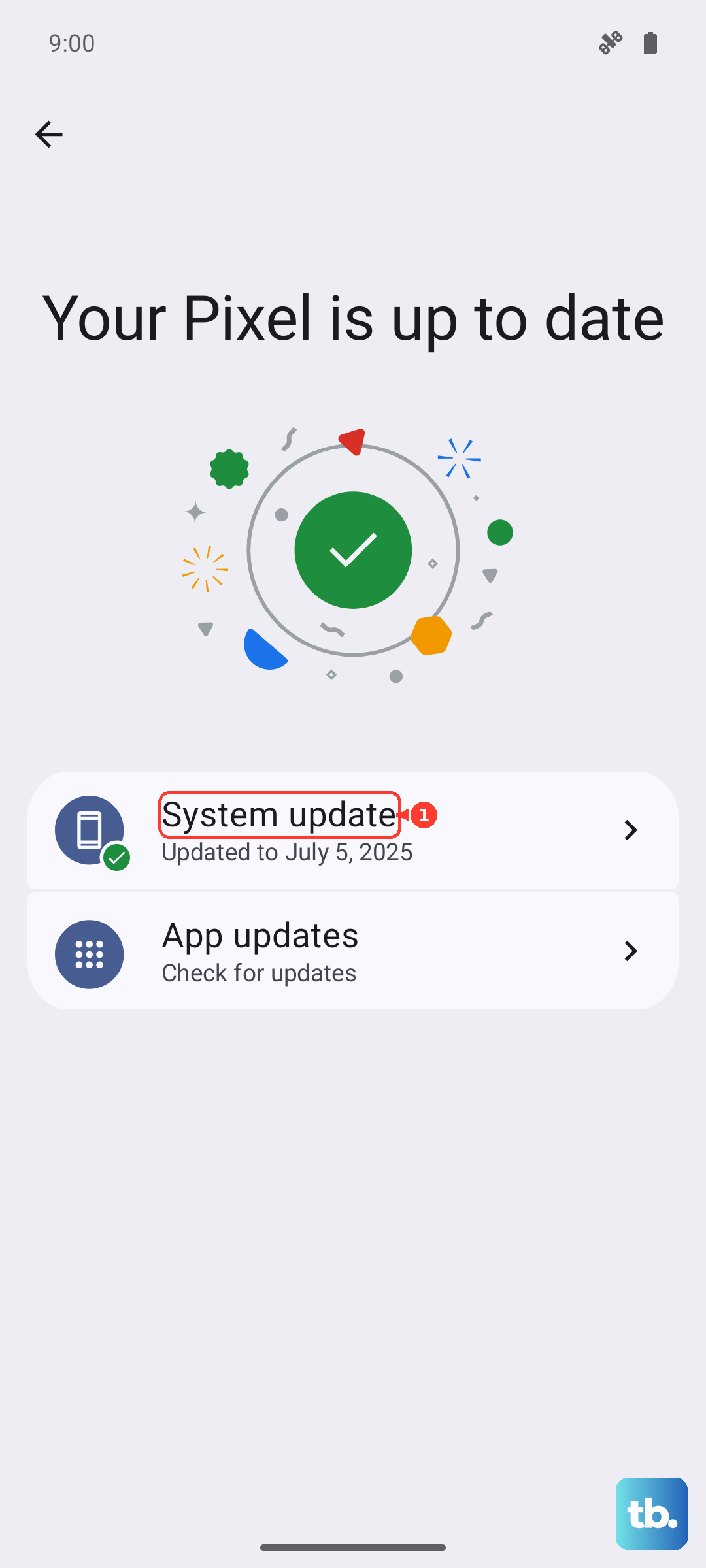
Tap "Check for update" and install any available updates. It's a good idea to connect to Wi-Fi first, and make sure your phone is charged above 50% or plugged into a charger. After the update installs, your phone will restart, which applies the fix.
Reset Your Network Settings
If the problem persists, resetting your network settings can clear out any corrupted configuration data. This will not delete your photos, apps, or personal files, but it will erase all saved Wi-Fi networks, Bluetooth pairings, and cellular network preferences.
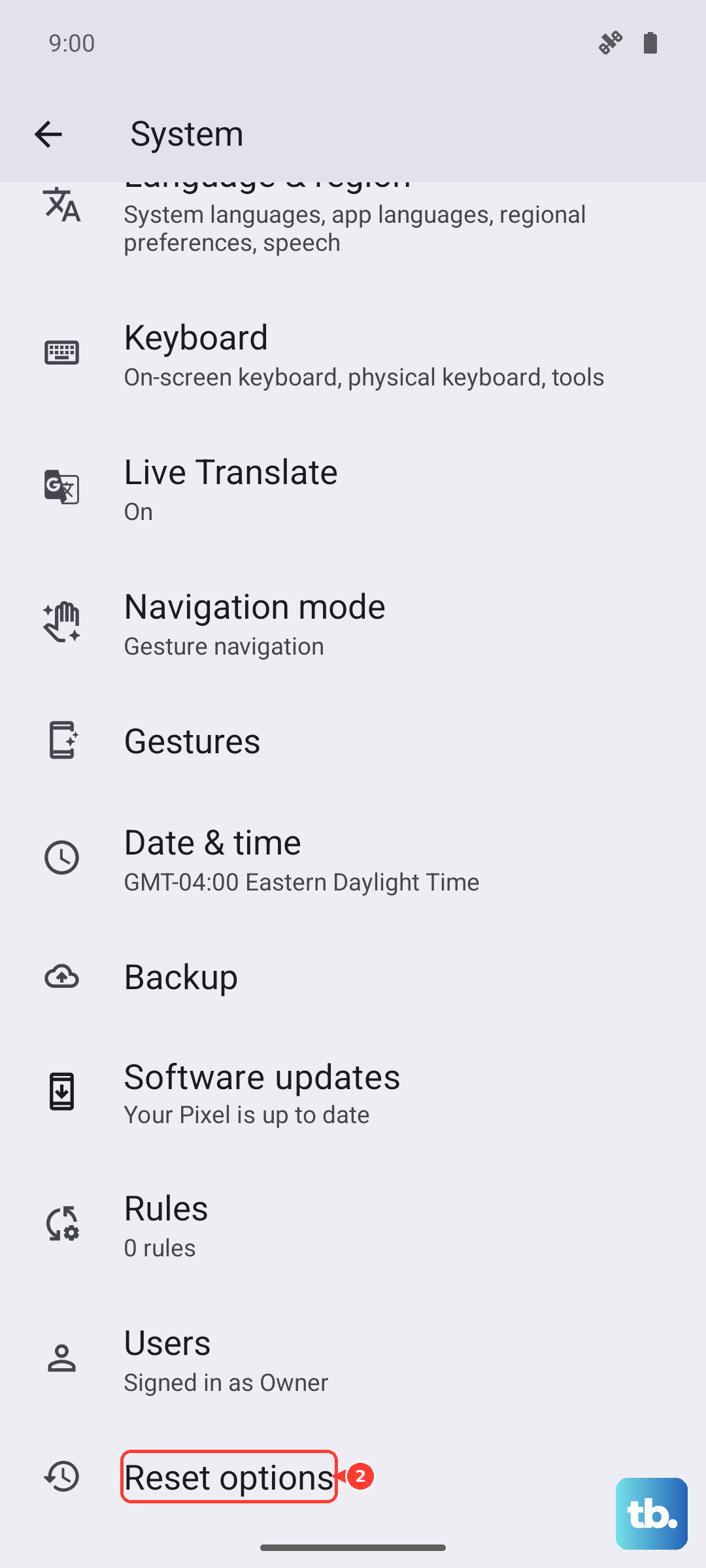
To do this, navigate to Settings > System > Reset options. Tap on Reset Wi-Fi, mobile & Bluetooth and confirm. Your phone will reboot, and you'll need to reconnect to Wi-Fi and re-pair Bluetooth devices, but it often resolves stubborn SIM detection problems.
Test the SIM in Another Phone
This is the best way to figure out if the problem is with your SIM card or with the phone itself. If you have access to another unlocked phone, power it off, insert your Moto G Power's SIM card, and turn it back on.
If the other phone also says "No SIM," then the issue is almost certainly with the SIM card itself. You'll need to contact your carrier (like Verizon, T-Mobile, or AT&T) to get a replacement SIM, which they usually provide for free or a small fee.
Check and Reset APN Settings
Incorrect Access Point Name (APN) settings can prevent your phone from registering on your carrier's network properly, which can sometimes manifest as a SIM error. To check these, go to Settings > Network & internet > SIMs > tap on your SIM > Access Point Names.
If the settings look blank or wrong, tap the three-dot menu in the top right and select "Reset to default." For most major carriers, this will automatically populate the correct settings. If you're on a smaller MVNO, you might need to enter the APN details they provided you.
Try Manual Network Selection
Sometimes the phone's automatic network selection gets stuck. You can manually tell it to connect to your carrier. Go to Settings > Network & internet > SIMs > tap on your SIM.
Look for an option like "Automatically select network" and turn it off. The phone will search for available networks. After a moment, a list will appear. Select your carrier's name from the list (e.g., "T-Mobile" or "Verizon Wireless"). Wait a minute to see if the signal bars appear.
Clear Cache for Connectivity Services
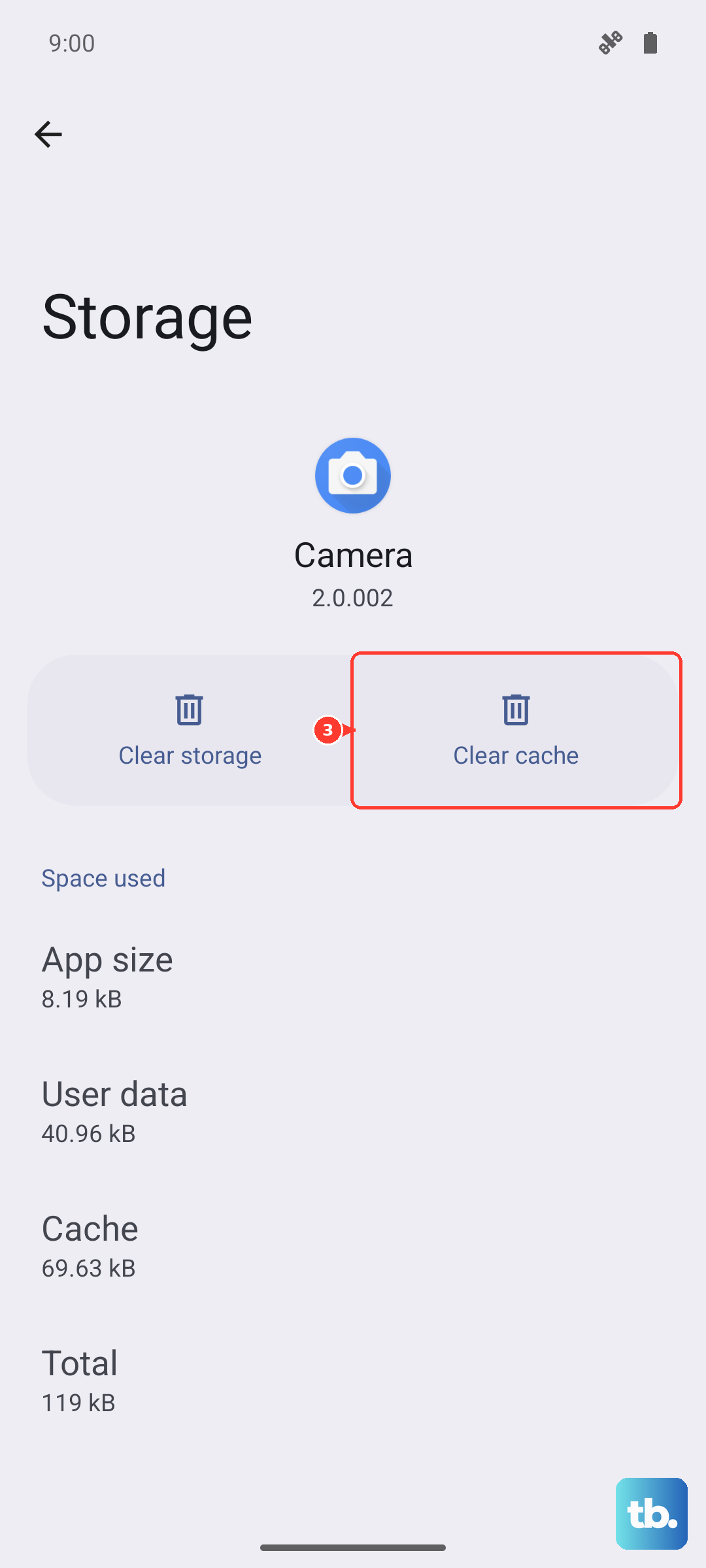
Cached data from system apps can become corrupted. You can clear this cache without losing any personal information. Go to Settings > Apps > See all apps.
Tap the three-dot menu and select "Show system." Now, look for apps related to the SIM or connectivity, such as "SIM Toolkit" or "Carrier Services." Tap on one, select Storage & cache, and then tap "Clear Cache." Do this for a couple of the relevant system apps, then restart your phone.
Consider a Factory Reset
This is a last-resort step for software issues. A factory reset will erase everything on your phone, including apps, photos, and accounts, returning it to its out-of-the-box state. Because the base 128GB storage can fill up quickly, I strongly recommend you back up any important files to Google Photos, Google Drive, or an SD card first.
To perform the reset, go to Settings > System > Reset options > Erase all data (factory reset). Follow the prompts. After the reset, set up the phone as new and test the SIM card before restoring your backup, to see if the problem is truly gone.