
Seeing "No Service" or a missing signal icon on your Motorola Moto G Power (2025) can stop you from making calls, sending texts, or using mobile data. It's a common hiccup that usually has a simple fix, especially on a newer phone like this running Android 15.
I'd start with the most common solution, which is a simple restart. Just press and hold the power button for about 10 seconds until you feel a vibration and see the Motorola logo. This clears out any temporary software glitches that might be blocking the cellular radio.
Check Your Physical SIM Card
Since the Moto G Power uses a physical SIM card (and doesn't support eSIM), a loose or dirty card is a frequent culprit. Power the phone off completely, then use the SIM eject tool to pop out the tray. Take out the SIM card, give the gold contacts a gentle wipe with a soft, dry cloth, and carefully reseat it.
Make sure the tray is inserted in the correct orientation. A misaligned tray won't make proper contact. If you have access to another phone, try your SIM card in it to see if the problem follows the card, which points to a carrier issue.
Toggle Airplane Mode and Mobile Data
Sometimes the network connection just needs a nudge. Swipe down from the top of your screen twice to open the Quick Settings panel and tap the Airplane Mode icon to turn it on. Wait about 10 seconds, then tap it again to turn it off.
While you're there, also tap the Mobile Data icon off and on. You can find more detailed controls by going into Settings > Network & internet. This forces the phone's modem to re-scan for and reconnect to your carrier's signal.
Verify Your Network Operator Selection
Your phone might have lost its automatic connection to your carrier. To check this, head to Settings > Network & internet > Mobile network. Tap on "Advanced" and then look for "Choose network" or "Network operators."
Tap "Search networks" and let it scan. Once the list appears, select your specific carrier's name instead of "Choose automatically." After it registers, you can switch it back to automatic. This manual selection often re-establishes a solid handshake with the tower.
Review and Update APN Settings
Incorrect Access Point Name (APN) settings will prevent mobile data from working, and sometimes affect calling too. In the same Settings > Network & internet > Mobile network menu, tap on "Access Point Names."
You should see a list with at least one APN configured. If it's blank or looks wrong, tap the three-dot menu and select "Reset to default." If that doesn't populate it, you'll need to get the correct APN details directly from your carrier's website or customer service and enter them manually here.
Reset Your Phone's Network Settings
This is a more thorough step that clears all network-related configurations without touching your personal files. Go to Settings > System > Reset options. Tap on "Reset Wi-Fi, mobile & Bluetooth."
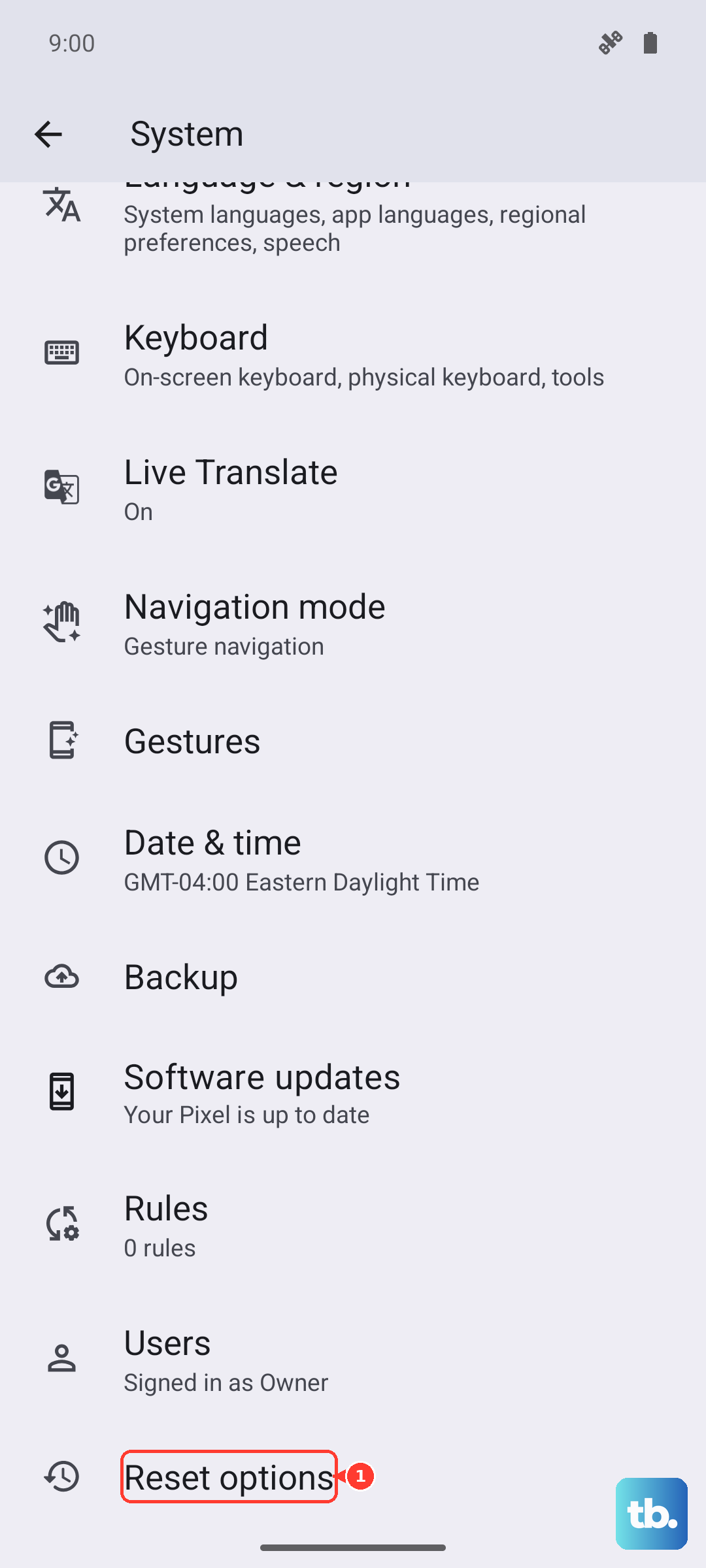
Confirm the reset. Be aware this will erase all saved Wi-Fi passwords, paired Bluetooth devices, and your custom network preferences. You'll have to reconnect to Wi-Fi networks and re-pair Bluetooth accessories afterward, but it often resolves persistent radio issues.
Check for a Software Update
Motorola releases updates that can fix bugs affecting the modem or network connectivity. Since you're on Android 15, make sure you have the latest security patch. Go to Settings > System > System update and tap "Check for update."
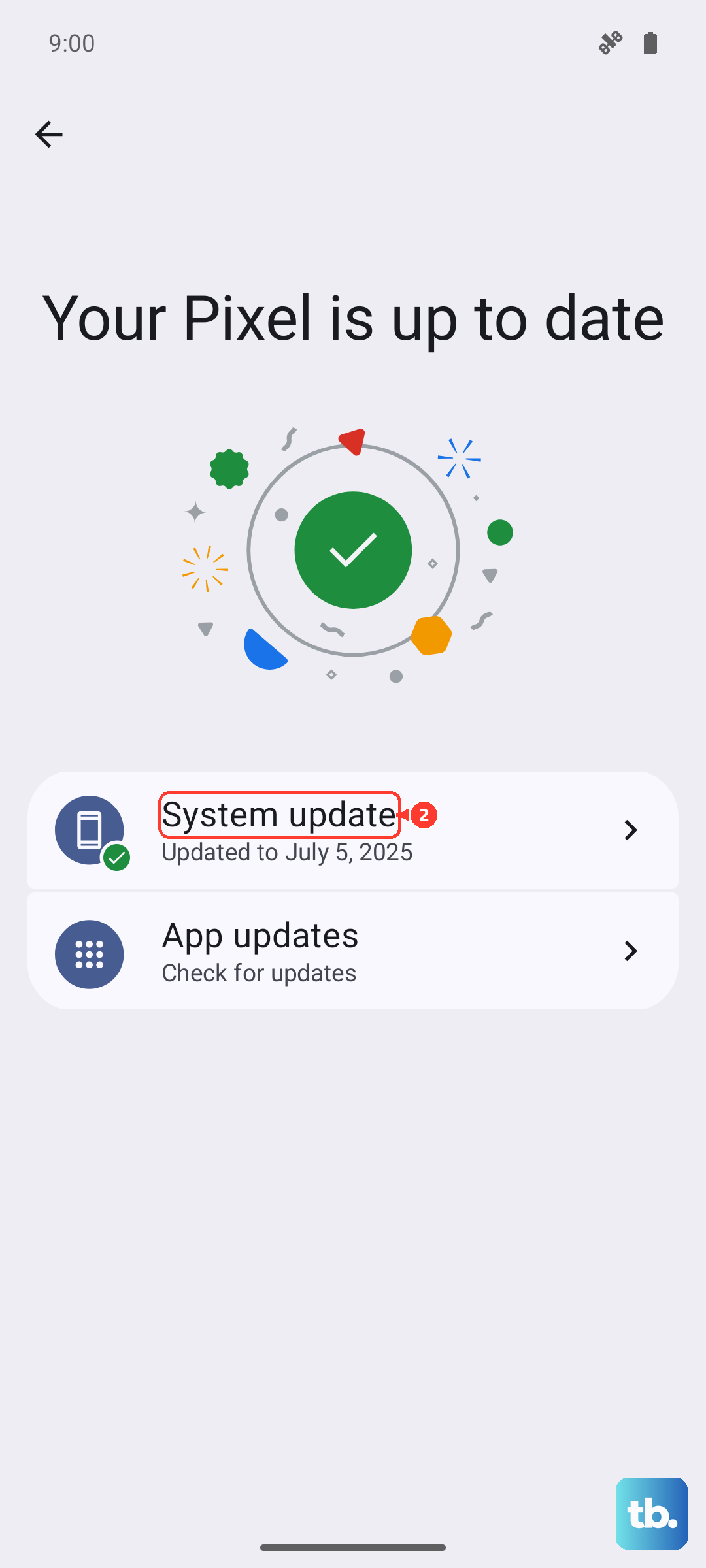
If an update is available, connect to Wi-Fi and let it download and install. The phone will restart. It's a good practice to check for updates periodically, as they include stability improvements for the Dimensity 6300 chipset that handles your cellular connection.
Use the Phone Information Menu for Diagnostics
Android has a hidden testing menu that lets you see the radio's status. Open your Phone app and dial *#*#4636#*#*. This should open the "Testing" menu. Tap on "Phone information."
Look at the "Set preferred network type" dropdown menu. For the best compatibility, try selecting "NR/LTE/WCDMA/GSM" or a similar comprehensive option. You can also tap "Turn off radio" and then "Turn on radio" to cycle the modem. This menu gives you a direct look at what the cellular hardware is doing.
Consider Your Location and Case
The Moto G Power has a MIL-STD-810H rating for durability, but a very thick or metal-heavy case can sometimes interfere with antenna reception. Try removing your case temporarily to see if your signal bars improve.
Also, be mindful of your location. Concrete buildings, basements, and rural areas are known for weak signals. If you're in a known poor coverage area, the issue might be with the network itself and not your phone. Moving near a window or stepping outside can make a big difference.
Contact Your Mobile Carrier
If you've tried everything here, the problem might be on your carrier's end. There could be a local tower outage, maintenance work, or an issue with your account. Give their customer service a call.
They can check for outages, reprovision your line on their network, and determine if you need a replacement SIM card. A new SIM is often a quick fix for persistent "No Service" problems, especially if your current card is several years old.