
If your new Moto G Power (2025) is already feeling sluggish or freezing up, it's a frustrating experience. The good news is that with Android 15 and Motorola's relatively clean software, there are several straightforward things you can try to get it running smoothly again.
Lag on a phone like this often comes down to a few key areas. The Dimensity 6300 processor is solid for everyday tasks but can struggle if too much is happening at once. The 128GB of base storage can also fill up faster than you'd think, which directly impacts performance.
Force a Restart
This is the universal first step for any weird phone behavior. A force restart clears the phone's temporary memory (RAM) and stops any stuck processes without deleting your data.
Just press and hold the power button for about 10 seconds. Keep holding it until you see the Motorola logo appear and the phone cycles off and back on. It's a simple fix that works surprisingly often.
Check Your Available Storage
This is a big one for the Moto G Power. When your internal storage gets too full, the phone has less room to operate, causing everything to slow down. Android needs some breathing room to function properly.
Head to Settings > Storage. Take a look at what's using the most space. If you're below 10GB free, it's time to clean up. I'd start by offloading large video files or old downloads you don't need. Remember, this phone has a microSD card slot, so moving photos and media to a card is a great long-term solution.
Close Apps Running in the Background
While Android is good at managing apps, having dozens open can still tax the Dimensity 6300 chip. Swipe up from the bottom of the screen and hold to enter the recent apps view.
You can swipe each app card away to close it individually, or look for a "Close all" button at the bottom of the screen. Don't worry about closing everything constantly, but if the phone feels slow, a quick purge helps.
Update Your Apps and System Software
Outdated apps can have bugs that cause performance hiccups. Open the Google Play Store, tap your profile icon in the top right, and go to Manage apps & device. Tap "Update all" if any are available.
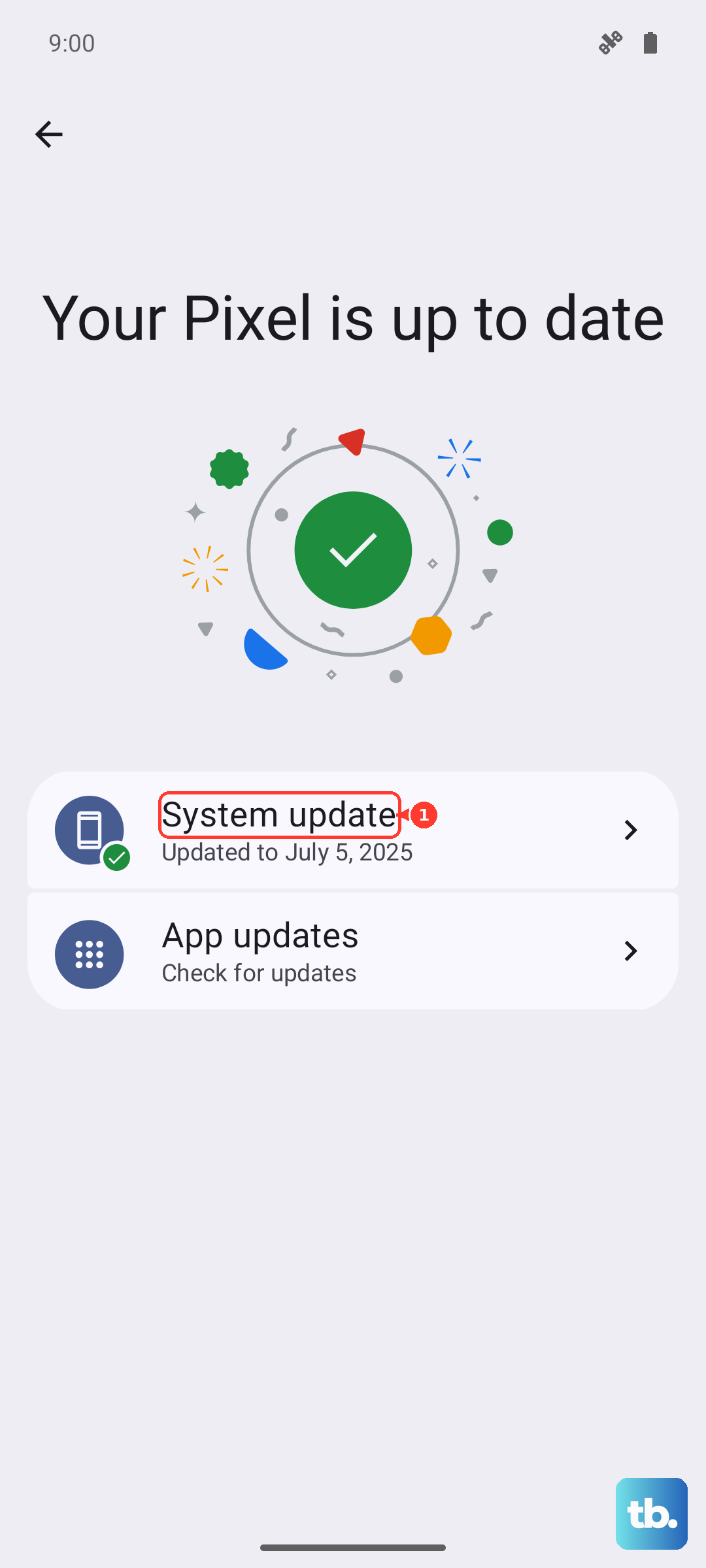
More importantly, check for a system update. Go to Settings > System > System update. Motorola and Google regularly release updates that include performance improvements and bug fixes for Android 15.
Clear App Caches (Especially for Heavy Apps)
Apps like Chrome, Instagram, or Facebook store temporary data (cache) to load faster. Over time, this cache can become bloated and corrupt, slowing the app and the phone down.
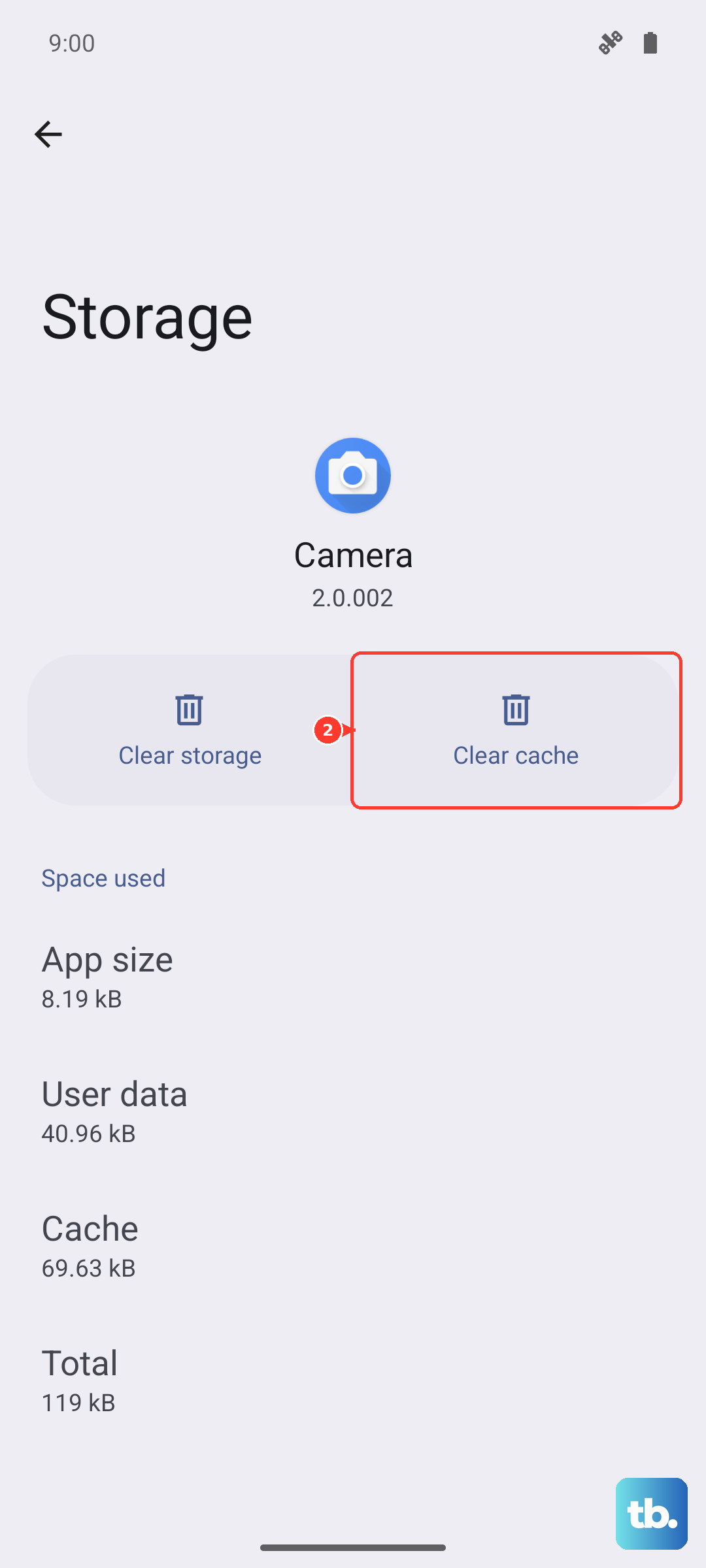
Go to Settings > Apps. Tap "See all apps," find the app that's acting up, and select it. Tap Storage & cache and then "Clear cache." This won't delete your login info or saved data, just the temporary files.
Review and Restrict Background Activity
Some apps are overly eager to run in the background, checking for updates or tracking location constantly. You can rein them in. Go back into Settings > Apps, select a power-hungry app, and tap "Battery."
Here, you can set its background restriction. Choosing "Restricted" will prevent it from running unless you're actively using it, which can save battery and processing power.
Disable or Reduce Animations
The visual effects when opening apps or switching screens, while nice, use GPU resources. Turning them down can make the interface feel snappier. You'll need to enable Developer Options first.
Go to Settings > About phone and tap "Build number" seven times. Then, go back to Settings and into the new "Developer options" menu. Scroll to the "Drawing" section and look for "Window animation scale," "Transition animation scale," and "Animator duration scale." Try changing each from 1x to 0.5x.
Boot into Safe Mode
If the freezing is severe, you need to figure out if it's caused by a third-party app you installed. Booting into Safe Mode temporarily disables all downloaded apps.
Press and hold the power button until the power off menu appears. Then, long-press the "Power off" option on your screen. It will ask if you want to reboot to Safe Mode. Tap OK. If the phone runs smoothly in Safe Mode, a recently installed app is likely the culprit. You can then uninstall apps one by one to find the offender.
Free Up RAM with Motorola's Moto App
Motorola includes some helpful tools. Open the "Moto" app on your phone. Look for a feature often called "Moto Actions" or a performance section. Some models have a one-tap RAM optimizer or a gaming mode that prioritizes performance.
These built-in tools are designed to work with your specific hardware and can give you a quick boost by closing unnecessary background services.
Perform a Factory Reset (Last Resort)
If all else fails, a factory reset will wipe the phone back to its out-of-box state. This will erase all your data, so you must back up everything important first using Google Drive or by transferring files to a computer.
Once backed up, go to Settings > System > Reset options. Tap "Erase all data (factory reset)" and follow the prompts. After the reset, set the phone up as new instead of restoring a backup immediately to see if the lag is gone. If it is, you can then restore your backup, but be selective about which apps you reinstall.