
When your Motorola Moto G Power (2025) can't get a GPS lock, it's more than an inconvenience. You're left without navigation, ride-sharing apps can't find you, and location-based features just stop. The good news is that most GPS problems are software-related and can be fixed with a few simple steps.
I'd start with the quick fixes below. They solve the majority of issues in just a minute or two.
Quick Fixes to Try First
Pull down the notification shade and tap the Location icon to turn it off, wait a few seconds, then tap it again to turn it back on. This simple refresh often does the trick.
Next, try a force restart. Just press and hold the Power button for about 10 seconds until the screen goes black and the Motorola logo reappears. This clears out any temporary glitches in the system.
Finally, check that your navigation app has permission to use your location. Go to Settings > Apps, select your app (like Google Maps), tap Permissions, and make sure Location is set to "Allow all the time" or "Allow only while in use."
Toggle Airplane Mode
This is a great trick that resets all the phone's radios at once, including the one for GPS. Swipe down from the top of your screen twice to open the full Quick Settings panel.
Tap the Airplane Mode icon to turn it on. Wait about 15 seconds, then tap it again to turn it off. Give your phone another moment to reconnect to cellular and GPS signals before testing your navigation app again.
Check Your Location Mode
Your Moto G Power has different accuracy modes to balance battery life and precision. For the best GPS performance, you need to be in High Accuracy mode.
Open Settings and tap Location. At the top, make sure the main Location switch is on. Then, tap Location services or Google Location Accuracy.
Ensure "Improve location accuracy" is enabled. This allows your phone to use Wi-Fi, Bluetooth, and cellular networks to assist the GPS chip, giving you a faster and more reliable lock.
Update Your Apps and Android System
An outdated version of Google Maps or your operating system can cause conflicts with location services. Head to the Google Play Store, tap your profile icon, and go to Manage apps & device.
Tap Updates available and install any updates for your navigation apps. Next, check for a system update by going to Settings > System updates and tapping Check for updates (on a Pixel, go to Settings > System > Software update).
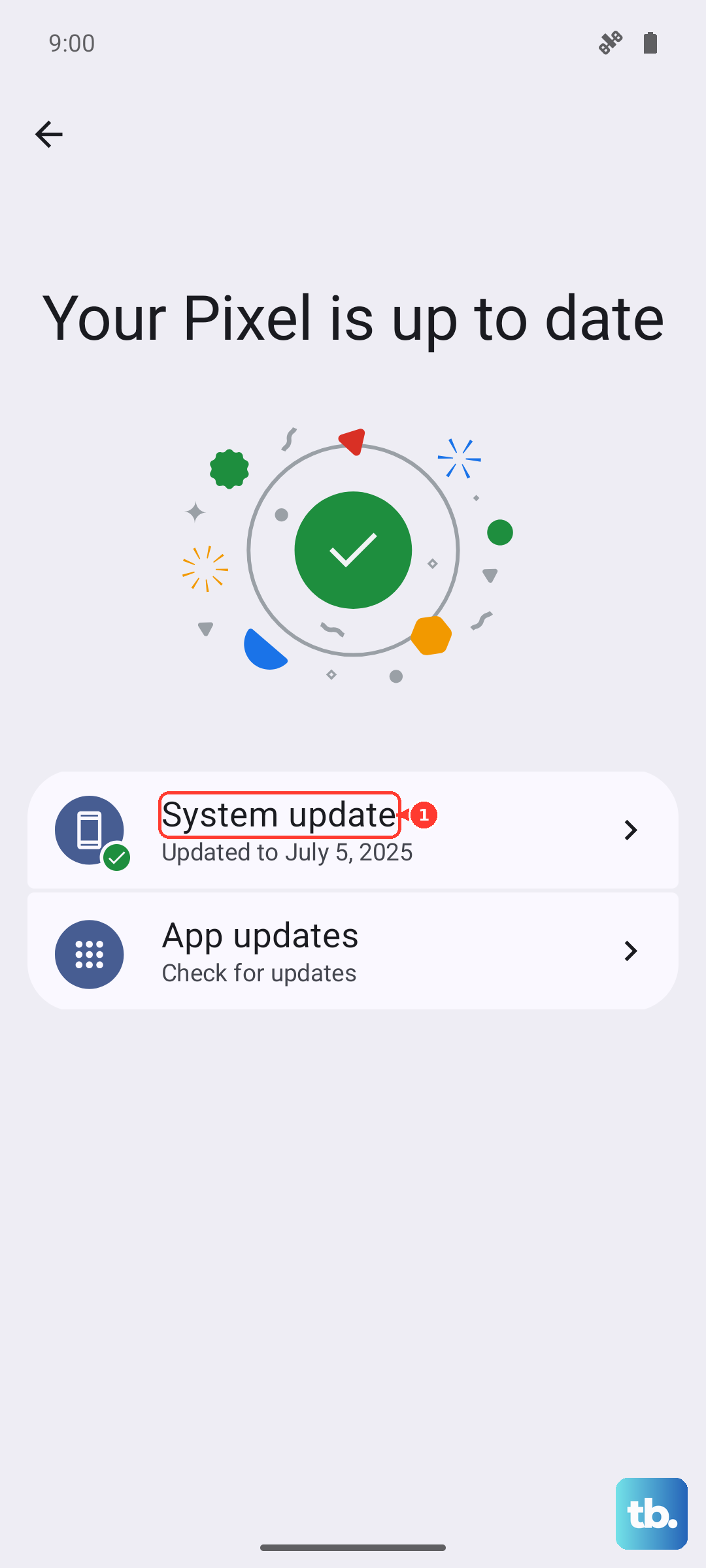
Since your phone runs Android 15, Motorola will push periodic updates that can include bug fixes for connectivity issues, including GPS.
Clear the App Cache and Data
Sometimes the data stored by your mapping app gets corrupted. Clearing the cache is a safe first step that won't delete your saved places.
Go to Settings > Apps > See all apps. Find and tap on your navigation app (e.g., Google Maps, Waze). Select Storage & cache and tap Clear cache.
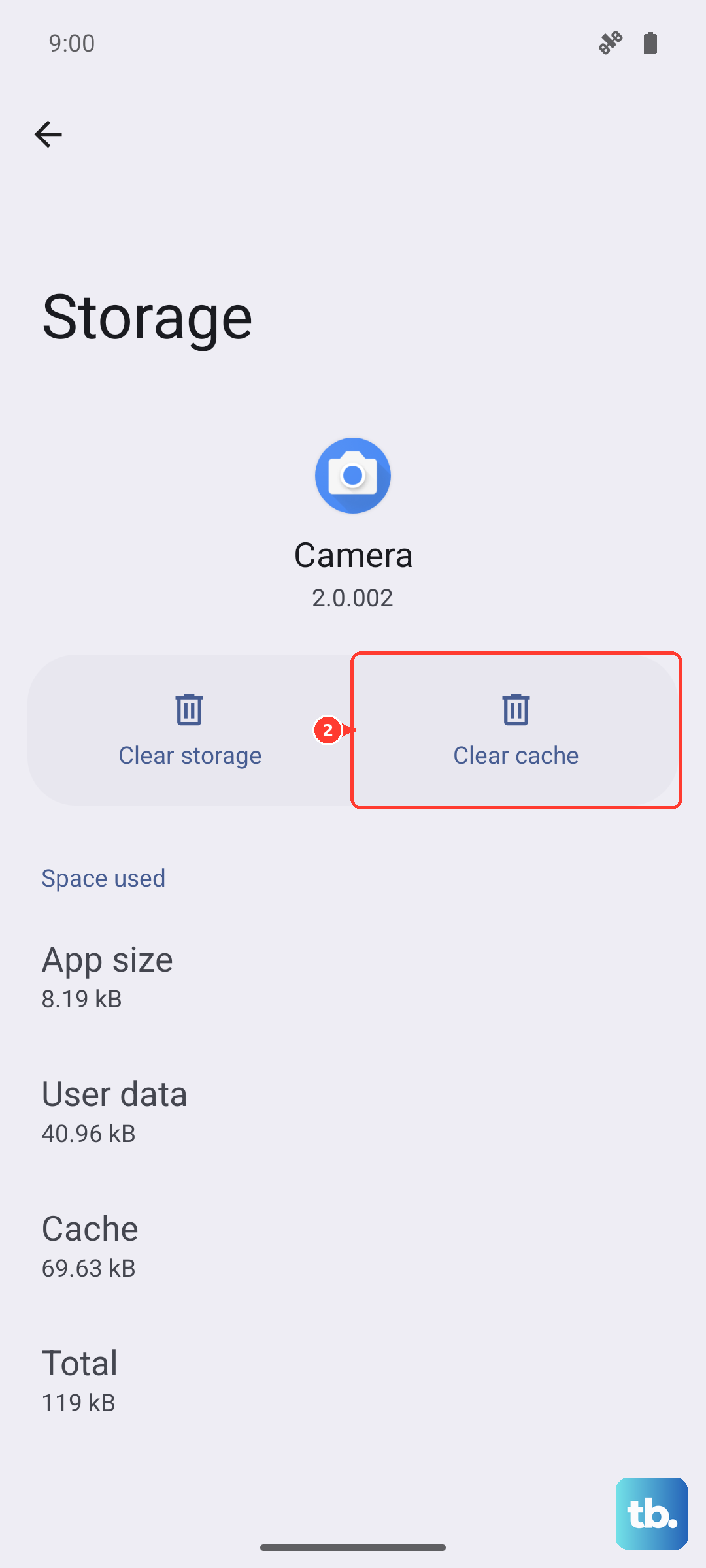
If the problem persists, you can tap Clear storage or Clear data. Just be aware this will reset the app to its default state, so you'll need to sign back in and reset any preferences.
Disable Battery Saver Modes
Battery optimization features are great for longevity, but they often limit background processes like GPS. If you have Battery Saver or a similar mode enabled, your location accuracy will suffer.
Open Settings and go to Battery. Make sure any battery saver mode is turned off. You can also check app-specific settings by going to Battery > App battery management.
Find your navigation app and set it to "Unrestricted" to prevent the system from limiting its background activity.
Test in Safe Mode
This helps you figure out if a third-party app you installed is causing the conflict. To boot into Safe Mode, press and hold the Power button until the power off menu appears.
Then, tap and hold the "Power off" option on your screen. A prompt will ask if you want to reboot to Safe Mode. Tap OK. Once booted, you'll see "Safe mode" in the bottom corner.
Try using Google Maps or your GPS. If it works perfectly in Safe Mode, a recently installed app is likely the culprit. Restart your phone normally to exit Safe Mode and try uninstalling apps one by one to find the offender.
Check for Physical and Environmental Issues
GPS signals are line-of-sight and can be blocked by all sorts of things. Thick metal phone cases, especially ones with magnetic clasps or plates, can interfere with the internal antenna.
Try removing your case temporarily to see if accuracy improves. Your environment matters too. Being inside a building, in a dense urban area with tall buildings, or under heavy tree cover can weaken or block the signal.
For the best results, step outside to an open area with a clear view of the sky when trying to get an initial lock.
Use a GPS Diagnostic Tool
If you're still having trouble, an app like "GPS Test" or "GPS Essentials" from the Play Store can tell you what's happening at the hardware level. These apps show you how many satellites your phone can see and connect to.
If the app shows zero satellites in view despite being outdoors, it could point to a deeper software or hardware problem. If it shows many satellites connected but your navigation app still fails, the issue is likely with the app or its data.
Clear the System Cache Partition
This is a more advanced step that clears temporary system files without touching your personal data. First, power off your Moto G Power completely.
Press and hold the Volume Down button and the Power button at the same time. When the Motorola logo appears, release both buttons. You'll see the Android Recovery screen.
Use the volume buttons to highlight "Wipe cache partition" and press the Power button to select it. Confirm the action, then select "Reboot system now." This process can fix lingering system glitches affecting various functions, including GPS.