
If your Motorola Moto G Power (2025) camera is acting up, the first thing to try is a simple restart. Press and hold the power button for about 10 seconds until the phone powers off and restarts on its own. I've found this clears up most temporary software glitches that can cause the camera app to freeze or produce blurry photos.
Key Points
- Clean the Camera Lens and Sensors: Smudges are the most common cause of blurry or hazy photos.
- Update Your Camera App and Android System: Software bugs can cause crashes and poor image processing.
- Clear the Camera App's Cache and Data: This resets the app without deleting your photos.
- Check Your Storage Space: A full phone can prevent the camera from saving pictures.
- Disable Conflicting Apps and Modes: Other apps using the camera or special shooting modes can cause conflicts.
- Perform a Factory Reset: This is a last resort for persistent software-related camera failures.
Give the phone a full minute to reboot completely before opening the camera app again to see if the problem is resolved.
Clean the Camera Lens and Sensors
Start by giving the camera lens a good wipe with a soft, dry microfiber cloth. The Moto G Power's camera is basic for its price, so fingerprints and dust will have a noticeable impact on image quality. Pay attention to the small sensor next to the main lens as well, as dirt there can mess with autofocus.
For stubborn smudges, you can lightly dampen the corner of the cloth with a little water or lens cleaner. Avoid using harsh chemicals or paper towels, as they can scratch the lens coating. After cleaning, take a test photo in good light to see if the haziness is gone.
Update Your Camera App and Android System
Outdated software is a frequent culprit for camera crashes and bugs. First, check for updates to the Motorola Camera app itself. Open the Google Play Store, tap your profile icon, and go to Manage apps & device > Updates available. See if the Camera app is listed and update it.
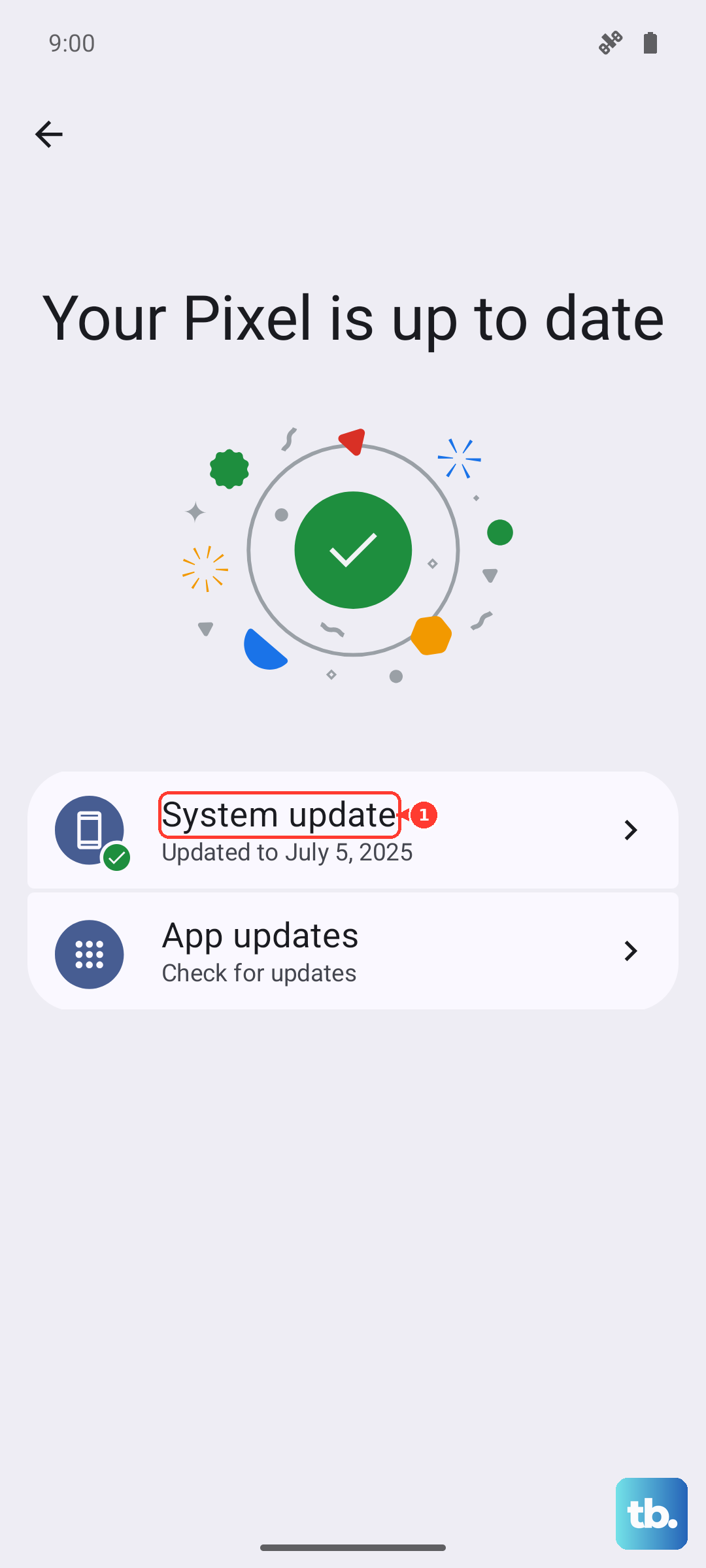
Next, check for a system update. Go to Settings > System > Software update and tap "Check for update." Motorola and Google often release patches that fix camera performance, especially on budget phones like this one running Android 15. Install any available updates and restart your phone.
Clear the Camera App's Cache and Data
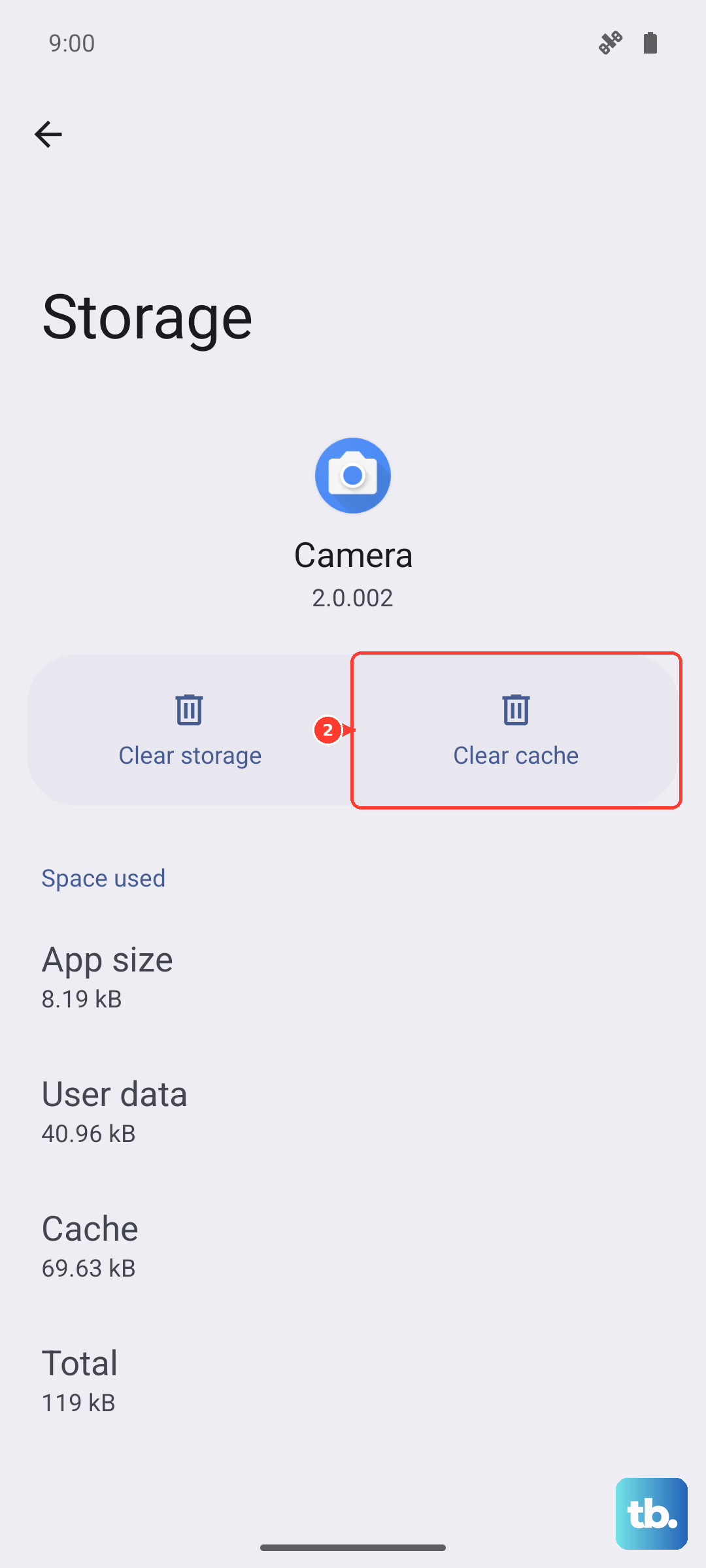
If the camera app is freezing or crashing, its stored data might be corrupted. Clearing the cache is a safe first step that won't delete your pictures. Go to Settings > Apps > See all apps. Find and tap "Camera," then go to Storage & cache.
Tap "Clear cache." If the problem persists, you can try "Clear storage" or "Clear data." This will reset the camera app to its default settings, so you'll lose any custom modes or settings within the app, but your photos and videos in the gallery will remain safe.
Check Your Storage Space
The Moto G Power (2025) starts with 128GB of storage, which can fill up quickly with photos and videos. If your storage is nearly full, the camera app may fail to save new pictures or become sluggish. Go to Settings > Storage to see how much space you have left.
If you're running low, consider moving photos to cloud storage or using the phone's microSD card slot to expand your storage. You can also set the camera to save photos directly to the SD card. Open the Camera app, go to its settings (usually a gear icon), and look for a "Storage location" option.
Disable Conflicting Apps and Modes
Other apps might be accessing the camera in the background and causing a conflict. Check if you have any apps like Facebook, Instagram, or Snapchat open, and close them fully. Also, if you were using a special mode like "Portrait" or "Night Vision" when the problem started, switch back to the standard Photo mode.
Sometimes, simply switching between the rear and front-facing cameras can kick-start a frozen app. Tap the camera switch icon (usually two arrows or a camera icon) a couple of times. If the camera works fine in video mode but not photo mode, or vice versa, it points to a software bug that an update or cache clear should address.
Perform a Factory Reset
If you've tried everything else and the camera is still broken, a factory reset is the final software fix. This will erase all data from your phone, so it's crucial to back up your photos, contacts, and important files first. You can use Google's backup service in Settings > System > Backup.
To reset, go to Settings > System > Reset options > Erase all data (factory reset). Follow the prompts. After the phone restarts and goes through setup, test the camera before restoring all your apps, in case a third-party app was the root cause.