
Is your new Moto G Power (2025) stuck in one orientation, refusing to flip when you turn it sideways? It's a common hiccup that can make watching videos or browsing the web feel awkward. The good news is it's almost always a quick software or settings fix.
Let's start with the most likely culprit. Pull down your notification shade from the top of the screen and look for the auto-rotate icon. It looks like a phone with two curved arrows around it. If it's grayed out or shows a portrait lock symbol, just tap it once. The icon should light up, and your screen should start responding to movement again.
Check the Quick Settings Panel
If the icon wasn't in your first row of quick settings, you might need to find it. Swipe down twice from the top to open the full quick settings panel, then swipe left to see more tiles. Look for the auto-rotate tile and make sure it's active. On Android 15, you can also long-press on the tile to jump straight to the full rotation settings menu.
Sometimes a simple restart is all it takes to clear a temporary glitch. Press and hold the power button until the power menu appears, then tap "Restart." Wait for the phone to fully boot back up and test the rotation again. I've seen this solve the issue more times than I can count.
Force Restart Your Moto G Power
If a normal restart doesn't do the trick, a force restart is the next step. This is a bit more thorough and can clear deeper system hiccups without touching your data. Just press and hold the power button for about 10 seconds, or until you feel the phone vibrate and see the Motorola logo appear. Release the button and let it boot normally.
Verify App-Specific Rotation
Not every app supports landscape mode. If rotation works perfectly in your camera app but not in your web browser, the app itself might be the issue. Try opening a few different apps like YouTube, Google Photos, and your gallery to see if the behavior is consistent.
If you notice the problem started after installing a new app, that app might be interfering. Some third-party launchers or "screen dimmer" apps can override system rotation controls. Try uninstalling any recently added apps one at a time to see if the problem goes away.
Update Your Phone's Software
Since you're running Android 15 on a 2025 model, it's crucial to keep the software updated. Motorola regularly releases patches that fix bugs, including sensor and rotation issues. Head to Settings > System > System updates and tap "Check for update." If one is available, download and install it.
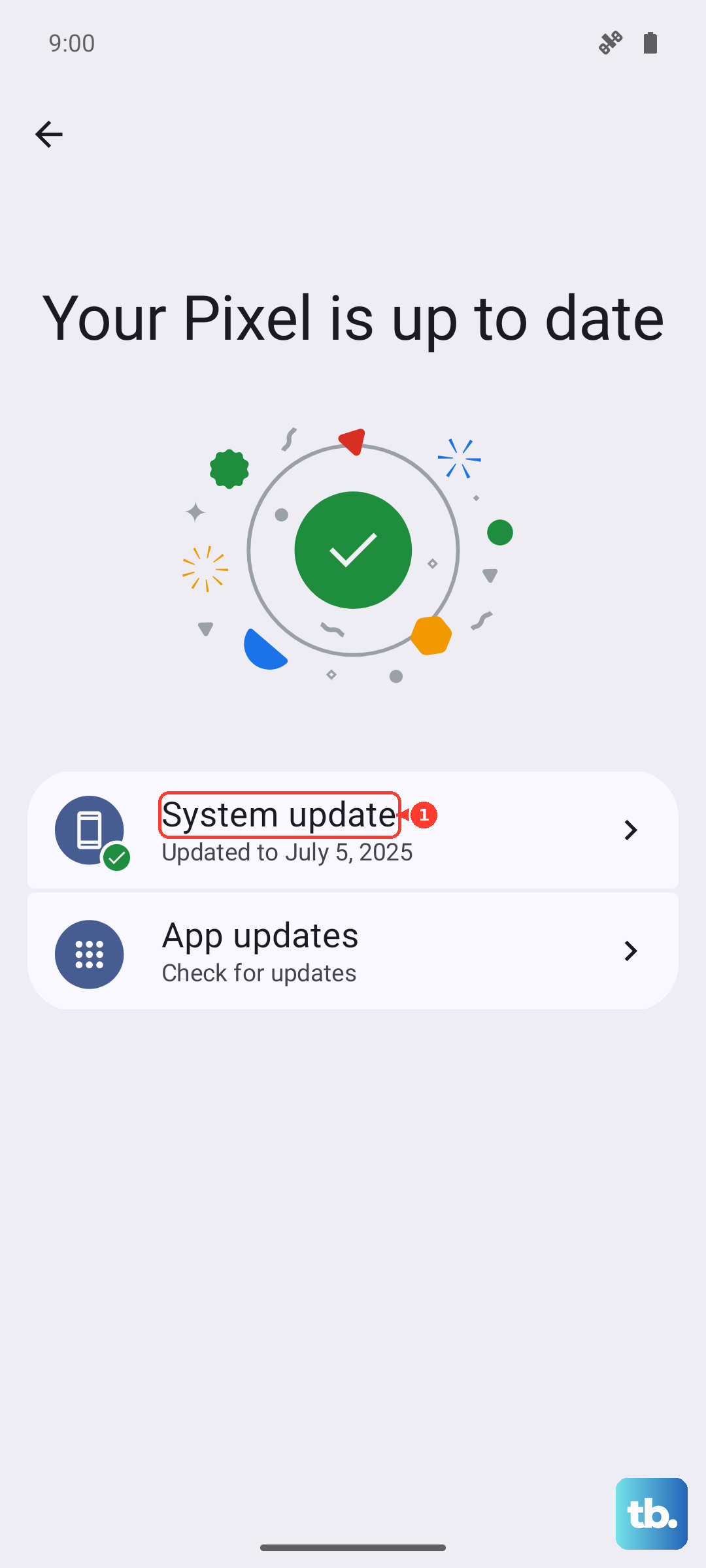
While you're in the settings, it's worth checking for app updates too. Open the Google Play Store, tap your profile icon, and go to "Manage apps & device." Under "Updates available," tap "Update all" to ensure your core apps aren't causing conflicts.
Test the Phone's Sensors
Auto-rotation depends on the accelerometer and gyroscope sensors. You can test these easily with a free app from the Play Store, like "Sensor Test" or "Phone Tester." After installing, open the app and look for the accelerometer or gyroscope test.
Tilt and rotate your phone slowly. The on-screen values for X, Y, and Z axes should change smoothly in response. If the numbers are stuck or jump erratically, there could be a deeper sensor calibration issue or, rarely, a hardware problem.
Calibrate the Motion Sensors
Android has a hidden calibration routine for its motion sensors. You can sometimes trigger it by waving your phone in a specific figure-8 pattern. Hold the phone flat and slowly move it through the air tracing a large number "8" on its side. Do this a few times, then place the phone on a flat, stable surface for a few seconds to let it reset.
Another method is to use a diagnostic code. Open your phone dialer and enter *#*#2486#*#*. This might open a service menu. Be careful in here, but look for an option like "Sensor Test" or "CQA Menu" where you can run diagnostics. If you're not comfortable, skip this step.
Check for Accessibility Settings
Certain accessibility features can lock the screen orientation. Go to Settings > Accessibility. Look for an option called "Auto-rotate screen" and make sure it's toggled on. Also, check if any features like "Switch Access" or "TalkBack" are accidentally enabled, as they can override standard behavior.
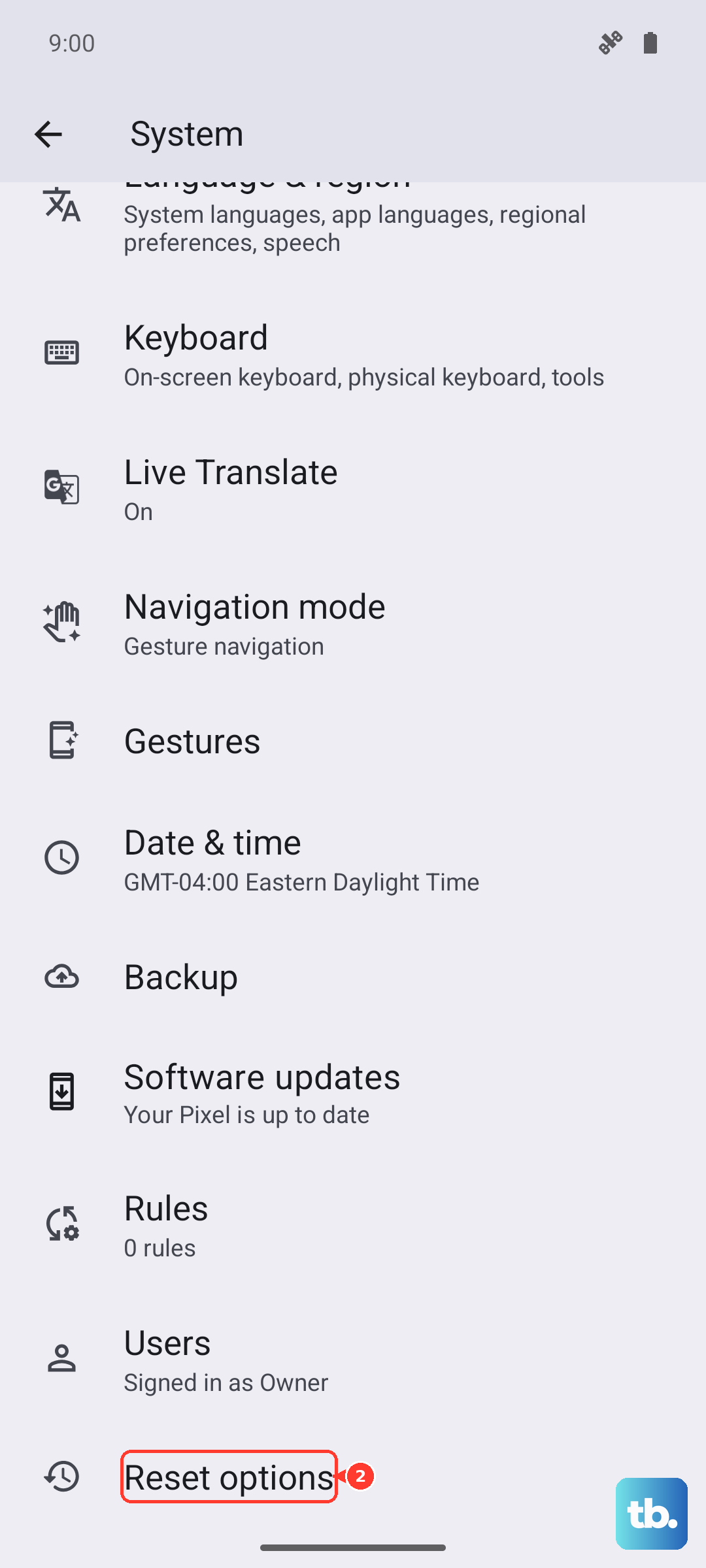
If you've tried all these steps and your Moto G Power's screen still won't rotate, the issue could be more persistent. As a last resort before thinking about hardware, you can try backing up your data and performing a factory reset through Settings > System > Reset options > Erase all data (factory reset). This will wipe your phone, so it's a final step.
Given this phone's MIL-STD-810H durability rating, it can handle drops well, but a hard impact could potentially damage internal sensors. If the problem began after a significant drop or exposure to moisture, and no software fix works, it may be time to contact Motorola support to explore warranty service.