When your Motorola Moto G Power (2025) won't install apps, it can bring your phone to a standstill. Apps are how you do everything, so a download that's stuck or an error message popping up is a real headache. The good news is that on Android 15, most of these problems have pretty straightforward fixes you can do yourself.
Let's go through the solutions, starting with the quick checks and moving to the more involved ones if you need them.
Check Your Connection and Restart
First, make sure your internet is actually working. Swipe down from the top of your screen to see your quick settings panel. Check that your Wi-Fi or mobile data icon is lit up and active.
If you're on Wi-Fi and it seems slow, try turning it off and using your mobile data for a minute to see if the download starts. Some public Wi-Fi networks can block the ports the Play Store needs.
A simple restart fixes more problems than you'd think. Just press and hold the power button on the side of your Moto G Power, then tap 'Restart'. This clears out any temporary glitches in the system that might be hanging up the download process.
Verify Your Date and Time
This one catches a lot of people off guard. If your phone's clock is wrong, it can confuse Google's servers and prevent app downloads. You'll want to make sure it's set to update automatically.
Go into your phone's Settings, then tap System and find Date & time. Make sure the switch for 'Use network-provided time' or 'Automatic date & time' is turned on. If it's already on and you're still having trouble, try turning it off, manually setting the correct time, and then turning automatic back on.
Clear the Google Play Store's Cache
The Play Store stores temporary data to help it run faster, but sometimes this cache gets corrupted. Clearing it is a safe first step that doesn't delete any of your apps or personal info.
Open Settings and go to Apps > See all apps. Find and tap on Google Play Store. Tap Storage & cache and then hit Clear cache. Go back to the Play Store and try your download again.
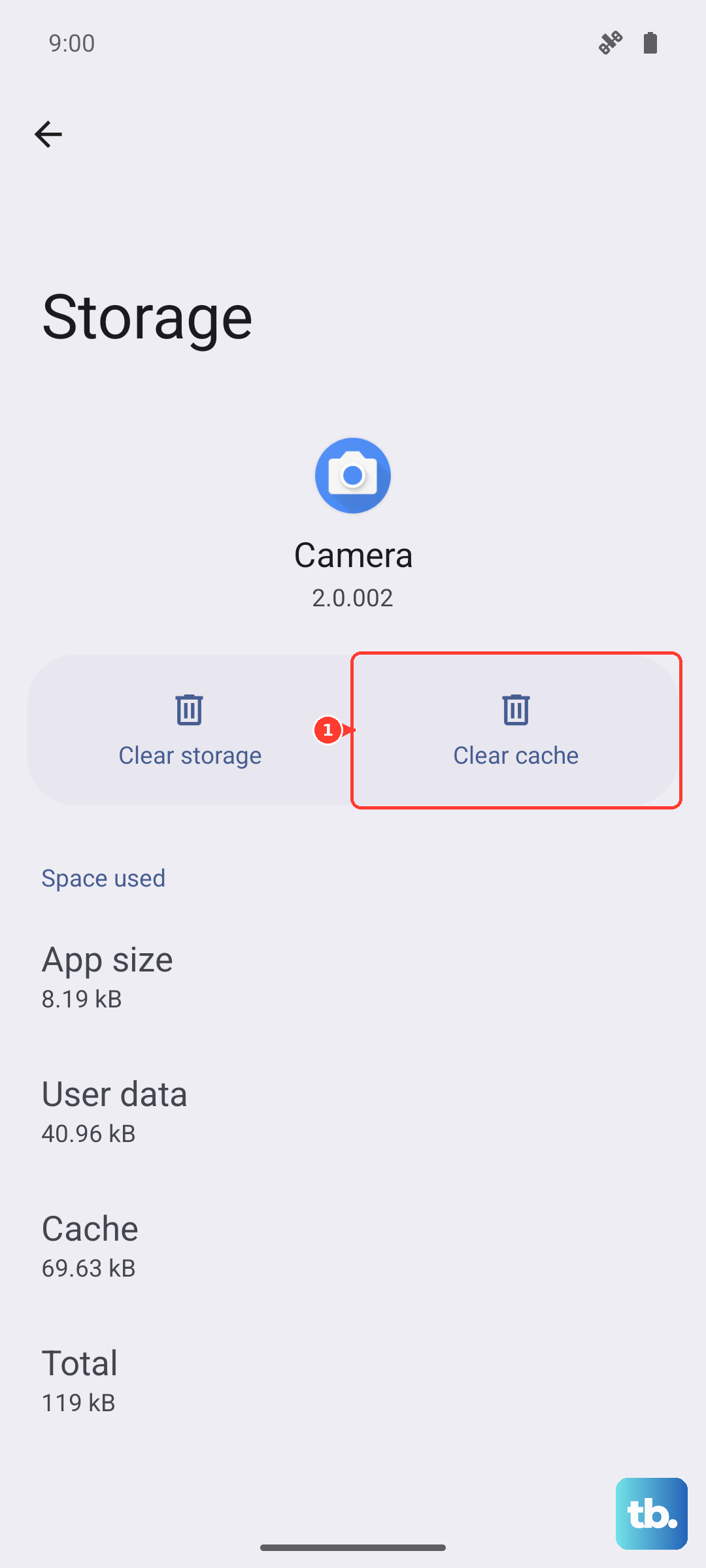
If the cache clear didn't help, you can take the next step and tap Clear storage (or Clear data). This will reset the Play Store to its default state, so you might need to sign in again, but it often knocks loose stubborn download issues.
Manage Google Play Services
Google Play Services is the background app that handles communication between your phone, your Google account, and the apps you download. Problems here are a common cause of installation failures.
Head back to Settings > Apps > See all apps and find Google Play Services. Tap on it, then go to Storage & cache. Tap Clear cache first. If that doesn't work, tap Manage storage and then Clear all data.
You can also try force-stopping the service. From the main Google Play Services app info screen, just tap the Force stop button. Wait a few seconds, then open the Play Store again to see if downloads work.
Check Your Available Storage
The Moto G Power (2025) starts with 128GB of storage, which can fill up faster than you think with photos, videos, and apps. If you're getting an 'Insufficient storage' error, you need to free up some space.
Go to Settings > Storage to see what's using your space. Look for old downloads, large video files, or apps you haven't used in months. I'd start by clearing the cache for multiple apps, which can reclaim gigabytes without deleting anything important.
Remember, this phone has a microSD card slot. If you're constantly running out of room, moving photos and media to an SD card is a great long-term fix to keep your main storage free for apps.
Review Your Download Manager
Your phone has a system app called Download Manager that handles all downloads, not just from the Play Store. It's worth making sure it's enabled and clearing its data.
In Settings > Apps > See all apps, tap the three-dot menu in the top right and select Show system apps. Now search for 'Download Manager'. Tap on it and make sure it's not disabled. Then, go into its Storage & cache and hit Clear storage.
Remove and Re-add Your Google Account
Sometimes the sync between your phone and your Google account gets out of whack. Removing the account and adding it back can refresh this connection and resolve download errors.
Go to Settings > Passwords, passkeys & accounts. Tap on your Google account, then tap Remove account. Confirm you want to remove it. Don't worry, this doesn't delete your Google account itself, just its connection to the phone.
After it's removed, go back to the accounts page, tap Add account, and choose Google. Sign back in with your email and password. Once it's re-added, try the Play Store again.
Check for System Updates
Motorola regularly releases software updates that fix bugs and improve compatibility. An outdated system could be causing conflicts with the latest version of the Play Store or the apps you're trying to install.
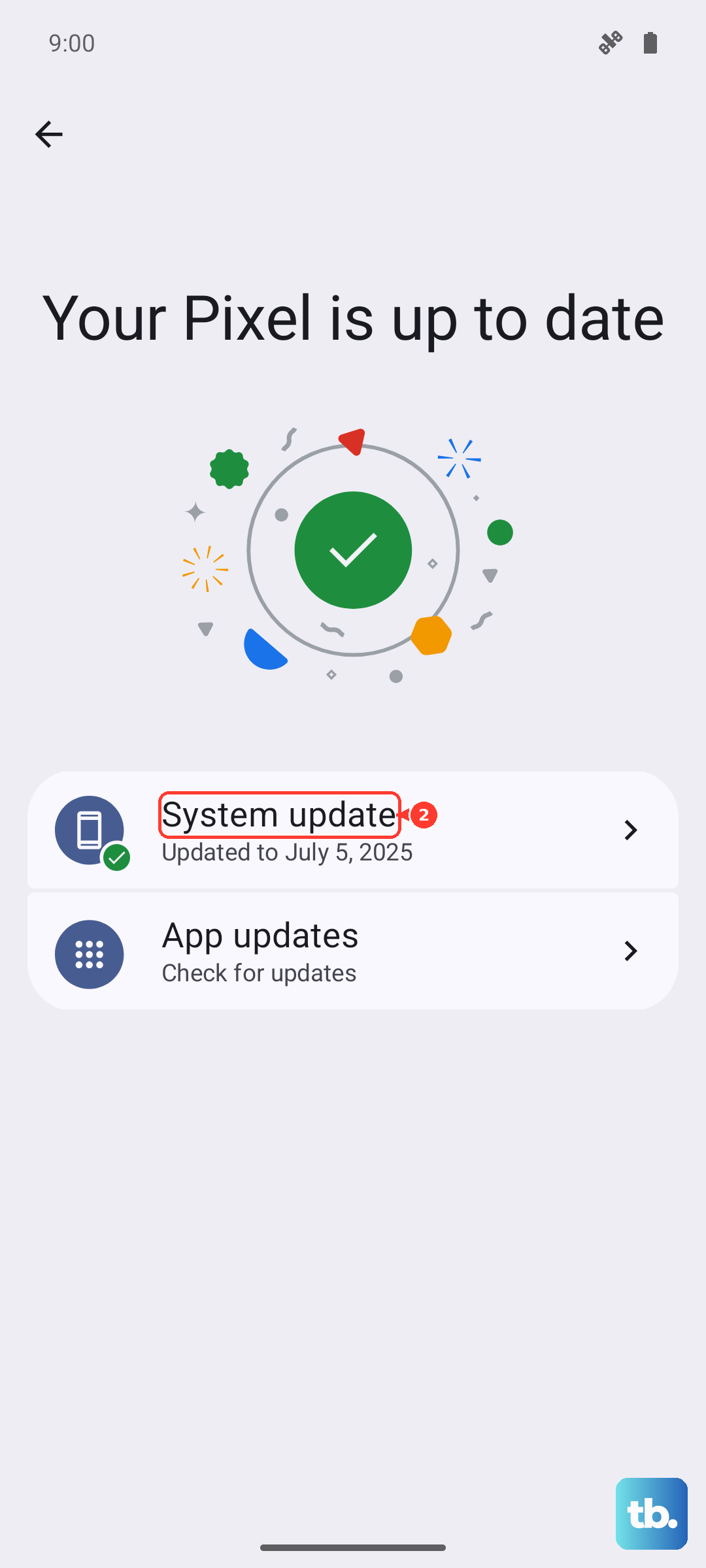
Open Settings, scroll down to System, and tap System updates. Tap 'Check for update'. If an update is available, make sure your phone is charged above 50% and connected to Wi-Fi, then follow the prompts to install it. Your phone will restart as part of the process.
Address Specific Play Store Error Codes
If you're seeing a numeric error code, it can point you to a more specific fix. For error DF-BPA-09, which is often about purchase processing, you need to clear data for Google Services Framework.
Go to Settings > Apps > See all apps, show system apps, and find 'Google Services Framework'. Tap it, go to Storage & cache, and tap Clear storage. Then try your download.
Error 911 is usually network-related. Try switching from Wi-Fi to mobile data, or vice versa. Also, if you're on a Wi-Fi network that requires a web login (like at a hotel or coffee shop), make sure you've fully authenticated through the browser pop-up.
Reset App Preferences or Perform a Factory Reset
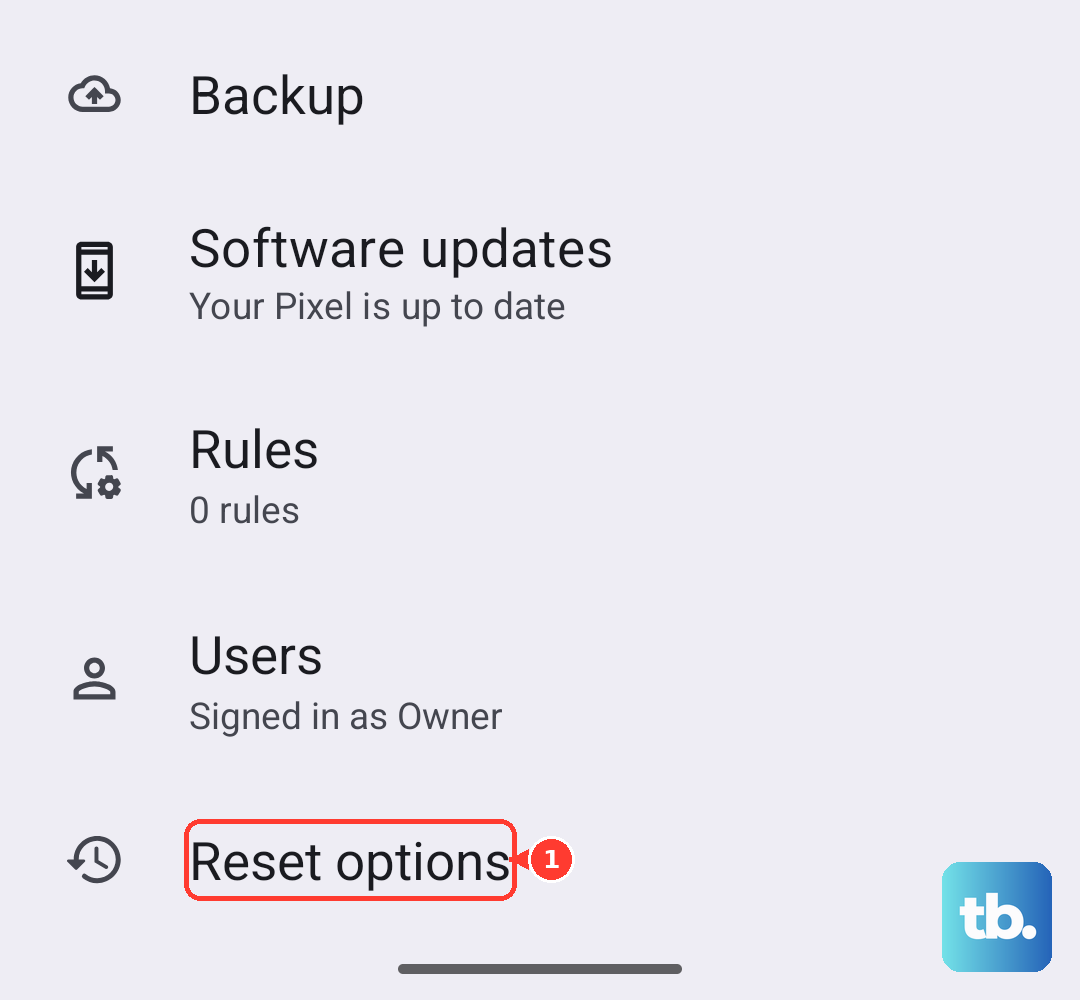
If you've tweaked a lot of settings, resetting your app preferences can help. This resets permissions, background data restrictions, and default app assignments without deleting any personal data. Go to Settings > System > Reset options and tap Reset app preferences.
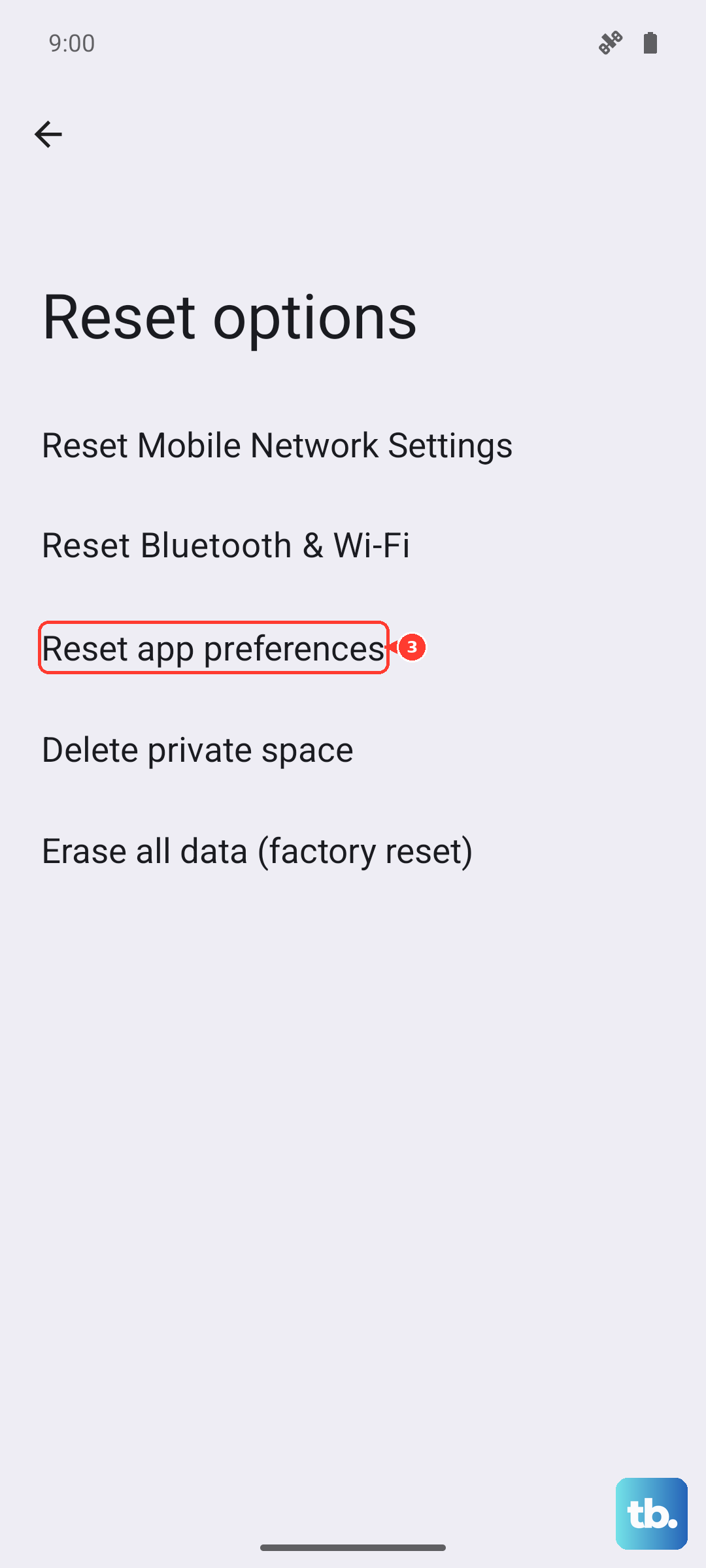
As an absolute last resort, you can perform a factory reset. This will erase everything on your phone and return it to its out-of-the-box state, so you must back up your photos, contacts, and important files first. You can back up to your Google account. Once backed up, go to Settings > System > Reset options > Erase all data (factory reset).