
When your Moto G Power (2025) keeps closing apps on you, it feels like the phone is fighting you. You open something, and a moment later you're back at the home screen. This is a common headache, especially on a phone with a budget processor like the Dimensity 6300, which has its limits with multitasking.
The quickest thing to try is a simple restart. Just press and hold the power button for about 10 seconds until the screen goes black and the Motorola logo reappears. This clears out any temporary glitches hogging the phone's memory and often gets things running smoothly again.
Check Your Available Storage
With only 128GB of base storage, your Moto G Power can fill up faster than you think. When storage gets critically low, Android starts aggressively closing apps to free up space. Head to Settings > Storage to see how much room you have left.
If you're below 10% free space, it's time for a cleanup. Uninstall apps you never use, clear out old downloads, and move photos to Google Photos or another cloud service. Don't forget you have an SD card slot, which is perfect for offloading media files and taking the pressure off your main storage.
Close Background Apps Manually
Even with 8GB of RAM, having too many apps open can overwhelm the system. Swipe up from the bottom of the screen and hold to enter the recent apps view. Here, you can swipe away apps you're not actively using.
For a more thorough clean-up, go into Settings > Apps. Look for apps known to be resource-heavy, like social media or games, and tap on them. If you see a "Force Stop" button, you can use it to completely shut down an app that might be stuck and causing issues.
Update Your Apps and System Software
Outdated apps are a prime cause of instability. Open the Google Play Store, tap your profile icon, and go to Manage apps & device. Under the "Updates available" section, tap "Update all" to get everything current. App developers constantly release patches for bugs that cause crashes.
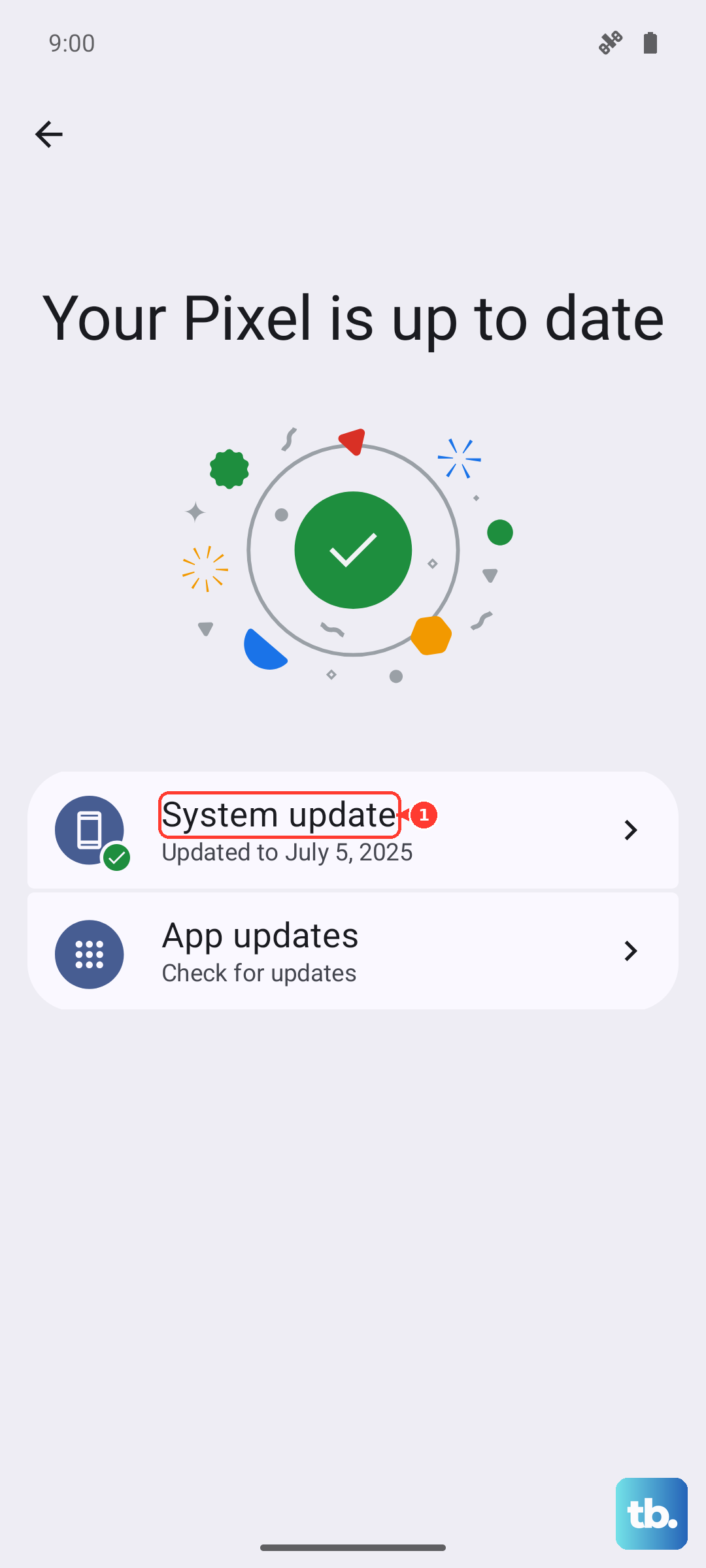
Next, check for a system update. Motorola rolls out improvements that can boost stability. Go to Settings > System > System update and tap "Check for update." Installing the latest Android 15 update can resolve a lot of background issues causing apps to close.
Clear an App's Cache and Data
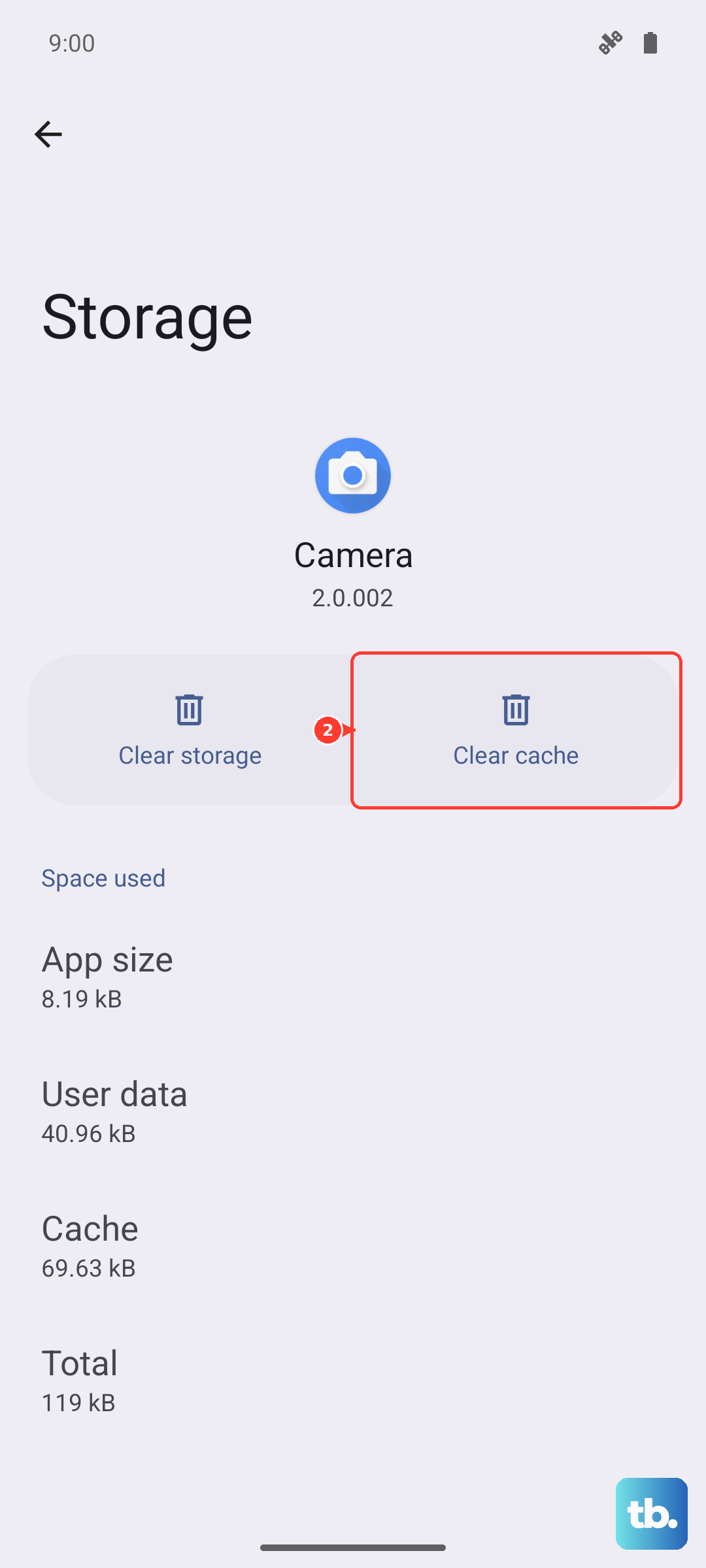
If one specific app keeps closing, its temporary cache files might be corrupted. This fix won't delete your login info or saved data for most apps. Go to Settings > Apps, find the troublesome app, and select it.
Tap on Storage & cache. First, tap "Clear cache." If the problem persists, you can try "Clear storage" or "Clear data." Be warned, this second option will reset the app like it's brand new, so you'll need to log back in.
Review Battery Optimization Settings
Android's battery saver features can sometimes be too aggressive. They might close apps you want running in the background. Go to Settings > Apps and select the app that won't stay open.
Tap on Battery. If the setting is "Optimized," change it to "Unrestricted." This tells your phone not to restrict the app's background activity, which can help it stay open. I'd only do this for the one or two apps you really need persistent.
Boot Into Safe Mode
This helps you figure out if a recently downloaded third-party app is the troublemaker. Press and hold the power button until the power off menu appears. Then, long-press the "Power off" option on your screen.
You'll see a prompt to reboot to Safe Mode. Tap "OK." In Safe Mode, all downloaded apps are disabled. If your apps stop closing, you know a downloaded app is causing the conflict. You'll need to restart normally to exit Safe Mode and then uninstall recent apps one by one to find the culprit.
Check for Overheating
The Dimensity 6300 chip can get warm under heavy loads, like gaming or video streaming for long periods. If the phone gets too hot, it will throttle performance and may close apps to cool down. If the back of your phone feels very warm to the touch, give it a break.
Close any demanding apps and let it cool down on a flat, hard surface. Avoid using it while charging with a fast 30W charger, as this generates additional heat. Using a case can sometimes trap heat, so taking it off temporarily can help it cool faster.
Perform a Factory Reset
If you've tried everything else and apps still won't stay open, a factory reset is the final step. This wipes your phone back to its original out-of-the-box state. It's crucial to back up everything important first, photos, contacts, messages, to Google Drive or your SD card.
To reset, go to Settings > System > Reset options. Tap Erase all data (factory reset) and follow the prompts. After the reset, set up your phone as new and test your apps before restoring a full backup, in case the backup contains the problematic data.