Seeing your Motorola Edge 50 Pro's screen flicker or flash is incredibly distracting. It can make the beautiful pOLED display look glitchy with random flashes or lines. This is usually a software hiccup, but it can sometimes point to a deeper issue. Let's get it fixed.
Before adjusting cables and settings, run a quick monitor test in your browser. Its fullscreen patterns make problems like flicker, banding, and uniformity issues much easier to spot and describe.
Force Restart Your Phone
I'd start with this one. A force restart clears out temporary glitches in the system memory that can cause display problems. Just press and hold the power button on the right side for about 10 seconds. Keep holding it until you see the Motorola logo appear, then let go. This is different from a normal restart and often resolves flickering that just started.
Check Your Refresh Rate Setting
The Edge 50 Pro has a 144Hz display, which is fantastic for smooth scrolling. Sometimes, though, the software can struggle with the high refresh rate. Go into Settings > Display > Refresh rate. Try switching from "Auto" or "144 Hz" down to "60 Hz". If the flickering stops completely, you've found a software bug related to the high refresh rate, and a future update will likely fix it.
Disable Adaptive Brightness
This feature uses the front camera to adjust your screen brightness, and if the sensor gets confused, it can cause the brightness to jump and flicker. You can turn it off by going to Settings > Display > Adaptive brightness and toggling it off. After that, just manually set your brightness level using the slider in your quick settings panel.
Update Your Software
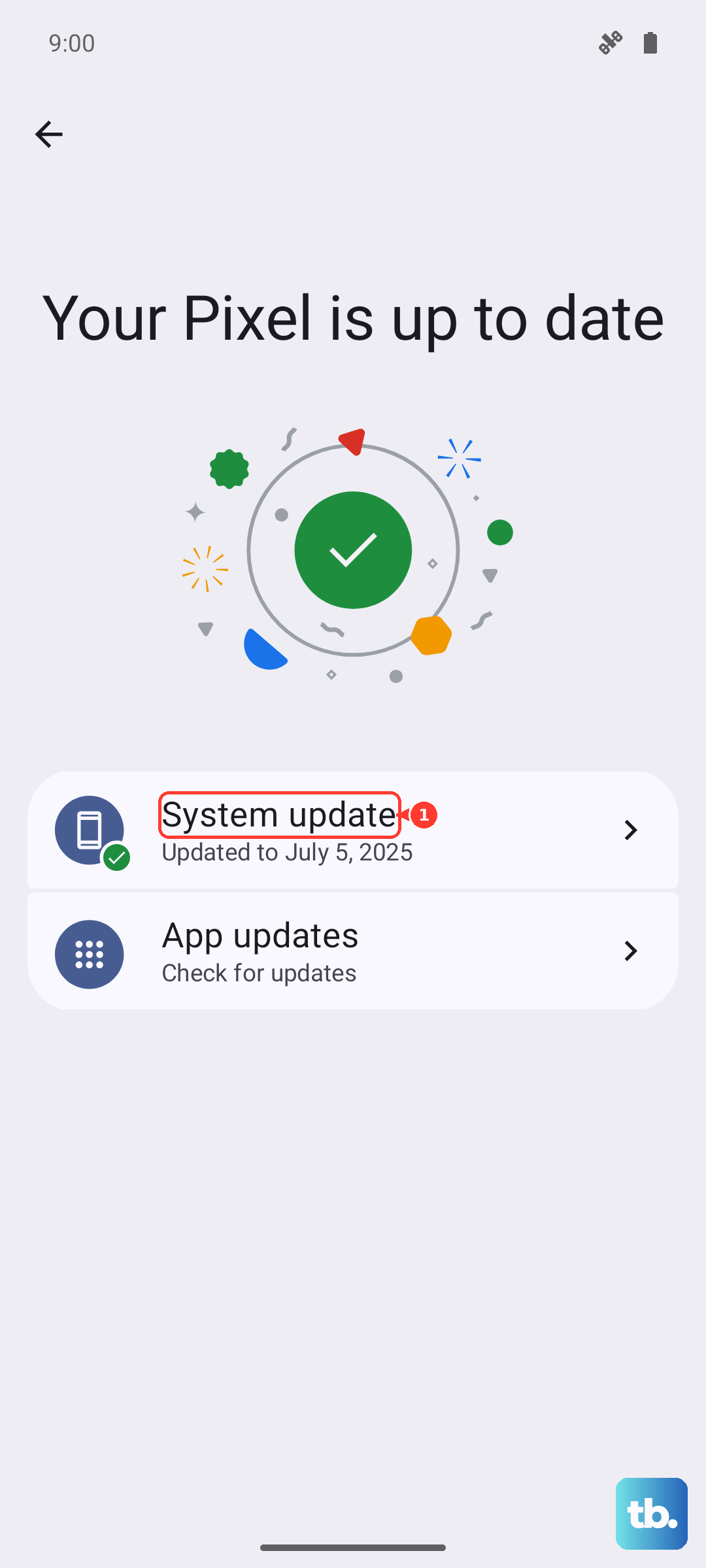
Motorola does release updates that fix display-related bugs. Go to Settings > System > System updates and tap "Check for update". Install any available update. Since the phone runs a relatively clean version of Android 14, these updates are crucial for stability fixes that might be causing your screen issue.
Boot Into Safe Mode
This starts your phone with all third-party apps disabled. If the flickering stops in Safe Mode, you know a recently installed app is causing the conflict. To enter Safe Mode, press and hold the power button until the power off menu appears. Then, tap and hold the "Power off" option on your screen. You'll get a prompt to reboot to Safe Mode. Tap "OK".
Once in Safe Mode, which will have "Safe mode" text in the bottom corner, use your phone normally for a bit. If the screen is stable, restart to exit Safe Mode and start uninstalling apps you installed just before the problem began.
Close Background Apps and Clear Cache
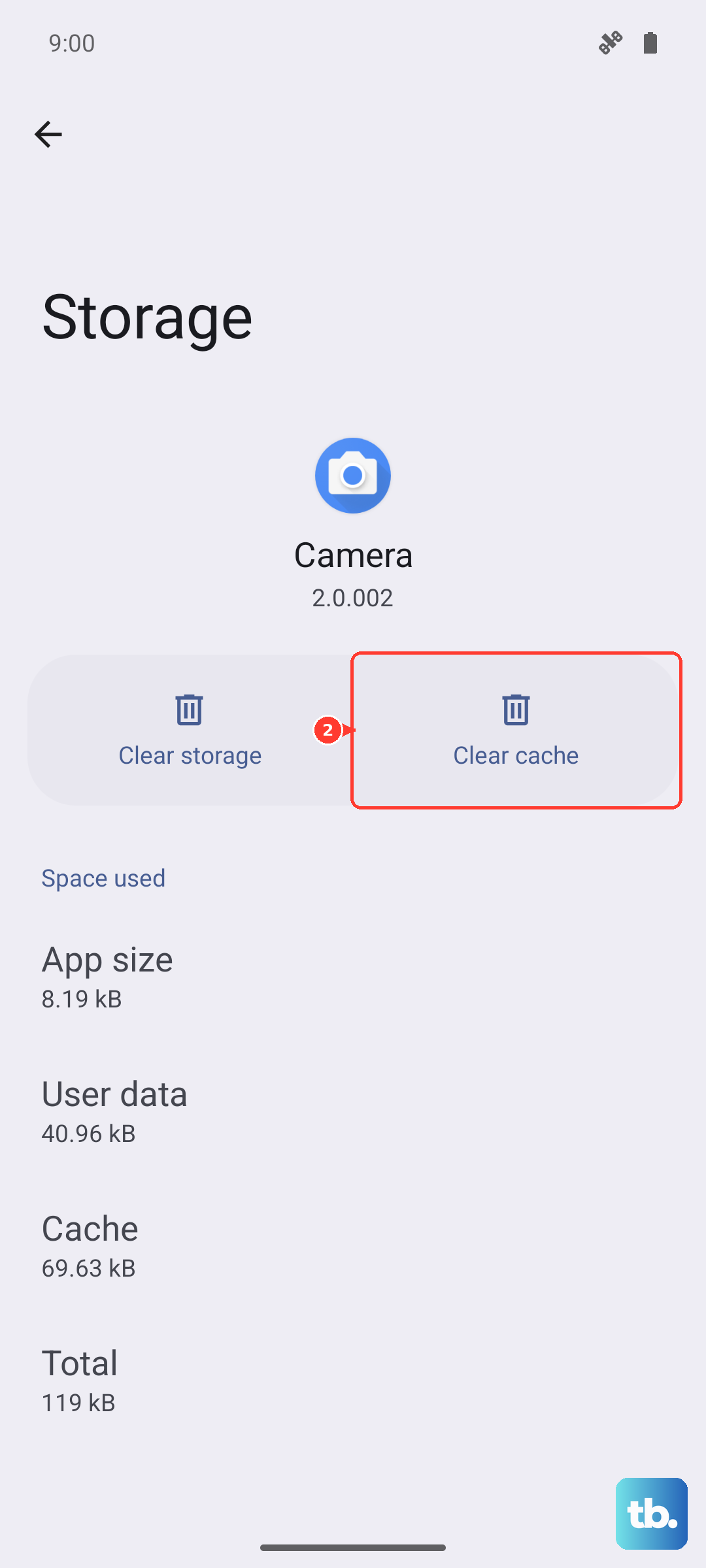
A single misbehaving app running in the background can sometimes affect the display. Swipe up from the bottom and hold to see your recent apps, then swipe each one up to close it. For an extra step, you can clear the cached data for the Android system. Go to Settings > Storage > Other apps, find "Android System" in the list, tap it, and then tap "Clear cache". This won't delete any personal data.
Reset App Preferences
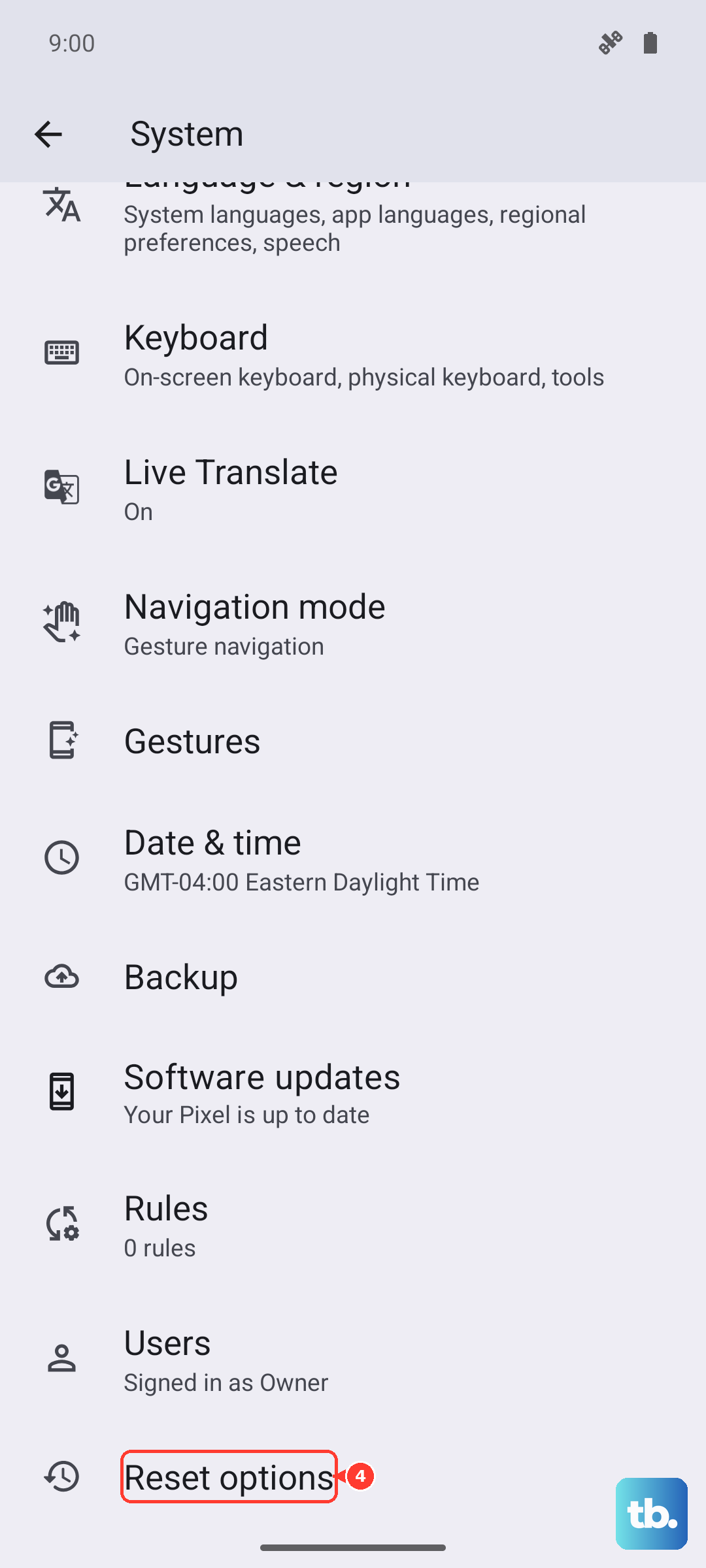
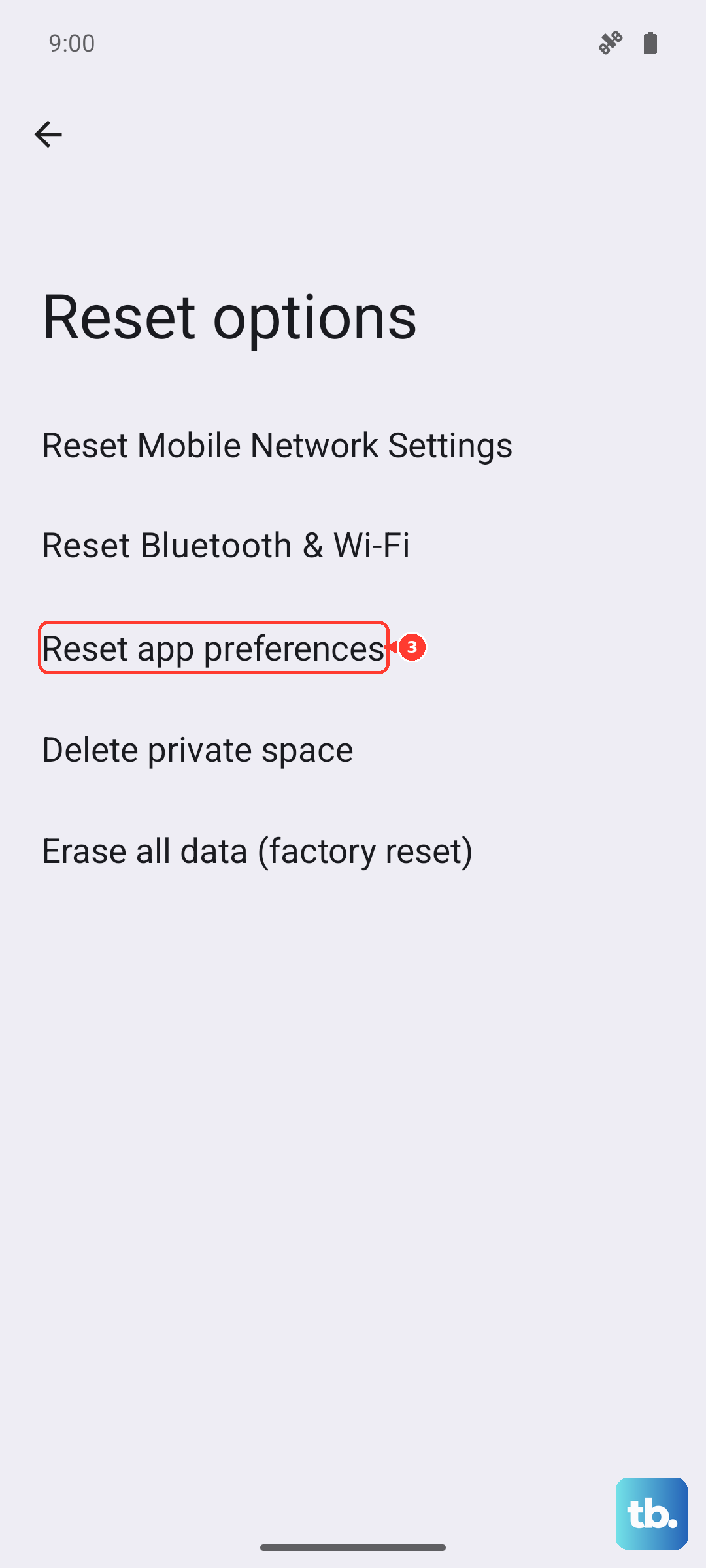
This is a less drastic reset that can fix display issues caused by app permissions or defaults. It resets things like notification settings, default apps, and background data restrictions. Go to Settings > System > Reset options. Tap "Reset app preferences" and confirm. You'll need to re-grant permissions to apps afterward, but it can resolve conflicts.
Check for Physical Damage or Connection Issues
If the flickering started after a drop or impact, there could be a loose internal display cable connection. Look very closely at the screen for any hairline cracks, especially near the edges, or any spots with abnormal color or pressure marks. Even a small crack can disrupt the display drivers. Physical damage like this will require a professional repair.
Perform a Factory Reset
This is your last software step before considering a hardware fault. A factory reset will erase all your data, so make sure everything is backed up to your Google account first. You can initiate it by going to Settings > System > Reset options > Erase all data (factory reset). Follow the prompts. If the flickering persists on a completely fresh phone, the issue is almost certainly with the display hardware itself.