
So your Motorola Edge 50 Pro won't charge. You've plugged in the included 125W TurboPower charger, maybe swapped cables, and the screen stays dark. It's a frustrating spot to be in, especially with a phone that's supposed to go from zero to full in about 18 minutes. The good news is, this is almost always something you can fix yourself without a trip to a repair shop.
Whether you're dealing with a USB-C port that won't connect, a wireless charger that's not working, or a phone that just seems completely dead, we'll walk through the solutions. Let's start with the quickest fix and work our way through.
Force Restart Your Motorola Edge 50 Pro
This should always be your first move. A simple force restart can clear out a temporary software glitch that's preventing the phone from recognizing it's plugged in. It takes about 10 seconds and fixes more charging issues than you'd think.
For the Motorola Edge 50 Pro, press and hold the Power button for 10 seconds or longer. Keep holding it until you feel a vibration or see the Motorola logo appear on the screen. Once it boots back up, plug it in and check for the charging indicator.
Clean the USB-C Charging Port
This is the single most common culprit for any phone that won't charge, and the Edge 50 Pro's USB-C port is no exception. Lint, dust, and pocket debris get packed in there every single day. Eventually, there's so much gunk that the cable's connector can't make proper contact with the gold pins inside.
Grab a bright light and look directly into the port on the bottom of your phone. If you see a mat of grey or black lint, that's your problem. Turn the phone off first for safety. Then, use a wooden toothpick or a plastic flosser pick to gently scrape and pry the debris out. Avoid metal tools like paperclips, as they can scratch or short the delicate contacts.
You can also try a quick blast of compressed air from a can, holding it a few inches away. After cleaning, plug the cable back in. It should click in firmly without any wobble. If it still feels loose, the port itself might be damaged.
Check Your Cable, Charger, and Outlet
You need to isolate the problem. Is it the phone, or is it your charging gear? Start by trying a different combination of known-good parts. Use a different USB-C cable, preferably one that you know can handle high wattage. Then, try a different wall adapter and plug it into a different outlet in your house.
Remember, to hit the Edge 50 Pro's maximum 125W wired charging speed, you need to use the included TurboPower charger and cable. If you're using a different charger, it will still charge, but much more slowly. Also, remove your phone case, especially if it's very thick or has a magnetic ring for accessories, as it could be preventing a solid connection.
Enable Battery Protection for Long-Term Health
Your Motorola Edge 50 Pro has a smart feature to help its battery last longer. It's called Battery Protection, and it can sometimes be the reason your phone seems to stop charging. This setting limits the maximum charge to around 80-85% to reduce wear on the battery, which is especially useful since the 125W charging can degrade the battery faster over time.
To check it, go to Settings > Battery > Battery Protection. You'll see a few options. If it's set to "Optimized" or a custom limit, your phone will intentionally stop charging before it hits 100%. You can change this to "Full charge" if you need every bit of battery for the day ahead.
Wait If the Battery Is Fully Drained
If you've let your Edge 50 Pro's battery run down to absolute zero, it won't turn on or show a charging symbol immediately. This is a safety feature. Plug it into the wall with the official charger and leave it alone for at least 20-30 minutes.
Don't keep trying to turn it on during this time. After a half-hour, press and hold the power button to see if the Motorola logo appears. If the screen is still completely black, try the force restart method again while it remains plugged in.
Try 50W Wireless Charging
If the USB-C port isn't working, the Edge 50 Pro's 50W wireless charging is a great backup. This can tell you if the problem is with the physical port or something else in the phone. I'd recommend this as a diagnostic step.
There's an important catch, though. To get the full 50W wireless speed, you need Motorola's proprietary TurboPower wireless charging stand. Other standard Qi chargers will work, but they'll charge at a much slower rate. Make sure you remove any thick case and center the phone on the charging pad. If it charges wirelessly but not with a cable, you've confirmed the USB-C port needs attention.
Update Your Software
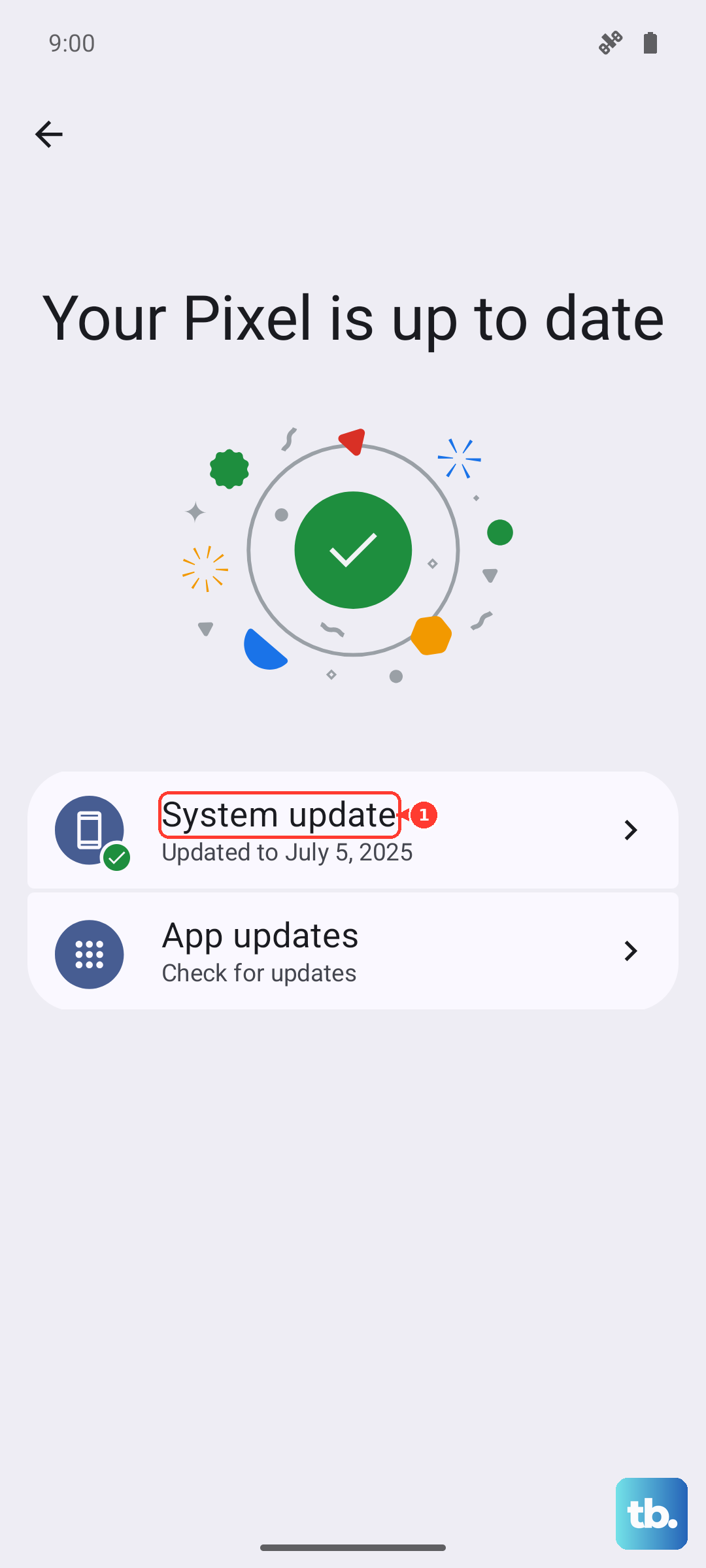
Software bugs can occasionally interfere with charging management. Motorola releases updates to fix these kinds of issues, though they can be slower than brands like Samsung or Google. Installing the latest software can clear up the problem.
Go to Settings > System updates and tap "Check for updates." If an update is available, download and install it. If your phone won't turn on enough to check for updates, you might need to connect it to a computer for a restore, which we'll cover next.
Perform a Factory Reset (Last Resort)
If all else fails, a software corruption might be the root cause. A factory reset will wipe your phone back to its original state, so this is a last resort. Make sure you've backed up any important data first, as this process erases everything.
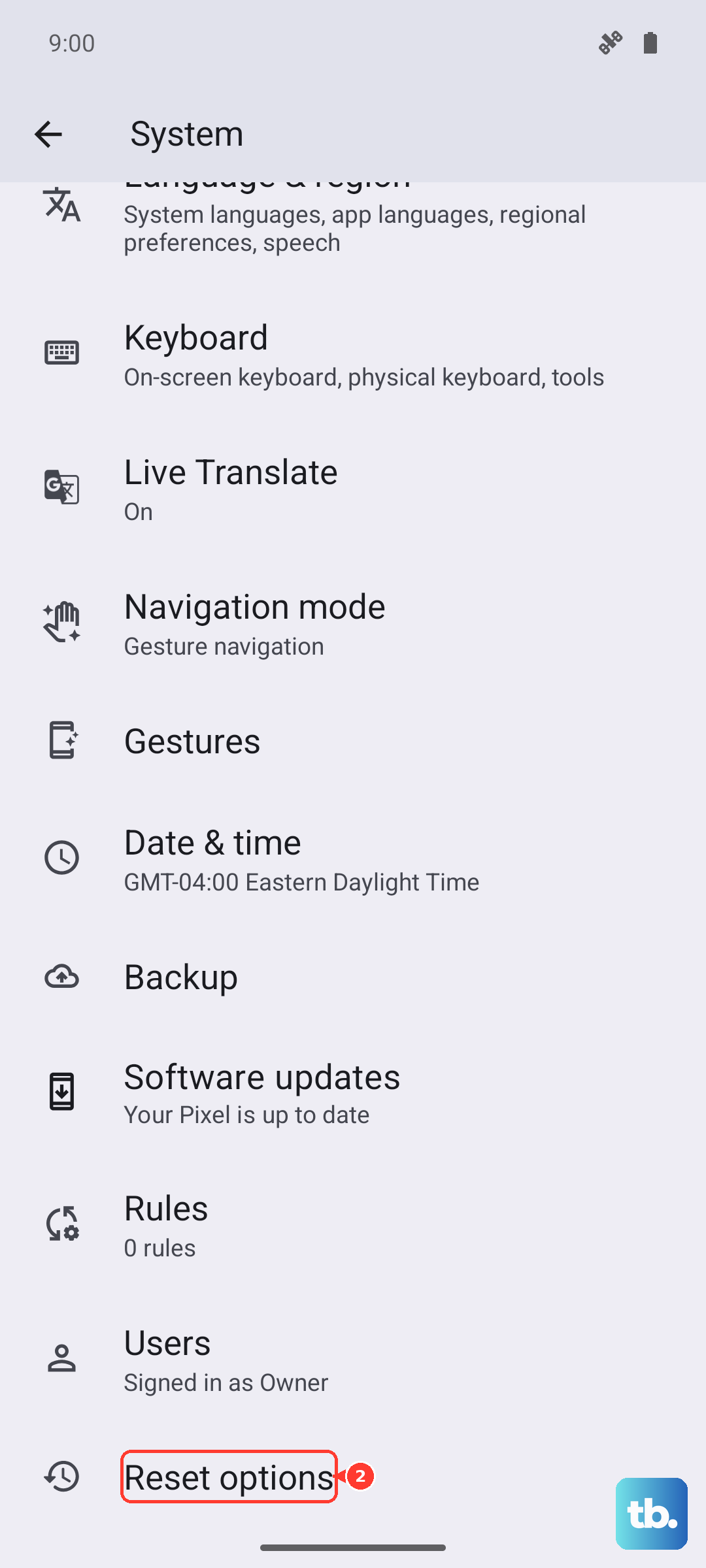
You can do this through the settings if your phone is still operational: go to Settings > System > Reset options > Erase all data (factory reset). If the phone won't turn on, you'll need to use Recovery Mode. Turn the phone off, then press and hold the Volume Down and Power buttons together until the Recovery Mode menu appears. Use the volume buttons to navigate to "Factory reset" and select it with the power button.
After the reset is complete, set the phone up as new and immediately test the charging. If it still refuses to charge, the issue is almost certainly hardware-related.