
Seeing "No Service" or a missing signal icon on your Motorola Edge 50 Pro is a real headache. It cuts you off from calls, texts, and mobile data right when you need them most. The good news is this is usually a software hiccup or a simple setting that's gotten out of whack.
I'd start with the most common fix, which is a simple restart. Press and hold the power button for about 10 seconds until you feel a vibration and see the Motorola logo. This clears out any temporary glitches in the system that might be blocking the cellular radio.
Check Your Physical SIM Card
While the Edge 50 Pro is a modern phone, the old-school SIM card is still a common point of failure. Power the phone down completely, then use the SIM ejector tool that came in the box to pop out the tray.
Take a close look at the gold contacts on the SIM card itself. If you see any dust, lint, or discoloration, gently wipe them with a soft, dry cloth. Carefully reseat the card in the tray, making sure it's lying completely flat and the notch is aligned, then slide the tray back in until it clicks.
Toggle Airplane Mode and Mobile Data
Sometimes the radio just needs a swift kick to reconnect. Swipe down from the top of your screen twice to open the full Quick Settings panel. Look for the airplane icon and tap it to turn Airplane Mode on. Wait about 10 seconds, then tap it again to turn it off.
Right below that, also tap the mobile data icon (it usually looks like two arrows) to turn it off and back on. This forces the phone to re-register with the nearest cell tower, which often solves temporary signal drops.
Verify Your Network Selection
Your phone might be trying to latch onto a weak or incompatible network. Open the Settings app and tap on Network & internet. Then, select Mobile network and tap on Advanced.
Look for an option called Choose network or Automatically select network. Make sure "Automatically select" is enabled. If it's already on, try turning it off for a moment. Your phone will search and show a list of available networks. Select your carrier's name from the list, then turn automatic selection back on.
Reset Your APN Settings
The Access Point Name (APN) is like the phone's address book for connecting to your carrier's data network. If these settings are wrong, you'll get no service. Go back to Settings > Network & internet > Mobile network.
Tap on Access Point Names. You should see a list, likely with one for your carrier selected. Tap the three-dot menu in the top right and select Reset to default. This will wipe any custom APN settings and restore the factory defaults that came with your SIM card.
After the reset, restart your phone. If you're using a smaller MVNO carrier (like one that runs on T-Mobile or Verizon's network), you may need to get the specific APN details from their support site and enter them manually here.
Update Your Carrier Services and Software
Motorola has been known to have slower software updates than some brands, but when they do arrive, they often contain important radio stability fixes. Go to Settings > System > System updates and tap "Check for update."
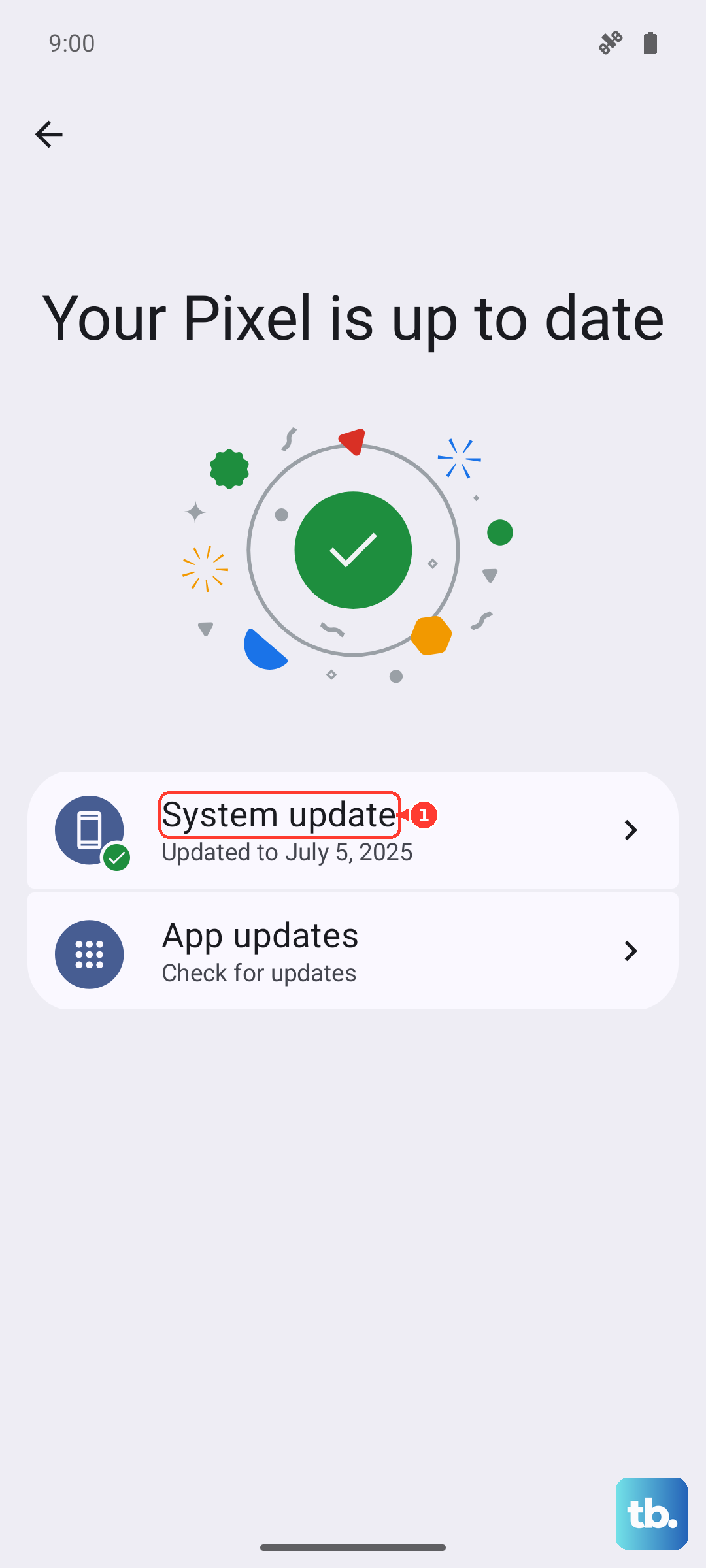
Also, open the Google Play Store, tap your profile icon, and go to Manage apps & device. Under "Updates available," look for an app called "Carrier Services" and update it. This app handles communication between your phone and your carrier's network behind the scenes.
Reset All Network Settings
This is a more thorough step that clears out all network-related configurations without touching your personal files. You'll lose saved Wi-Fi passwords and paired Bluetooth devices, so be ready to reconnect to those later.
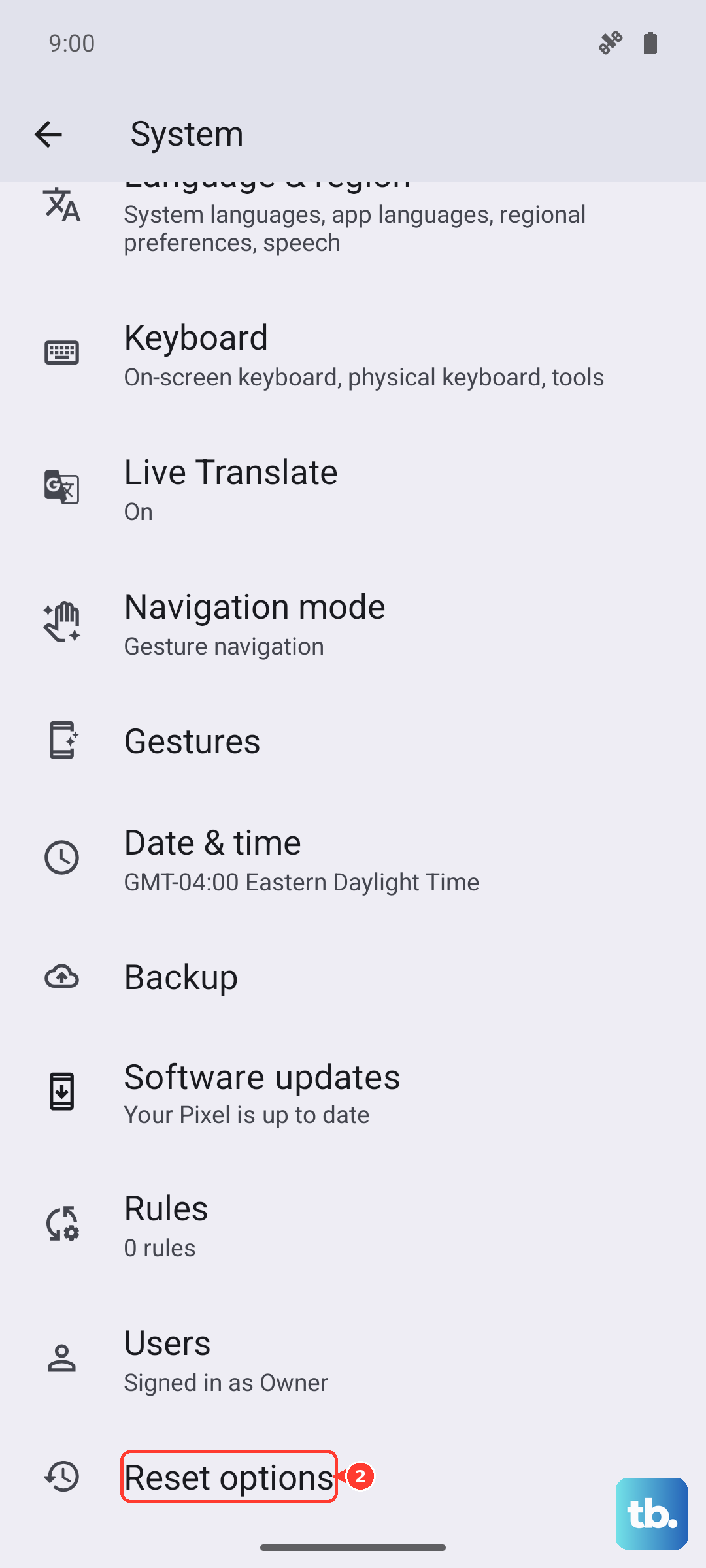
Navigate to Settings > System > Reset options. Tap on Reset Wi-Fi, mobile & Bluetooth and confirm your choice. The phone will reboot. After it comes back on, you'll need to re-enter your Wi-Fi password and that's a good sign it worked.
Use the Hidden Testing Menu
Android has a built-in diagnostics menu that lets you see exactly what the cellular radio is doing. Open your phone's dialer app and type *#*#4636#*#* exactly. This should open the "Testing" menu.
Tap on Phone information. You'll see a lot of technical data. Look for a dropdown menu that might say "Set preferred network type." Try changing it to another option like "NR/LTE/WCDMA" and then back to whatever it was. You can also try tapping the "Turn off radio" button, then the "Turn on radio" button that appears.
Check for a Carrier Outage
Before you dig deeper, it's worth making sure the problem isn't on your carrier's end. If you have access to Wi-Fi, check your carrier's official website or their support account on social media for any reported service disruptions in your area.
You can also try calling your carrier's support line from another phone. A quick question to them can save you an hour of troubleshooting if there's a known tower issue affecting your neighborhood.
Consider a Factory Reset
If you've tried everything else and you're still staring at "No Service," a software conflict might be the culprit. A factory reset is the nuclear option, so this is a last resort. Make absolutely sure you have everything important backed up to Google Drive or your computer first.
Go to Settings > System > Reset options > Erase all data (factory reset). Follow the prompts to confirm. This will wipe the phone back to its out-of-the-box state. After setup, test the signal before you start reinstalling all your apps, as a third-party app could have been causing the interference.