
Picture messages getting stuck on "Downloading" on your Motorola Edge 50 Pro is a common headache. It usually boils down to a network hiccup, a setting that got switched off, or a temporary glitch in the messaging app itself.
Let's walk through the fixes, starting with the quick ones you can try in under a minute.
Restart Your Edge 50 Pro
A simple restart clears out temporary software bugs that can block MMS downloads. Just press and hold the power button for about 10 seconds until you feel it vibrate and the Motorola logo appears. This force restart method works every time, even if the screen is frozen.
Check Your Mobile Data Connection
MMS doesn't work over Wi-Fi alone. It needs an active mobile data connection to download those photos and videos. Swipe down from the top of your screen to open the Quick Settings panel and make sure the mobile data icon is turned on.
Also, take a glance at your signal strength. If you're down to one bar, try moving to a different spot. A weak signal is often the culprit.
Enable MMS Auto-Download in Google Messages
The default messaging app on the Edge 50 Pro is Google Messages. Its auto-download setting can sometimes be disabled. Open the Google Messages app, tap your profile picture in the top right, and go to Messages settings > Advanced.
Here, you'll find the "Auto-download MMS" option. Make sure this toggle is switched on. While you're there, also enable "Auto-download MMS when roaming" if you travel.
Verify Your APN Settings
Incorrect Access Point Name (APN) settings are a frequent cause of MMS failures. These settings tell your phone how to connect to your carrier's multimedia service. To check them, go to Settings > Network & internet > Mobile network > Access Point Names.
You should see a list of APNs. Select the one that's currently active (it will have a filled-in circle next to it). Don't change anything unless you're sure it's wrong. The safest move is to contact your carrier's support and ask them to verify or send you the correct MMS APN settings for your Edge 50 Pro.
Clear the Messaging App's Cache
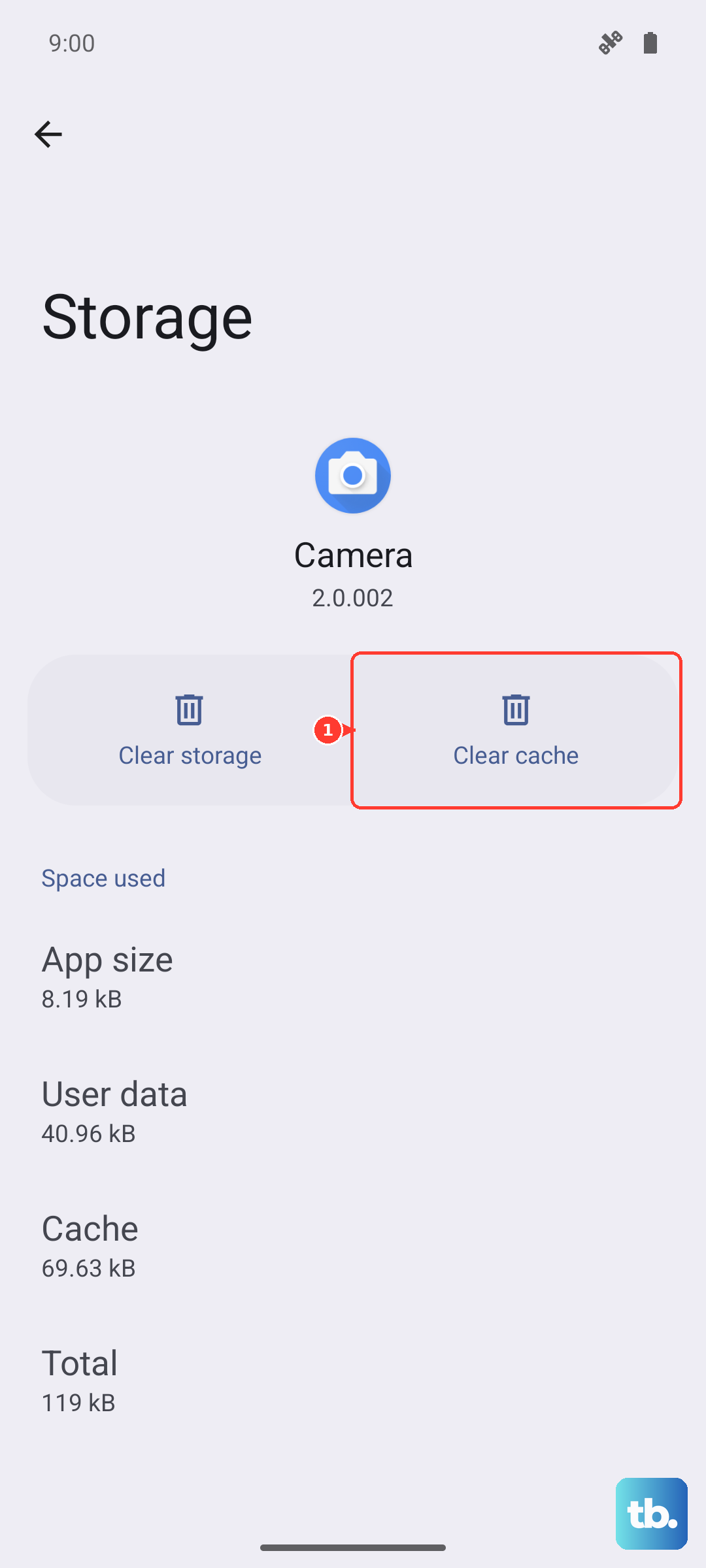
Corrupted temporary files in the app's cache can break MMS functionality. Clearing it is safe and won't delete your messages. Head to Settings > Apps > See all apps.
Find and tap on "Messages" (this is the Google Messages app). Then, go to Storage & cache and tap "Clear cache." After doing this, close the app completely and reopen it to see if pictures download.
Reset Your Network Settings
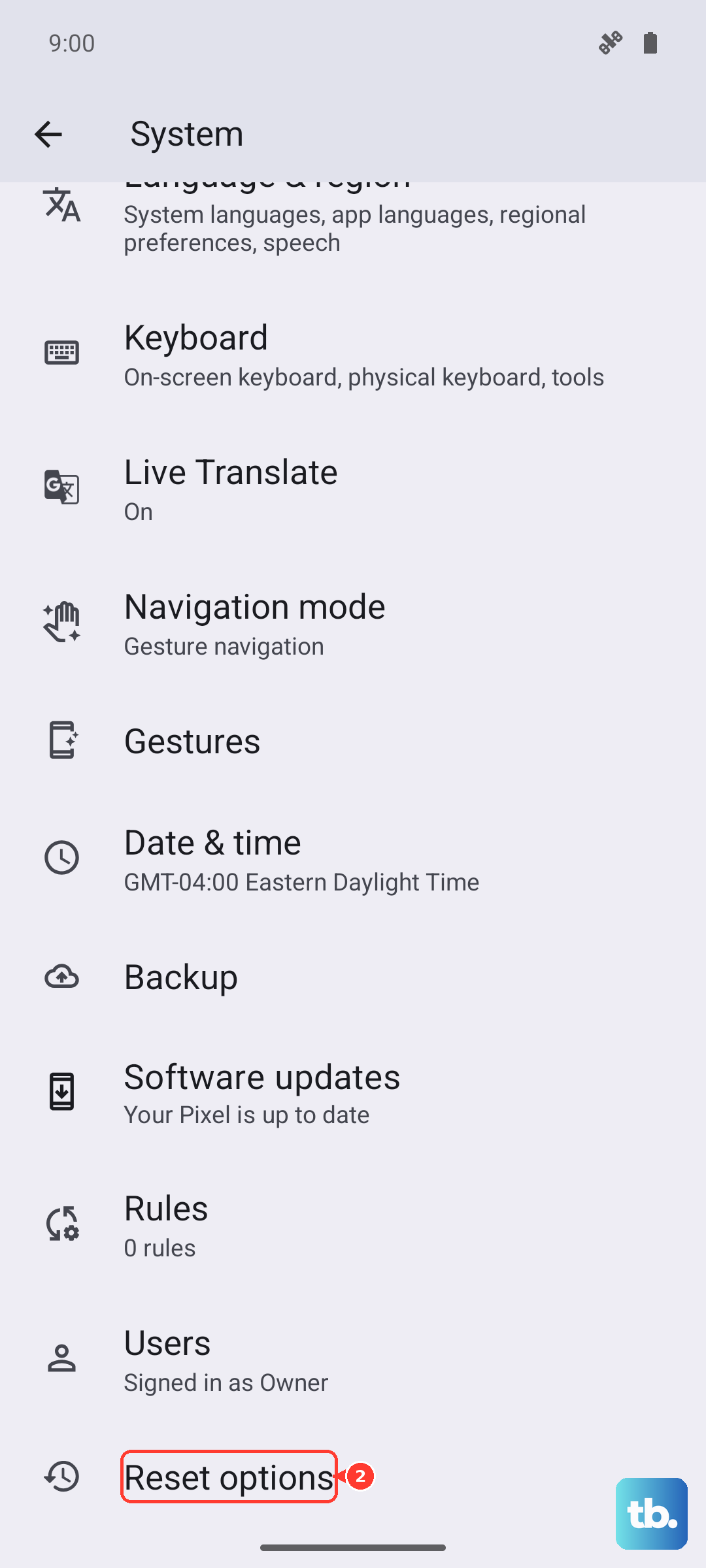
This is a more thorough step that resets all Wi-Fi, mobile data, and Bluetooth connections back to factory defaults. It won't erase your personal files, but you will need to reconnect to Wi-Fi networks afterward.
On your Edge 50 Pro, navigate to Settings > System > Reset options. Tap on "Reset Wi-Fi, mobile & Bluetooth" and confirm. This often clears up persistent MMS issues related to deeper network configuration errors.
Check for a Software Update
Motorola can be slower with updates than some brands, but it's still worth checking. A bug in your current version of Android 14 could be causing the problem. Go to Settings > System > System update.
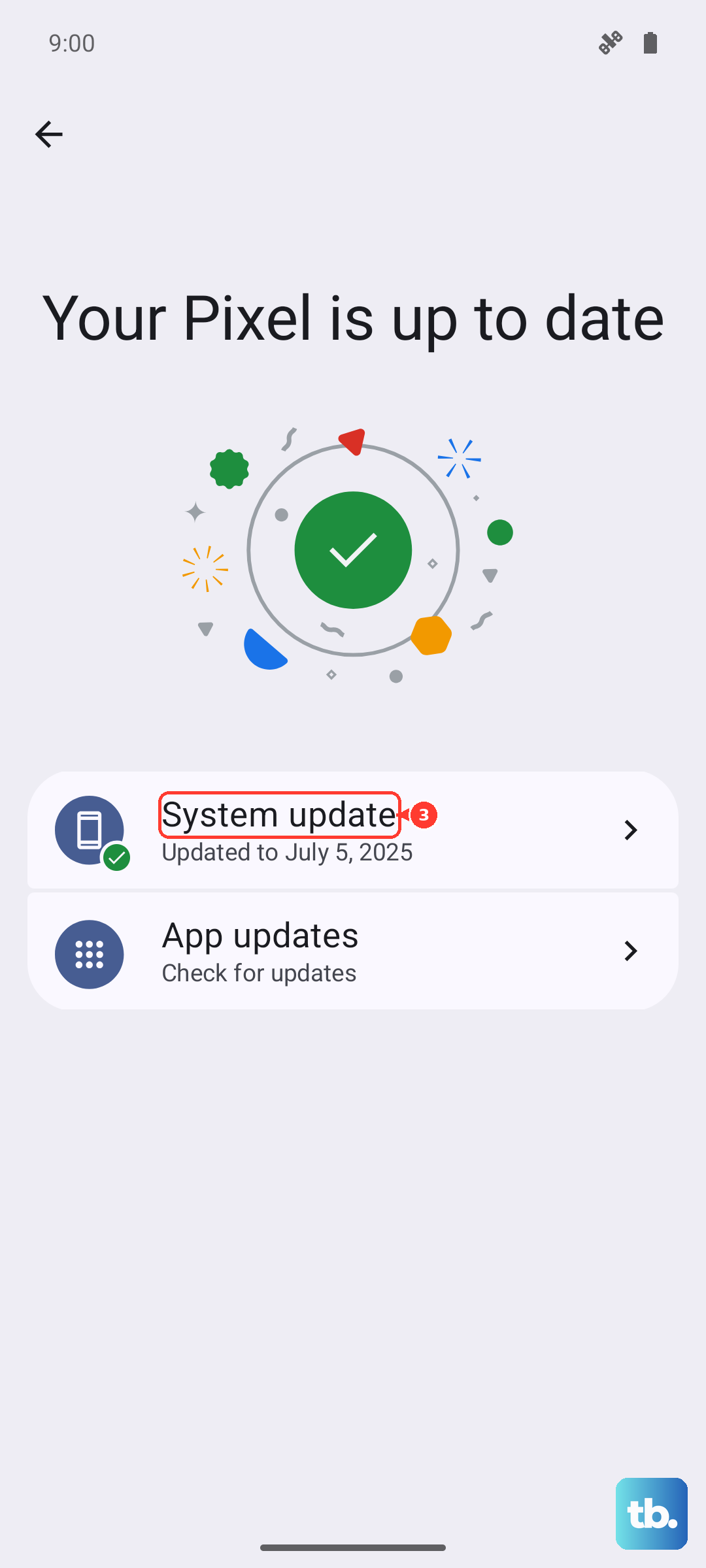
Tap "Check for update." If one is available, install it. I've seen system updates resolve quirky messaging issues on plenty of Android phones, as they often include carrier service improvements.
Try a Different Messaging App Temporarily
If the problem persists only in Google Messages, the issue might be with the app itself. As a test, download a different messaging app like Textra or your carrier's official app from the Play Store.
Set it as your default, ask a friend to send you a picture message, and see if it comes through. If it does, you know the problem is isolated to the Google Messages app. You can then try clearing its full app data from the storage settings (warning: this will delete your message history within that app) or just stick with the new app that works.