
When the microphone on your Motorola Edge 50 Pro stops picking up your voice, it can turn simple phone calls, video chats, or voice commands into a frustrating experience. The issue could be anything from a blocked mic port to a software setting that got flipped. Let's start by figuring out exactly which microphone is acting up.
Test Your Motorola Edge 50 Pro Microphone
Your phone has multiple microphones. The main one for calls is usually at the bottom. There's another for noise cancellation, and one for video recording near the camera. A quick test in the Voice Recorder app is the easiest way to check. Open the app, hit record, and speak at a normal volume. Play it back. If it sounds muffled or silent, you've confirmed the problem.
You can also make a quick test call to your voicemail or a friend. Ask them if they can hear you clearly. If the issue is only in specific apps like WhatsApp or Google Meet, that points to an app permission problem rather than a hardware fault.
Remove Your Phone Case
This is the simplest fix and one I'd try immediately. Some cases, especially rugged or poorly designed ones, can partially cover the microphone pinholes. Take the case off completely and test the microphone again with a voice recording. You'd be surprised how often this is the culprit.
While the case is off, take a close look at the bottom edge of your Edge 50 Pro. You'll see the USB-C port and a tiny pinhole next to it, that's a primary microphone. Check for any packed-in lint or pocket debris.
Restart Your Phone
A classic fix for a reason. A quick restart can clear out temporary software glitches that might be affecting the audio subsystem. Just press and hold the power button until the power menu appears, then tap "Restart." Give it a minute to boot back up and test the mic.
If the phone is completely unresponsive, you can perform a force restart. Press and hold the power button for 10 seconds or more until you feel it vibrate and the Motorola logo appears on screen. This is a hard reboot that doesn't erase any data.
Disconnect Bluetooth Accessories
If you have wireless earbuds, a headset, or a smartwatch connected, your phone might be routing all audio through that device. Open your quick settings panel by swiping down from the top of the screen twice and tap the Bluetooth icon to turn it off temporarily.
Now try your microphone test again. If it works, you know the issue was with the audio routing. You can then go into Settings > Connected devices and manage your Bluetooth connections more selectively.
Clean the Microphone Openings
Over time, the tiny microphone pinholes can get clogged with dust, lint, or even moisture. Don't use anything sharp like a pin or paperclip, as you can easily damage the internal microphone diaphragm.
Instead, use a soft-bristled brush, like a clean toothbrush or a camera lens brush, to gently sweep over the openings. A can of compressed air held upright can also dislodge debris with a short, gentle burst. Be careful not to blow moisture into the phone.
Check App Permissions
Android 14 gives you tight control over which apps can use your microphone. If an app like Zoom or Instagram can't hear you, its permission might have been denied. Go to Settings > Privacy > Permission manager and tap on "Microphone."
Here you'll see a list of all apps that have requested mic access. Find the app giving you trouble and make sure it's set to "Allow only while using the app" or "Ask every time." If it's set to "Don't allow," that's your problem.
Close and Reopen Problem Apps
Sometimes a single app will bug out and lose its connection to the microphone. If the mic works in your recorder but not in Facebook Messenger, force-close that specific app. Swipe up from the bottom and hold to enter the recent apps view, then swipe the problematic app's window all the way up to close it.
Now reopen the app and try again. This clears the app from your phone's RAM and often resolves temporary conflicts with the audio hardware.
Update Your Software
Motorola occasionally releases software updates that fix bugs, including audio issues. It's worth checking, though updates for Motorola phones can sometimes be slower than for other brands. Go to Settings > System > System updates and tap "Check for update."
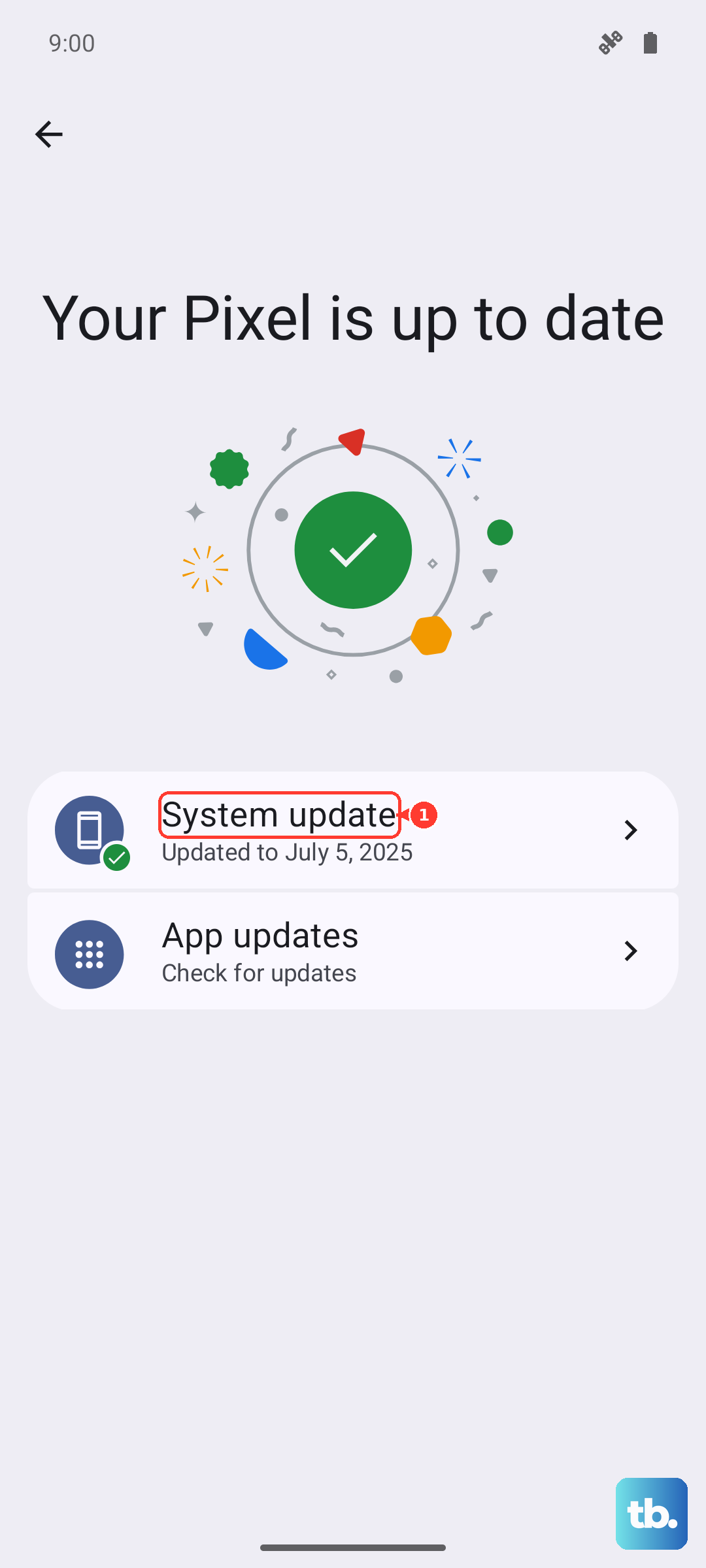
If an update is available, I'd recommend installing it while connected to Wi-Fi and with your phone plugged into its 125W TurboPower charger. A software glitch from an older build could easily be interfering with microphone function.
Reset App Preferences
This is a less nuclear option than a full factory reset. It resets all your app permissions, notification settings, and default apps back to their original state without deleting any of your personal data. Go to Settings > System > Reset options.
Tap "Reset app preferences" and confirm. You'll then need to re-grant microphone permissions to apps the next time you use them, but this can clear up any corrupted permission data causing the mic to fail.
Perform a Factory Reset
If every other step has failed, a factory reset is the last software fix. This will erase everything on your phone, so it's crucial to back up your photos, contacts, and important data first. Use Google Drive or Motorola's backup tool in Settings > System > Backup.
Once backed up, go back to Settings > System > Reset options and select "Erase all data (factory reset)." After the phone wipes itself and reboots, set it up as new and immediately test the microphone before restoring your apps. If it works now, a deep software conflict was the cause.