That "Unfortunately, Keyboard has stopped" pop-up on your Motorola Edge 50 Pro can really kill your texting flow. It's a common Android hiccup, but the good news is you can almost always fix it yourself. I'd start with the quick restart methods first.
Force Stop and Restart the Keyboard App
This is the fastest way to clear a temporary app glitch. Head into your phone's settings to find the keyboard app. On the Edge 50 Pro, you'll likely be looking for "Gboard" as it's the default.
Go to Settings > Apps > See all apps. Find and tap on "Gboard" in the list. On the app info screen, tap Force stop and confirm. Now, just back out and try opening your keyboard again in a message.
Give Your Phone a Quick Reboot
If force stopping didn't do the trick, a full phone restart is the logical next step. It clears out the phone's working memory and can resolve conflicts that a simple app restart might miss.
Just press and hold the power button until the power menu appears, then tap Restart. If your screen is completely unresponsive, you can force a restart by holding the power button down for a solid 10 seconds or more until the phone cycles off and back on.
Clear the Keyboard's Cache and Data
Corrupted temporary files stored by the keyboard app are a frequent culprit. Clearing the cache is safe and won't delete your personal dictionaries or saved text, but clearing the data will reset the app to its default state.
You'll lose custom themes and any personalized settings if you clear data. Go back to Settings > Apps > Gboard and tap Storage & cache. Tap Clear cache first and test the keyboard.
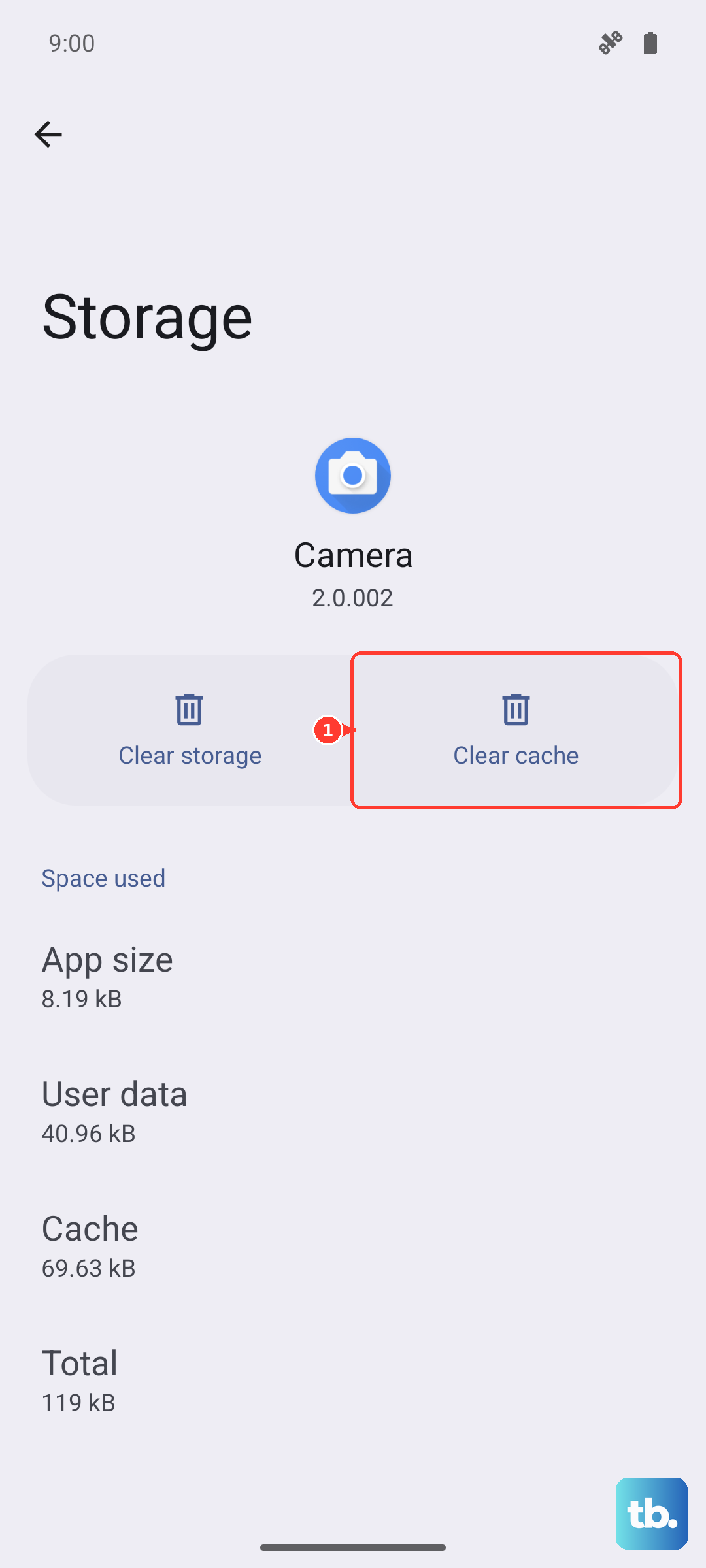
If it's still failing, come back here and tap Clear storage or Clear data. After doing this, you'll need to go through Gboard's initial setup again when you next use it.
Check for App and System Updates
An outdated version of Gboard might have a bug that's causing the crash. Open the Google Play Store, tap your profile icon, and go to Manage apps & device.
Under "Updates available," see if Gboard is listed. If it is, update it. It's also worth checking for a full system update, as Motorola sometimes bundles important fixes there.
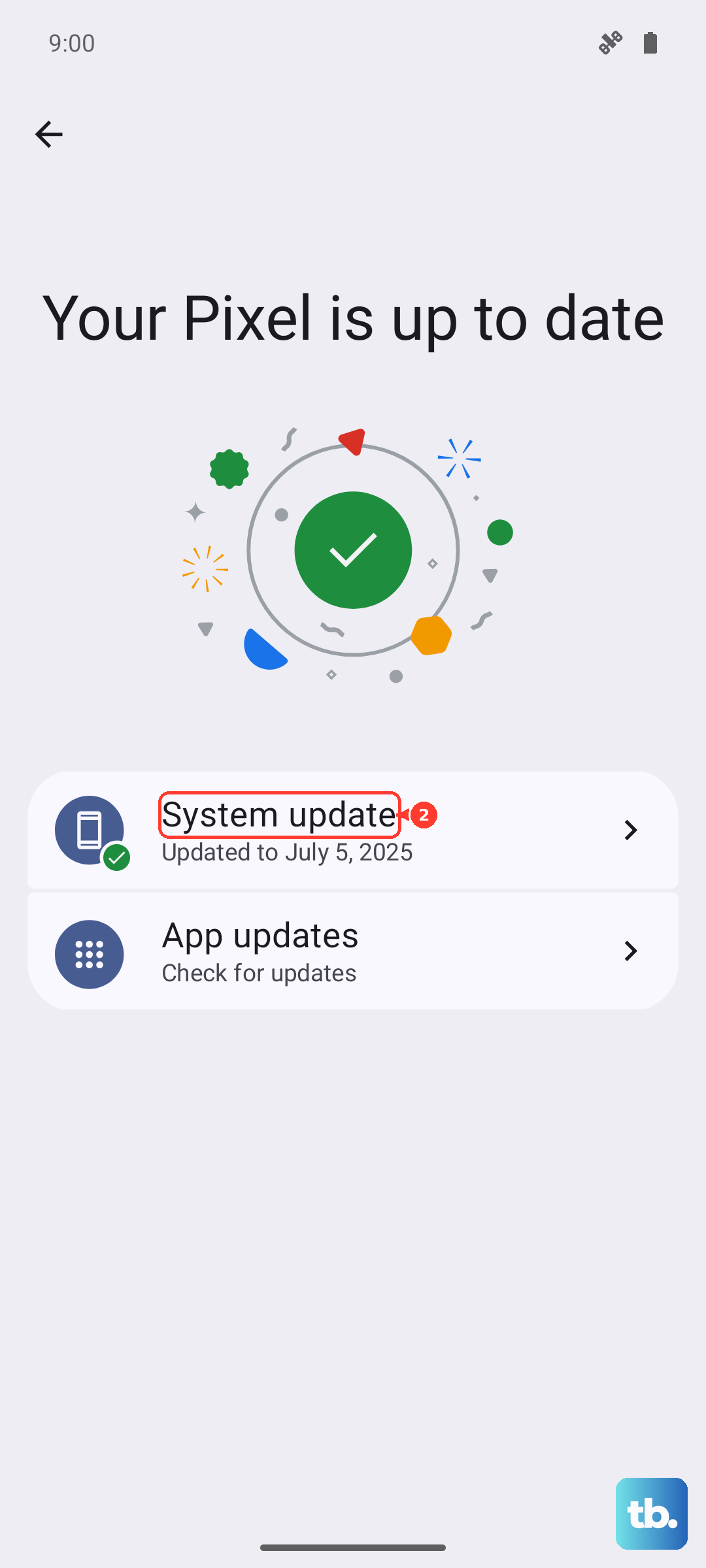
Go to Settings > System > System updates to check. Given that software updates for Motorola can be slower than some brands, making sure you're on the latest version is important.
Try a Different Keyboard App
This is a great diagnostic step and a potential permanent fix. Installing a third-party keyboard like Microsoft SwiftKey or another variant from the Play Store can immediately tell you if the problem is with Gboard specifically or a deeper system issue.
Once you install a new keyboard, you'll need to enable it. Go to Settings > System > Languages & input > On-screen keyboard and toggle on your new choice.
Boot Into Safe Mode
If the keyboard works fine with a new app, the issue might be with Gboard. But if all keyboards are failing, a recently installed third-party app could be interfering. Safe mode temporarily disables all apps you've downloaded.
To enter Safe Mode on the Edge 50 Pro, press and hold the power button until the "Power off" option appears. Then, press and hold the "Power off" text on your screen. A prompt will ask if you want to reboot to Safe Mode. Tap OK.
If your keyboard works normally in Safe Mode, you know a downloaded app is the cause. Start by uninstalling apps you added around the time the problem began.
Reset App Preferences
This is a less nuclear option than a factory reset. It resets all your app-related settings, like notification permissions, default apps, and background data restrictions, back to their original defaults.
You won't lose any personal app data. Go to Settings > Apps > tap the three-dot menu in the top right and select Reset app preferences. Confirm the action. After your phone resets, you'll need to re-grant permissions to apps when you use them next.
Check for Conflicting Accessibility Services
Sometimes services like password managers, screen readers, or automation tools that use accessibility features can conflict with the keyboard's input. It's worth checking if disabling these services temporarily fixes the issue.
Go to Settings > Accessibility > Installed services. You'll see a list of apps that use accessibility. Try turning them off one by one, testing the keyboard after each, to see if one is the culprit.
Perform a Factory Reset (Last Resort)
If nothing else has worked, a factory reset will wipe the phone back to its out-of-box state. This will erase all your data, apps, and settings, so it's absolutely crucial to back up everything important first.
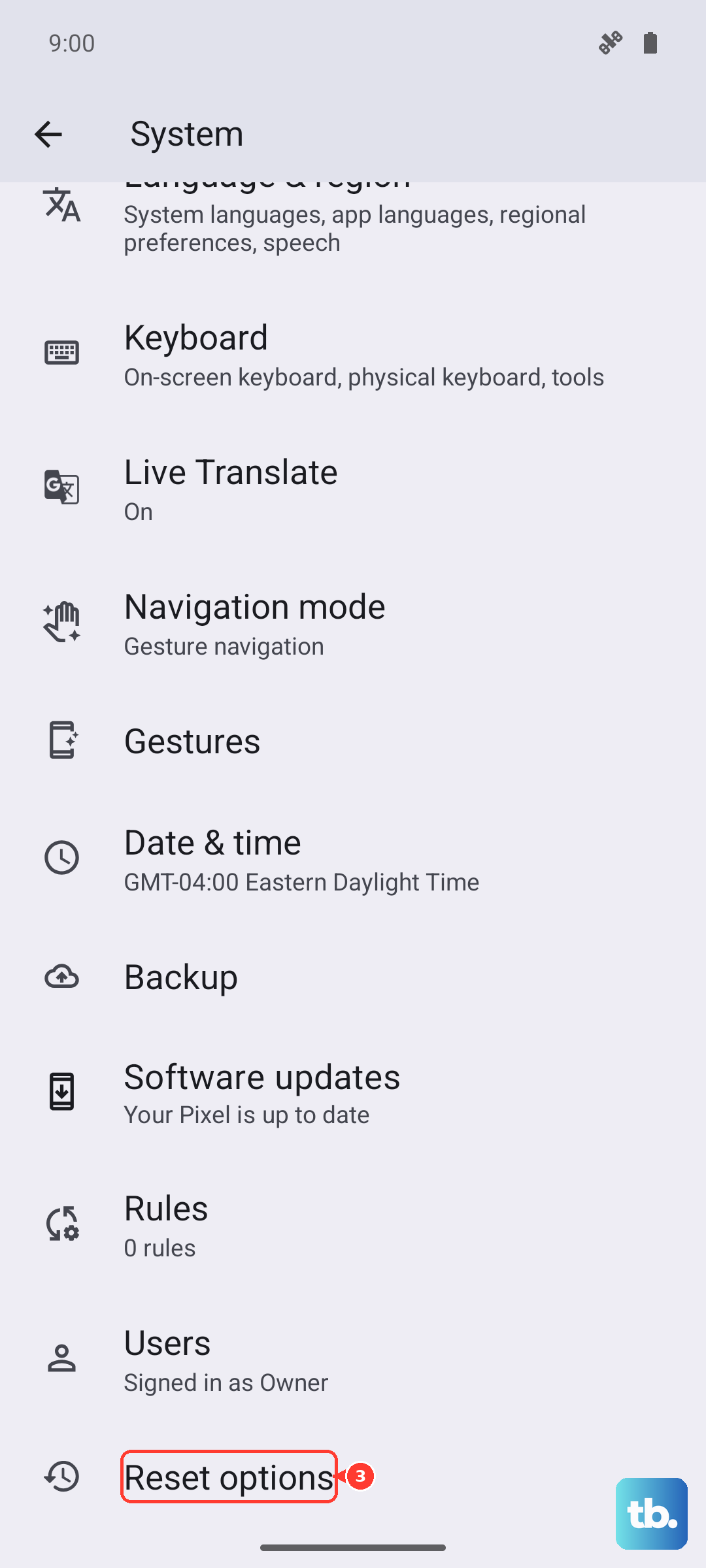
Use Google's backup in Settings > System > Backup. Once backed up, go to Settings > System > Reset options > Erase all data (factory reset). Follow the prompts to complete the process.