
When your Motorola Edge 50 Pro's hotspot stops working, it leaves your laptop or tablet stranded without internet. Whether other devices can't see it, fail to connect, or get kicked off, there are several straightforward fixes to try.
Toggle the Hotspot Off and On
Pull down the quick settings shade and tap the Hotspot tile to turn it off. Wait a moment, then tap it again to turn it back on. You can also go to Settings > Network & internet > Hotspot & tethering and toggle the main switch. This quick reset often clears a temporary software hiccup and gets things running again.
Restart Your Edge 50 Pro
Press and hold the Power button for about 10 seconds until you feel a vibration and see the Motorola logo. This force restart is a bit quicker than the standard shutdown and is great for clearing out any stuck background processes that might be interfering with the hotspot function.
Verify Your Mobile Data Connection
Your hotspot relies entirely on your phone's cellular data. Check that you have a strong signal and that mobile data is enabled by looking in your status bar or going to Settings > Network & internet. It's also worth confirming with your carrier that your specific plan includes mobile hotspot or tethering, as some budget plans restrict this feature.
Check the Hotspot Configuration
Go to Settings > Network & internet > Hotspot & tethering > Wi-Fi hotspot. Here, you can see the network name (SSID) and password. Make sure the hotspot is set to the 2.4 GHz band for maximum compatibility, as some older devices struggle with 5 GHz. You can also change the password here to force a fresh connection.
Reset Your Network Settings
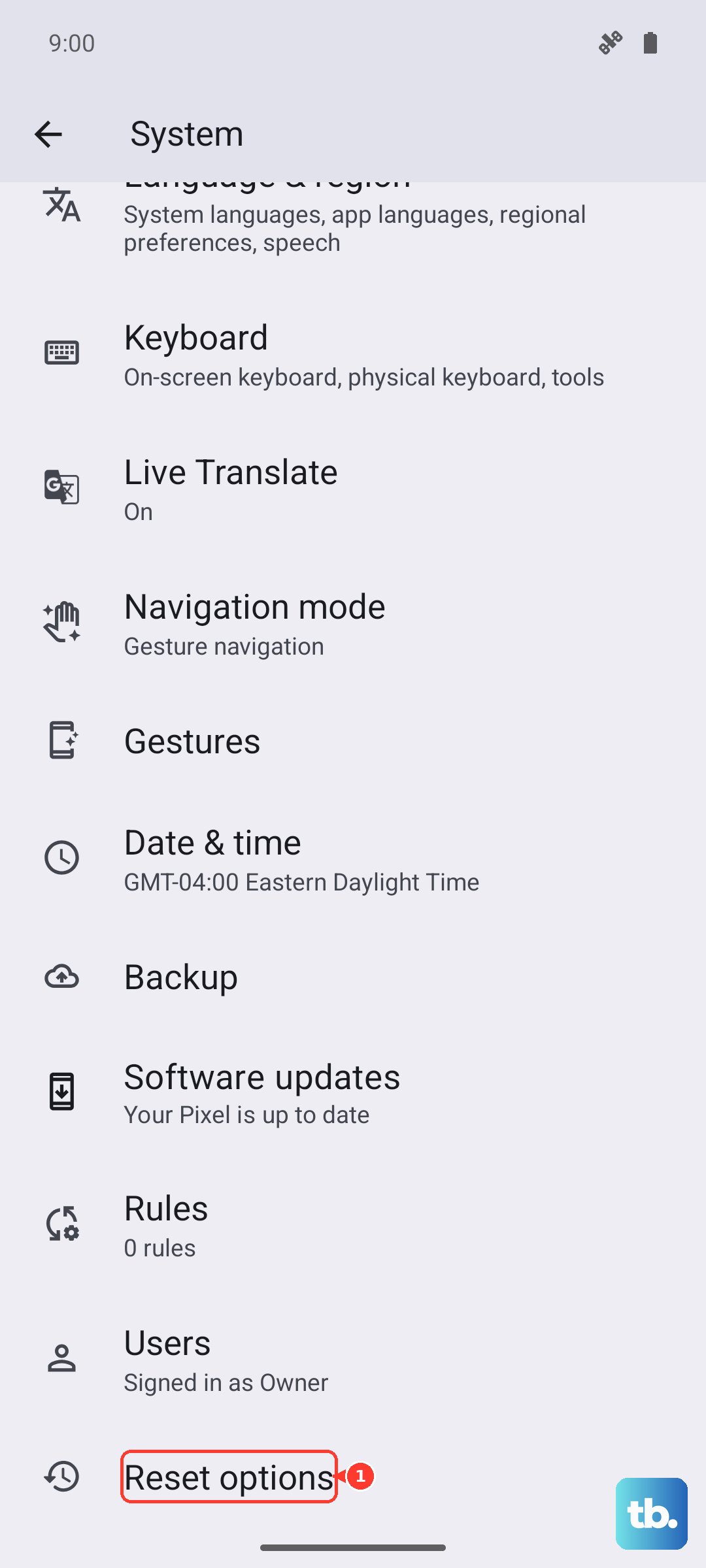
This is a more thorough step that can resolve deeper issues. Navigate to Settings > System > Reset options > Reset Wi-Fi, mobile & Bluetooth. This will erase all saved Wi-Fi networks, paired Bluetooth devices, and cellular preferences. You'll need to reconnect to your Wi-Fi and re-pair accessories afterward, but it often fixes persistent hotspot problems.
Forget the Network on the Connecting Device
On the laptop or tablet that's trying to connect, go into its Wi-Fi settings and find your phone's hotspot network name. Choose to forget or remove this network. Then, search for available Wi-Fi networks again, select your phone, and enter the password from scratch. This eliminates any corrupted connection data on the client device's side.
Try USB or Bluetooth Tethering
If the Wi-Fi hotspot is being stubborn, use a direct connection. Connect your Edge 50 Pro to your computer with a USB-C cable, then go to Settings > Network & internet > Hotspot & tethering and enable USB tethering. For Bluetooth, pair the two devices first, then enable Bluetooth tethering on the same settings page.
Update Your Software
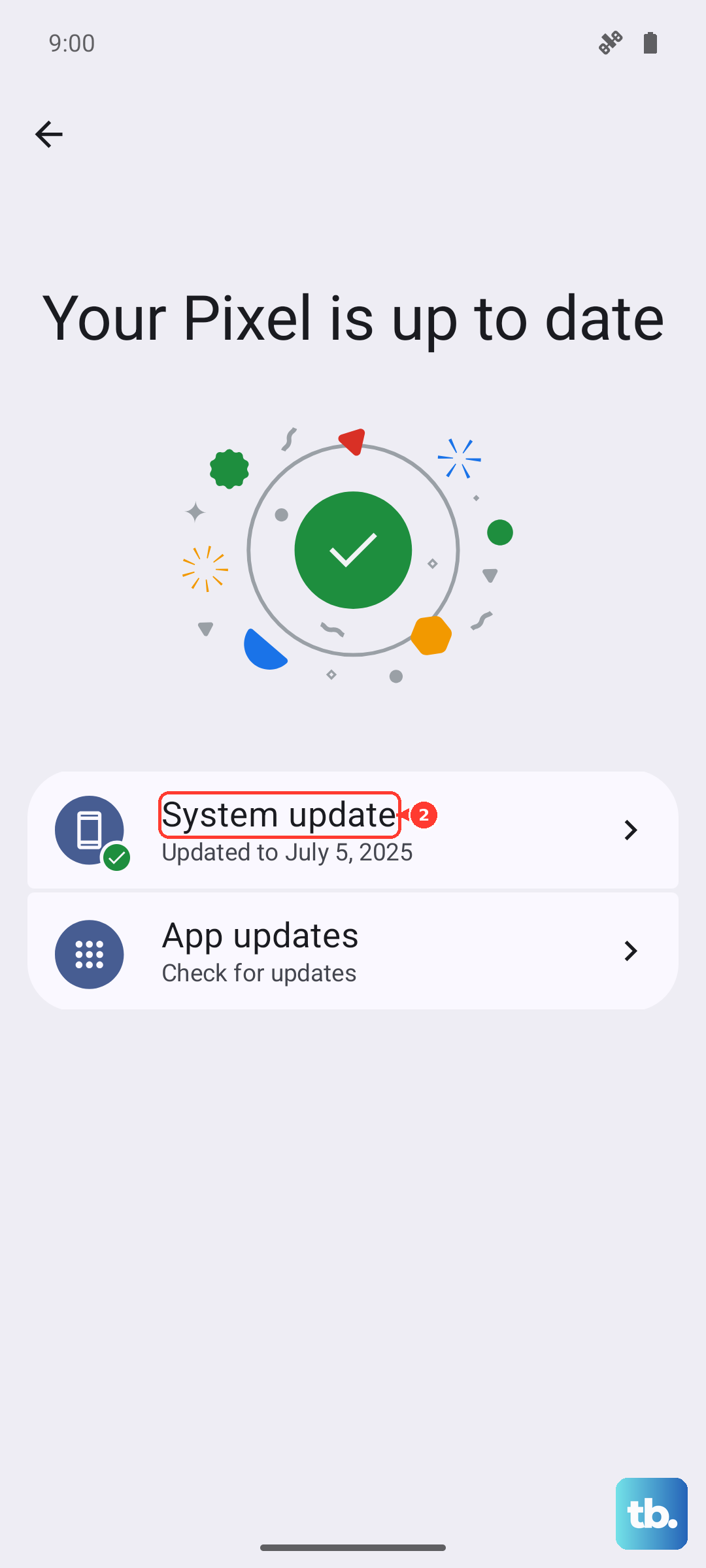
Motorola occasionally releases updates that fix connectivity bugs. Go to Settings > System > System updates to check for and install any available updates. I've seen software patches resolve specific issues with the Snapdragon 7 Gen 3's modem behavior, which directly impacts hotspot stability.
Check for a Carrier Settings Update
These small updates from your mobile provider can fine-tune network connectivity. You can usually check for them by going to Settings > System > System updates and tapping on a menu option like "Check for updates" or by visiting your carrier's app. Installing these ensures your phone has the latest network configuration.
Contact Your Mobile Carrier
If you've tried everything and the hotspot still won't work, the issue might be on your carrier's end. They could have a service outage in your area, a provisioning error on your account, or a plan restriction you're not aware of. A quick call to their support can confirm if the hotspot feature is active and working on their network.