
If the fingerprint scanner on your Motorola Edge 50 Pro has suddenly stopped recognizing you, it's a major roadblock. This sensor is built into the power button on the side, and when it fails, you're locked out of your own phone. Let's get it working again.
Clean the Power Button Sensor
Start with the simplest fix. The optical sensor on the power button is incredibly sensitive to oils, dirt, and moisture from your fingers. Take a soft, lint-free cloth and thoroughly wipe the entire power button area.
Pay special attention to the small, slightly recessed sensor window. A tiny bit of hand lotion or pocket lint is often the culprit. I'd do this first, as it solves the problem more often than you'd think.
Restart Your Edge 50 Pro
A quick reboot can clear out temporary software glitches that might be confusing the sensor. Just press and hold the power button for about 10 seconds until you feel it vibrate and the Motorola logo appears.
This force restart method works even if the screen is unresponsive. Once it boots back up, try your fingerprint again immediately.
Re-register Your Fingerprint
If a simple clean and restart didn't do it, the next step is to delete your old fingerprint and teach the phone your print again. Head to Settings > Security & privacy > Device unlock > Fingerprint.
You'll need to enter your PIN, pattern, or password to proceed. Tap on the fingerprint you're having trouble with and select Remove. Now, tap Add fingerprint and follow the prompts carefully.
When it asks you to place your finger on the sensor, make sure you're covering the entire power button. Rotate your finger slightly with each tap to capture the edges, not just the center. A good, complete scan here prevents future issues.
Check for a Software Update
Motorola has been known to release updates that specifically address biometric sensor performance. Since the Edge 50 Pro runs Android 14, it's worth checking if a fix has already been pushed out.
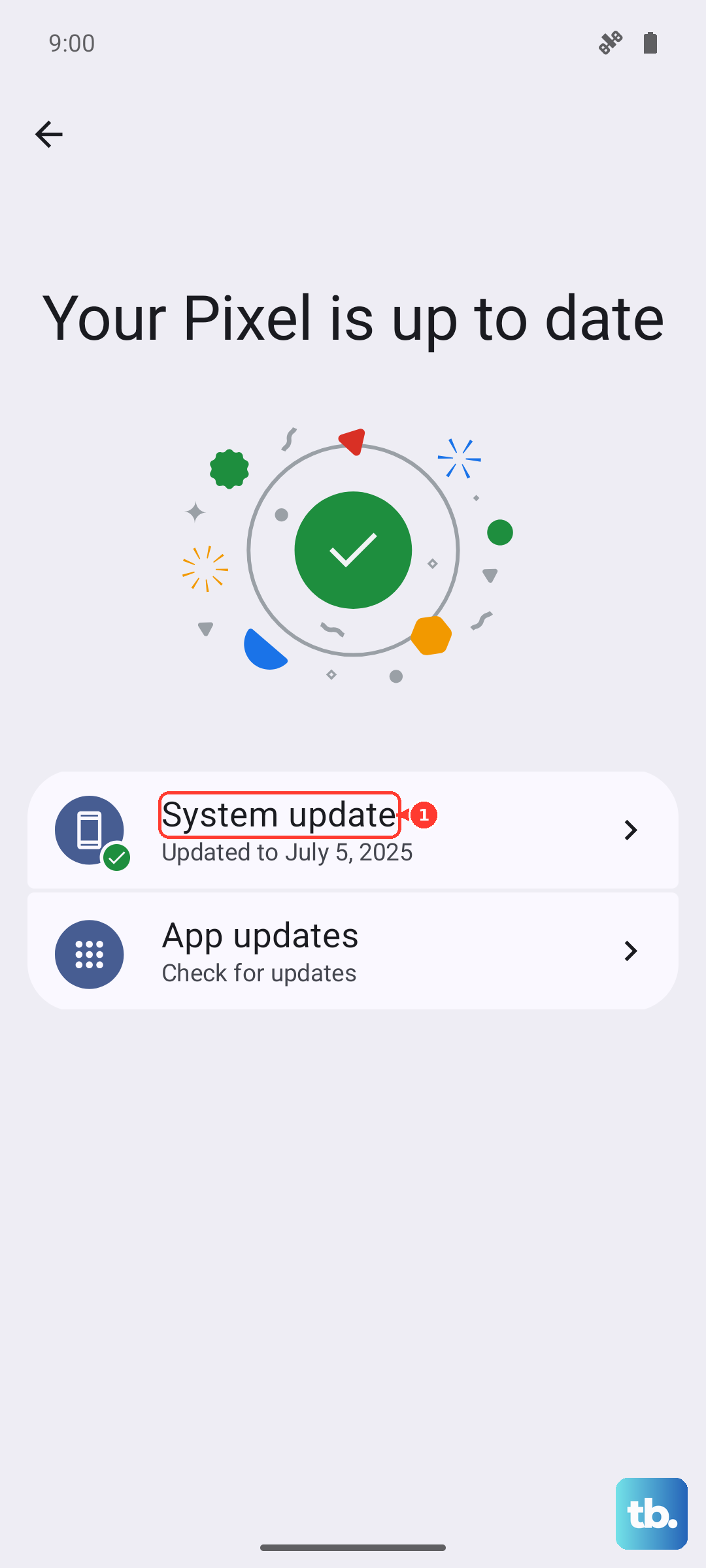
Go to Settings > System > System updates. Tap Check for update. If an update is available, install it and restart your phone. This is a common fix for bugs that appear after a previous update.
Inspect Your Case or Screen Protector
Take a close look at your phone case. Is it a very tight fit around the power button? Sometimes a case can press against the button or cover the sensor's edges just enough to block a proper read.
Try removing the case entirely and testing the fingerprint sensor. While the Edge 50 Pro uses a side-mounted sensor (which is generally less problematic with screen protectors), a poorly aligned tempered glass protector could theoretically interfere with the phone's frame near the button.
Clear the Device's Cache Partition
Corrupted system cache data can cause all sorts of odd behavior, including biometric failures. Clearing it is safe and won't delete your personal files. First, power your phone off completely.
Now, press and hold the Volume Down button and the Power button at the same time. When the Motorola logo appears, release both buttons. You'll see a screen with an Android robot and "No command."
Press and hold the Power button, then tap the Volume Up button once and release both. Use the volume buttons to highlight Wipe cache partition, then press the power button to select it. Confirm, and then select Reboot system now.
Review Your Security Settings
There are a couple of settings that can affect fingerprint performance. Go back to Settings > Security & privacy > Device unlock > Fingerprint.
Make sure Fingerprint unlock is toggled on. Also, look for an option like "Screen lock to use fingerprint" or a similar phrase, and ensure it's set to require the fingerprint immediately when you press the power button, not after a delay.
Test in Safe Mode
This will tell us if a third-party app you installed is causing a conflict. To boot into Safe Mode, press and hold the power button until the power off menu appears.
Then, tap and hold the Power off option on your screen. You'll get a prompt to reboot to Safe Mode. Tap it. If the fingerprint sensor works perfectly in Safe Mode, you know a downloaded app is the problem.
You'll need to restart your phone to exit Safe Mode. Then, start uninstalling recent apps one by one, testing the fingerprint after each, until you find the culprit.
Consider the Sensor Environment
Your physical environment can play a role. The optical sensor needs light to read your print. If your finger is extremely cold, wet, or dry, it can change the surface texture enough to make recognition difficult.
Also, if you've recently done work that's roughened or cut your fingertips, you may need to re-register that finger. It's a good practice to register the same finger twice, or register two different fingers as backups in the settings.