
If your Motorola Edge 50 Pro camera app is crashing, freezing, or just showing a black screen, the first thing to try is a simple restart. Press and hold the power button for about 10 seconds until the phone vibrates and the Motorola logo appears. This clears out any temporary software glitches that can hang up the camera system.
Start with a free webcam test to rule out a hardware fault. If a live preview appears there but not in your app, the camera is fine and the app is the problem.
Key Points
- Restart and Update: A force restart is the fastest way to clear a camera app freeze.
- Clear App Cache and Data: Corrupted temporary files are a common cause of camera crashes.
- Check for App Conflicts: Other apps using the camera in the background can cause conflicts.
- Inspect Physical Hardware: A smudged or obstructed lens is an easy fix for blurry photos.
- Verify Software and Permissions: The camera needs proper permissions and the latest software to function.
- Test in Safe Mode: This isolates whether a downloaded app is causing the problem.
Give the phone a full minute to reboot completely before opening the camera app again. If the app is still unresponsive, don't panic, there are several other straightforward fixes to try.
Clear the Camera App's Cache and Data
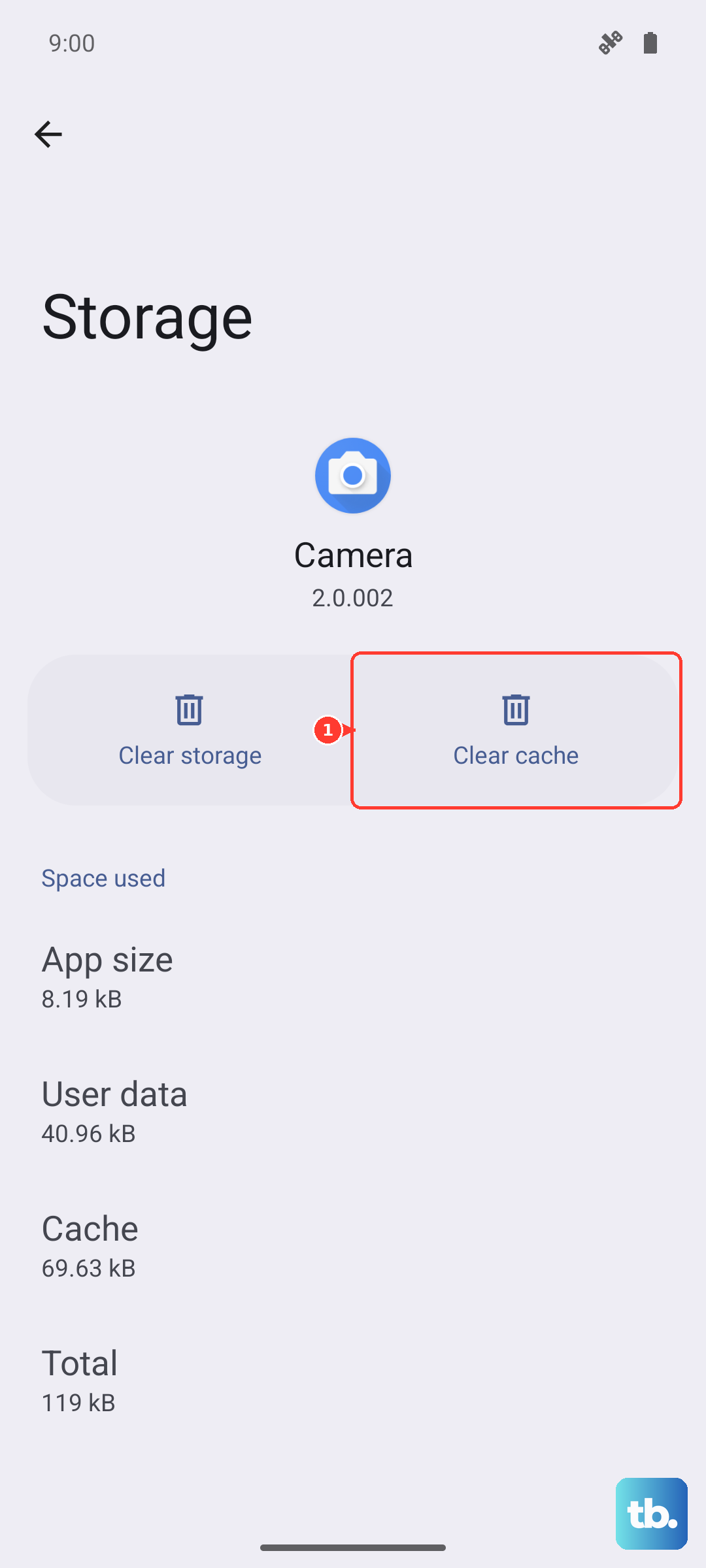
This is often the most effective fix for a camera that's crashing or showing errors. The app stores temporary data that can become corrupted. Go to Settings > Apps > See all apps. Find and tap on Camera in the list.
Tap on Storage & cache. First, tap Clear cache. This deletes the temporary files without affecting your personal settings or photos. If the problem persists, go back to the same menu and tap Clear storage or Clear data. This will reset the camera app to its default state, so you may need to reconfigure any custom settings.
Check for Software and System Updates
Outdated software can lead to bugs that break camera functionality. Motorola releases updates to fix these kinds of issues. Open Settings > System > System updates and tap Check for update.
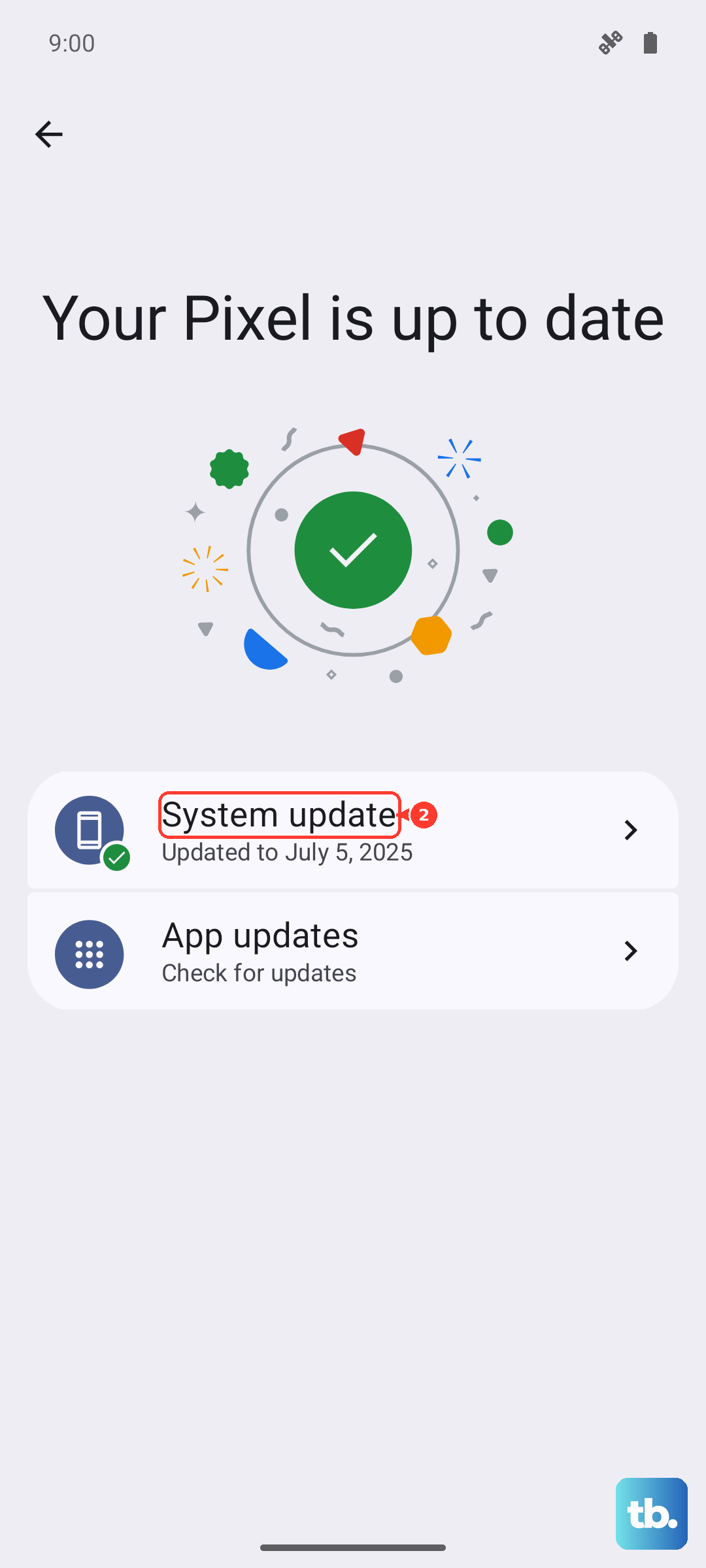
Install any available updates. Since the Edge 50 Pro runs Android 14, also check for Google Play system updates. Go to Settings > Security & privacy > System & updates > Google Play system update. After installing updates, restart your phone to ensure all the new software components load correctly.
Verify Camera Permissions and Default Apps
If the camera app opens but can't take pictures or is stuck, its permissions might have been revoked. Go to Settings > Apps > Camera > Permissions. Make sure Camera and Microphone are set to "Allow."
Also, check if another app has been set as the default camera handler. Go to Settings > Apps > Default apps. Look at the "Camera app" option and ensure it's set to the standard Motorola Camera app, not a third-party alternative.
Clean the Camera Lenses and Sensors
This seems obvious, but it's often overlooked. A fingerprint or smudge on the lens will cause every photo to look hazy or blurry. Use a soft, dry microfiber cloth to gently wipe all the camera lenses on the back. Pay attention to the small sensors around the camera bump as well.
Also, check if your phone case is improperly aligned and partially covering any of the lenses. Try removing the case and taking a test photo to see if the image quality improves. I've seen cases that looked fine but had a slight lip that interfered with the ultra-wide or macro lens.
Boot Into Safe Mode to Check for App Conflicts
If the camera works fine sometimes but crashes when you use certain features or other apps, a third-party app might be interfering. Booting into Safe Mode temporarily disables all apps you've downloaded. Press and hold the power button until the power menu appears; if that opens your voice assistant instead, press and hold the power button and Volume up together (power and Volume down on Samsung phones).
Then, press and hold the "Power off" option on your screen. A prompt will ask if you want to reboot to Safe Mode. Tap OK. Once in Safe Mode, try using the camera. If it works perfectly, you know a downloaded app is the culprit. Start by uninstalling recent apps, especially other camera apps, social media, or scanner utilities.
Check for Physical Damage or Obstructions
Inspect the camera module on the back for any cracks or deep scratches on the glass. Even a hairline crack can distort images. Shine a light on it from different angles to be sure. Also, listen for any unusual sounds, like a faint buzzing or grinding, when you open the camera app.
That could indicate a hardware failure with the optical image stabilization (OIS) mechanism. If you suspect physical damage, the camera module itself may need professional repair. For a phone released in 2024 like the Edge 50 Pro, it's worth checking if it's still under warranty.
Reset All App Preferences (Non-Destructive)
This is a broader fix than just clearing the camera app data. It resets permissions, background restrictions, and default app settings for every app on your phone, but it won't delete any personal data like photos or messages. Go to Settings > System > Reset options.
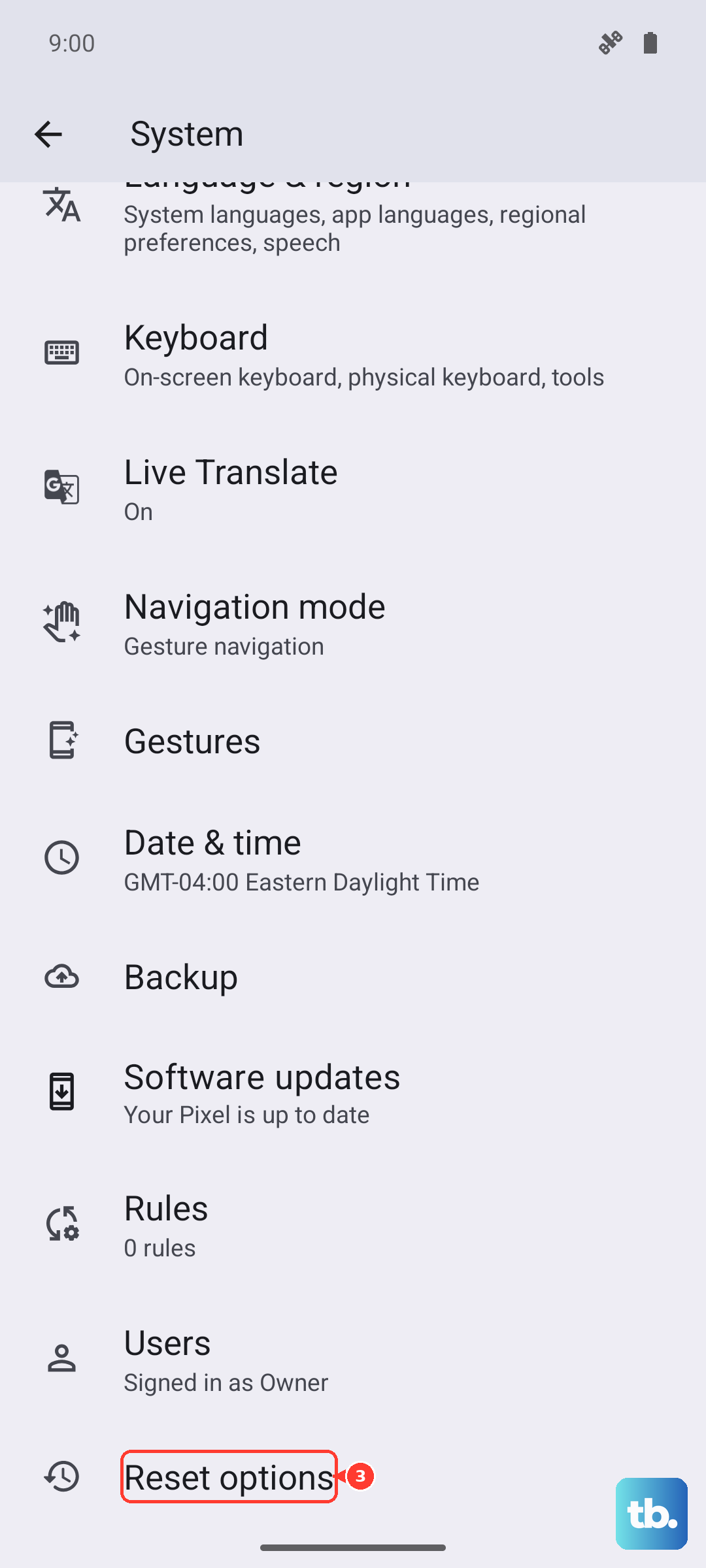
Tap on Reset app preferences and confirm. After the reset, you'll need to re-grant permissions when apps ask for them. Open your camera app and see if it prompts for permissions correctly and functions normally. This can resolve conflicts where system settings for the camera have become misconfigured.
Perform a Factory Reset (Last Resort)
If none of the software fixes work and you've ruled out physical damage, a factory reset is the final step. This will erase all data from your phone, so you must back up everything important first. Use Google One backup or manually transfer photos and files to a computer.
Once backed up, go to Settings > System > Reset options > Erase all data (factory reset). Follow the prompts to reset the phone. After it reboots, set it up as new without restoring a backup immediately. Test the camera on this fresh system. If it still fails, the issue is almost certainly hardware-related.