
When your Motorola Edge 50 Pro's Bluetooth stops connecting to your headphones, car, or speaker, it can feel like you're suddenly cut off. The good news is that most of the time, this is a software hiccup you can fix yourself without much fuss. I'd start with the simplest solutions first, as they often do the trick.
Check the Simple Things First
Before we get into deeper fixes, run through this quick checklist. It sounds basic, but you'd be surprised how often the answer is here. Make sure both your phone and the device you're trying to connect to have enough battery, ideally above 20%.
Pull down the notification shade on your Edge 50 Pro and confirm the Bluetooth icon is blue and active. Double-check that the other device is actually in pairing mode, not just powered on. Some accessories, especially newer earbuds, need their specific app for initial setup.
Finally, keep the devices within a clear line of sight and about 10 feet apart when pairing. Walls and interference can sometimes block the initial handshake.
Toggle Bluetooth and Restart
The digital equivalent of "turn it off and on again" is almost always step one. Swipe down from the top of your screen twice to open the full Quick Settings panel. Tap the Bluetooth icon to turn it off, wait a full 10 seconds, then tap it again to turn it back on.
If that doesn't work, give your phone a fresh start. Press and hold the power button until the power menu appears, then tap "Restart." While you're at it, restart the Bluetooth device you're trying to connect to as well. This clears out any temporary glitches in either device's memory.
Forget and Re-Pair the Device
Sometimes a pairing gets corrupted. The fix is to remove that device's "memory" from your phone and start over. Go to Settings > Connected devices > Previously connected devices.
Tap the settings gear icon next to the problematic device and select Forget. Confirm your choice. Now, put your accessory back into pairing mode and search for it again from your phone's Bluetooth settings. This creates a clean connection from scratch.
Clear the Bluetooth System Cache
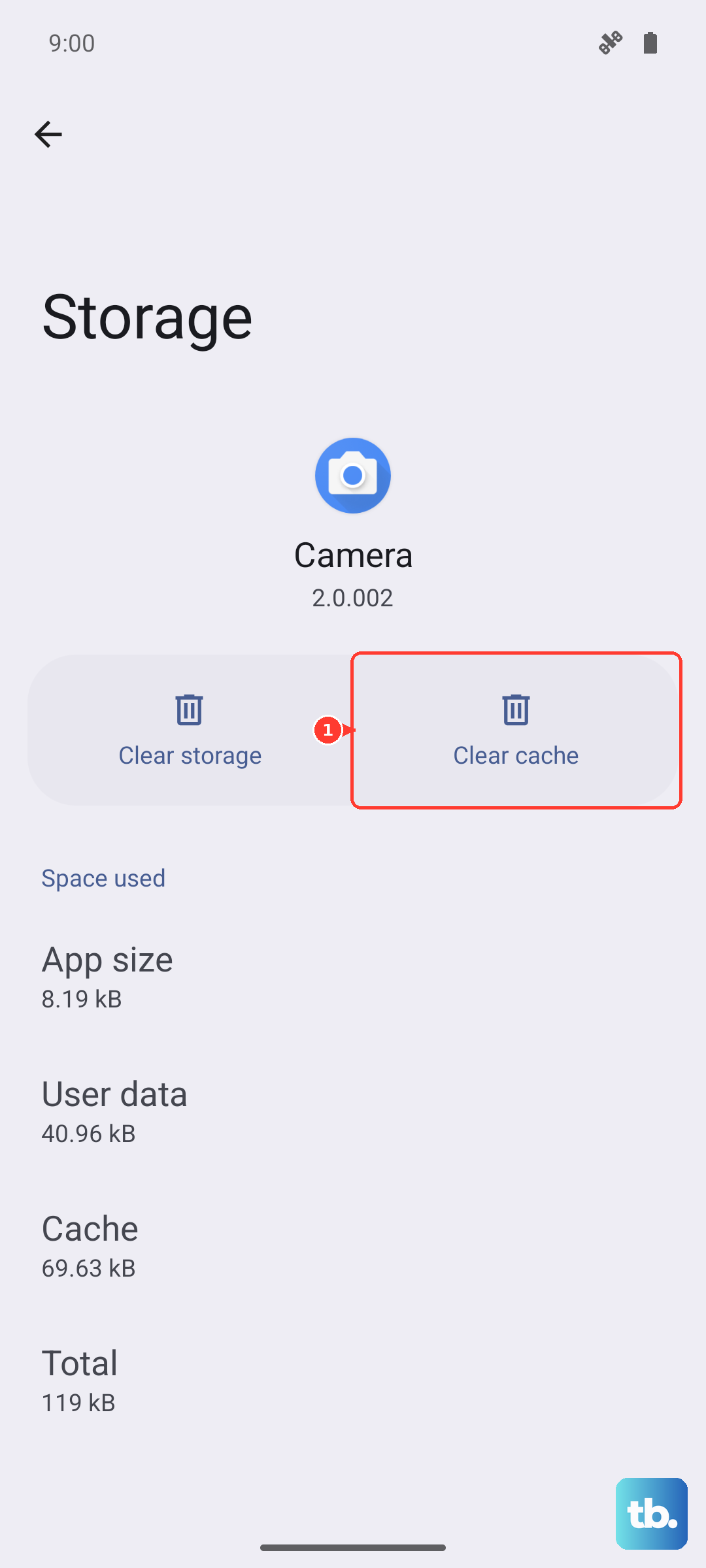
Android's Bluetooth service stores temporary data that can sometimes become corrupted. Clearing this cache is safe and won't delete your paired devices. Open your Settings and go to Apps > See all apps.
Tap the three-dot menu in the top right and select Show system. Scroll down and find the app simply called "Bluetooth." Tap on it, then select Storage & cache. Tap Clear cache. After doing this, restart your phone and test Bluetooth again.
Check for a Software Update
Motorola periodically releases updates that fix bugs, including Bluetooth connectivity issues. Since the Edge 50 Pro runs Android 14, it's important to stay current. Go to Settings > System > System updates.
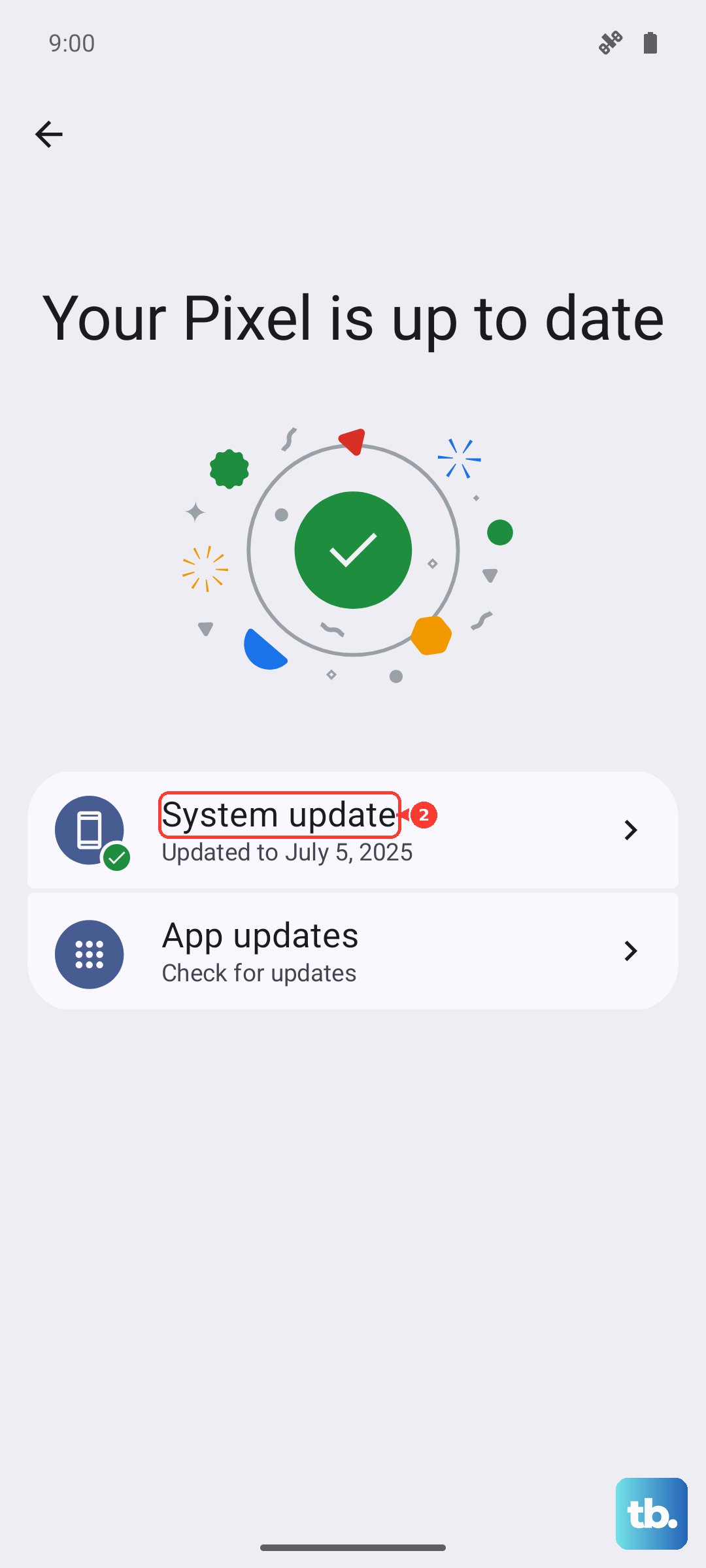
Tap Check for update. If an update is available, I'd recommend installing it while connected to Wi-Fi and with your phone plugged into its 125W TurboPower charger. Keeping your phone updated is one of the best ways to maintain stability, especially since Motorola's update schedule can be slower than some competitors.
Reset Your Network Settings
This is a more comprehensive step that resets all wireless radios back to their default state. It will erase your saved Wi-Fi networks, Bluetooth pairings, and mobile data settings, so you'll need to re-enter Wi-Fi passwords afterward.
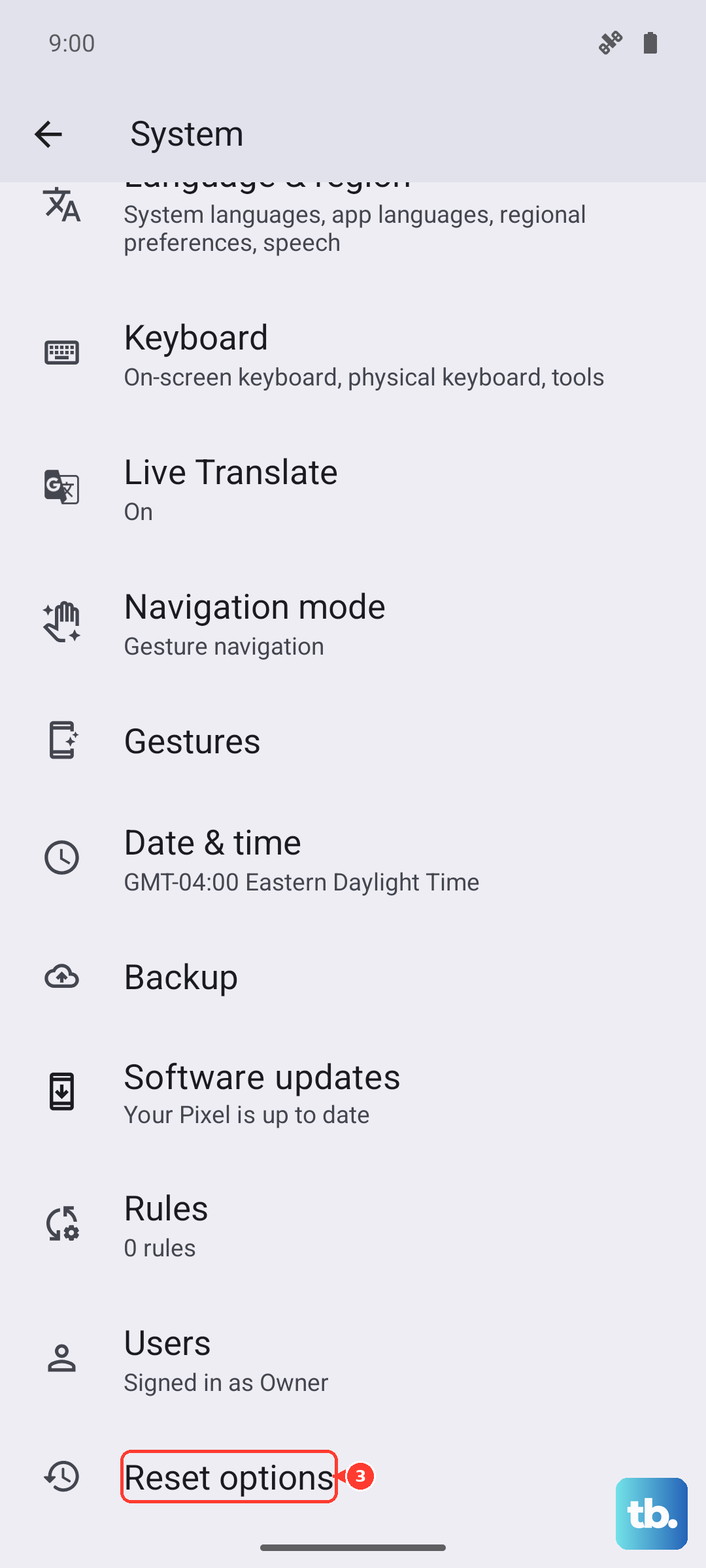
To do this, navigate to Settings > System > Reset options. Tap on Reset Wi-Fi, mobile & Bluetooth and confirm. Your phone will reboot. After it comes back on, you can try pairing your Bluetooth devices anew.
Boot Into Safe Mode
If a recently downloaded third-party app is causing a conflict, Safe Mode will tell you. To enter Safe Mode on the Edge 50 Pro, press and hold the power button until the power off menu appears.
Then, tap and hold your finger on the "Power off" text until you see a prompt asking if you want to reboot to Safe Mode. Tap "OK." Your phone will restart, and you'll see "Safe mode" in the bottom corner. Try using Bluetooth now. If it works, a downloaded app is the culprit. Restart normally and try uninstalling recent apps one by one.
Clear Bluetooth App Data
If clearing the cache didn't help, the next step is to clear the Bluetooth app's data. This is more drastic, as it will wipe out all your paired devices. You'll have to re-pair everything afterward.
Go back to Settings > Apps > See all apps > Show system > Bluetooth > Storage & cache. This time, tap Clear storage or Clear data and confirm. Restart your phone once the process is complete. This gives the Bluetooth stack a completely fresh start.
Consider a Factory Reset
This is your last resort before looking at potential hardware issues. A factory reset will erase everything on your phone, so you must back up your photos, messages, and app data first. Use Google Drive or transfer files to a computer.
Once backed up, go to Settings > System > Reset options > Erase all data (factory reset). Follow the prompts. After the reset is complete, set up your phone as new and test Bluetooth before restoring your backup, to see if the problem persists.
Specific Connection Problems
For car Bluetooth issues, the forget-and-re-pair method is most effective. Delete your phone from your car's infotainment system and delete the car from your phone. Then, initiate pairing from your car's menu first.
If Bluetooth simply won't turn on at all, the combination of a force restart (holding the power button for 10+ seconds) followed by clearing the Bluetooth cache is the best path. Persistent failure to turn on after all software steps could point to a deeper hardware fault.