
If your Motorola Edge 50 Pro is running out of juice way too quickly, it can be incredibly annoying. You've got a powerful phone with a 125W charger, so it shouldn't feel like it's constantly tethered to an outlet. The good news is, a fast drain is usually caused by software or settings you can control, not a failing battery.
Let's start with the quickest diagnostic step. Swipe down from the top of your screen twice to open the full Quick Settings panel, then tap the battery icon. If you see "Battery Saver" is off, tap it to turn it on immediately. This will throttle performance and limit background activity, which can often stop a sudden drain in its tracks while you work through the other fixes.
Check What's Actually Using Your Battery
Before you start changing settings, you need to know where the power is going. Head to Settings > Battery. Here, you'll see a breakdown of usage since your last full charge.
Pay close attention to the "Apps" section. Look for any app showing a high percentage of use, especially if you haven't been actively using it. A social media app, game, or even a VPN running in the background can be a major culprit. Tapping on an app will show you details like background activity time.
Manage Display and Performance Settings
The Edge 50 Pro's pOLED display is beautiful but can be a power hog. Open Settings > Display. First, try lowering the brightness slider a bit. Even a small reduction can make a big difference over a full day.
Next, tap "Advanced" and look for the refresh rate setting. If it's set to "Auto" or the highest option (likely 144Hz), try switching it to a fixed 60Hz. The smoother scrolling at high refresh rates uses more power, and 60Hz is still perfectly fine for most tasks.
Also in the Display settings, reduce the "Screen timeout" or "Sleep" setting to 30 seconds or one minute. This ensures your screen turns off quickly when you're not using it.
Control Background Activity and Connectivity
Background processes are a common drain. Go to Settings > Apps > See all [number] apps. Find any app you suspect, tap it, then tap "Battery". If "Background restriction" is available, you can set it to "Restricted".
For location, navigate to Settings > Location. Make sure it's on only when needed, and review app permissions by tapping "App location permissions". Set non-essential apps like games or social media to "Allow only while in use" instead of "Allow all the time".
Your radios are always searching. Turn off Wi-Fi and Bluetooth from the Quick Settings panel when you're not using them. For mobile data, if you have a weak signal, your phone works harder to maintain a connection, which drains the battery faster. Switching to airplane mode in areas with no signal can help.
Update Your Software and Apps
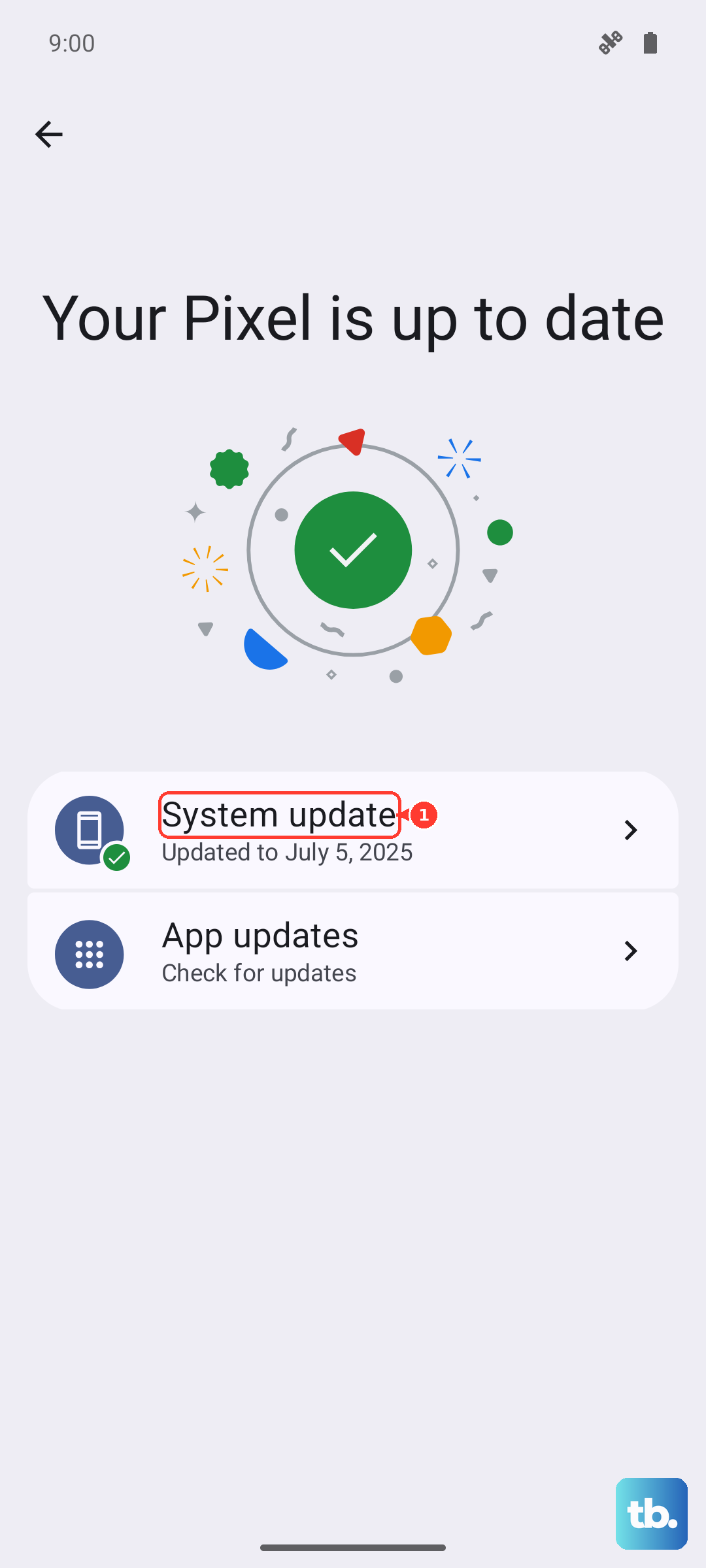
Outdated software can have bugs that cause poor battery management. Motorola can be slower with updates than some brands, but it's worth checking. Go to Settings > System > System updates to see if a new version of Android or a security patch is available.
Similarly, outdated apps can misbehave. Open the Google Play Store, tap your profile icon, and go to "Manage apps & device". Under "Updates available", tap "Update all" to ensure everything is current. Developers often release optimizations that improve battery efficiency.
Review and Tweak Advanced Features
Motorola's helpful gestures, like chop for flashlight or twist for camera, use sensors that listen for movement. If you don't use them, you can save a bit of power. Go to Settings > Moto > Moto Actions and toggle off any gestures you don't need.
Always-on Display is convenient but keeps a part of your screen active. To disable it, go to Settings > Display > Advanced > Always show time and info and toggle it off.
Consider Your Charging Habits
The included 125W TurboPower charger is incredibly fast, but frequent use of ultra-fast charging can accelerate long-term battery wear. To help with this, Motorola includes a Battery Protection feature. You can find it in Settings > Battery > Battery Protection.
Enabling this will slow down charging, especially past 80%, which is much gentler on the battery's health over time. I'd recommend using this feature overnight or whenever you don't need a full charge in 18 minutes. For topping up during the day, the 50W wireless charging (with the compatible stand) is a good, slightly slower alternative.
Perform a Force Restart
If your phone is acting sluggish and the battery is plummeting, a simple software glitch might be the cause. A force restart can clear this without deleting any data. Just press and hold the Power button for about 10 seconds, until you feel a vibration and see the Motorola logo appear as it reboots.
Reset App Preferences or Network Settings
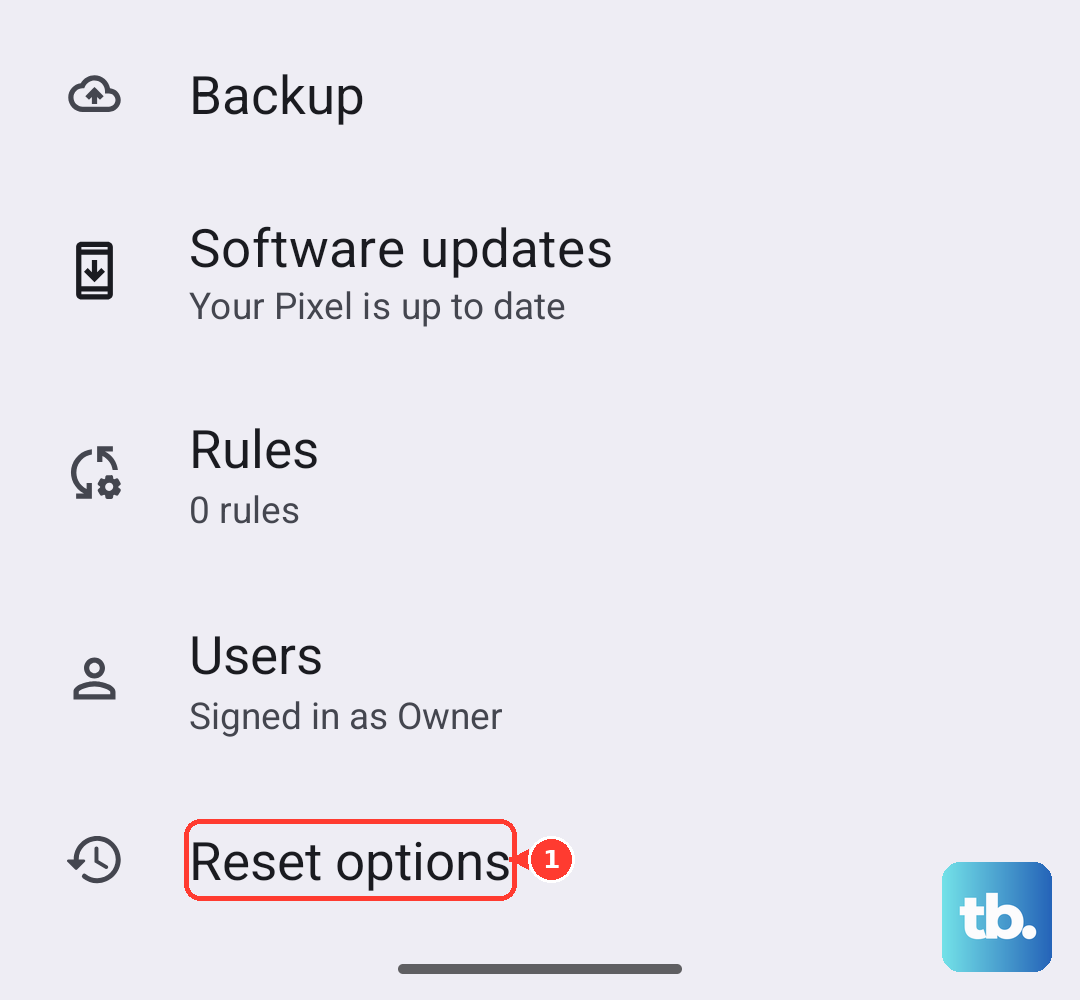
If a specific app seems to be the problem but you can't pinpoint it, you can reset all app preferences. This won't delete any app data. Go to Settings > System > Reset options > Reset app preferences.
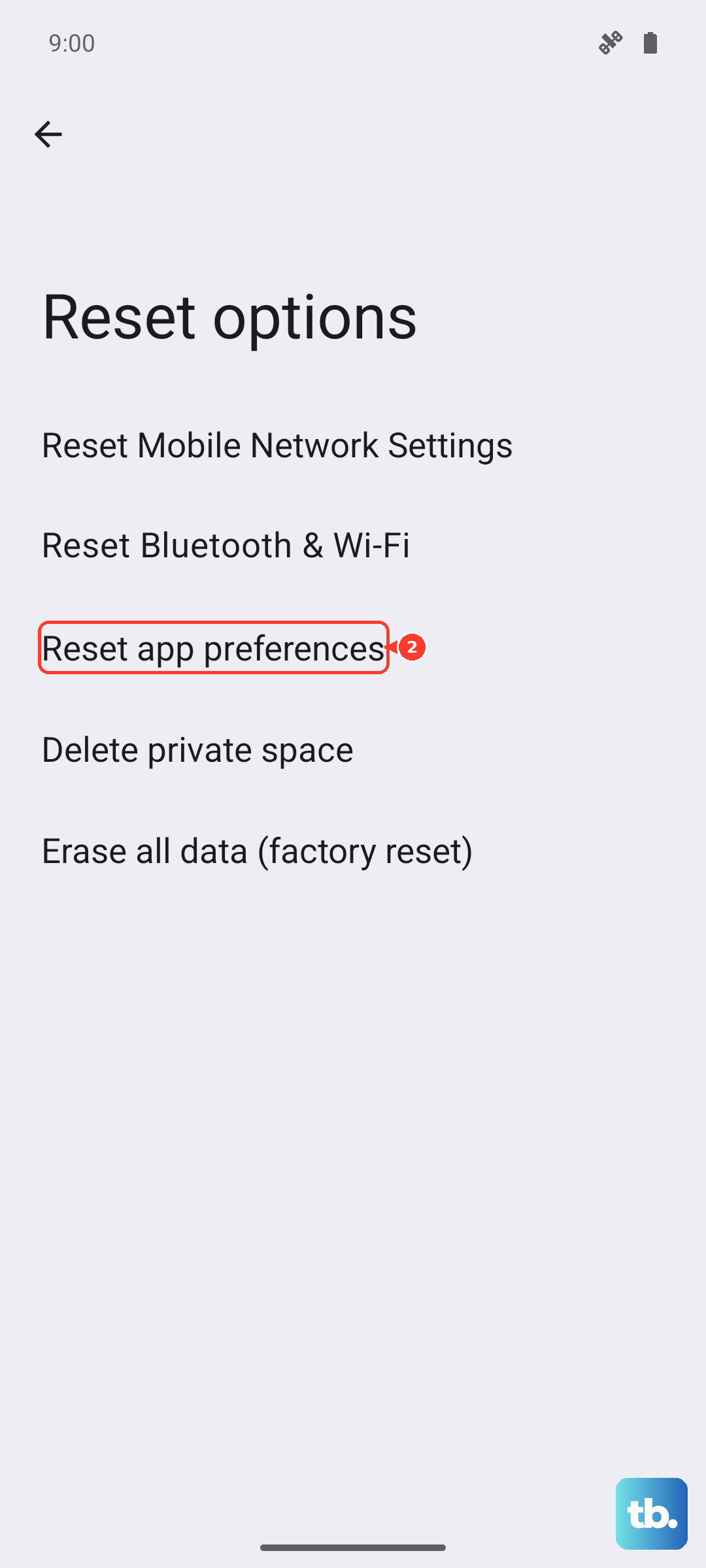
Persistent network-related drain can sometimes be fixed by resetting your Wi-Fi, mobile, and Bluetooth connections. This will make you re-enter Wi-Fi passwords and re-pair Bluetooth devices. You can find this at Settings > System > Reset options > Reset Wi-Fi, mobile & Bluetooth.
Check for a Failing Battery
If you've tried all the software fixes and the drain is still severe, it's worth considering the battery itself. The Edge 50 Pro has a 4500mAh battery, which is a bit smaller than some competitors, so its lifespan can be more noticeable if it degrades.
While Android doesn't have a built-in "Battery Health" percentage like iPhones, you can use a free app like AccuBattery from the Play Store. After a few charge cycles, it can give you an estimate of your battery's current capacity compared to its original design. If it's significantly degraded, a hardware issue is likely.