When your Motorola Edge 50 Pro hits a wall trying to install an app, it can bring your whole day to a halt. You tap install, and nothing happens, or you get a cryptic error code. Since the Edge 50 Pro runs a clean version of Android 14, the fixes are usually straightforward. I've found that most of these issues stem from a handful of common glitches that are easy to sort out.
Let's go through the solutions, starting with the quickest checks you can do right now.
Check Your Connection and Restart
First, make sure your phone is actually online. Pull down the notification shade and look at your Wi-Fi or mobile data icon. If you're on Wi-Fi, try switching to your 5G data for a moment, as some networks can block the ports the Play Store uses.
A simple restart clears out temporary software hiccups. Just press and hold the power button, tap restart, and give it a minute to boot back up. This fixes more problems than you'd think.
Verify Date, Time, and Storage
Google's servers are picky about time synchronization. If your phone's clock is off, downloads can fail. Go to Settings > System > Date & time and make sure "Set time automatically" is turned on.
Also, quickly check your storage. The Edge 50 Pro has a 4500mAh battery but storage is separate. Head to Settings > Storage to see if you're running low on space. If you are, clearing some cached data or old downloads can free up room instantly.
Clear the Google Play Store's Cache
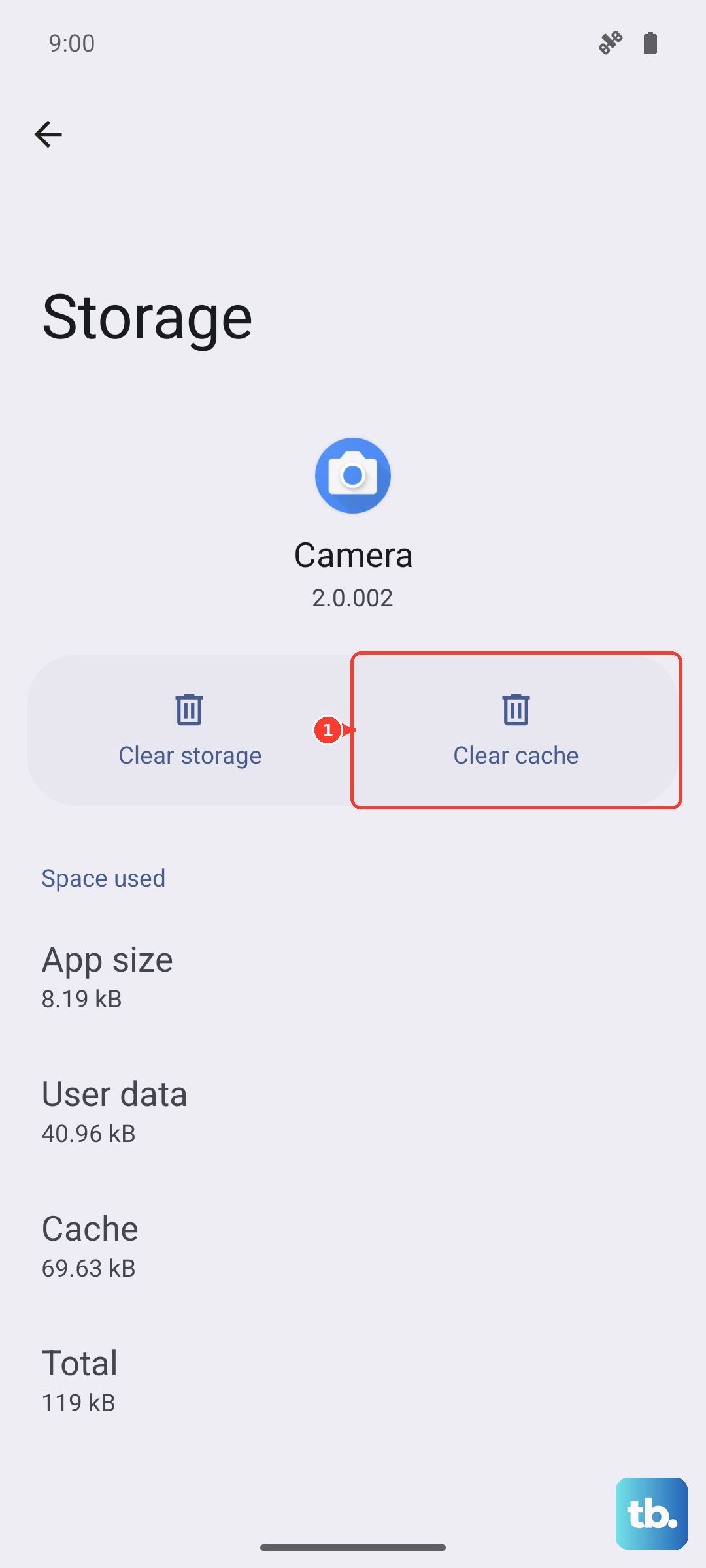
Corrupted temporary files in the Play Store app itself are a prime suspect. Clearing its cache is a safe first step that doesn't delete any of your data or accounts.
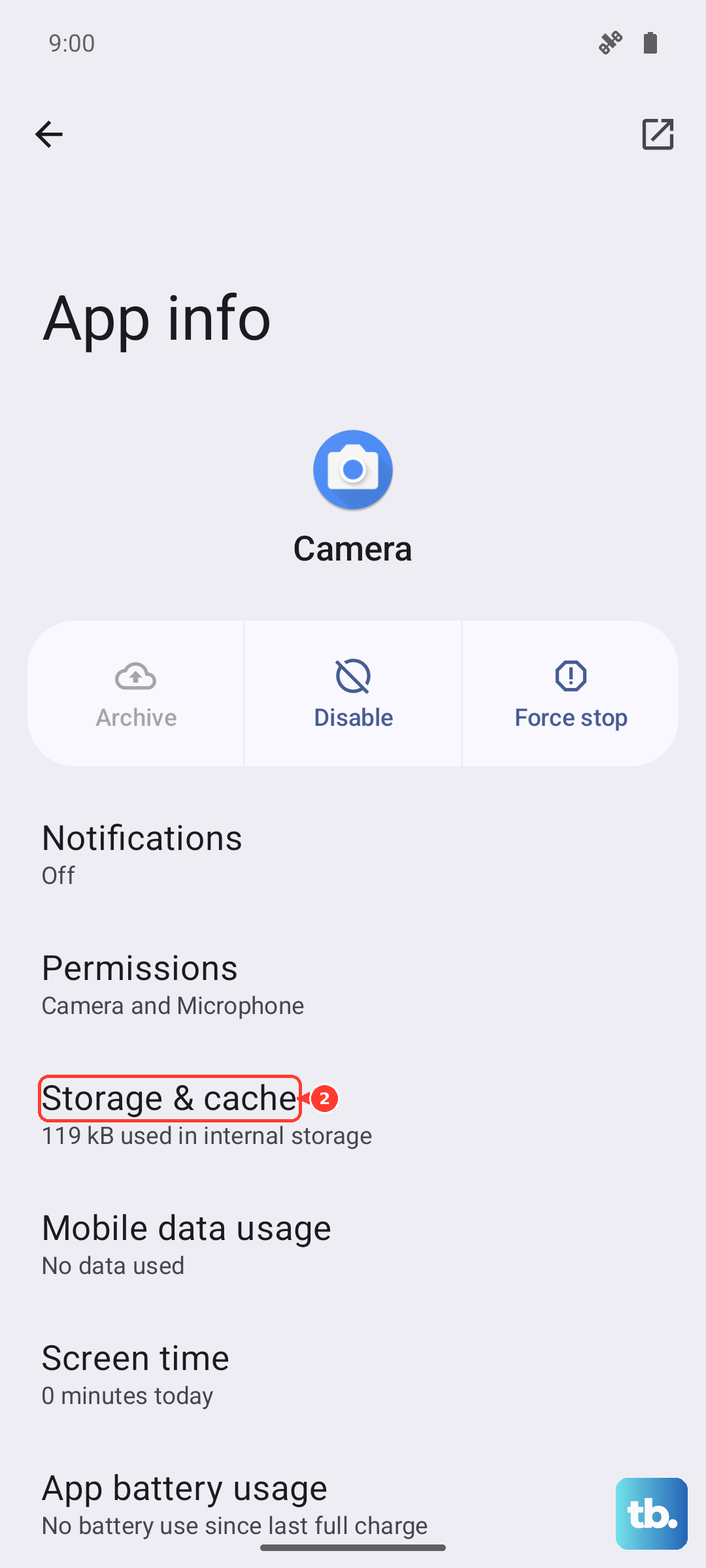
Open Settings > Apps > See all apps. Find and tap "Google Play Store." Go into Storage & cache and tap "Clear cache." Wait a moment, then open the Play Store again and try your download.
Clear Data for Play Store and Services
If the cache clear didn't work, the next step is to clear the app's stored data. This resets the Play Store to a fresh state. In the same Play Store storage menu, tap "Clear storage" or "Clear data." Confirm the action. You'll need to sign back in, but it often breaks a stubborn download loop.
Do the same for Google Play Services, which works in the background. Find it in your app list, go to Storage & cache, and use the "Manage space" option to clear all data. This is a common fix for errors like DF-BPA-09.
Check Download Manager and Permissions
Your phone has a system app called Download Manager that handles the actual file downloads. It needs to be enabled and have the right permissions. Go to Settings > Apps > See all apps, tap the three-dot menu, and select "Show system." Find "Download Manager" and make sure it's not disabled.
While you're in the app settings, check permissions for Google Play Services. Tap on it, go to Permissions, and ensure it has access to Files and media. Also, under "Additional permissions," allow it to modify system settings.
Update Your Edge 50 Pro Software
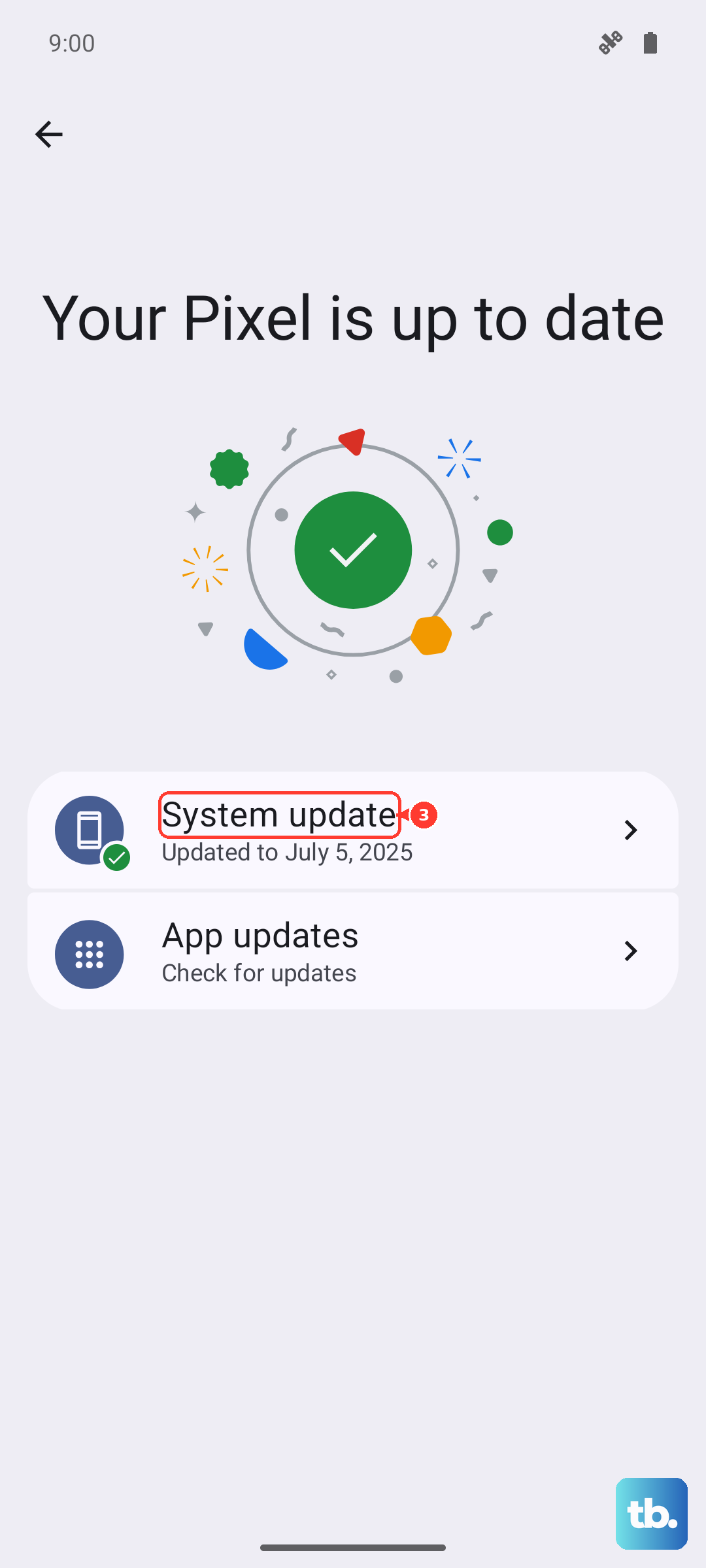
Motorola can be slower with updates than some brands, but it's still crucial to check. An outdated system can have conflicts with the latest version of the Play Store or app security requirements.
Go to Settings > System > System updates and tap "Check for update." If there's one available, install it. The phone will restart, and it's worth trying your app install again immediately after.
Remove and Re-add Your Google Account
This refreshes the connection between your phone and Google's servers. Go to Settings > Passwords & accounts. Tap your Google account, then "Remove account." Don't worry, this doesn't delete anything from Google itself.
After removing it, go back and tap "Add account" to sign in again. This process can resolve sync errors that are silently blocking downloads.
Try Safe Mode
If an app you recently installed is causing a conflict, it can interfere with the Play Store. Booting into Safe Mode temporarily disables all third-party apps. Press and hold the power button, then tap and hold the "Power off" icon on your screen until you see the Safe Mode prompt.
If you can download apps normally in Safe Mode, a recently installed app is the culprit. You'll need to uninstall apps one by one to find the problematic one after restarting normally.
Review Security and Installation Settings
Motorola's software includes some security features that might block installations. Go to Settings > Security and look for "Install unknown apps" or "Special app access." Make sure the Google Play Store is allowed to install apps.
Also, check if you have any device administrator apps enabled that could be restricting installations. You can find this under Settings > Security > Device admin apps.
Reset App Preferences (The Gentle Reset)
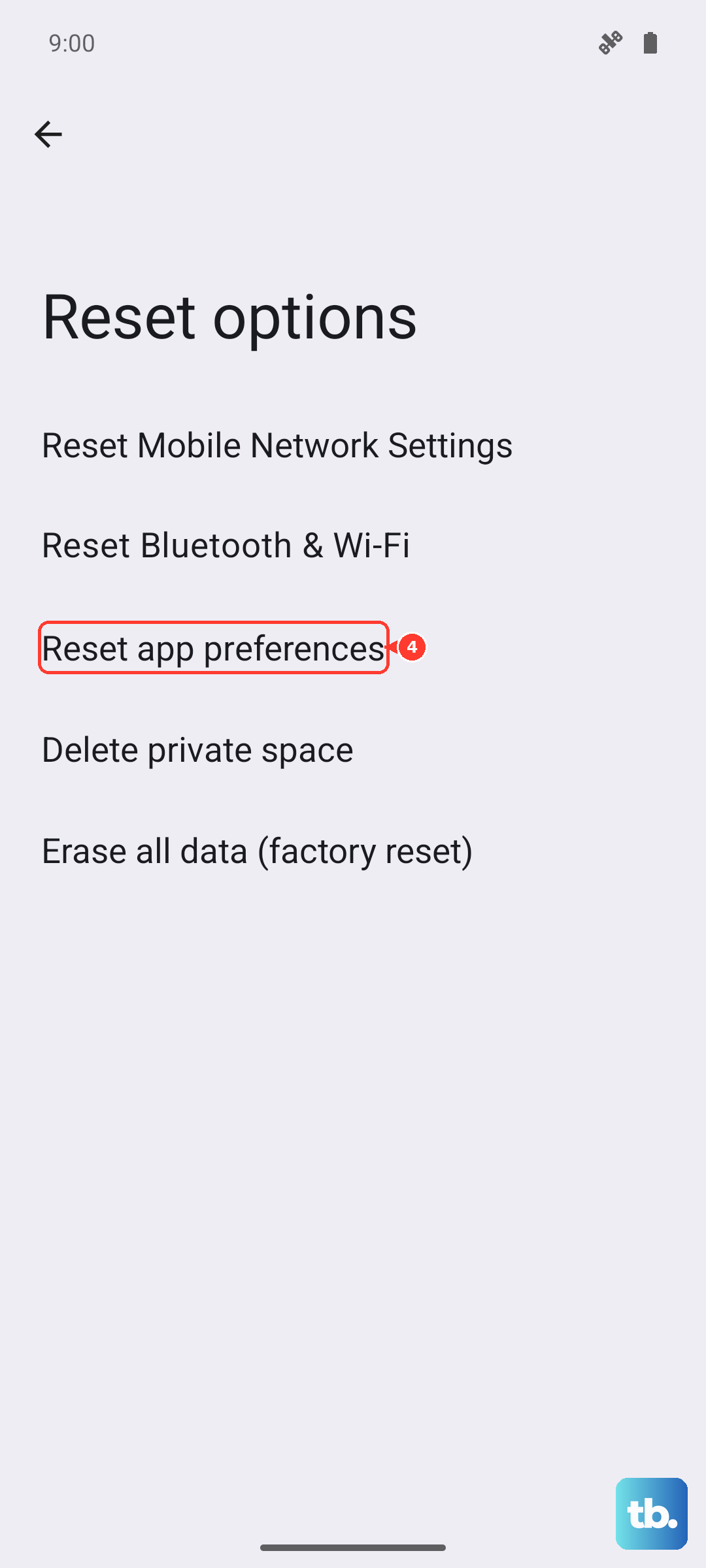
This is a useful last step before considering a factory reset. It resets all your app permissions, default apps, and background restrictions without deleting any personal data.
Go to Settings > System > Reset options. Tap "Reset app preferences" and confirm. You'll need to re-grant permissions to apps as you use them, but it can clear up a system-wide conflict causing your install errors.