When your Motorola Edge 40's volume buttons stop responding, it's a real nuisance. You press them to adjust a call or a video, and nothing happens. The good news is this is often a temporary glitch you can fix yourself without a trip to the repair shop.
I'd start by removing your phone case. It's the simplest thing to check, and sometimes a thick or misaligned case can physically block the button's travel just enough to prevent it from registering a press.
Perform a Force Restart
This is my go-to first step for any weird software behavior on an Android phone. A force restart clears out temporary glitches that can make system functions, like the volume buttons, stop responding. It won't delete any of your personal data.
For the Motorola Edge 40, press and hold the Volume Down button and the Power button together for about 10 to 15 seconds. Keep holding them until you see the Motorola logo appear on the screen, then you can let go.
Clean the Volume Buttons
Dust, pocket lint, or a bit of sticky residue can easily get packed around the edges of the buttons. This physical gunk can stop the button from moving properly or block the contact point inside. Grab a can of compressed air and give the area around both volume buttons a few short blasts.
For anything more stubborn, you can dip a cotton swab in a tiny amount of isopropyl alcohol (90% or higher is best), wring it out so it's just damp, and gently clean around the button seam. Let it dry completely for a minute before testing the buttons again.
Check for Software Updates
Since your Edge 40 runs Android 15, it's a good idea to make sure you have the latest software patch. Motorola periodically releases updates that fix bugs and optimize performance, which can include fixes for hardware input issues.
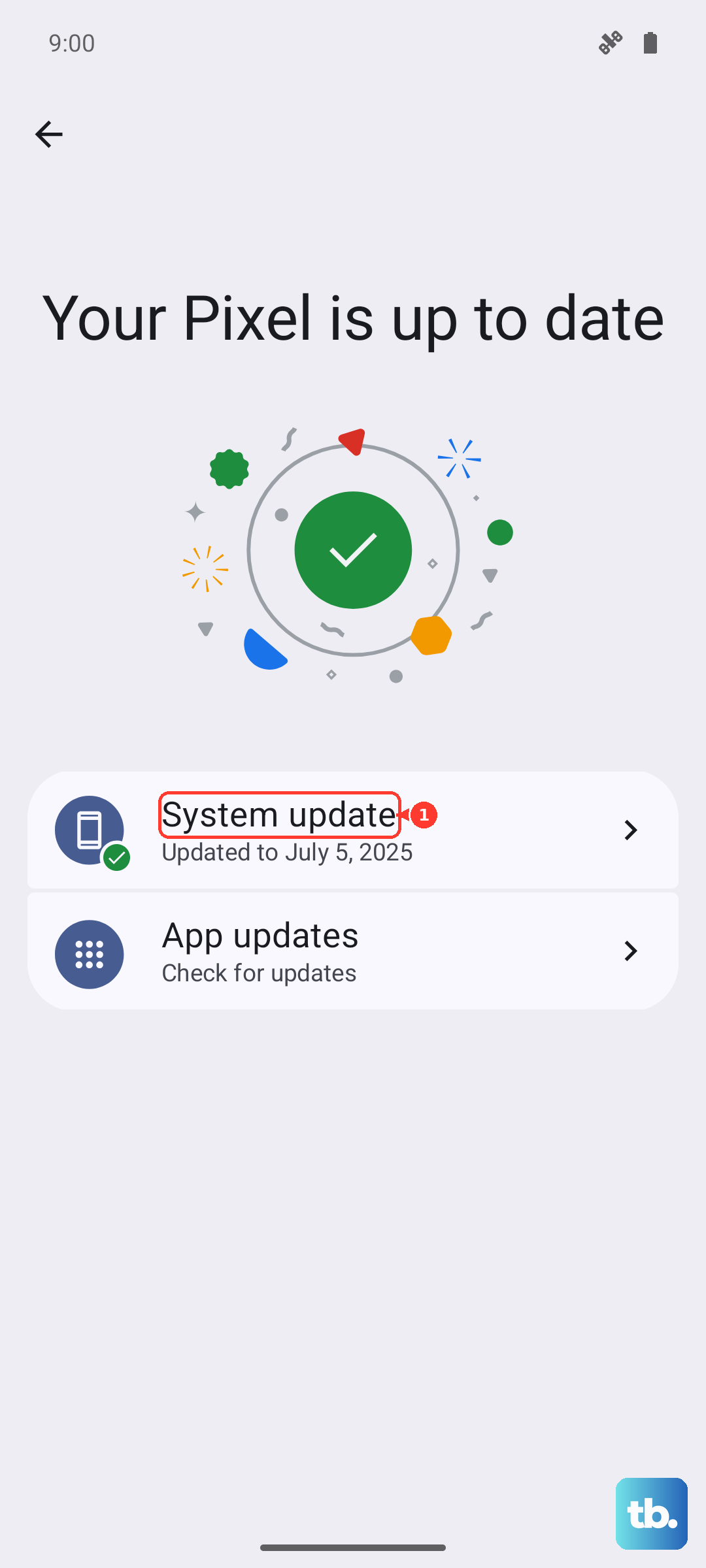
Go to Settings > System > System updates and tap "Check for update." If an update is available, connect to Wi-Fi and install it. This process usually takes about 10-15 minutes.
Test the Buttons in Safe Mode
Safe Mode temporarily disables all third-party apps you've downloaded. If your volume buttons start working in Safe Mode, it means a recently installed app is causing a conflict. Booting into Safe Mode is straightforward.
Press and hold the power button until the power off menu appears. Then, tap and hold the "Power off" text on your screen. You'll get a prompt to reboot to Safe Mode. Tap "OK." Once your phone restarts, you'll see "Safe mode" in the bottom corner.
Test your volume buttons now. If they work, you'll need to figure out which app is the culprit. Restart your phone normally to exit Safe Mode, then try uninstalling apps you installed around the time the problem started.
Inspect for Physical Damage
Take a close look at the volume rocker. Has the phone been dropped recently? Even a small impact can sometimes jar the internal ribbon cable that connects the button assembly to the motherboard, or damage the tiny tactile switch under the button itself.
Gently press along the entire button. Listen for a faint but distinct click with each press. If one side clicks and the other doesn't, or if the button feels mushy or stuck, it's more likely a physical hardware problem.
Use On-Screen Volume Controls
While you're troubleshooting, remember you can still control your volume. Pull down the notification shade twice to open the Quick Settings panel, and you'll find a volume slider there. You can also adjust media volume directly from within apps like YouTube or Spotify.
Some users have found that using the on-screen controls for a bit can sometimes "wake up" the connection to the physical buttons. It's worth a try while you work through the other steps.
Check Accessibility Settings
Android has powerful accessibility features that can sometimes interfere with standard button functions. It's a good spot to check. Head to Settings > Accessibility.
Look through the menu for any features like "Volume key shortcut" or "Accessibility button" that might be enabled and could be intercepting your button presses. Temporarily turn off any accessibility services you don't actively use to see if that resolves the conflict.
Consider a Factory Reset
If all else fails and you're certain it's not physical damage, a factory reset can wipe out deep-seated software corruption. This is a last resort because it will erase everything on your phone.
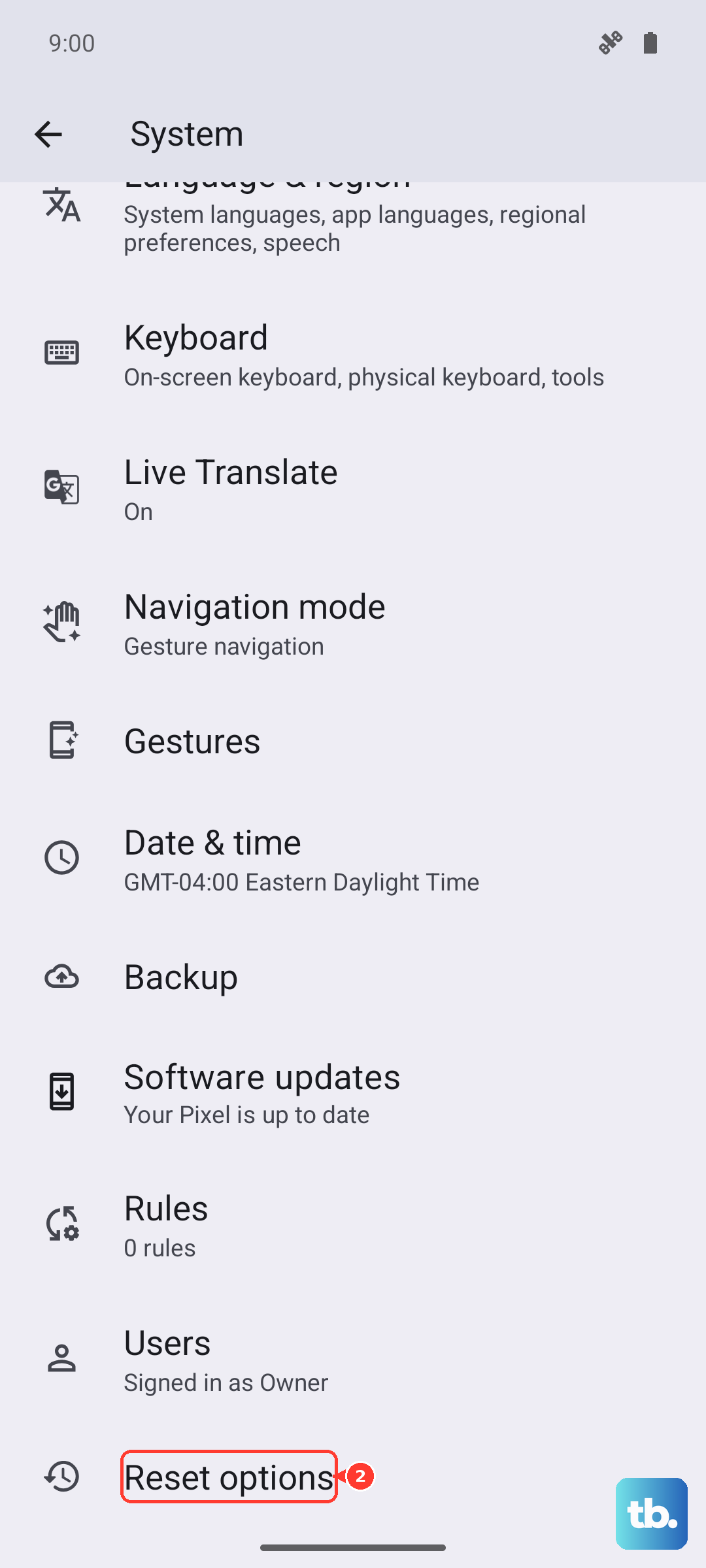
Back up all your important data first. You can use Google's backup service or copy files to a computer. Once backed up, go to Settings > System > Reset options > Erase all data (factory reset). Follow the prompts to complete the process.