
When the speaker on your Motorola Edge 40 goes quiet or sounds distorted, it can turn a great phone into a frustrating one. Whether you're missing calls, struggling to hear videos, or dealing with crackly audio, the problem usually has a straightforward fix. I'd start with the simplest checks first, as a quick volume adjustment or restart often does the trick.
To separate hardware from software, open a online speaker test and play the channel tones. What you hear, or do not hear, tells you which fixes below matter most.
Check Your Volume and Sound Mode
It sounds obvious, but it's the most common fix. While playing music or a video, press the volume up button on the side of your Edge 40. Also, swipe down from the top of the screen twice to open the Quick Settings panel and make sure the sound profile isn't set to Vibrate or Silent.
For more control, go into Settings > Sound & vibration. Here, you can adjust the media, ring, and alarm volumes individually. Sometimes an app's volume gets turned down separately, so check here to rule that out.
Disconnect Bluetooth and Accessories
Your phone might be trying to send audio somewhere else. Open Settings > Connected devices and look at the connection status. If Bluetooth is on and connected to a speaker, headphones, or your car, tap the device name and select Disconnect.
Also, physically remove any accessories. A thick case can sometimes muffle the bottom-firing speaker on the Edge 40. If you have headphones plugged into the USB-C port or a screen protector covering the earpiece grill, remove them and test the sound again.
Clean the Speaker Grills Carefully
Lint, dust, and pocket debris love to clog up speaker openings. Take a close look at the slim speaker grill at the bottom of the phone and the earpiece at the top. Use the flashlight from another phone or your Edge's flashlight to spot any blockages.
A soft, clean, dry toothbrush is perfect for gently brushing the grills. You can also use a can of compressed air, but hold it upright and use very short bursts to avoid pushing moisture into the phone. Never use a pin or paperclip, as you can easily damage the delicate speaker components behind the grill.
Restart or Force Restart Your Phone
A simple restart clears out temporary software glitches that can affect audio. Just hold the power button, tap Restart, and wait for the phone to reboot.
If the phone is frozen or the restart doesn't help, you'll need to force restart it. For the Motorola Edge 40, press and hold the Volume Down button and the Power button together for about 10 to 15 seconds. Let go when you see the Motorola logo appear on the screen.
Check for a Software Update
Motorola frequently releases updates that fix bugs, including audio-related ones. Since your phone runs Android 15, it's worth checking for the latest patch. Go to Settings > System > System updates and tap Check for update.
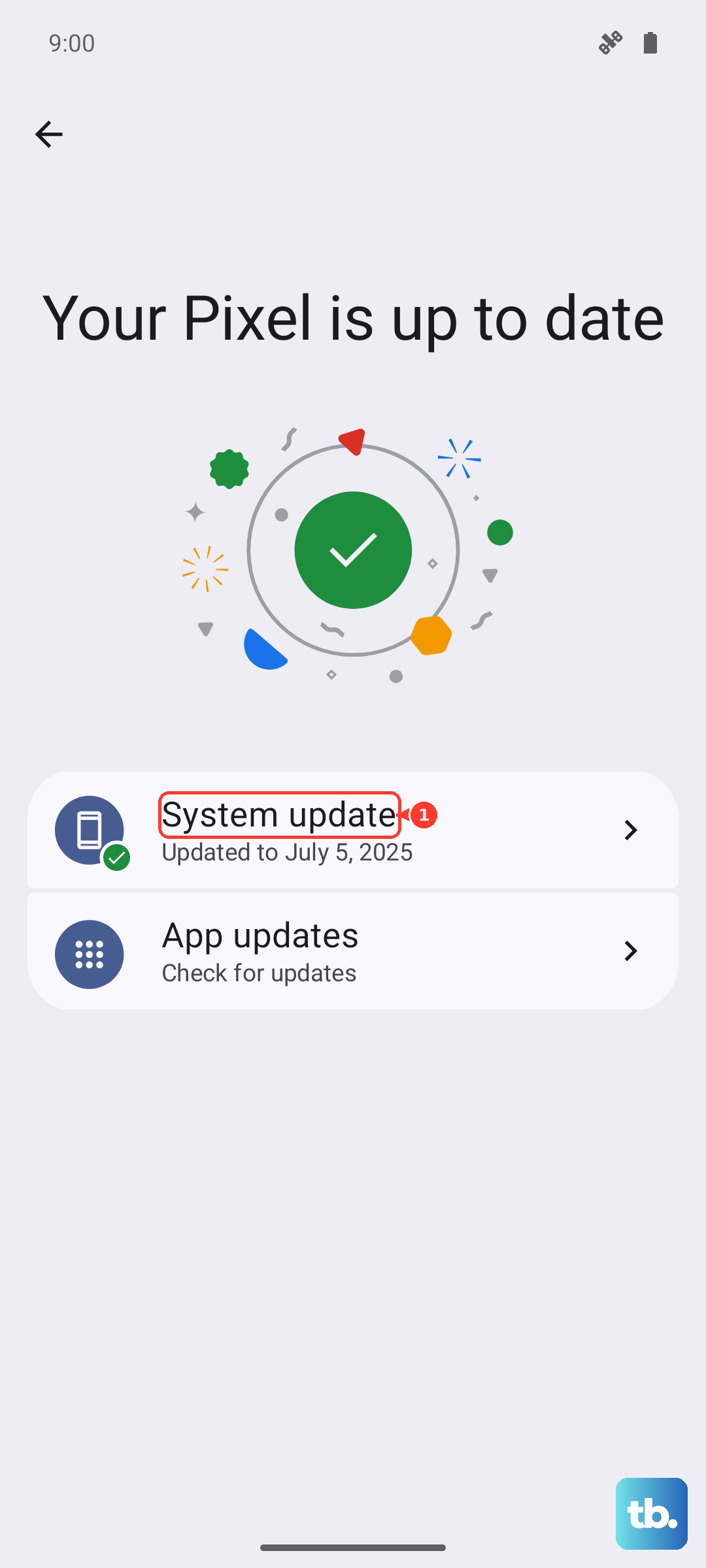
If an update is available, connect to Wi-Fi and plug in your charger. Installing an update can often resolve odd speaker behavior that appeared out of nowhere.
Boot Into Safe Mode
This step tells you if a third-party app you installed is causing the trouble. Safe mode temporarily disables all downloaded apps. To enter it, press and hold the power button until the power menu appears.
Then, tap and hold the Power off option on your screen. A prompt will appear asking if you want to reboot to Safe Mode. Tap OK. If your speaker works perfectly in Safe Mode, you know a recently installed app is the culprit. You can then restart normally and uninstall apps one by one to find the offender.
Reset All App Preferences
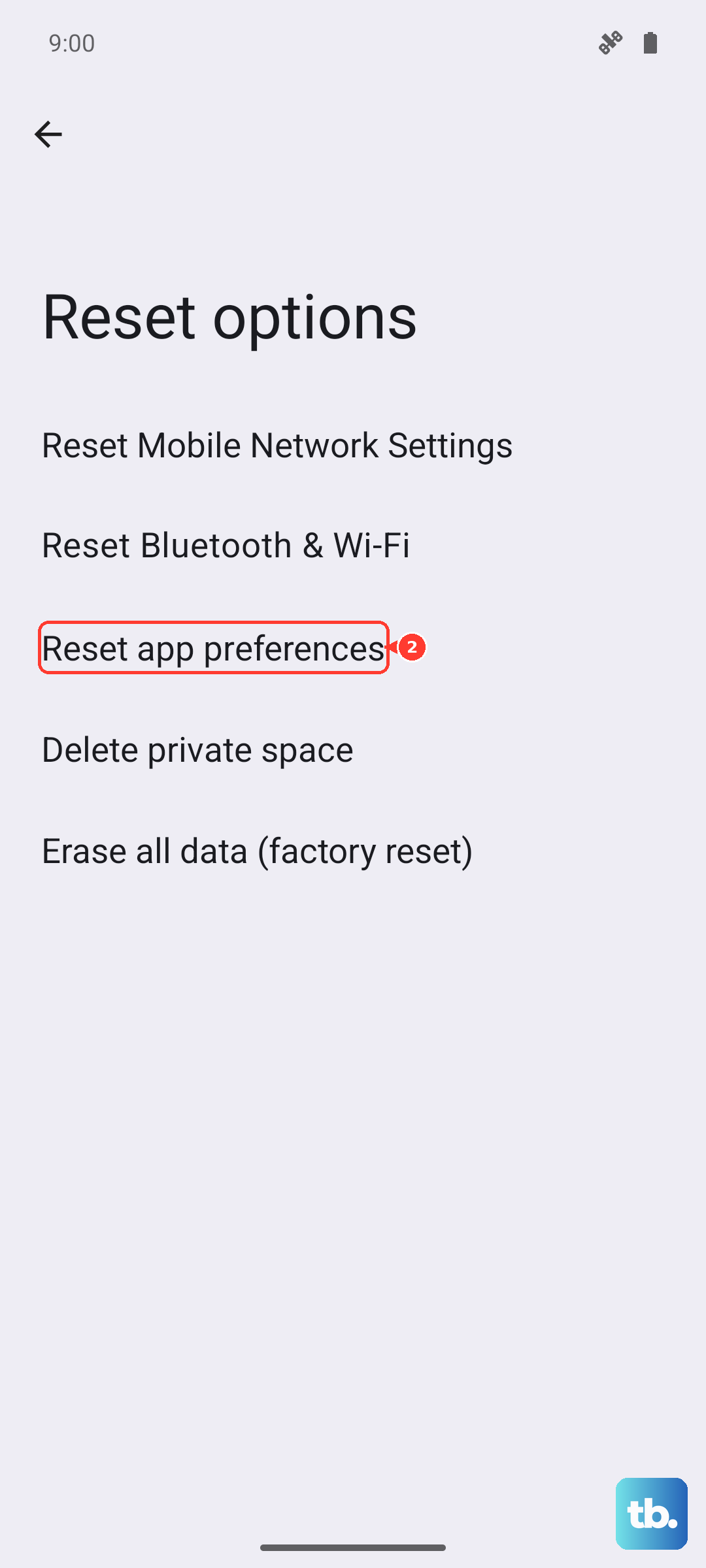
This is a useful middle step before a full reset. It resets permissions, notifications, and background data restrictions for all your apps without deleting any of your personal data or the apps themselves. It can fix issues where an app has incorrectly taken control of your audio.
Navigate to Settings > System > Reset options. Tap on Reset app preferences and confirm. You'll need to re-grant permissions to apps afterward, but it's a quick and non-destructive fix to try.
Clear the Cache Partition
Corrupted system cache files can lead to all sorts of glitches. Clearing this cache is safe and won't delete your photos or files. First, power your Edge 40 off completely.
Now, press and hold the Volume Down button and the Power button together. When you see the Motorola logo, release the Power button but keep holding Volume Down for another second, then release it. You should see the Android Recovery screen. Use the volume buttons to scroll to Wipe cache partition and press the power button to select it. Confirm, then select Reboot system now.
Perform a Factory Reset
If you've tried everything else and the speaker is still malfunctioning, a factory reset is the final software step. This will erase all data from your phone, so you must back up everything important first. Use Google One backup or manually transfer photos and files to a computer.
Once backed up, go to Settings > System > Reset options > Erase all data (factory reset). Follow the prompts to confirm. After the reset, set up the phone as new and test the speaker immediately before restoring your apps. If the sound works now, the issue was software. If it still doesn't, the problem is likely hardware-related.