
When your Motorola Edge 40 starts crawling on the web, it can really kill your flow. Whether you're trying to load a video or just scroll through social media, a slow connection on a phone this powerful feels wrong. The good news is that Android 15 gives you a lot of control to tweak and fix these issues yourself.
I'd start with the simplest fix first, which is often the most effective. Give your phone a quick restart by holding down the Volume Down button and the Power button together for about ten seconds until you see the Motorola logo. This clears out any temporary software glitches that might be bogging down your network connection.
Check Your Current Network and Signal
Before diving into settings, take a quick look at what you're connected to. Pull down the notification shade and look at the icons. If you see "5G UC" or "5G UW," you're on a fast mid-band or mmWave connection. If it just says "5G" or, worse, "LTE," your speeds might be slower due to network congestion or your location.
Sometimes, your phone might be clinging to a weak WiFi signal when a stronger 5G connection is available. You can manually switch by going into Settings > Network & internet and toggling WiFi off to force mobile data, or vice-versa. It's worth a quick test to see which is faster in your current spot.
Update Your Phone's Software
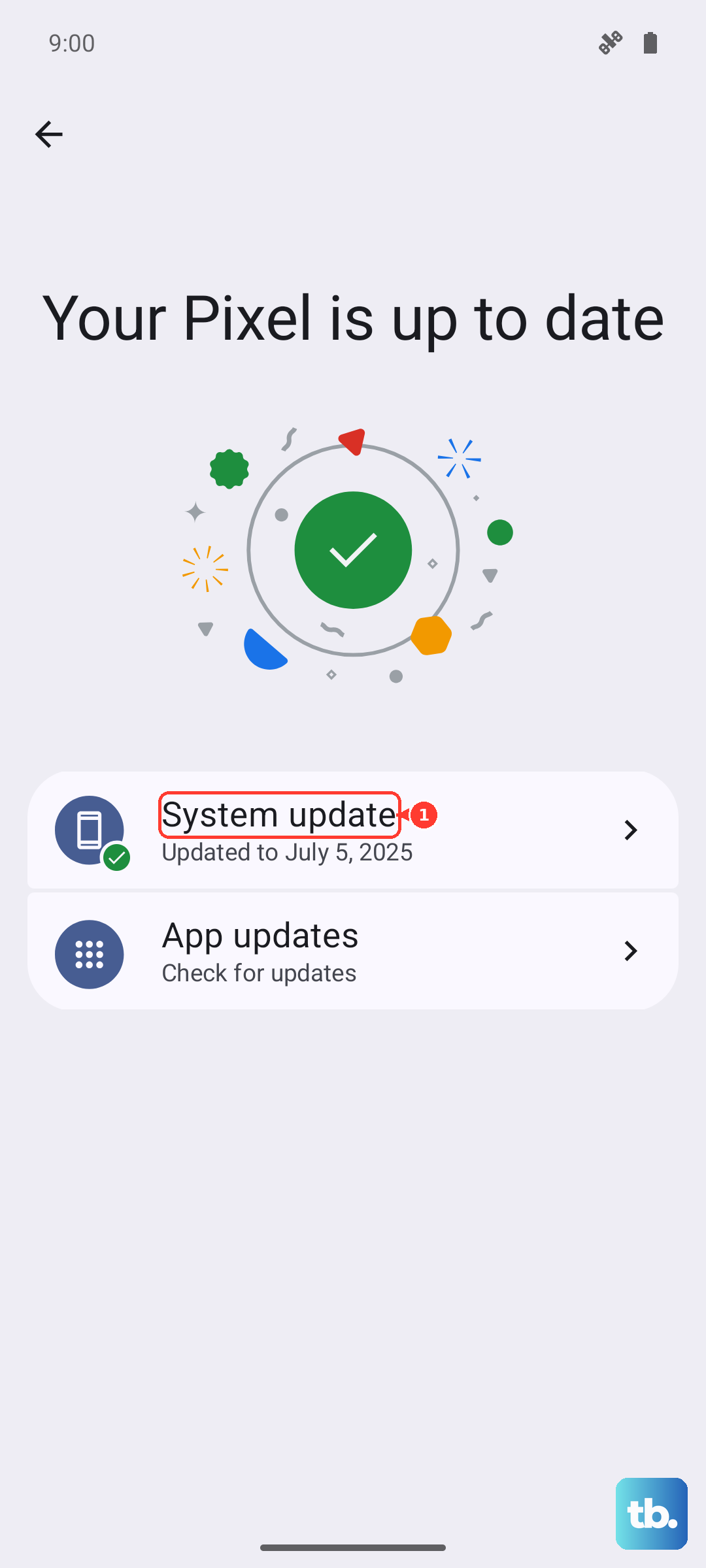
Motorola regularly releases updates that include optimizations for modem performance and network connectivity. An outdated system can be a direct cause of slow internet. Head to Settings > System > System updates and tap "Check for update." If one is available, install it. I've seen updates specifically address data speed issues on previous Edge models.
Make sure your carrier services are up to date, too. Open the Google Play Store, tap your profile icon, and go to Manage apps & device > Manage > Updates available. Look for any updates related to your carrier (like "T-Mobile" or "Verizon Services") and install them.
Reset Your Network Settings
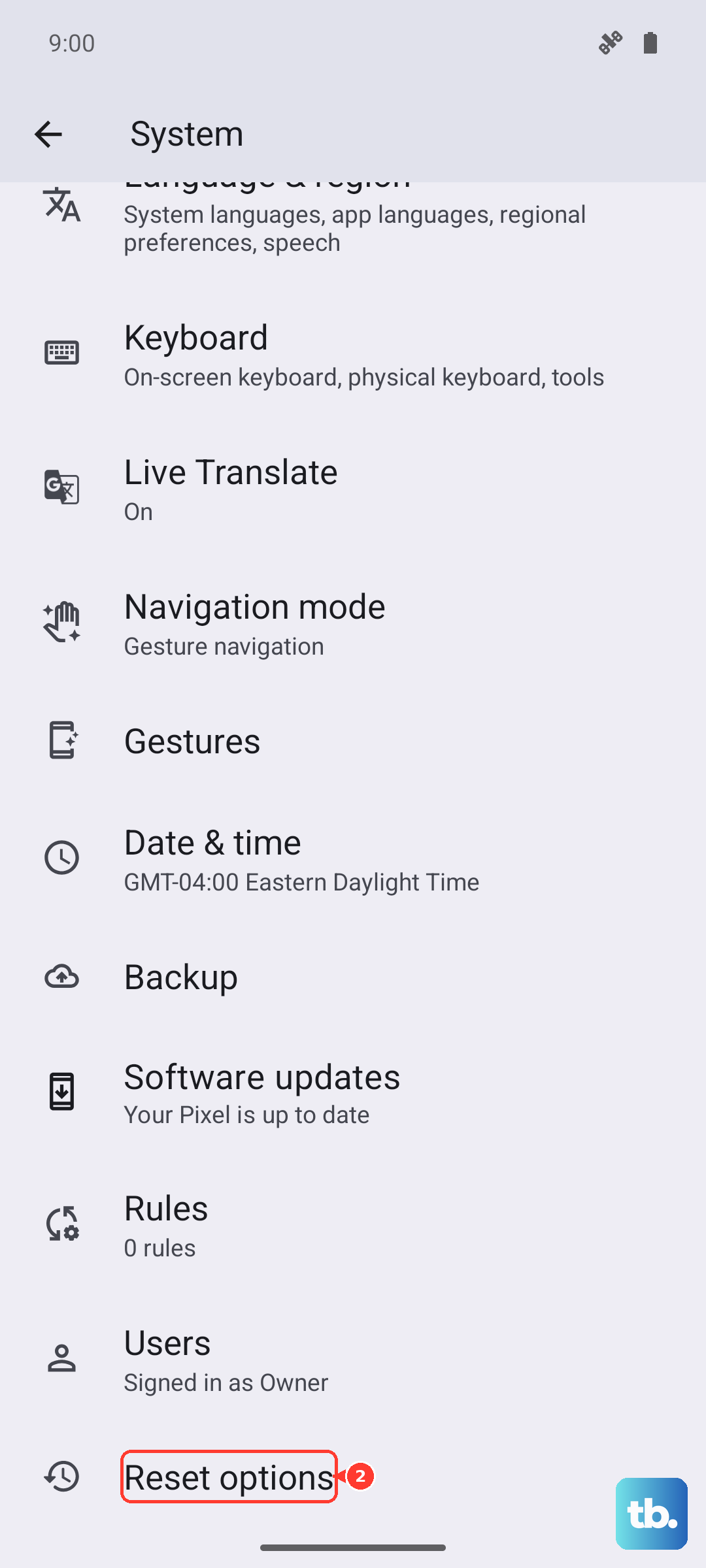
This is a powerful step that fixes a lot of weird connectivity problems without deleting your personal data. It will forget all your saved WiFi networks and Bluetooth pairings, and reset your mobile network preferences to default. Go to Settings > System > Reset options. Tap on Reset Wi-Fi, mobile & Bluetooth and confirm. After your phone reboots, you'll need to reconnect to your WiFi and re-pair Bluetooth devices, but it often clears up persistent slowdowns.
Manage Your Data Usage and Background Activity
Android 15 has great tools to restrict apps from eating bandwidth in the background. Go to Settings > Network & internet > Data Saver and turn it on. This will prevent most apps from using mobile data in the background. You can tap on "Unrestricted data" to allow specific apps, like your messaging service, to bypass this restriction.
You can also check for data-hungry apps directly. Go to Settings > Network & internet > Data usage. Look at which apps are using the most data, especially under the "Foreground" and "Background" breakdown. If an app is using a surprising amount of background data, tap on it and toggle "Background data" to off.
Configure Your Mobile Network for Speed
Your Edge 40 has settings that let you prioritize speed over battery life. Go to Settings > Network & internet > Internet. Tap the gear icon next to your carrier's name. Here, you should see a "Preferred network type" option. Make sure it's set to "5G/LTE" to ensure your phone always uses the fastest available network instead of dropping down to slower 3G.
Also, look for an option called "Adaptive connectivity" in the same menu. This feature tries to intelligently switch between WiFi and data to save battery, but it can sometimes cause hesitation. If your internet feels laggy, try turning Adaptive connectivity off to see if your connection becomes more stable.
Clear the Cache for Key Services
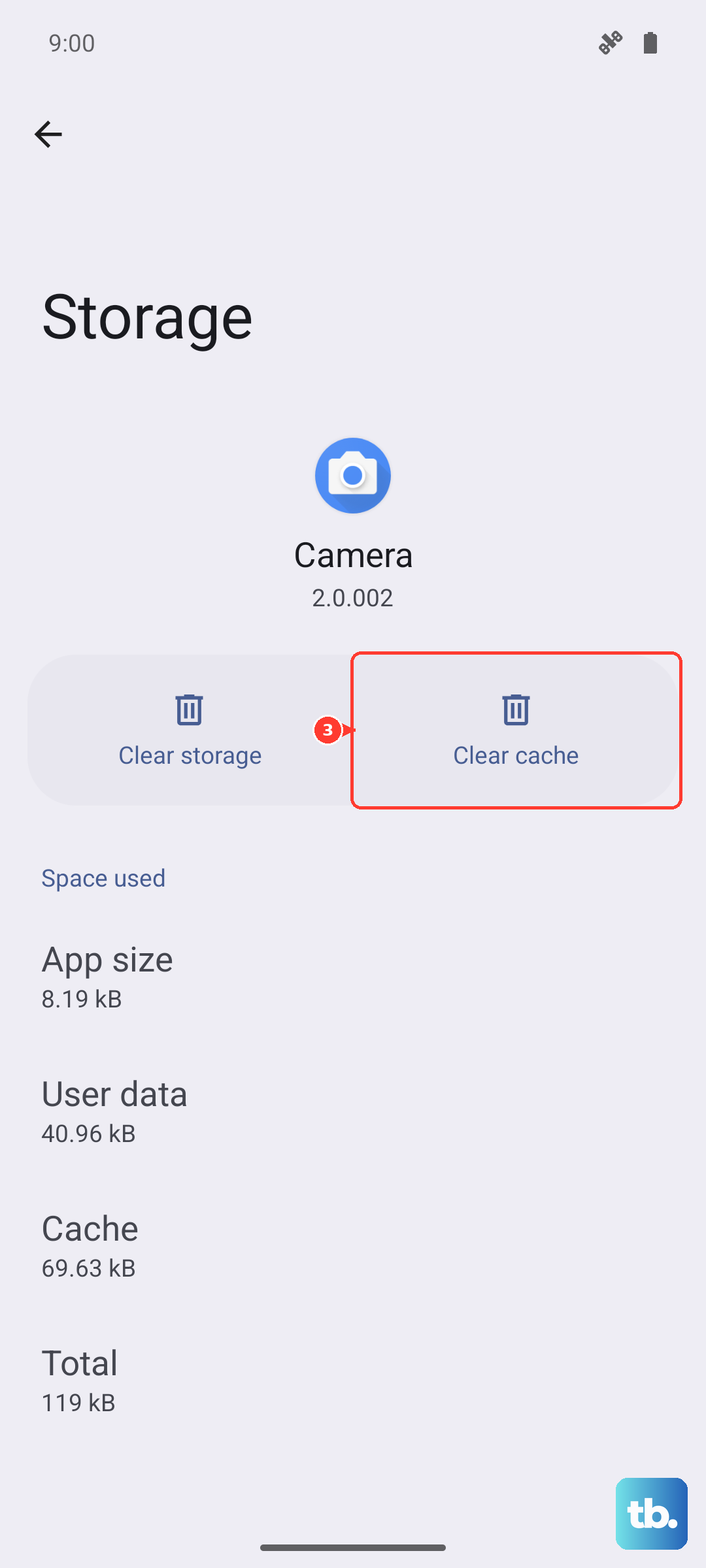
Corrupted cached data in system services can slow everything down. It's safe to clear this cache as it will rebuild itself. Go to Settings > Apps > See all apps. Tap the three-dot menu and select "Show system." Now, find and select these services one by one: Google Play Services and Carrier Services.
For each one, tap on "Storage & cache" and then tap "Clear cache." Do not tap "Clear storage" or "Clear data," as that is more drastic. This process just removes temporary files that might be causing a conflict.
Review Your DNS Settings
Sometimes, the problem isn't your connection speed but how quickly your phone translates website addresses. You can try switching to a faster public DNS. If you're on WiFi, go to Settings > Network & internet > Internet, tap the gear icon next to your connected network, then tap the pencil icon to modify it. Go to Advanced > IP settings and change it from "DHCP" to "Static."
Scroll down and you'll see fields for DNS 1 and DNS 2. You can enter a public DNS here. For Google's DNS, use 8.8.8.8 and 8.8.4.4. For Cloudflare's, use 1.1.1.1 and 1.0.0.1. This can sometimes make browsing feel snappier.
Check for Physical or Location Issues
If you're using a case, especially a thick or metal one, it could potentially interfere with the antenna bands. Try removing the case for a moment and run a speed test to see if there's a difference. Also, network congestion is real. If you're in a crowded stadium, mall, or concert, everyone is competing for bandwidth, and speeds will drop.
Finally, if the slowdown only happens at home on WiFi, the issue might be with your router. Try rebooting your router and modem by unplugging them for 30 seconds. When you're back on your WiFi, run a speed test on another device to see if the problem is isolated to your phone or affecting your whole network.