When your Motorola Edge 40 keeps kicking you out of the Settings app, it's usually a software hiccup that can be cleared up pretty quickly. The app might crash immediately or close a few seconds after you open it, which is annoying when you're trying to change something. Let's get it working again.
Restart Your Phone
This is the first thing I'd try. A simple restart clears out temporary system glitches and memory issues that can cause apps like Settings to misbehave. Just hold down the power button and tap "Restart" on your screen.
If the Settings app is still crashing after the phone boots back up, don't worry. We have a few more targeted steps to try that often do the trick.
Clear the Settings App Cache
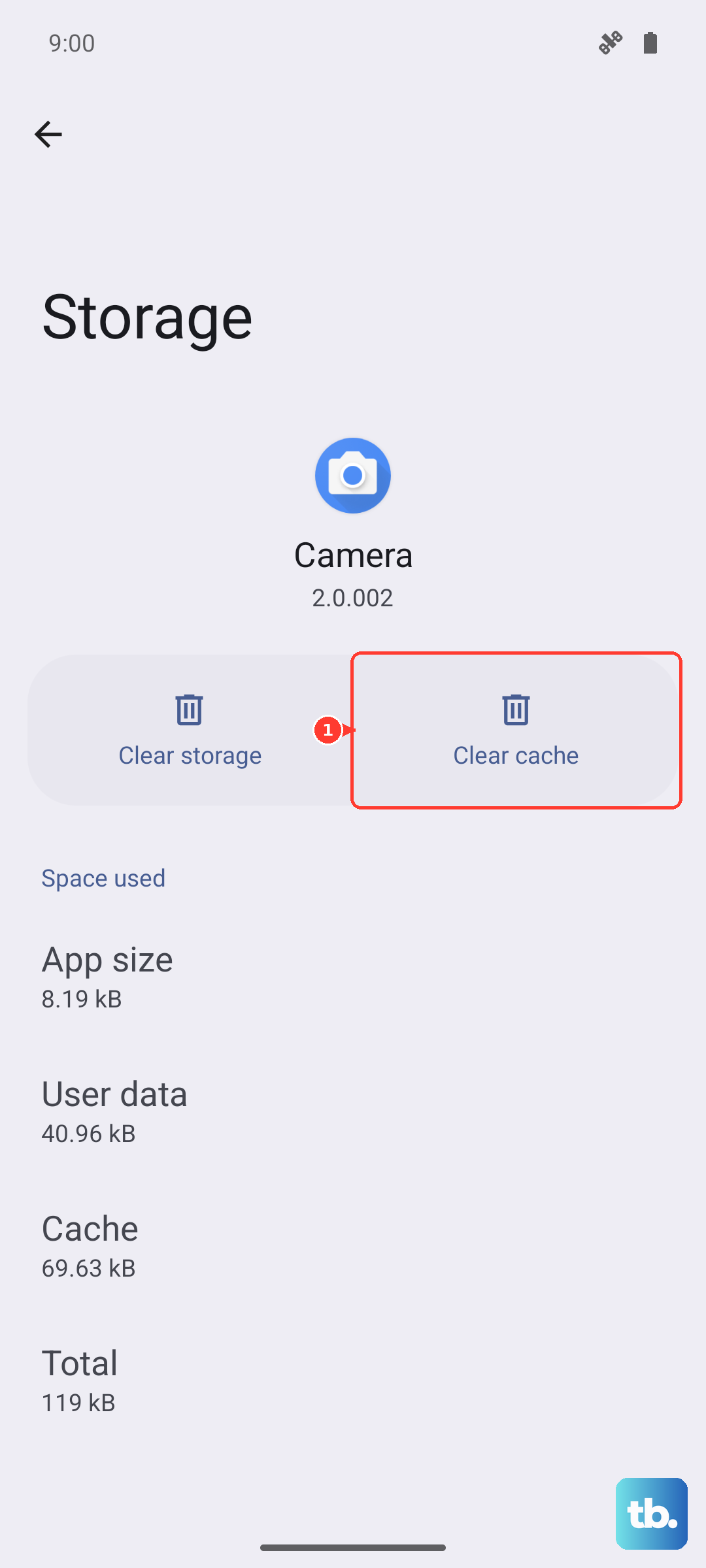
Over time, the temporary cache files the Settings app uses can get corrupted. Clearing them forces the app to rebuild these files from scratch, which often solves the crashing problem without affecting your personal data.
Go to Settings > Apps > See all apps. Find and tap on the app called "Settings" (it might be listed as "Settings" or "System Settings"). Then, tap on Storage & cache and hit Clear cache.
Force Stop the Settings App
If the app is stuck in a bad state, forcing it to stop completely can give it a clean slate when it opens next. This is a good follow-up after clearing the cache.
Head back to Settings > Apps > Settings. This time, tap the Force stop button and confirm. After that, try opening Settings again to see if it runs smoothly.
Check for a System Update
Since your Edge 40 runs Android 15, Motorola regularly releases updates that fix bugs and improve stability. An outdated system can have conflicts that cause core apps to crash.
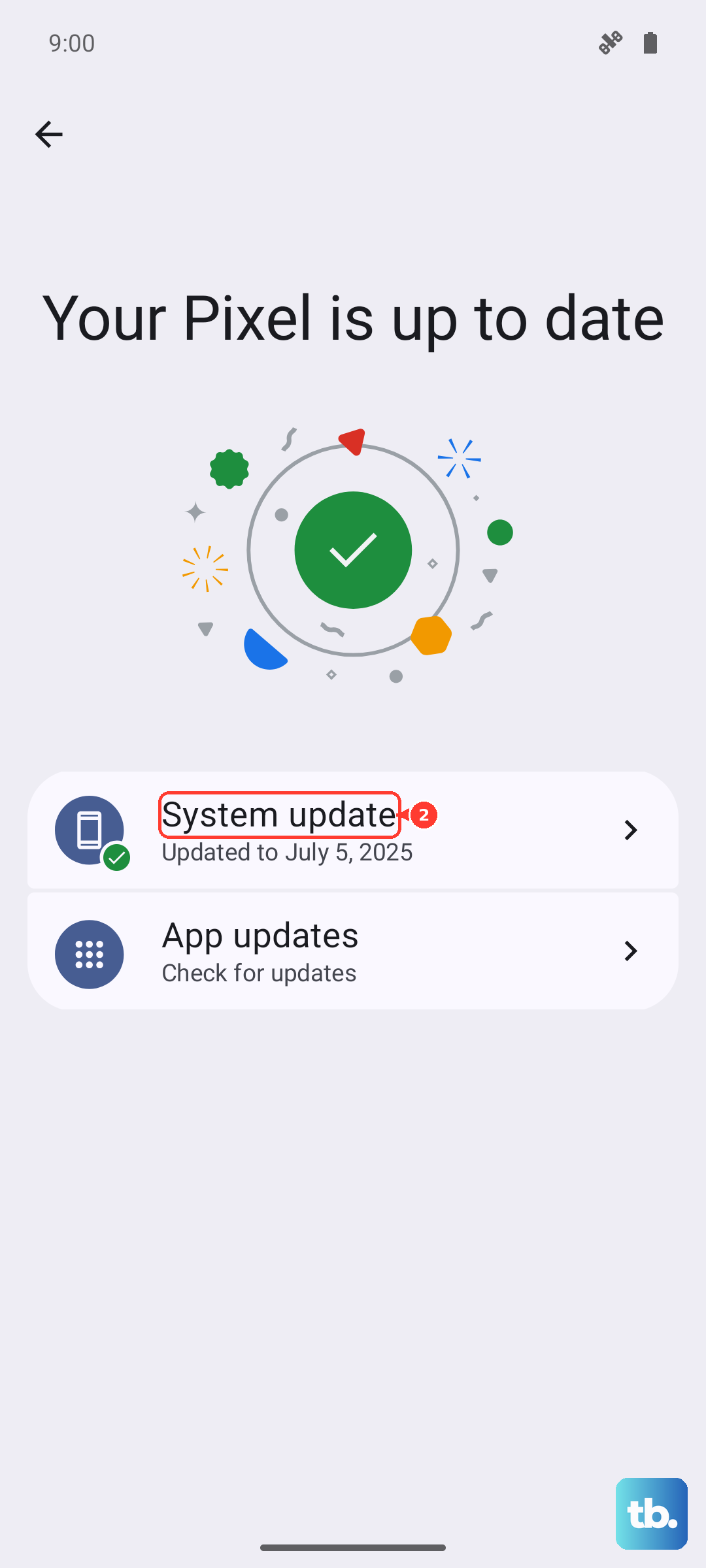
You can check for updates even if Settings is being difficult. Swipe down twice from the top of your screen to open the full Quick Settings panel. Tap the gear icon in the top right, this shortcut might still work to open Settings. From there, go to System > System update and tap "Check for update." If one is available, install it and restart your phone.
Manage Google Play Services
Google Play Services is a background app that many system functions, including parts of Settings, rely on. If it has an issue, it can cause other apps to crash unexpectedly.
First, try force stopping it. Go to Settings > Apps > Google Play Services and tap Force stop. Then, clear its cache by going into Storage & cache and selecting Clear cache. Restart your phone after doing this.
Boot in Safe Mode
This step helps you figure out if a recently downloaded third-party app is causing the conflict. Safe mode temporarily disables all apps you installed yourself.
To enter Safe Mode on your Motorola Edge 40, press and hold the power button until the power off menu appears. Then, press and hold the "Power off" option on your screen. A prompt will ask if you want to reboot to Safe Mode; tap "OK."
Once in Safe Mode (you'll see "Safe mode" in the bottom corner), try opening Settings. If it works fine here, a third-party app is the culprit. Restart your phone normally to exit Safe Mode, then try uninstalling apps you installed around the time the problem started.
Reset App Preferences
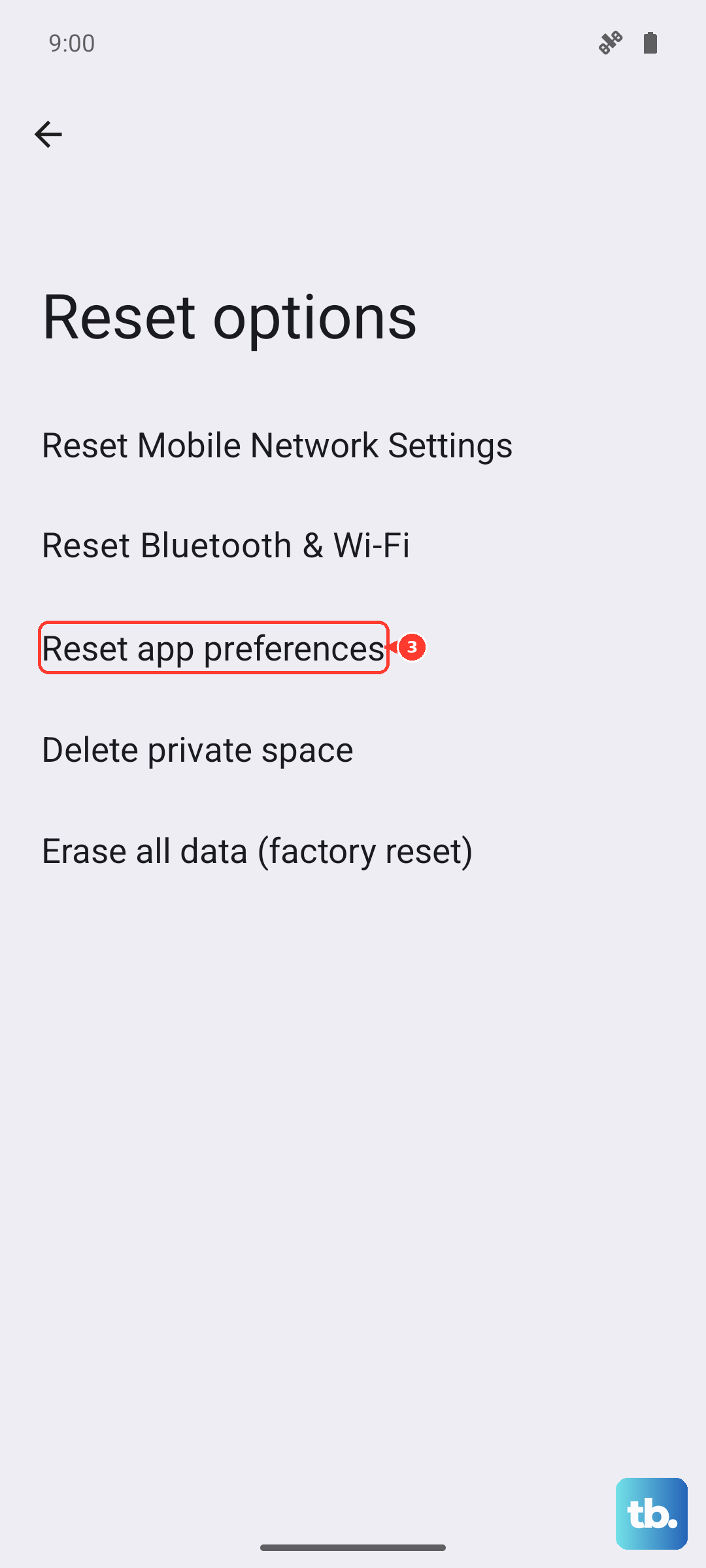
This is a useful, non-destructive reset that doesn't delete your app data. It resets all your app permissions, default apps, and background data restrictions back to their factory defaults. It can fix issues where a wrong setting is blocking a system app.
Navigate to Settings > System > Reset options. Tap on Reset app preferences and confirm. You'll then need to re-grant permissions to apps when you use them next, but it often clears up persistent system app problems.