
When your Motorola Edge 40 stops buzzing for messages or lighting up for app alerts, it can feel like you're missing out on everything. This is a common hiccup with Android, often tied to a recent update, a misbehaving app, or a simple setting that got switched off. Let's get your notifications flowing again.
The very first thing to try is a force restart. It's the digital equivalent of taking a deep breath and often clears up temporary software glitches that block notifications. Press and hold the Volume Down button and the Power button together for about 10 to 15 seconds. Keep holding until you see the Motorola logo appear, then let go and let the phone reboot normally.
Check Your Do Not Disturb and Focus Modes
It's easy to accidentally enable a mode that silences everything. Swipe down from the top of your screen twice to open the full Quick Settings panel. Look for icons labeled "Do Not Disturb" or "Focus mode." If either is highlighted or turned on, tap it to disable it. Also, open the Clock app and check for any active alarms that might have a "Silent" or "Do Not Disturb" setting enabled, as this can sometimes affect the whole system.
Review App-Specific Notification Settings
Android 15 gives you granular control over each app. If you're missing alerts from a specific app like Messages, Gmail, or WhatsApp, you need to check its individual permissions. Go to Settings > Apps > [App Name] (e.g., Messages). Tap on Notifications. Here, make sure notifications are turned on at the top. Then, review each notification category (like "Messages," "Calls," or "General") to ensure they are set to "Show notifications" and that the sound, vibration, and pop-up behavior are configured how you want them.
Ensure Background Data and Battery Optimization
To save battery, Android can restrict what apps do in the background, which can stop them from fetching new notifications. For your critical messaging and social apps, it's a good idea to adjust this. Head to Settings > Apps > [App Name] > Mobile data & Wi-Fi. Make sure "Background data" is enabled. Next, go to Settings > Battery > Battery Saver and ensure it's not currently active, as this severely limits background activity.
You can also exempt important apps from battery optimization. Go to Settings > Apps > [App Name] > Battery. If you see an option for "Optimize battery usage" or "Unrestricted," select "Unrestricted" to allow the app to run more freely in the background.
Clear the Cache for the Problem App
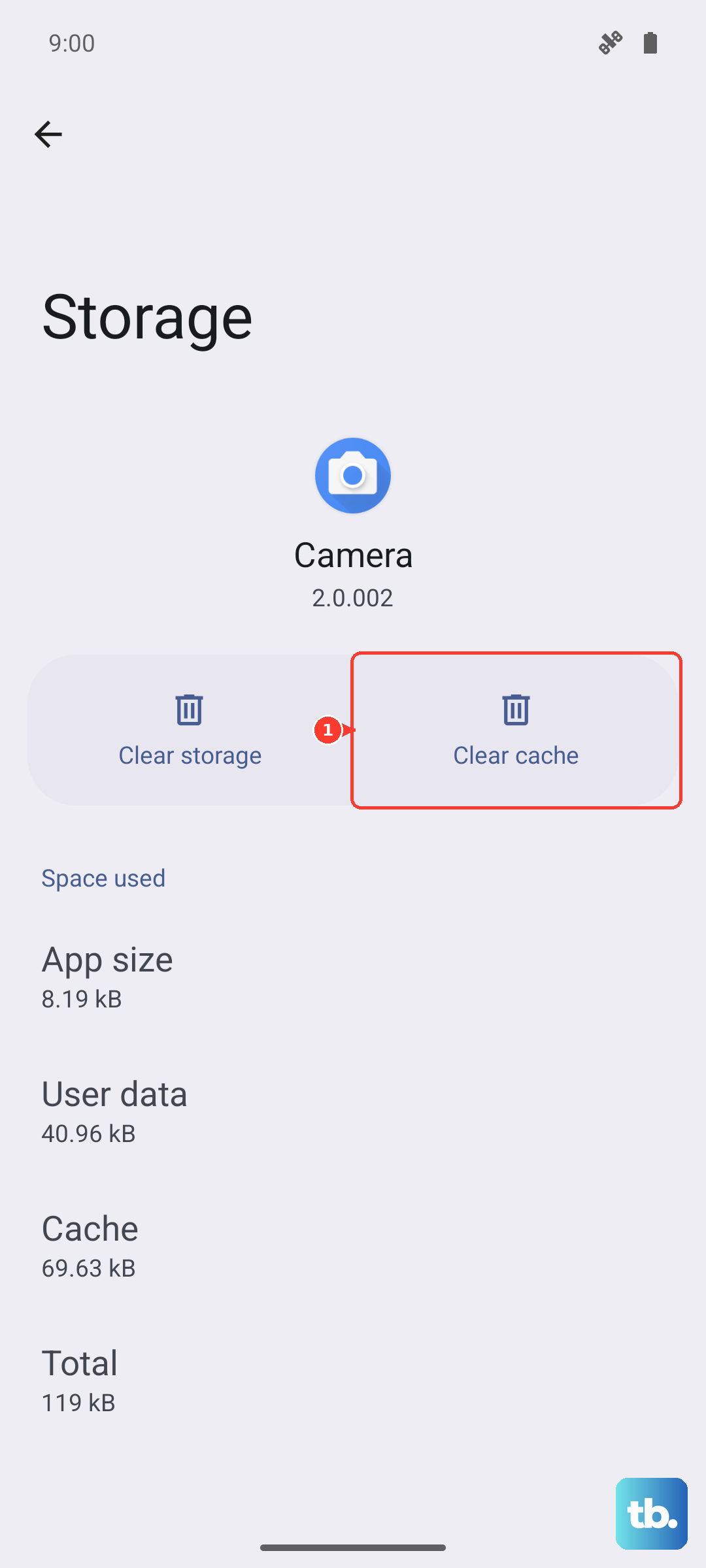
Corrupted temporary files can break an app's ability to notify you. Clearing the cache is a safe first step that doesn't delete your personal data or login info. Navigate to Settings > Apps > [App Name] > Storage & cache. Tap on "Clear cache." After doing this, force close the app by swiping it away from your recent apps overview, then reopen it. I've found this resolves weird notification issues more often than not.
Check for System Software Updates
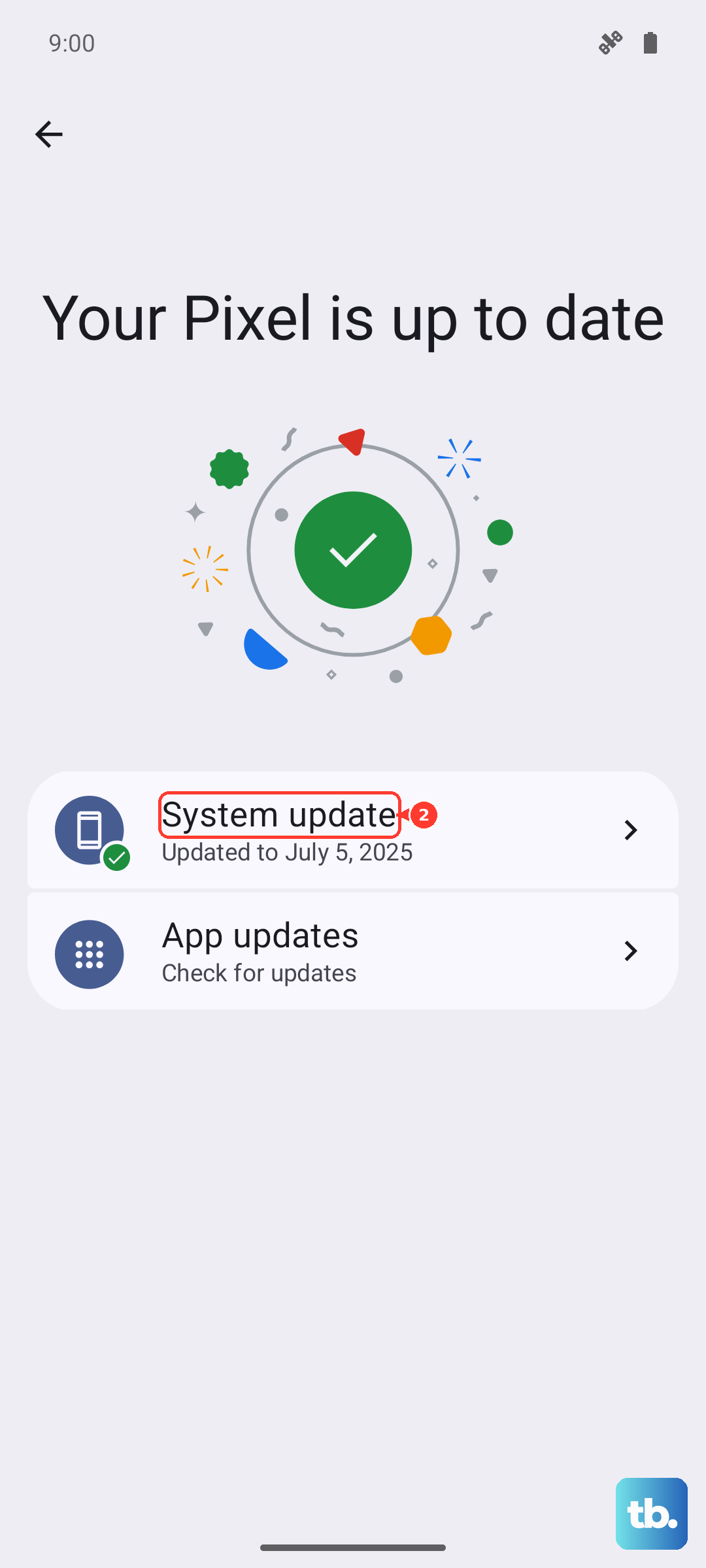
Motorola regularly releases updates that fix bugs, including ones related to notifications. It's always worth making sure you're on the latest version. Open Settings > System > System updates. Tap "Check for update." If an update is available, install it. It's best to do this while connected to Wi-Fi and with your phone plugged into its 68W charger to ensure it completes smoothly.
Reset App Preferences
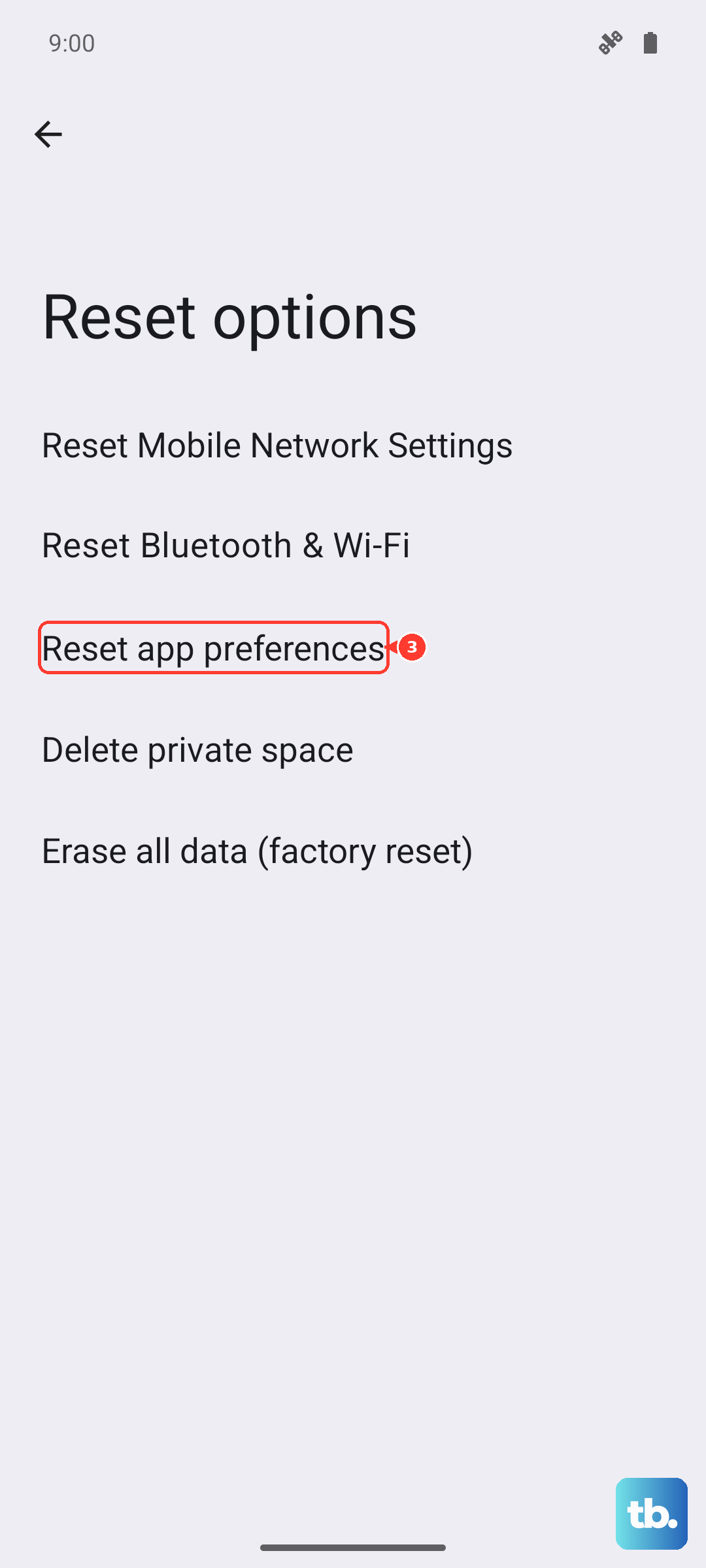
This is a broader fix that resets all your app-related permissions, notifications, and default app assignments back to their factory state. It won't delete any app data, but you will need to re-grant permissions like location or microphone when you next use an app. To do this, go to Settings > System > Reset options. Tap "Reset app preferences" and confirm. After your phone restarts, test your notifications again.
Inspect Notification History
Android has a handy log that shows notifications you might have dismissed without realizing it. This can confirm if the phone is actually receiving them silently. Go to Settings > Notifications > Notification history. Toggle it on if it's off. You can then scroll through to see if alerts from your missing apps are listed here, which would point to a settings or display issue rather than a delivery problem.
Look for Conflicting Third-Party Apps
Sometimes, an app you installed for cleaning, battery saving, or security can interfere with the normal notification system. Think about any such apps you've installed recently. Try booting your Edge 40 into Safe Mode, which temporarily disables all third-party apps. To do this, press and hold the Power button until the power menu appears, then long-press the "Power off" option until you see a prompt to reboot to Safe Mode.
If notifications work normally in Safe Mode, a downloaded app is likely the culprit. Restart to exit Safe Mode, then uninstall recently added apps one by one, testing after each, to find the offender.