
That "No SIM card" or "Emergency calls only" message on your Motorola Edge 40 can stop you in your tracks. It's usually a simple fix, though, and you can often get your connection back in a few minutes.
Start With a Quick Restart
Before you do anything else, give your phone a fresh start. Press and hold the Power button until the power menu pops up, then tap "Restart." This clears out any temporary glitches that might be confusing the SIM card reader.
If the phone is completely unresponsive, you can force a restart. Press and hold the Power button for about 15 seconds, or until the phone restarts. Keep holding them until you see the Motorola logo appear on the screen.
Check the Physical SIM Card and Tray
This is one of the most common fixes. First, power your Edge 40 off completely. Find the SIM ejector tool that came in the box (a small paperclip works in a pinch) and gently push it into the tiny hole on the SIM tray, usually on the bottom edge of the phone.
Carefully pull the tray out and take a close look at the SIM card. Check the gold contacts for any scratches, dirt, or discoloration. Give them a gentle wipe with a clean, dry microfiber cloth. Blow any dust out of the SIM tray slot on the phone itself.
When you reinsert the tray, make sure the SIM card is seated correctly and the tray slides in smoothly without force. A misaligned card is a frequent culprit for that "No SIM" error.
Toggle Airplane Mode and Verify SIM Status
Swipe down from the top of your screen twice to open the full Quick Settings panel. Tap the Airplane Mode icon to turn it on, wait about 10 seconds, then tap it again to turn it off. This forces your phone's modem to reconnect to the network from scratch.
Next, double-check that the SIM is actually enabled in your settings. Open the Settings app and go to Network & internet or Connections. Tap on SIMs and make sure the switch next to your SIM card is toggled on. If you see an option for "Preferred SIM" for calls or data, ensure it's set correctly.
Update Your Phone's Software
Software bugs in Android 15 can sometimes interfere with the modem or SIM card management. Motorola regularly releases updates that include fixes for connectivity issues. To check, go to Settings > System updates > Check for updates.
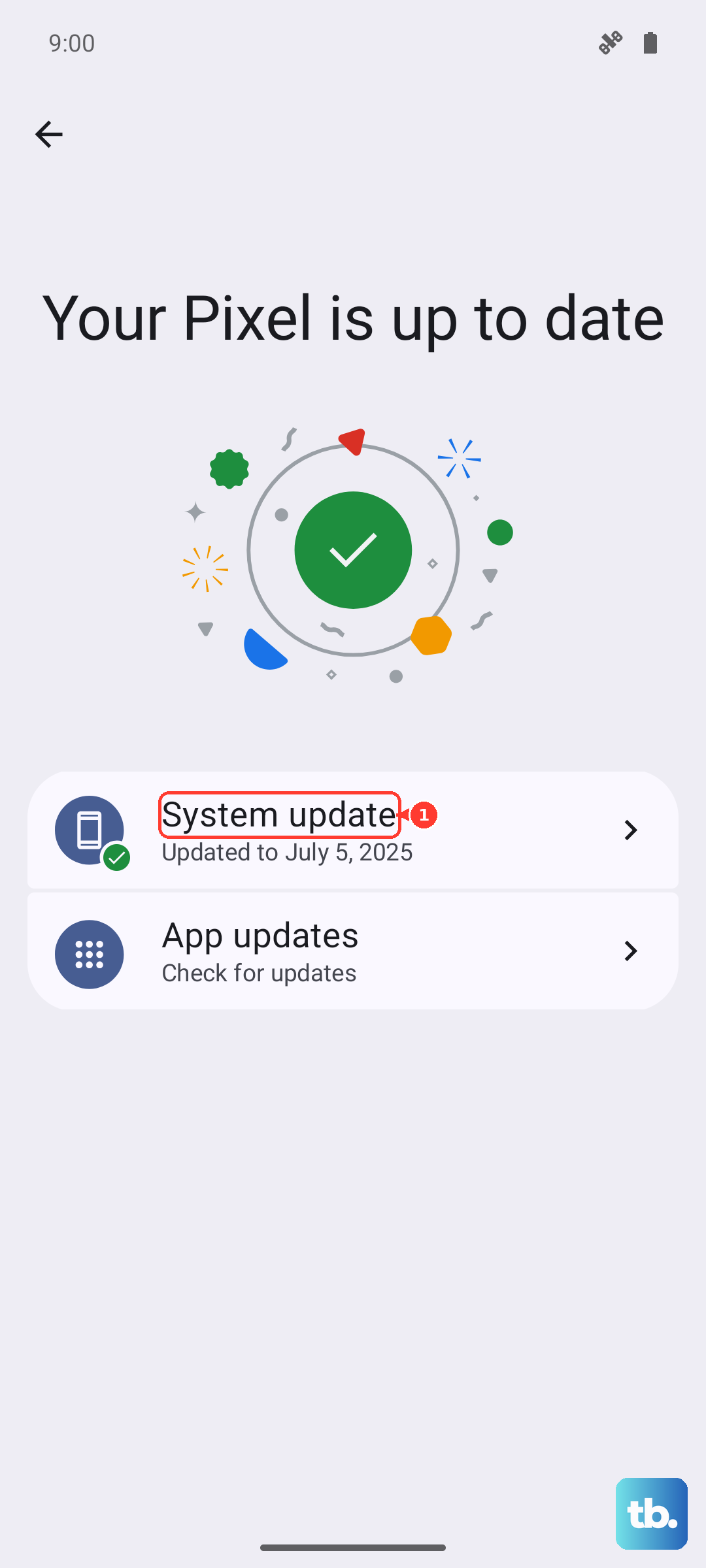
Tap "Check for update" and install anything that's available. It's a good idea to connect to Wi-Fi first, as these updates can be large. After the update installs, your phone will restart, which often clears up the problem on its own.
Reset Your Network Settings
If the issue persists, resetting your network settings can help. This clears out all saved Wi-Fi networks, Bluetooth pairings, and cellular network configurations without touching your personal photos, apps, or messages.
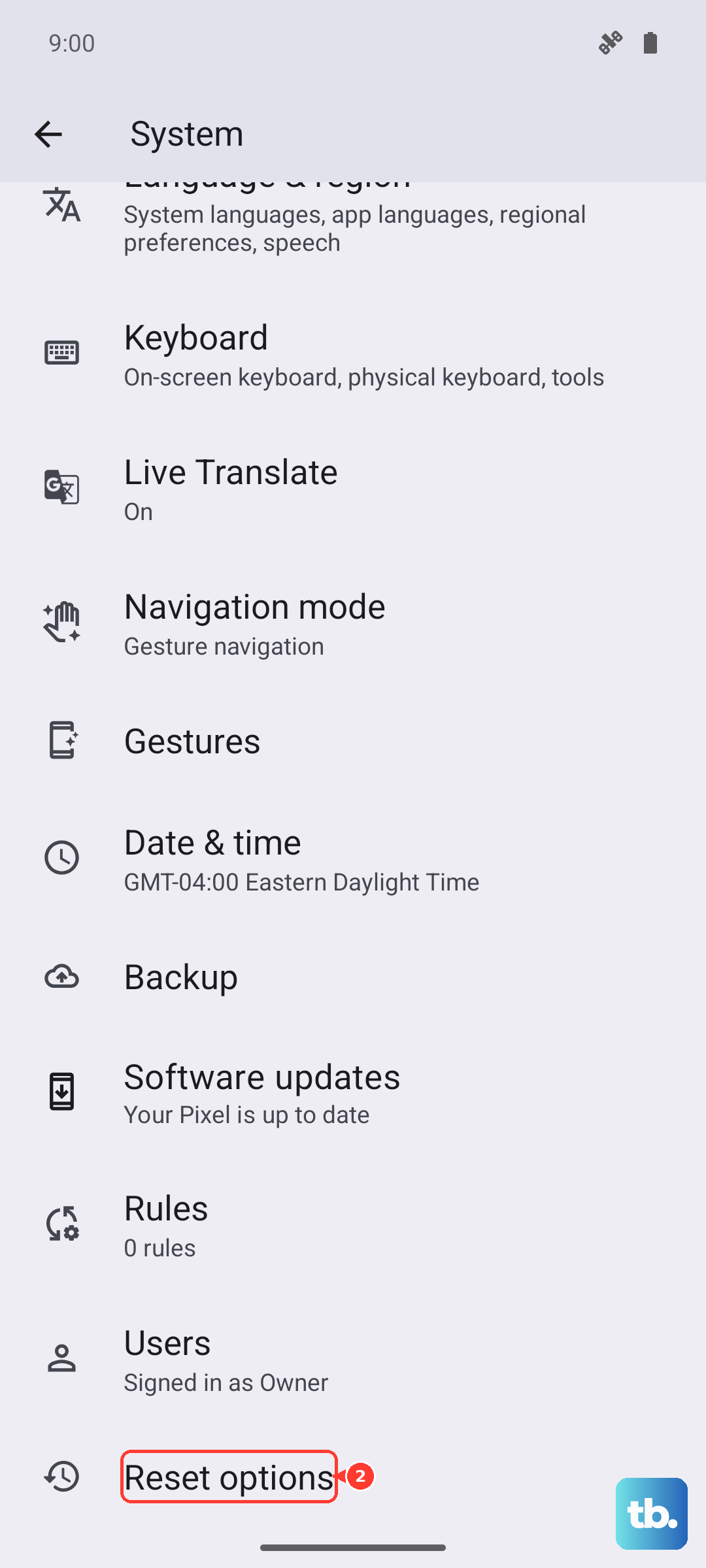
Go to Settings > System > Reset options. Tap on Reset Wi-Fi, mobile & Bluetooth and confirm. Your phone will reboot, and you'll need to reconnect to your Wi-Fi and re-pair Bluetooth devices, but it often resolves stubborn SIM card errors.
Manually Select Your Network Operator
Sometimes the automatic network selection gets stuck. You can manually tell your phone which carrier to use. Head to Settings > Network & internet > Mobile network.
Tap on Advanced and then look for Choose network or Network operators. Your phone will search for a moment. When the list appears, select your carrier's name (like Verizon, T-Mobile, or AT&T) instead of leaving it on "Automatic."
Check and Reset Your APN Settings
Incorrect Access Point Name (APN) settings will stop your mobile data from working and can sometimes cause broader SIM recognition issues. In your Settings under Network & internet > Mobile network, look for Access Point Names.
If the settings look wrong or are blank, you'll need to get the correct APN details from your carrier's website or customer service. You can usually find them by searching "[Your Carrier Name] APN settings." Enter them carefully, save the profile, and then select it as your active APN.
Test the SIM Card in Another Phone
This is the best way to figure out if the problem is with your SIM card or with the phone itself. If you have access to another unlocked phone, power it off, insert your Edge 40's SIM card, and turn it back on.
If the other phone also says "No SIM" or can't get a signal, the SIM card itself is likely faulty or deactivated. You'll need to contact your carrier for a replacement SIM. If the SIM works perfectly in the other phone, then the issue is with your Edge 40's hardware or software.
Consider Switching to an eSIM
The Motorola Edge 40 supports eSIM technology. If your physical SIM card seems problematic or the tray feels loose, moving to a digital eSIM can be a permanent solution. Contact your carrier's support and ask if they support eSIM activation.
They can guide you through scanning a QR code or entering details manually in your phone's settings under Network & internet > SIMs > Add eSIM. This completely bypasses the physical SIM tray and reader.
Perform a Factory Reset
This is a last resort for software-related issues. A factory reset will erase all data on your phone, so you must back up everything important first. Use Google Drive for your photos and files, and make sure your app data is syncing.
Once backed up, go to Settings > System > Reset options. Select Erase all data (factory reset) and follow the prompts. After the reset, set up your phone as new and test the SIM card before restoring your backup, just to isolate the problem.