
Seeing "No Service" on your Motorola Edge 40 is a real headache, especially when you need to make a call or use mobile data. It means your phone can't find or connect to your carrier's cellular network. The good news is this is usually a temporary glitch you can fix yourself.
I'd start with the simplest fix, which often works right away.
Restart Your Phone and Check Airplane Mode
First, give your Edge 40 a quick restart. This clears out any temporary software bugs that might be blocking the cellular radio. Just hold the power button and tap 'Restart'. While you're at it, swipe down from the top of the screen twice to open the full Quick Settings panel and make sure the Airplane Mode icon isn't highlighted. If it is, tap it to turn it off.
Sometimes the phone gets stuck. If a normal restart doesn't help, try a force restart. Press and hold the Power button for about 15 seconds, or until the phone restarts. Let go when you see the Motorola logo appear on the screen.
Reinsert Your SIM Card
A loose or dirty SIM card is a common culprit for the "No Service" message. The SIM tray on the Edge 40 is on the bottom edge. Use the ejector tool that came with the phone (or a small paperclip) to pop the tray out.
Carefully remove the SIM card, give the gold contacts a gentle wipe with a soft, dry cloth, and then reseat it firmly in the tray. Make sure it's lying completely flat. Push the tray back in until it clicks. Wait a minute for the phone to search for the network again.
Check for a Carrier Service Outage
Before you dig deeper into your phone's settings, it's worth checking if the problem is on your carrier's end. Service outages can happen due to maintenance or technical issues in your area.
You can quickly check your carrier's official website or their social media accounts for any service alerts. If you have access to another phone on a different network or a Wi-Fi connection, that's the easiest way to see if the issue is widespread.
Manually Select Your Network Operator
Your phone usually picks the best network automatically, but sometimes it can get confused, especially if you're near a border or in an area with spotty coverage. You can force it to reconnect properly. Go to Settings > Network & internet > SIMs (labeled SIMs & mobile network on Motorola phones).
Tap on Advanced and then look for Choose network or Network operators. The phone will search for available networks. Select your specific carrier from the list instead of leaving it on "Automatic."
Verify Your Mobile Data and Roaming Settings
Open your Settings and go to Network & internet. Tap on Mobile network and ensure that the Mobile data toggle is switched on. Right below that, you'll find the Data roaming option.
If you're traveling outside your carrier's primary coverage area, you may need to enable Data Roaming to get service. Just be aware that this can sometimes lead to extra charges, so check with your carrier first if you're unsure.
Update Your Access Point Name (APN) Settings
The APN is like the gateway that lets your phone access your carrier's internet. If these settings are wrong or got corrupted, you'll lose data and sometimes voice service. In your Settings, go to Network & internet > Mobile network > Access Point Names.
You should see a list of APNs. If there's one for your carrier, make sure it's selected (there will be a filled-in circle next to it). If the list is empty or looks wrong, you'll need to enter the correct settings. The best way to get these is to contact your carrier's customer support directly or visit their website's support section.
Reset Your Phone's Network Settings
This is a more thorough step that resets all your network-related configurations back to factory defaults. It will erase your saved Wi-Fi networks, Bluetooth pairings, and any custom APN settings, but it won't touch your personal photos, messages, or apps.
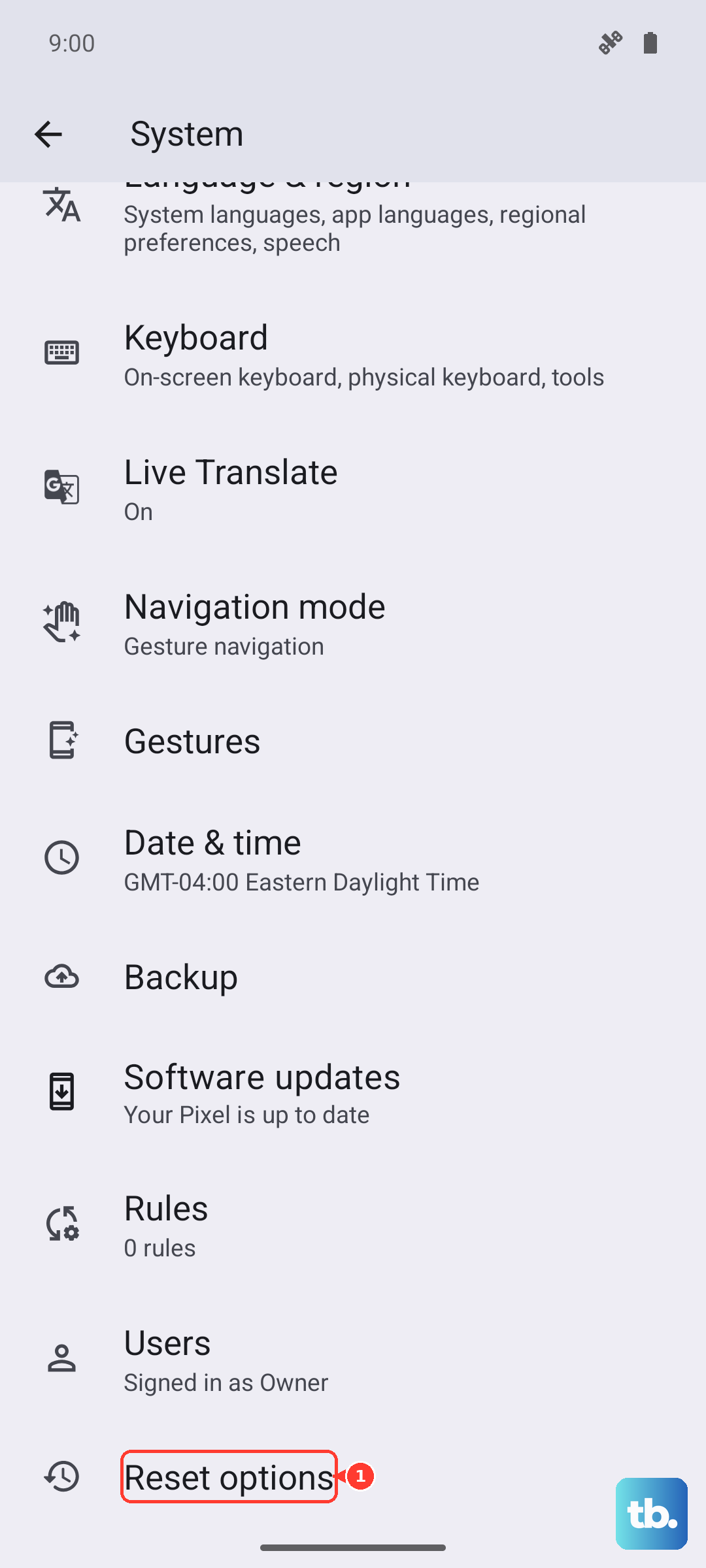
To do this, go to Settings > System > Reset options. Tap on Reset Wi-Fi, mobile & Bluetooth and confirm. After the phone reboots, you'll need to reconnect to Wi-Fi and re-pair your Bluetooth devices, but it often clears up persistent network bugs.
Check for a Software Update
Motorola regularly releases software updates that can include fixes for connectivity issues. Running an old version of Android 15 could be the root of the problem. Connect to a Wi-Fi network, then go to Settings > System > System updates.
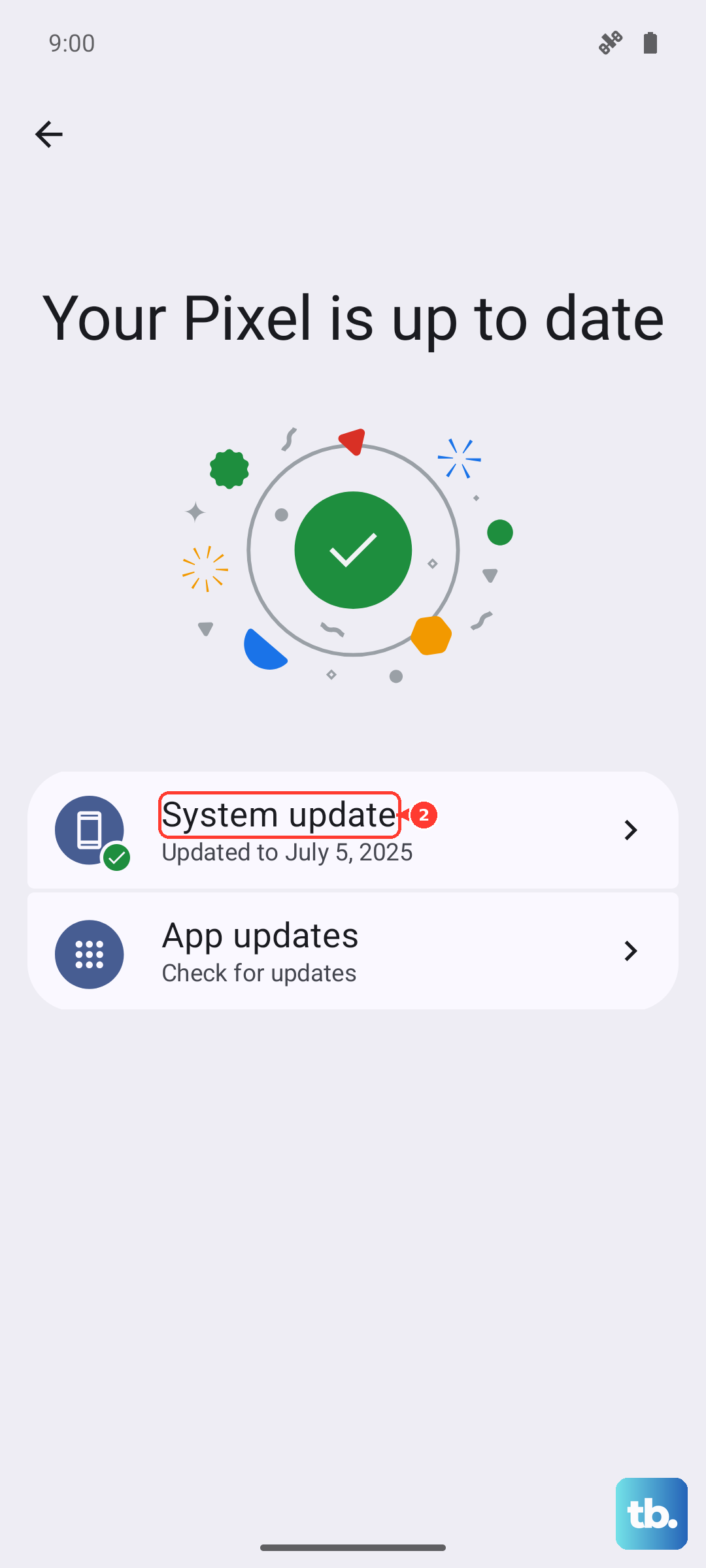
Tap Check for update. If an update is available, download and install it. The phone will restart during this process. I've seen updates resolve specific radio firmware problems that cause the "No Service" error.
Use the Phone Information Menu
Android has a built-in diagnostic menu that lets you check the status of your cellular radio. Open your Phone dialer app and type *#*#4636#*#*. This should open the "Testing" menu. Tap on Phone information.
On this screen, you can see the state of your radio. Ensure your phone is set to the right network type (like "LTE/GSM/WCDMA" for automatic). You can also try toggling the Mobile Radio Power off and back on, or tapping Run Ping Test to check connectivity. Don't change settings here unless you know what they do.
Test with a Different SIM Card
This step helps you figure out if the problem is with your SIM card or your phone's hardware. If you can borrow a SIM card from a friend or family member (on a different carrier if possible), pop it into your Motorola Edge 40.
If the new SIM card gets service immediately, then your original SIM is likely the issue. Contact your carrier. They can check if the SIM is deactivated or damaged and will usually send you a replacement for free. If the new SIM also shows "No Service," the problem may be with the phone itself.