
If your Motorola Edge 40 is stuck with a photo or video that won't send, it's almost always a quick setting or connection hiccup. I'd start by checking the most common culprit right away.
Make sure your mobile data is switched on. MMS messages, which include pictures, videos, and group chats, can't send over Wi-Fi alone. They need an active cellular data connection. Swipe down from the top of your screen twice to open the Quick Settings panel and tap the mobile data icon to enable it.
If you have a strong signal but the message is still stuck, try turning on Airplane mode for about 10 seconds and then turning it off. This forces your phone to reconnect to the network and can clear up a temporary glitch.
Verify Your MMS App Settings
Open the Messages app on your Edge 40 and tap the three-dot menu in the top right corner. Go to Settings > Advanced. Here, you'll find the multimedia message options.
Ensure that "Auto-download MMS" is enabled. If you're traveling, you might also want to toggle on "Auto-download MMS when roaming," but be mindful of potential data charges. Sometimes, a message gets stuck because the phone is waiting for a Wi-Fi connection to download a necessary part of the conversation.
Clear the Messaging App's Cache
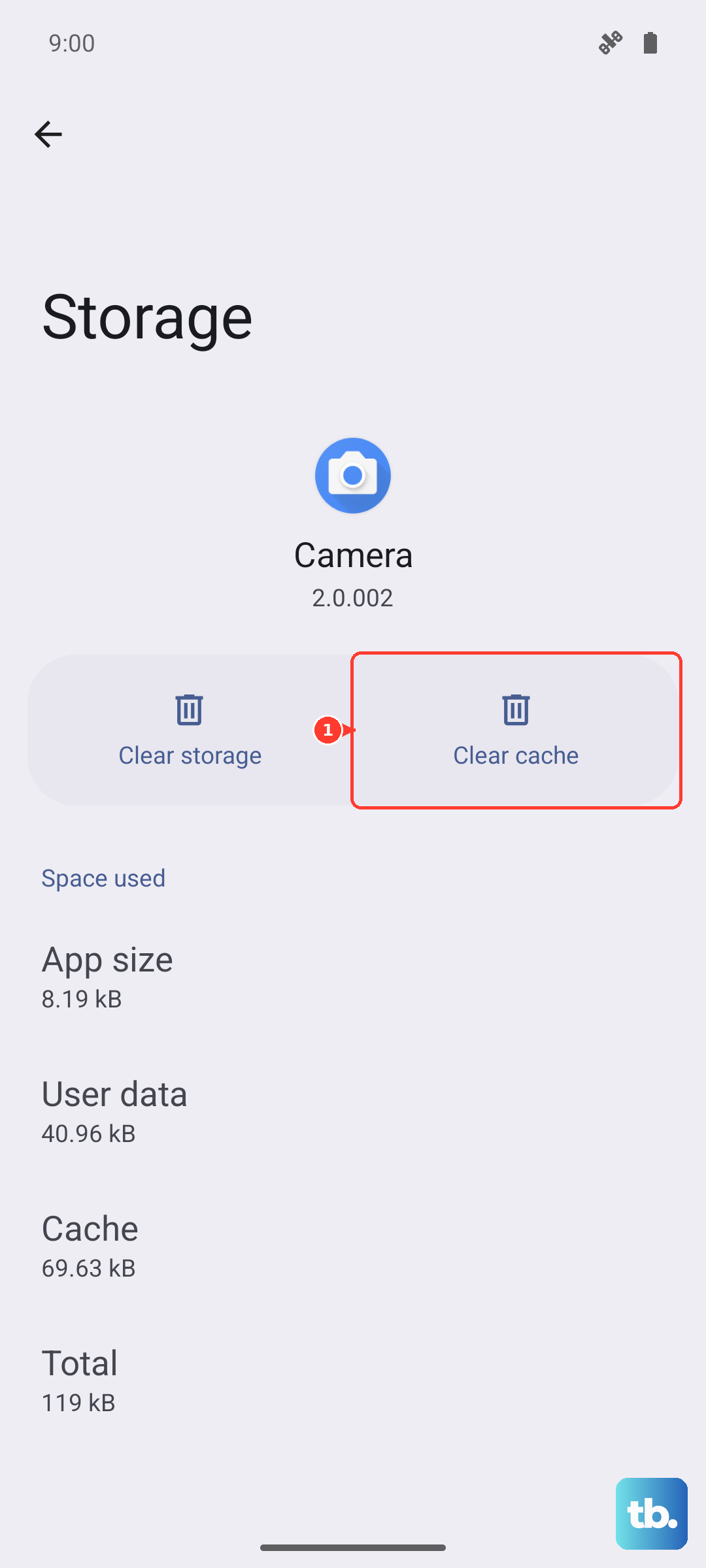
Corrupted temporary files can cause all sorts of app weirdness. Clearing the cache is a safe first step that won't delete your messages. Go to your phone's Settings and select Apps.
Find and tap on Messages. Then, select Storage & cache. Tap Clear cache. After doing this, try sending your MMS again. If the problem persists, you can go back and choose Clear storage or Clear data, but be aware this will erase your text message history within the app.
Check Your APN Configuration
Incorrect Access Point Name (APN) settings are a very common root cause for MMS failures. These settings tell your phone exactly how to connect to your carrier's multimedia service. The path on your Motorola Edge 40 is Settings > Network & internet > Mobile network > Advanced > Access Point Names.
You should see a list of APNs, with one selected (usually your carrier's name). Tap on it to view the details. Don't change anything unless you're sure, but you can note the settings. The most critical fields for MMS are often labeled "MMSC," "MMS proxy," and "MMS port." If these are blank or look wrong, the best move is to contact your carrier's support. They can give you the exact, up-to-date APN settings to enter or may even push them to your phone automatically.
Perform a Network Settings Reset
This is a more thorough step that clears all your network-related configurations without touching your personal data. It will erase saved Wi-Fi networks, Bluetooth pairings, and cellular settings, so you'll have to reconnect to Wi-Fi afterward. On your Edge 40, navigate to Settings > System > Reset options.
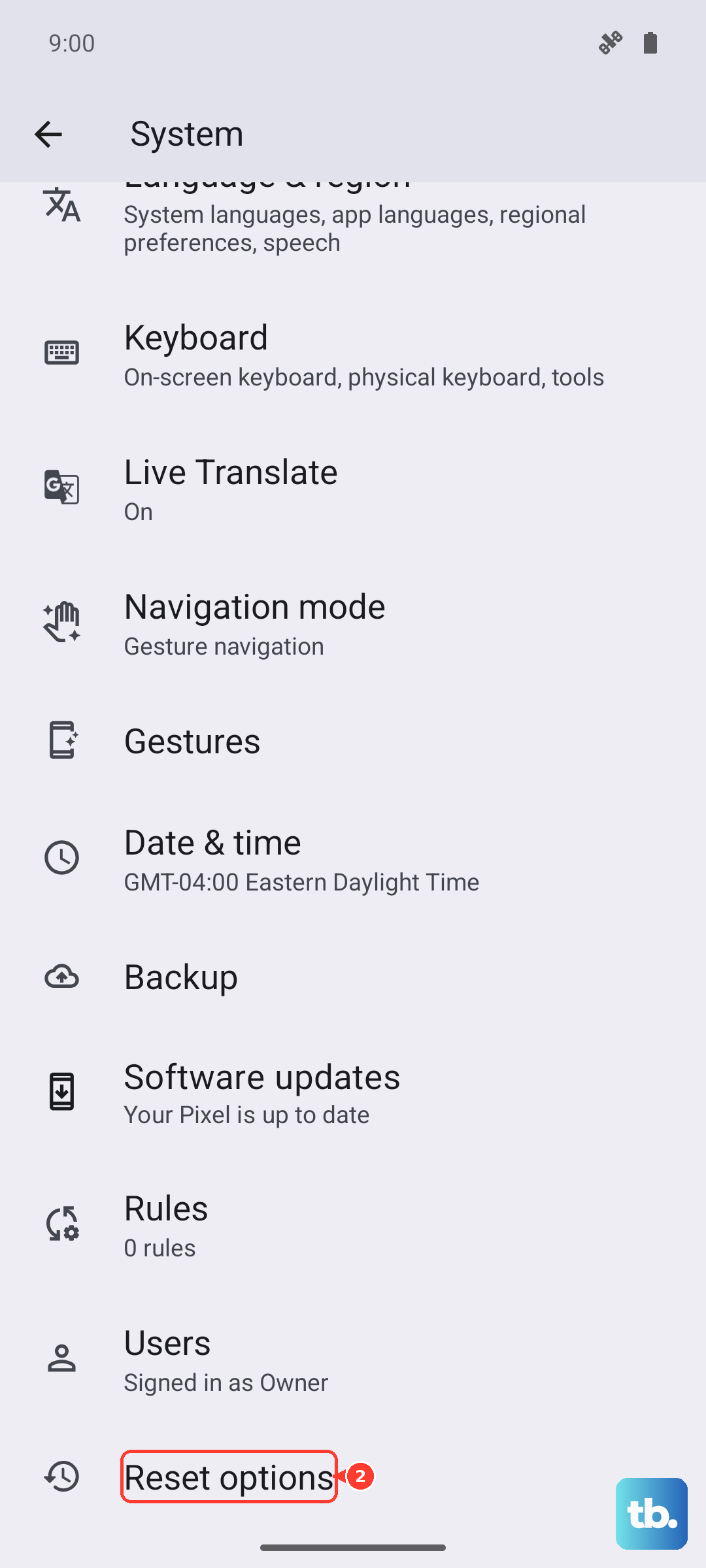
Tap on Reset Wi-Fi, mobile & Bluetooth. Confirm the reset and let your phone restart. Once it's back on, reconnect to your mobile network and Wi-Fi, then test an MMS. This often resolves deeper configuration conflicts that simpler resets don't touch.
Ensure You Have Enough Storage Space
Your phone needs a bit of free space to process and send multimedia messages. If your internal storage is completely full, it can fail silently. Go to Settings > Storage to check your available space.
Try to free up at least a few hundred megabytes if you're running low. You can clear app caches, delete old downloads, or offload some photos to the cloud. After freeing up space, attempt to send the MMS again.
Update Your Phone's Software
Software bugs can interfere with network services, and carriers often release fixes within system updates. Make sure your Motorola Edge 40 is running the latest available version of Android. Go to Settings > System > System update.
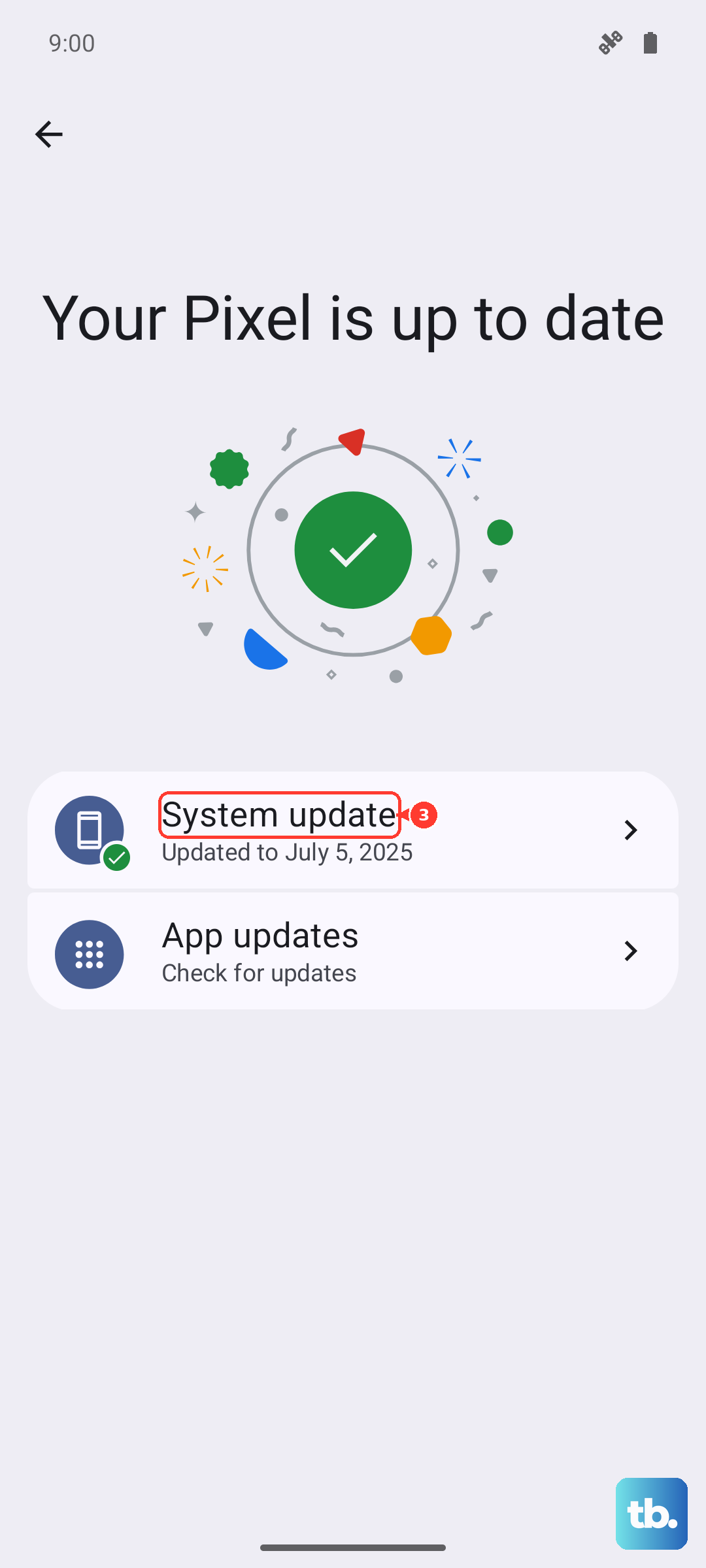
Tap "Check for update." If an update is available, download and install it. It's a good idea to be connected to Wi-Fi and have your phone charged above 50% before starting. After the update completes, restart your phone and test the MMS function.
Try Google Messages as an Alternative App
Sometimes the issue is specific to the default messaging app. Installing Google Messages from the Play Store is a great diagnostic step. It's the app Motorola often partners with and supports RCS chat features well.
After installing it, open Google Messages. It will likely prompt you to set it as the default messaging app. Go with it. Once set as default, try sending your MMS. If it works, you've found a workaround. You can stick with Google Messages or use its success to help troubleshoot the original app further.
Contact Your Mobile Carrier
If you've tried everything on the phone itself, the issue might be on your account or with the carrier's service. Give your carrier's customer support a call. They can check if there are any outages in your area, verify that MMS is enabled on your line, and resend the provisioning signals to your phone.
They can also confirm the perfect APN settings for your specific plan and phone model. It's worth asking if they've made any recent network changes that could affect older message configurations.