
If your Motorola Edge 40's fingerprint sensor suddenly stops responding, it can lock you out of your phone and apps. This is a common hiccup, but it's usually something you can fix yourself without too much trouble.
Clean the Sensor and Your Finger
Start with the simplest fix. The under-display optical sensor on the Edge 40 needs a clear view of your fingerprint. Gently wipe the screen over the sensor area (usually near the bottom third) with a soft, dry microfiber cloth.
Any smudges, grease, or moisture can block the sensor's light. Make sure your own finger is clean and dry, too. I've seen this solve the problem more often than not.
Restart Your Phone
A quick reboot can clear out temporary software glitches that might be confusing the sensor. Just press and hold the power button, then tap 'Restart'.
If your screen is unresponsive, you can force a restart. Press and hold the Volume Down button and the Power button together for about 10 to 15 seconds until you see the Motorola logo.
Re-register Your Fingerprint
If a simple clean and restart doesn't do it, the next step is to delete your old fingerprint and set it up again. Go to Settings > Security & privacy > Device unlock > Fingerprint.
You'll need to enter your PIN, password, or pattern. Find the fingerprint giving you trouble, tap on it, and select 'Remove'. Now, tap 'Add fingerprint' and follow the prompts carefully.
Press your finger down lightly and lift it slightly between scans, letting the phone guide you. Try to register the same finger twice under different names for better coverage.
Check for Software Updates
Motorola frequently releases updates that include optimizations for hardware like the fingerprint sensor. An outdated system can sometimes cause these features to act up.
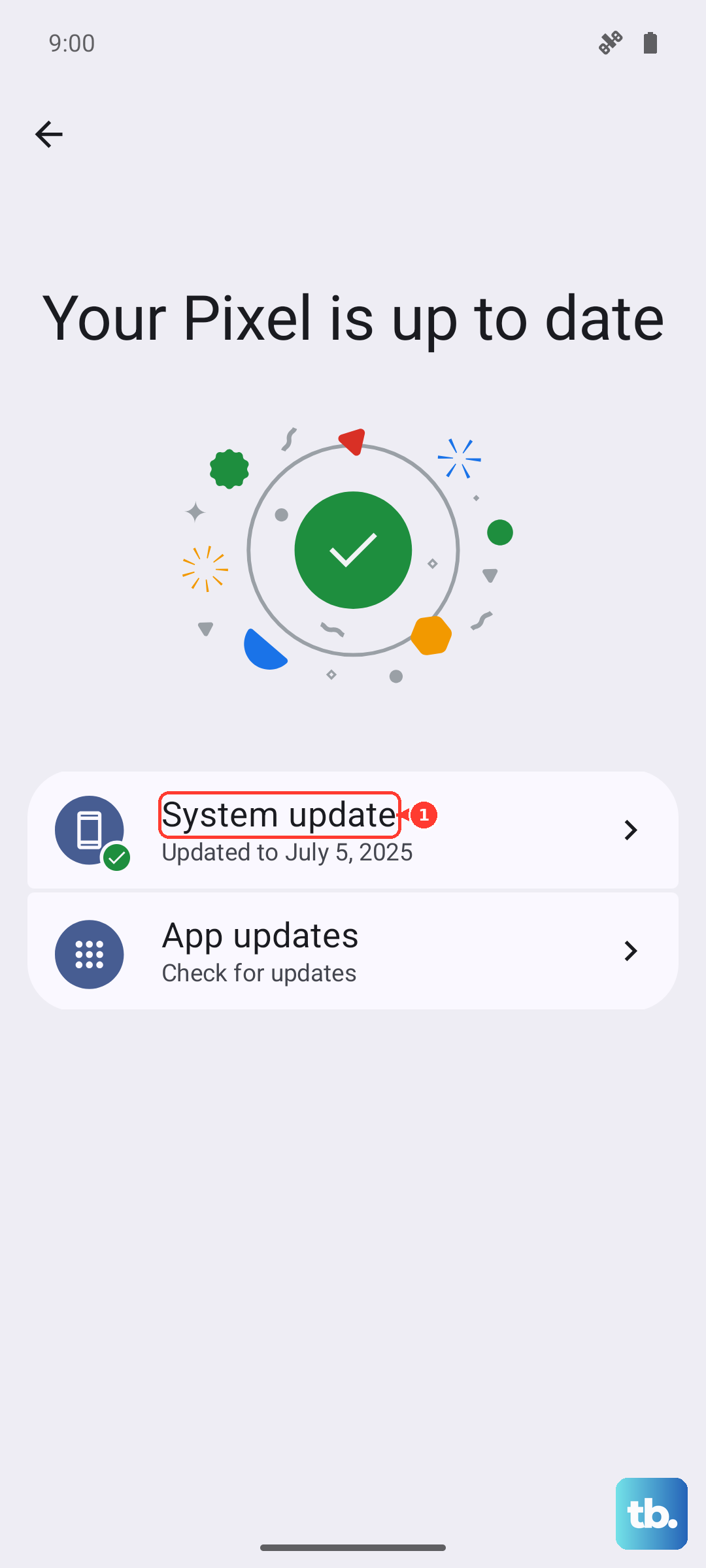
Head to Settings > System > System updates and tap 'Check for update'. If one is available, install it. It's a good idea to plug your phone in or make sure it has plenty of battery before starting.
Inspect Your Screen Protector
This is a big one for under-display sensors. A thick, low-quality, or poorly aligned screen protector can scatter the sensor's light and prevent it from reading your print.
Try removing the protector temporarily to see if the sensor starts working. If it does, you'll need a replacement. Look for ones marketed as "fingerprint sensor compatible" or "designed for under-display scanners." Some brands even have a special mode you can enable in settings after application.
Clear the System Cache Partition
Corrupted temporary system files can interfere with all sorts of functions, including biometrics. Clearing this cache won't delete your personal data like photos or messages.
First, power your Edge 40 off completely. Then, press and hold the Volume Down button and the Power button together. When you see the Motorola logo, release the Power button but keep holding Volume Down for another second, then release it.
You should now be in recovery mode. Use the volume buttons to scroll to 'Recovery mode' and press the power button to select it. When you see the Android robot with 'No command', press and hold the power button, then tap the volume up button once and release both.
Use the volume buttons to highlight 'Wipe cache partition' and select it with the power button. Confirm, and when it's done, select 'Reboot system now'.
Review Your Security Settings
Some security features can affect how the fingerprint sensor operates. Go back to Settings > Security & privacy.
Check if 'Lockdown mode' was accidentally activated (this disables all biometrics). Also, ensure that 'Fingerprint' is still enabled as an unlock method under your screen lock settings. It's possible a recent app or setting change inadvertently toggled it off.
Consider Your Environment
Extremely dry or wet fingers can be hard for any sensor to read. If your hands are very dry, try moisturizing. If they're wet or sweaty, dry them thoroughly.
Also, the sensor uses light, so very bright direct sunlight shining on the exact spot can sometimes cause issues. Try shading the screen with your hand or moving into different lighting.